Important Topics
Item Transfer
Storage Without Load Carrier
- A3.3: Storing to Storage Places Without Load Carrier
- A4.3: Picking from Storage Places Without Load Carrier
- A2: SU Transport to Storage Places Without SU
- Move Job Creation: No Prompt for Inventories Without Load Carrier
- Move Job: "SU Was Dissolved" Message Only Shown for Actual Dissolution
- Move Job to Storage Place Without SU: Rollback on Posting Error
- Storage Without SU: Confirmation Message Optimized for MDE
- Storage Place Without Storage Unit: Stock Entries With Lot and Expiration Date Are Correctly Merged
Warehouse Shipment
- Warehouse Shipment: Split by Shipping Agent and/or Planned Shipment Date
- Warehouse Shipment: Creation from Source Document Split by Planned Shipment Date
- WHS Automation: Split by Planned Shipment Date
- WHS Automation: Control Variable on Customer and Vendor
- Create WHS and Reservations per Item: Stocktaking Reservations Considered in Availability Check
Rack Compartments
- Rack Compartments: Number of Unit Assignments Shows Actual Load Carrier Count
- Rack Compartments: Rack Compartment Occupation Correctly Set to Full
Picking & ProGlove
- A4.3: Revalidation on Partial Pick - Setup via SWMS Team
- ProGlove MAI: A4.3 Shows SU Validation Status
Amazon Label
- Amazon PTU Label
- GS1 Amazon SSCC Label: Alignment with Amazon Requirements
- GS1 Amazon SSCC Label: Printing Logic for Lot and BBD
Setup
Wichtig
Action required for the following topics:
- Zebra Enterprise Browser: Device Licensing – A license must be activated per device
- A4.3: Revalidation on Partial Pick – Default behavior has changed; previous behavior must be re-enabled via SWMS Team if needed
- ProGlove A4: Enable in Mobile Setup – ProGlove communication must be enabled in Mobile Setup
Zebra Enterprise Browser & ProGlove
- Zebra Enterprise Browser: Device Licensing
- Zebra Enterprise Browser: Setup via Intune and OEMConfig
- ProGlove: Rollout Configuration via Intune
- ProGlove A4: Functions Can Be Disabled via Mobile Setup
MDE & Mobile
- SWMS Mobile Setup Wizard: Device Model List Integrated
- Mobile Help Pages: Entries Without Location Apply to All Warehouses
Storage Place Card & Storage Places
- Storage Place Card: Field Reorganization with Section Headers
- Rack Compartments: More Precise Error Message for Mismatched Level Code
- Process Storage Places: Change Rack Bay Type and Rack Compartment Type
Picking & Warehouse Shipment
- A4.3: Revalidation on Partial Pick - Setup via SWMS Team
- A4.3: Picking from Storage Places Without Load Carrier
- WHS Automation: Control Variable on Customer and Vendor
- ShipXpert Cloud: Tooltips in Setup
- Stocktaking: Adjusted Barcode Size on Counting List
Item Transfer
Amazon Label
Features
General
SWMS Stock Entries: Display of Base Unit of Measure - Item 134152
The SWMS Stock Entries page now displays the Base Unit of Measure field. It shows the base unit of measure of the item with which the quantity was moved. This is particularly useful in warehouses that work with alternate units of measure, making it easy to trace stock movements.
Find Entries: SIEVERS WMS Stock Documents in Item Reference Search - Item 138354
The standard Business Central Find Entries function, which allows via Search for item references cross-document searches for lot and serial numbers, has been extended to include SIEVERS WMS stock documents. In addition to the standard BC entries, the following WMS stock document lines are now shown in the search results when linked to the searched lot or serial number:
- Inbound Stock Post Line
- Outbound Stock Post Line
- Inventory Line
- Transfer Line
- Posted. Stock Document Line
Clicking on an entry in the page opens the corresponding list filtered to the relevant records, analogous to the standard behavior.
SWMS Mobile Setup Wizard: Device Model List Integrated - Item 128095
The Device Model List is now directly accessible as an action from the Mobile Setup and the Mobile Setup Wizard. For this purpose, it has been moved to the SIEVERS Mobile App, where device models are managed centrally for all users.
Zebra Enterprise Browser & ProGlove
Zebra Enterprise Browser: Device Licensing - Item 136809
A separate license is required for each device running the Zebra Enterprise Browser. Activation is done using the Zebra License Manager app on the device with the Badge ID from the Zebra licensing portal. The process is described in the setup documentation.
Wichtig
Action required: Each device running Zebra Enterprise Browser requires a separate license. Licenses must be obtained from the Zebra licensing portal and activated on each device using the Zebra License Manager app.
Zebra Enterprise Browser: Setup via Intune and OEMConfig - Item 136791
The Zebra Enterprise Browser can now be configured and distributed to devices via Microsoft Intune using OEMConfig, as an alternative to StageNow barcodes. This enables centralized management without physical device access, including updating the configured Business Central system address. For more information, see the setup documentation.
ProGlove: Rollout Configuration via Intune - Item 136752
The ProGlove MAI setup (Insight Mobile App and Zebra Enterprise Browser configuration for MAI operation) can now be distributed to Zebra devices via Intune. This eliminates the need to scan configuration barcodes manually on each device. For more information, see the ProGlove MAI Setup.
ProGlove MAI: A4.3 Shows SU Validation Status - Item 136810
During picking (A4.3), the ProGlove smartwatch now clearly indicates whether the storage unit (SU) has already been successfully scanned and validated:
- Not yet validated: The SCAN SU field is displayed in yellow as a warning. The Confirm button is hidden.
- Successfully validated: The SCAN SU field switches to green. The Confirm button appears and the posting can be completed.
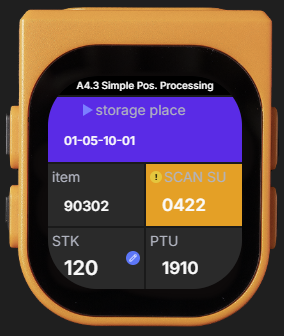
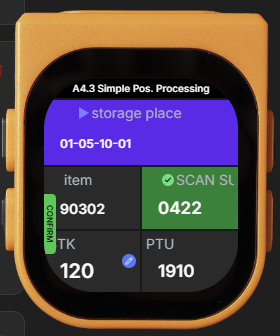
Pickers can see at a glance whether the SU still needs to be scanned or whether the next step is to enter the quantity and confirm.
ProGlove MAI: Generic Notification for Dialogs and Unsupported Forms - Item 137633
When a dialog appears on the MDE during picking, or when the process switches to a form without MAI support (e.g., A4.1, A4.2, return storage, or serial picking), the ProGlove watch automatically displays the message "CONTINUE ON MOBILE DEVICE". This immediately informs the operator to continue on the mobile device and confirm the dialog there.
The message disappears automatically once the dialog is confirmed on the MDE and A4.3's regular picking view is shown again. No interaction on the ProGlove watch is required.
Inbound Stock Post
A3.3: Storing to Storage Places Without Load Carrier - Item 132089
In the mobile function A3.3 (put-to), it is now possible to scan a target storage place directly, provided that storage place has the Storage without SU flag set. Previously, only a load carrier or blanco barcode could be scanned at this step. The task label is updated accordingly: Scan Target SP, LC or Blanco.
Inventories can thus be stored directly on such storage places without a load carrier. The following rules apply:
- Order-related inventories cannot be posted to a storage place without a load carrier. The message displayed is: Order-related inv. not allowed on SP without LC.
- If the Storage without SU flag is not set on the storage place and no transfer location is configured, the error Allocation not permitted without LC is displayed.
Hinweis
The Storage without SU flag on storage places and the general storage-without-SU functionality were introduced in Sprint 61.
A3.3: Improved User Guidance for Put-To Function - Item 138541
The mobile function A3.3 (put-to) for storage places without SU has been improved in terms of display and workflow:
- Scanned SP code remains visible: After scanning a target storage place, the scanned value remains in the input field with full text selection. The task prompt switches to Select/Scan Inventory - analogous to A3.2.
- Alternative scan sequence: If the user selects an inventory and confirms the quantity without having scanned a target first, no error is shown. Instead, the input field is marked red, focus is set on the scan field, and the task prompts for Scan Target SP, LC or Blanco. After scanning the target, the posting is completed automatically - the inventory and quantity do not need to be re-entered.
Rack Compartments & Rack Bays
Rack Compartments: Number of Unit Assignments Shows Actual Load Carrier Count - Item 137200
The field Number of Unit Assignments in the storage place list now shows the actual number of load carriers currently in the assigned rack compartment. If no rack compartment codes are assigned to the storage places, the field is empty.
Rack Compartments: Rack Compartment Occupation Correctly Set to Full - Item 137201
A rack compartment is now automatically marked as Full when Current Max. Units is less than or equal to Number of Unit Assignments. The Rack Compartment Occupation on all assigned storage places is set to Full (Units) accordingly.
Storage Place Card: Field Reorganization with Section Headers - Item 136985
The SWMS Storage Place Card has been restructured with section headers under each tab for improved clarity. Fields are now grouped thematically:
- General (tab): Divided into the sections General (location code, description, storage place type, rack and level codes), Storage Place Topology (warehouse and shelf codes, area, zone, ABC code), Blocking and Visibility, and Function (stocktaking, transfer location/storage place).
- Dimensions and Load Capacities (tab): Divided into Storage Place (category, dimensions, weight, volume), Rack Compartment, and Rack Bay.
- Occupancy (tab): Divided into Storage Place Occupancy, Rack Compartment Occupancy, and Individual Occupancy Details.
The fields Rack Bay Code and Rack Compartment Code are now directly visible in the General tab.
Storage Place Card: "Storage without Storage Unit" and "Storing Various Inventories Not Allowed" Visible by Default - Item 140146
The Storage without storage unit and Storing various inventories not allowed fields on the SWMS Storage Place Card are now visible by default in the Occupancy tab below the occupancy values. Previously, these fields were hidden and had to be made visible via "Show All".
Rack Compartments: More Precise Error Message for Mismatched Level Code - Item 136994
When assigning a rack compartment to storage places via Process Storage Places, a clear error message is now shown when the level code of the rack compartment does not match the selected storage places: "The level code of rack compartment 'XXXXX' does not match the selected storage places." Previously, a technical error was displayed in this case, incorrectly indicating a missing database value.
Process Storage Places: Change Rack Bay Type and Rack Compartment Type - Item 138097
The Process Storage Places function can now also change the Rack Bay Type and Rack Compartment Type for multiple storage places simultaneously. The new options in the Rack Bays & Compartments section are:
- Change Rack Bay Type + Rack Bay Type: Sets the rack bay type of all rack bays assigned to the selected storage places.
- Change Rack Compartment Type + Rack Compartment Type: Sets the rack compartment type of all rack compartments assigned to the selected storage places.
Hinweis
The rack bay type and rack compartment type are stored on the assigned rack bay or rack compartment, not on the storage place itself. The change therefore affects all storage places assigned to the same rack bay or rack compartment. The types can only be set if a rack bay or rack compartment code is assigned to the storage place. Removing a type is done by removing the rack bay or rack compartment code.
Item Transfer
A3.3: Post All Inventories to One Target via Function - Item 138241
The put-to screen A3.3 Item Transfer Put To now provides the function All Inv. on 1 LC/SP (F7). It allows all inventories currently displayed in the list to be posted to a target load carrier or target storage place in a single step.
After activating the function, the operator scans the target (load carrier or storage place). A confirmation prompt appears. After confirmation, all displayed inventories are automatically posted to the target.
The function is available via menu B and via hotkey F7, and is only available when the setup A3 Drop All Inventories by Function is active in the SIEVERS WMS Setup.
Wichtig
Action required: Enable the A3 Drop All Inventories by Function setup in the SIEVERS WMS Setup under the Internal Transports tab to unlock this function.
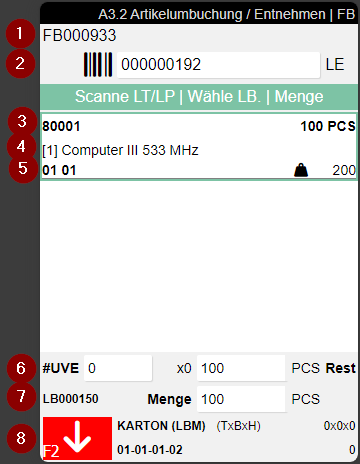
A3.2: Display of Target Storage Place and New "Find New Target" Function - Item 138211
In the inventory list of A3.2 (Item Transfer Take Out), a target hint is now displayed in the center of each row so that operators can see where each inventory should be stored before taking it out. The display follows a priority:
- Picking storage place of the item, if configured
- Picking warehouse code, if no picking storage place is configured
- Registered warehouse code + storage shelf, if no picking warehouse is configured
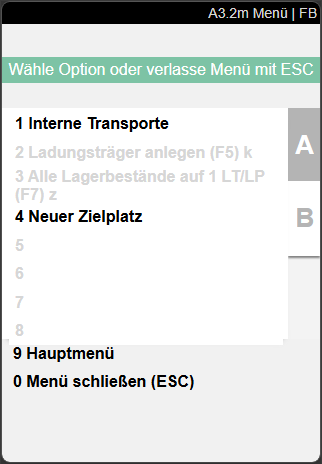
A new menu function Find New Target is also available. It allows a new target storage place to be found and assigned for the selected inventory without aborting the current operation.
Picking
A4.3: Picking from Storage Places Without Load Carrier - Item 132093
In mobile picking (A4.3), inventories can now be picked directly from storage places without load carrier (Storage without storage unit flag). Previously, opening such a picking position resulted in an error.
The process adapts automatically when the source storage place has the Storage without storage unit flag:
- The instruction reads: Approach SP | Scan SP | Pick
- Instead of the storage unit, the storage place is scanned for validation.
- If the Storage without storage unit flag is not set on the storage place and no SU is present, the error message SU for validation missing appears.
Hinweis
This requires the relevant storage places to be configured with the Storage without storage unit flag. The flag was introduced in Sprint 61.
A4.3: Revalidation on Partial Pick - Item 134356
In mobile picking (A4.3), the SWMS team setting controls whether the storage unit (SU), inventory, or storage place must be re-scanned after a partial pick before the next partial quantity can be entered.
The new field Revalidation on Partial Pick on the SWMS Team Card controls this behavior:
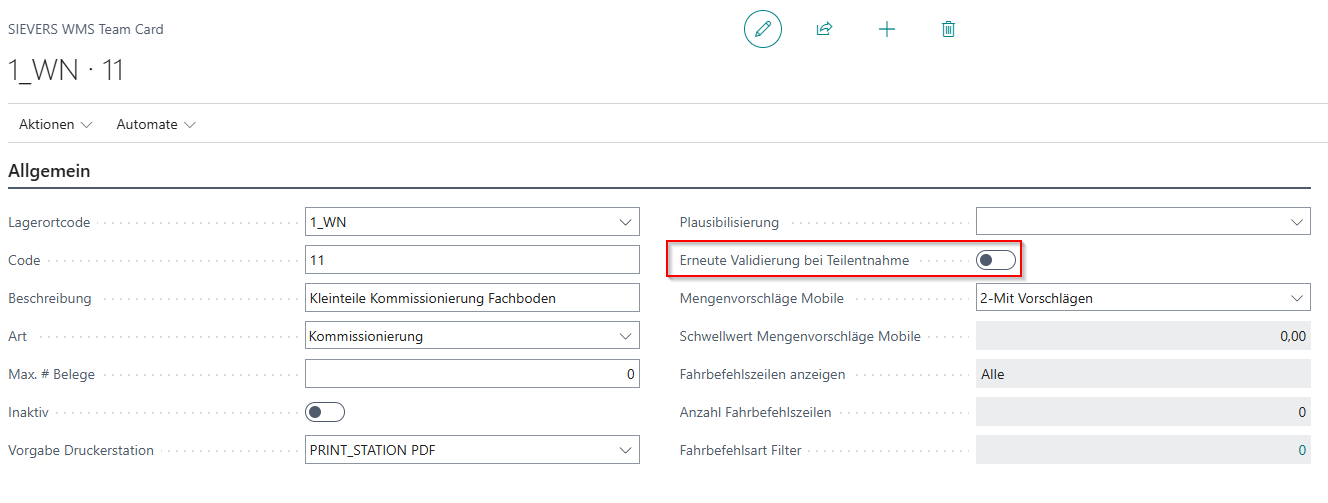
- Deactivated (default): After a partial pick, the employee stays directly in the quantity dialog. The system automatically simulates the SU/inventory/storage place scan for the next picking line, provided it is from the same storage place. The next partial quantity can then be entered immediately, e.g. manually or by scanning a barcode or GTIN reference.
- Activated: Corresponds to the previous behavior. After each partial pick, the SU, inventory, or storage place must be re-scanned or re-validated.
Hinweis
This setting only applies to teams of the type Picking. For other team types, the field is grayed out and not editable.
Wichtig
Action required: The behavior for partial picks changes with this update. The new default behavior allows immediate quantity entry without re-scanning. Anyone who wants to retain the previous behavior (re-scan after each partial pick) must activate the Revalidation on Partial Pick field on the SWMS Team Card.
Picking Document: Packing Team Can Be Added After the Fact - Item 137254
The Packing Team field on the Picking Document is now editable when it has not yet been assigned. This allows the packing team to be added after the fact if it was missed during the picking release. Once a value has been entered, the field automatically becomes read-only.
Move Jobs
Storage Without SU: Confirmation Message Optimized for MDE - Item 138195
The confirmation message shown after a storage unit is automatically dissolved on a storage place without SU now reads "SU has been dissolved". The shortened message fits within the MDE feedback field and no longer contains a typo.
Move Job: "SU Was Dissolved" Message Only Shown for Actual Dissolution - Item 138278
When posting a move job to storage places without SU, the message "The SU was dissolved..." is only shown when a storage unit was actually dissolved. When moving item quantities between storage places without SU without a load carrier, the message is not displayed.
Move Job Creation: No Prompt for Inventories Without Load Carrier - Item 138276
When creating a move job from the inventory list, the prompt "Would you like to create a load carrier move job? Then press Yes. If you want to create an inventory move job press No." is now only shown when the selected inventories are actually assigned to a load carrier. If the selected inventories have no load carrier (storage without SU), an inventory move job is created automatically, as a load carrier move job is not possible in this case.
Move Job to Storage Place Without SU: Rollback on Posting Error - Item 138281
When an error occurs while posting a move job to a storage place without SU, the move job status and packed flag are now cleanly rolled back. Previously, these could remain inconsistently set, leaving deletion as the only way to recover. The validation now occurs when the storage place is entered or when the move job is completed.
Hinweis
The improved rollback applies to load carrier move jobs. For inventory move jobs, the described inconsistency scenario cannot occur structurally, as no load carrier dissolution takes place.
Internal Transport
A2: SU Transport to Storage Places Without SU - Item 132094
When a load carrier of type SU is placed on a storage place with the Storage without storage unit flag enabled using mobile function A2 (Internal Transport), the storage unit is automatically dissolved. The contained inventories are booked directly to the target storage place.
This applies whenever an SU is placed on such a storage place - regardless of whether it is a put-away, replenishment, or transfer storage place. Typical use case: a forklift places an SU at a shelving area (fixed slot with Storage without storage unit). The SU is dissolved and the inventory is assigned directly to the storage place.
Load carriers of types STU, PTU, and SSCC are retained when placed on storage places without SU and are not dissolved.
Hinweis
The Storage without storage unit flag on storage places and the base functionality for storage without load carrier were introduced in Sprint 61.
Warehouse Shipment
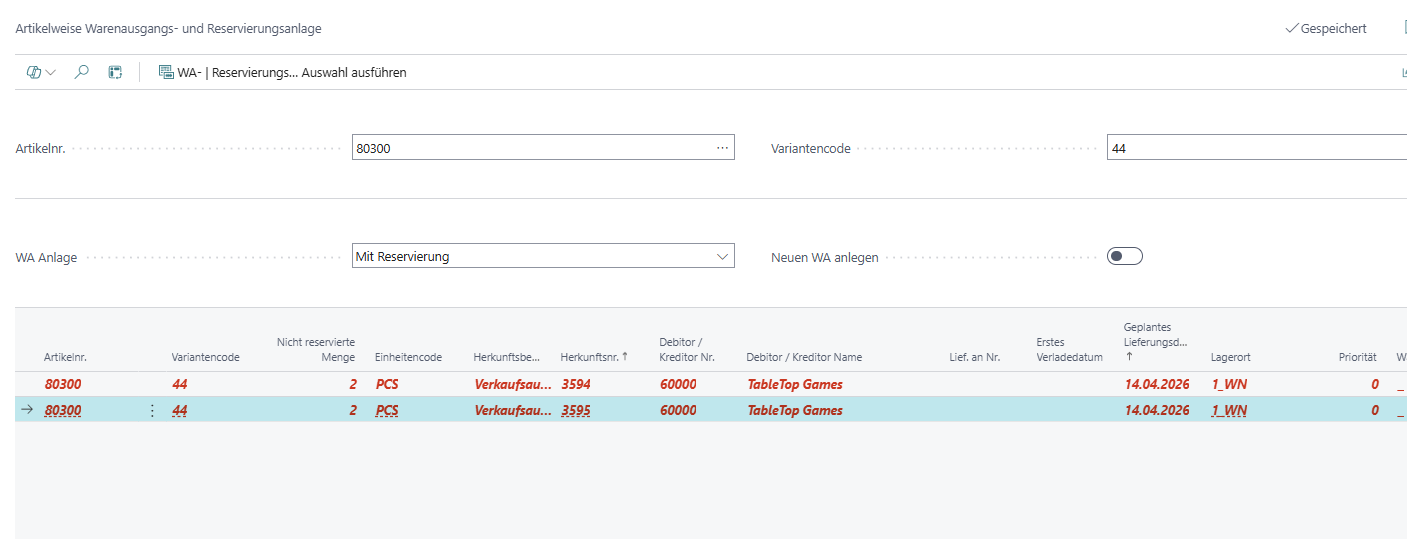
Create WHS and Reservations per Item: Stocktaking Reservations Considered in Availability Check - Item 137251
The Create Warehouse Shipment and Reservations per Item page now calculates availability consistently with the Warehouse Shipment Planning. Inventory reserved by a stocktaking is treated as unavailable and highlighted in red accordingly.
Previously, stocktaking reservations were not considered in the availability check on this page. A line could therefore appear as partially available (yellow) or fully available, even though the corresponding inventory was already blocked by an ongoing stocktaking.
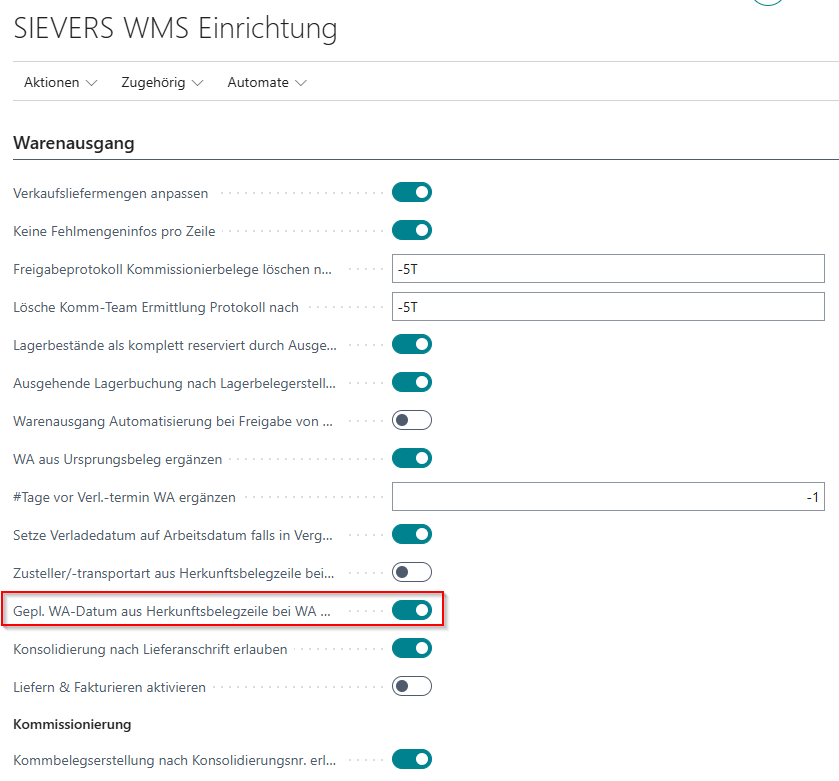
Warehouse Shipment: Split by Shipping Agent and/or Planned Shipment Date - Item 136907
Two new fields are available in the SIEVERS WMS Setup to control whether sales lines with different shipping agent attributes or shipment dates are split into separate warehouse shipments when creating them:
- Split Whse. Shipment by Shipping Agent: When enabled, lines of a sales order with different shipping agents or shipping agent service codes are assigned to separate warehouse shipments.
- Split Whse. Shipment by Planned Shipment Date: When enabled, lines with different planned shipment dates are assigned to separate warehouse shipments.
Both options are disabled by default. The splitting applies to both the manual Create Warehouse Shipment action and the warehouse shipment automation.
Hinweis
When using Get Source Documents on a manually created warehouse shipment, the splitting logic does not apply. All lines of the selected document are added to the same warehouse shipment regardless of shipping agent or date.
Warehouse Shipment: Creation from Source Document Split by Planned Shipment Date - Item 136908
When the setup field Split Whse. Shipment by Planned Shipment Date is enabled, sales lines with the same planned shipment date are grouped into a shared warehouse shipment when created from a source document. Lines with different planned dates generate separate warehouse shipments. The warehouse shipment is pre-filled with the first shipment date from the associated lines.
Hinweis
Splitting by shipping agent and shipping agent service is not yet fully functional in this release and will be delivered in a follow-up release. It is recommended to keep the Split Whse. Shipment by Shipping Agent field deactivated for now.
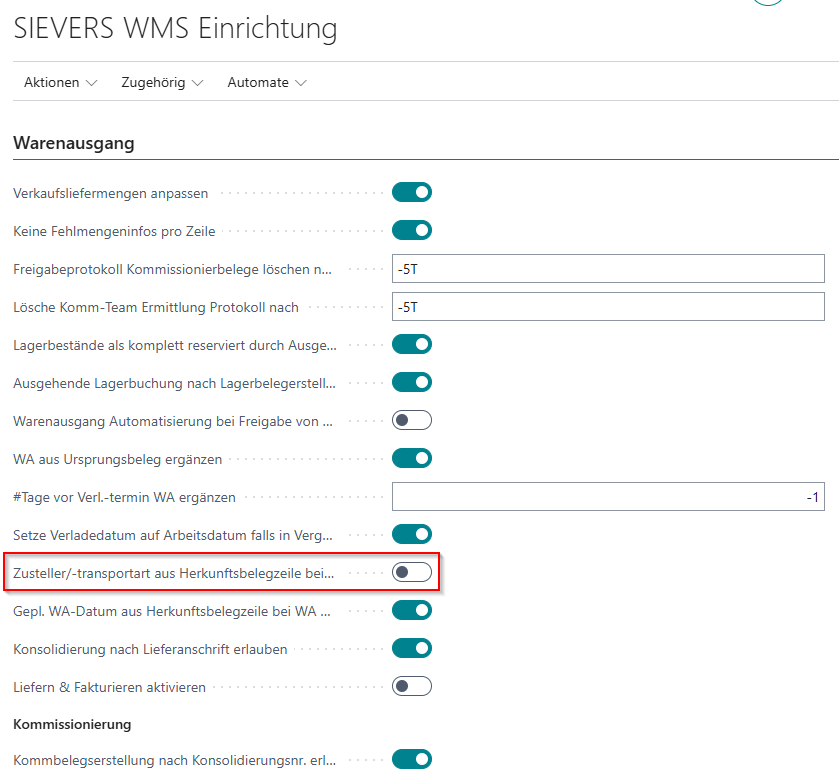
WHS Automation: Split by Planned Shipment Date - Item 136912
The splitting logic by planned shipment date is now also applied within the warehouse shipment automation. Sales orders with the same planned shipment date are grouped into a shared warehouse shipment; orders with different dates generate separate warehouse shipments.
Hinweis
Consideration of shipping agent and shipping agent service in the WHS Automation is not yet fully functional in this release and will be added in a follow-up release.
Error Handling and Logging for Availability Calculation - Item 91572
The availability calculation in Warehouse Shipment Planning runs as a job queue entry. Previously, a single error (e.g., a prolonged database lock) could cause the entire service to stop without processing the remaining warehouse shipments.
Processing is now safeguarded so that errors on individual warehouse shipments do not interrupt the overall processing:
- The calculation for each warehouse shipment is started individually in a protected execution.
- If a calculation fails, it is automatically retried. The number of retry attempts is determined by the Maximum No. of Attempts to Run field on the job queue entry.
- If all attempts have failed, an entry is created in the SNCL Time protocol list. The entry contains:
- Process type: Job Queue Entry
- Source document type: Whse. Shpt. Availability
- Source document: The number of the affected warehouse shipment
- The error text, split across the Old Value and New Value fields
- Processing then continues with the next warehouse shipment.
Hinweis
The number of retry attempts is controlled by the Maximum No. of Attempts to Run field on the job queue entry. If the value is not set or 0, a single attempt is made.
WHS Automation: Control Variable on Customer and Vendor - Item 138174
The Warehouse Shipment Automation and the customer/vendor card have been extended with the field Variable for Whse. Shipment Auto. Creation.

In the automation setup lines, you define a variable value. Source documents from customers or vendors with the same variable value are grouped together across customer boundaries into a single warehouse shipment.
Hinweis
This field is used exclusively as a control attribute for the Warehouse Shipment Automation. It has no effect on manual warehouse shipment creation.
ATO: Picking Status in Warehouse Shipment Planning Correctly Updated After Posting - Item 135599
After posting a partial or full quantity of an assembly-to-order (ATO), the picking status in the Warehouse Shipment Planning is now correctly displayed. Previously, the status remained Open even when at least one PTU had been created via the outbound warehouse entry.
ATO: Warehouse Shipment Lines for Stock Items and Assembly Orders Are Now Clearly Separated - Item 137218
For sales orders with assembly-to-order (ATO), the warehouse shipment lines for stock items and for assembly-order-related items are now clearly and reliably processed separately. Inventory that was created and reserved for an assembly order is only picked and shipped for that assembly order, and can no longer be selected or posted in any other warehouse shipment or WMS process. Partial quantities of assembly-order-related items continue to be controlled exclusively via the Qty. to Ship field on the respective warehouse shipment line. In addition, warehouse shipment lines with an assembly reference no longer trigger a separate posting of the assembly order at a WMS location. Stock items without an assembly order reference continue to be processed unchanged via the existing Sievers WMS standard processes.
ShipXpert Cloud: Tooltips in Setup - Item 136967
The fields in the ShipXpert Cloud Setup now have tooltips. These provide users with guidance directly on the setup page about where to obtain the required information (API URL, API Key Name, Cloud Alias Name, username and password).
Amazon Label
Amazon PTU Label - Item 139486
For customers with the GS1 Amazon SSCC Label setup, SIEVERS WMS now additionally supports printing an Amazon PTU Label (Amazon Picking Transport Unit label). The new label is printed automatically alongside the GS1 Amazon SSCC label when printing load carrier labels.
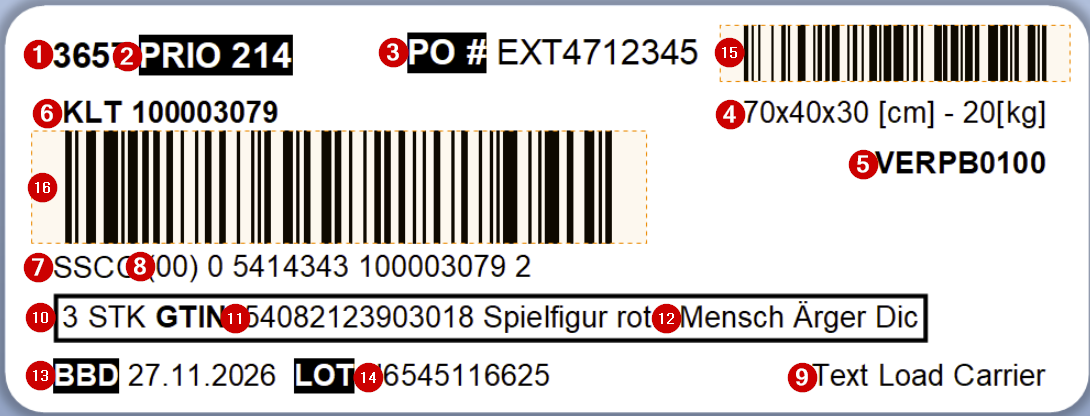
The content of the PTU label is controlled via the Data Identifier List on the customer or vendor. The following data identifiers are supported:
| Data Identifier | Content |
|---|---|
| DB 00 | GS1 SSCC as GS1-128 barcode and plain text |
| DB 02 + 37 | GTIN and quantity (if no GTIN configured: item number) |
| DB 400 | Order reference from the source document as Code-128 barcode |
Lot number and BBD are also printed on the label if they are filled.
The label is available in the report selection under the report type Amazon Picking Transport Unit Label (PTU).
Hinweis
The order reference barcode (DB 400) is only printed if a purchase reference is set on the source document.
To use the new label, the following setup steps are required:
- SWMS Report Selection: Add the report type Amazon Picking Transport Unit Label (PTU) to the SWMS report selection, either via initialization or manually with report number 77191 (PTE).
- Format Report Assignment: Add the Small Label format to the Format Report Assignment, either via initialization or manually.
For details on the label layout, see the label documentation.
GS1 Amazon SSCC Label: Alignment with Amazon Requirements - Item 139496
The GS1 Amazon SSCC label received three adjustments to comply with Amazon requirements:
- Multiple articles in one SSCC: Under the GTIN CONTENT field, MIXED SKU is always printed regardless of the print language (previously: DIVERSE).
- Multiple order references in one SSCC: Instead of a barcode, MIXED PO! is printed at the PO (purchase order) field (without frame).
- SSCC label below the barcode: The text below the GS1 SSCC barcode now always reads SSCC in plain text, regardless of the print language (previously: NVE).
GS1 Amazon SSCC Label: Printing Logic for Lot and BBD - Item 139500
The GS1 Amazon SSCC label now prints BBD (best-before date) and lot number on the label, provided the corresponding data identifiers are configured in the customer's Data Identifier List. The print logic depends on the SSCC contents:
BBD (MHD):
- All items in the SSCC have the same BBD: BBD is printed.
- Mixed BBD values in the SSCC: MIXED BBD! is printed (regardless of print language).
- No BBD-tracked items in the SSCC: field is left blank, nothing is printed.
Lot (LOT):
- All items have the same lot number: lot number is printed.
- Mixed lots in the SSCC: MIXED LOT NO! is printed (regardless of print language).
- No lot-tracked items in the SSCC: field is left blank, nothing is printed.
Service
SWMS4SERVICE: Distinction Between Internal and External Service - Item 139644, Item 139645 and Item 139655
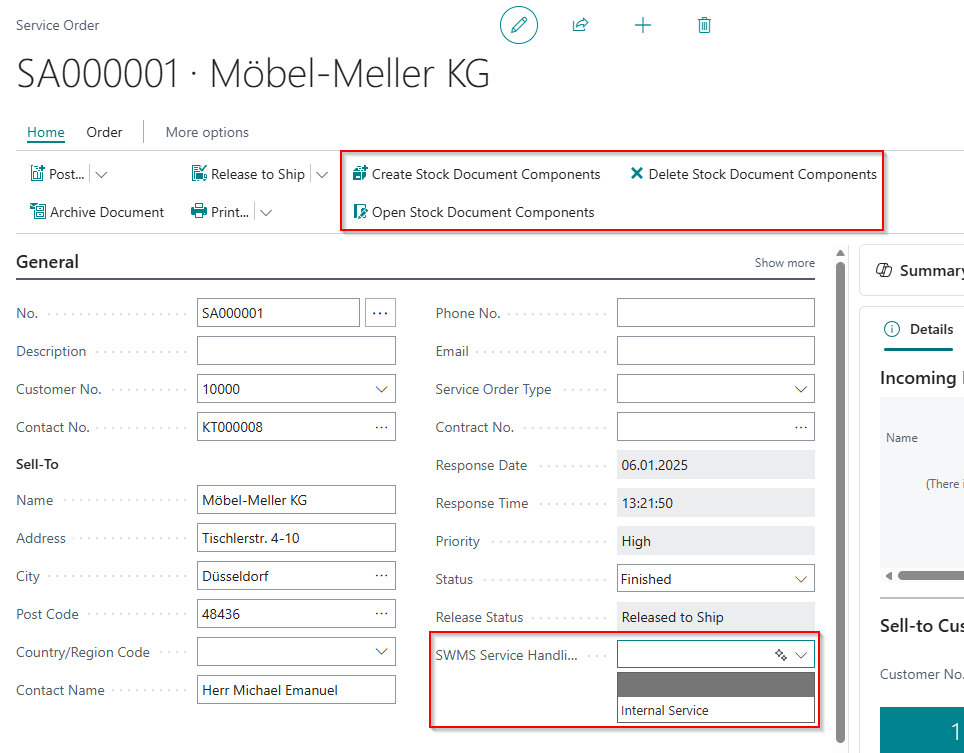
SIEVERS WMS lays the foundation for supporting the BC Service module. The field SWMS Service Handling now appears in the service order header when the warehouse location is WMS-managed. This enables the distinction between internal and external service:
- Internal Service (default): Required parts are picked at the mobile device and posted via a consumption journal. The process is analogous to assembly.
- External Service: Required parts are delivered via a warehouse shipment with a sales order, including packaging, shipping, and carrier integration. This process will be implemented in a future sprint.
The following actions for the stock document are now also available on the service order:
- Create Stock Document Components: Creates an outbound stock document for the service items needed as components. Existing documents are updated.
- Open Stock Document Components: Opens the outbound stock document for the service components directly from the service order. If no stock document exists, a corresponding message is displayed.
- Delete Stock Document Components: Deletes the stock document, provided it has not yet been posted, and confirms the successful deletion. Deletion is rejected if the associated picking document is being edited by a user, or if at least one line has already been partially or fully picked.
The components are then picked regularly via mobile picking. When the service order is subsequently posted (shipped), the linked stock document is automatically posted as well, and the picked quantity is recorded as consumption on the service lines.
Small Changes
- Improved tooltip of the Max. Number of Units field on the Inventory Measure to Rack Compartment Assignment page - Item 135922
- Improved tooltip of the Newly Deposited field on the Move Job lines - Item 140140
Bugs
General
Item Journal Outgoing Entry: No More Error for Users Without Item Edit Permissions - Item 138215
We fixed an error that could cause a permission error for users without item edit permissions when posting via the Item Journal.
Find Entries: Page No Longer Opened Twice - Item 138033
We fixed an error where opening a WMS stock document line entry via Find Entries also opened an unfiltered list page in the background.
Packaging Hierarchy: Inventory Measure Can Now Be Changed Reliably - Item 138129
We fixed an error where the inventory measure in the packaging hierarchy was not saved after reloading the page, and an error message was triggered when changing the measure.
Reservation Entries: Consistent Handling in Inbound Stock Post and Inventory Search - Item 139198
We fixed two issues in how reservation entries are handled:
- Inbound Stock Post: Reservation flags on inventory were set even for reservation entries with status Tracking. They are now only set when reservation entries with status Reservation exist.
- Inventory Search Strategy: When the Consider Reservation Entries option was disabled on the inventory search strategy, inventories with reservation flags were still excluded. All inventories are now considered regardless of reservation information when the option is disabled.
Mobile Help Pages: Entries Without Location Apply to All Warehouses - Item 134651
We fixed an error where mobile help pages without a warehouse location assignment were not displayed for all warehouses. Help pages without a location now correctly apply to all warehouses. If a location-specific entry exists, it takes precedence.
Production
Output Entry: Line Reference Correctly Considered in Order Assignment - Item 137648
We fixed an error where, when posting an output entry for a production order linked to a sales order, the correct line reference was not considered if the sales order contained the same item in multiple lines.
Output Entry: Inbound Stock Document Lines No Longer Split by Equivalent Reservation Entries - Item 139510
We fixed an error where inbound stock document lines of an output entry were split based on reservation entries of type Surplus, even when those entries only differed in quantity (same serial/lot number). Lines are now only split when reservation entries of type Reservation exist, or when serial or lot numbers differ between entries.
Internal Transport
A2.1: Focus Correctly Set to Storage Place Field After Scanning Target Location - Item 138237
We fixed an error where the focus remained on the load carrier field after scanning the target storage place in A2.1. Confirming with ENTER then triggered an error message stating the load carrier was invalid.
A3.2: Clear Error Message When Scanning a Load Carrier From a Different Warehouse - Item 138253
We fixed an error where scanning a load carrier in A3.2 displayed a technical error message when the load carrier did not belong to the user's current warehouse. A clear message now appears indicating which warehouse the load carrier is located at. This also applies when scanning a GS1 barcode from the load carrier references.
A3.2: Clear Error Message When Adding a Partial Quantity to a Move Job - Item 140134
We fixed an error where in A3.2, when attempting to add a partial quantity of an additional inventory to an existing move job, an incomprehensible technical error message appeared.
A3.2/A3.3: Scanned Inventory Is Automatically Selected and Focused - Item 140136
We fixed an error where a scanned inventory in A3.2 and A3.3 was not automatically selected and focused, requiring manual selection by the operator.
A3.2: Error Message When Taking Partial Quantities From Multiple Inventories - Item 139970
We fixed an error where taking partial quantities from multiple inventories at the same source storage place in A3.2 displayed a technical error message.
Move Jobs
Storage Place Without Storage Unit: Stock Entries With Lot and Expiration Date Are Correctly Merged - Item 138538
We fixed an error where, when posting an inventory move job to a storage place with the Storage Without Storage Unit flag set, stock entries with identical characteristics (item, variant, lot, expiration date) were not merged. Stock entries with matching characteristics are now correctly merged at the target storage place.
New Storage Place Is Accepted - Item 140148
We fixed an error where changing the storage place on a move job was rejected even though the new storage place was valid.
Stocktaking
Resetting the Counted Flag Automatically Deletes Item Tracking Lines - Item 139246
We fixed an error where removing the Counted flag on a stocktaking line failed when item tracking lines were present in the stocktaking journal for that line. Removing the Counted flag now automatically deletes the corresponding item tracking lines and the associated stocktaking journal line.
Adjusted Barcode Size on Counting List - Item 139831
We fixed an issue where the barcode on the printed counting list could not be scanned by the MDE device when the stocktaking document number series had more than 12 digits. The barcode font size is now dynamically adjusted: document numbers up to 12 characters use 15pt, longer numbers use 10pt.
Hinweis
For optimal barcode readability on the counting list, it is recommended to configure the number series for stocktaking documents to a maximum of 10 characters.
Counted Positions Retained When Leaving the Form - Item 133523
We fixed an error where already counted positions were reset when the mobile stocktaking form was exited before completing the count. Counted values are now retained when the form is closed.
Picking
A4.3: Serial Number Not Stored in Outbound Stock Post Line for Non-Serialization-Required Items - Item 138038
We fixed an error where, when scanning a GS1 barcode (data identifier 21) during picking (A4.3), the serial number was incorrectly also stored in the Serial No. field of the Outbound Stock Post Line for items that are not serial number-tracked. For such items, the scanned value is now correctly stored only in the Serialization No. Inventory field.
A4.3: Focus After LC Scan Set Reliably - Item 137703
We fixed an error where, in the mobile picking function (A4.3) on MC3400 devices, the focus occasionally remained on the load carrier number field instead of moving to the quantity field after scanning a storage unit, requiring manual intervention by the operator.
Picking Document: Barcode Without Line Break - Item 136764
We fixed an error where the barcode on the picking document contained a line break when the picking document number exceeded a certain length.
ProGlove A4: Functions Can Be Disabled via Mobile Setup - Item 140257
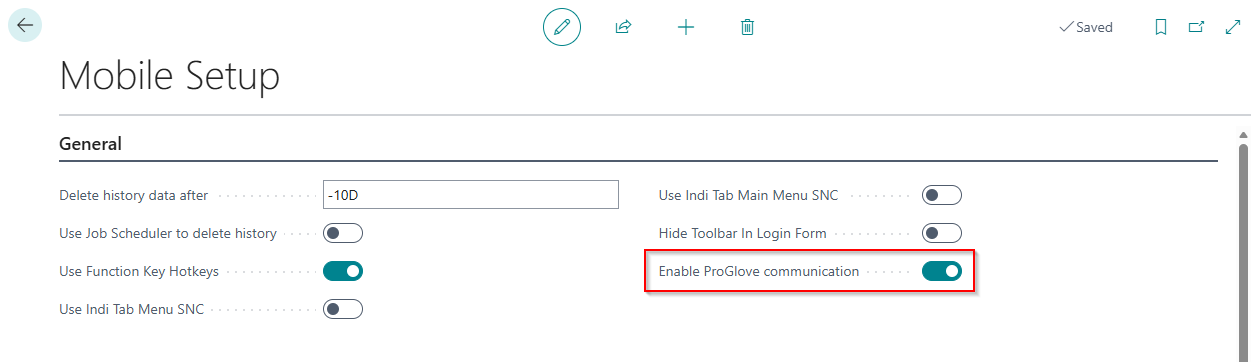
We fixed an error where ProGlove functions in picking (A4) could not be disabled. The new field Enable ProGlove communication in Mobile Setup controls whether ProGlove communication is active. The field is disabled by default.
Wichtig
Action required: The Enable ProGlove communication field is disabled by default. Anyone using ProGlove in A4 must enable this field in Mobile Setup.
Warehouse Shipment
Post Warehouse Shipment: Item Tracking Lines Correctly Populated - Item 139395
We fixed an error where, when posting a warehouse shipment, the item tracking lines were not correctly populated with expiry date and lot number, causing a posting error.
Outbound Stock Post: Inventory With Reservation Not Found - Item 138194
We fixed an error where reserved inventories were not found when creating an Outbound Stock Post if the related reservation entry number was no longer resolvable (e.g., after re-running the planning worksheet).
Create WHS and Reservations per Item: Display Corrected for Items with Variants - Item 137690
We fixed an error where the Create Warehouse Shipment and Reservations per Item page showed incorrect lines with wrong availability indicators for items with variants when the variant was cleared or a different item was selected. The list now remains empty if no variant is entered.
Shipping Agent on Packing Team Can Be Changed Again - Item 134483
We fixed an error where the shipping agent on the picking document could no longer be changed when a packing team was assigned per warehouse location.
Packing: Negative Quantity Entries Are Now Prevented - Item 136521
We fixed an error where negative quantities could be entered in the packing form.
Outbound Stock Post: Deleting the Last Line No Longer Causes an Error - Item 136873
We fixed an error where deleting the last warehouse document line in an Outbound Stock Post directly after an picking process caused an error.
Load Carrier: Customer-Specific SSCC Label Printed Correctly - Item 139473
We fixed an error where the standard SSCC label was printed instead of the customer-specific label (e.g., Amazon) when printing the SSCC label on a load carrier.
Warehouse Receipt
Measurement and Weight Units Populated in LC and Inventory Lines - Item 135364
We fixed an error where load carrier and inventory lines in the warehouse receipt were not populated with the measurement and weight units from the base unit of measure list.
Inbound Stock Posting Date Preserved on Inventory Merge - Item 137212
When adding a warehouse receipt to an existing inventory (function Merge inventories with identical attributes), the Deposit Date of the existing inventory was incorrectly overwritten with the date of the new inbound posting.
This behavior has been fixed. The original Deposit Date of the inventory is now preserved during a merge. The date is only set when a new inventory is created for the first time.
Follow-Up Move Job Receives Storage Place Based on Strategy - Item 139485
We fixed an error where follow-up move jobs automatically created after posting a warehouse receipt did not receive a storage place based on the configured strategy.
Failed Posting No Longer Sets Document to Completion Status - Item 135203
We fixed an error where failed posting attempts in the warehouse receipt incorrectly set the warehouse document status to Finished.
Error Message Now Shows Correct Information - Item 135961
We fixed an error where processing a warehouse receipt displayed an error message with incorrect information.
Inbound Stock Post: Create Load Carrier Function Works Again - Item 140115
We fixed an error where executing the Create Load Carrier function in the Inbound Stock Post did not create a new load carrier.