Important Topics
- Position Processing A4.3: New Features and Enhancements
- Rack Bays and Compartments: Process Storage Places
- ShipXpert Cloud Interface
- Rack Bays and Compartments in the SWMS Menu Ribbon
- Correct Calculation of Current Max. Units for Rack Compartments
- Batch for Rack Bay and Compartment Number Generation
- ATO: Order Connection Preserved on Posting Error
- Create Warehouse Shipment and Reservations per Item
- Zebra Enterprise Browser Setup
- Order Assignment and Special Order in Warehouse Receipt: Consistent Processes
- Inventory Serialization: Duplicate Serialization Number Check
- Variant Selection from Lookup: Availability Indication
- Storage without Storage Unit and Storing Various Inventories Not Allowed
- Inbound Stock Post Strategy: Field "Storage of various inventories"
Setup
- Position Processing A4.3: New Features and Enhancements
- WMS Setup Import/Export: Additional Tables Added
- Rack Bays and Compartments: Process Storage Places
- Batch for Rack Bay and Compartment Number Generation
- Merge Inventories with same Characteristics
- ShipXpert Cloud Interface
- Zebra Enterprise Browser Setup
- Initialization of the SWMS Assignment Report/Format List
- Custom Field in MDE Forms (A4.1 and A4.2)
- Order Assignment and Special Order in Warehouse Receipt: Consistent Processes
- Storage without Storage Unit and Storing Various Inventories Not Allowed
- Inbound Stock Post Strategy: Field "Storage of various inventories"
- Portrait and Landscape Screen Scaling
- Pre-Configured Device Models
Features
Picking
Position Processing A4.3: New Features and Enhancements
In Sprint 61, position processing A4.3 was extended in several areas:
- GS1 Quantity Serialization: new screen for serialization numbers
- Shortage reporting in serial number picking (F7/Z)
- Inventory swap during partial picking
- Item images in picking
- ProGlove MAI: synchronous display of picking data
- Negative picking: refined hint text
GS1 Serialization Picking (A4.3) - Item 134984
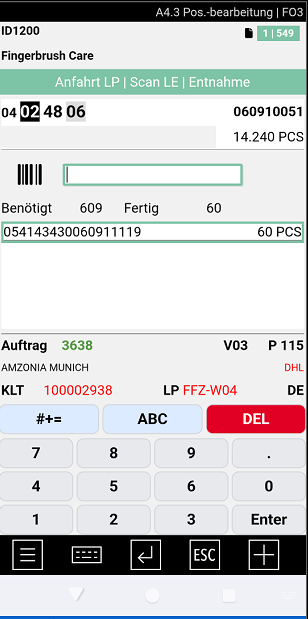
For items subject to quantity serialization, a new screen for capturing serialization numbers per withdrawn inventory is available in position processing A4.3. The function extends the existing serial number picking workflow with a dedicated flow for items where serialization numbers must be recorded per packaging unit (GS1), without assigning a serial number to each individual piece at goods receipt.
When does the new screen appear?
The screen appears when all of the following conditions are met:
- The customer has the Activate Serialization Inventories in Warehouse Shipment flag set to Yes.
- The Serialization requirement for Inventory is activated on the item or on the item category.
- The item is not subject to serial number tracking. If it is (Serial No. Necessary = Yes), the regular serial number picking flow is used instead.
Process:
- The picker first scans the storage unit (SU) for validation.
- After successful validation, the instruction Approach storage place | SCAN SERIAL No | Withdrawal appears. The scan field is labeled SERIAL.
- The picker scans GS1 barcodes with application identifier 00 (SSCC, n pieces via AI 02 + 37) or 21 (serial number, 1 piece). The system checks the GTIN against the item.
- In the list below the scan field, the scanned values appear on the left (serialization number) and the corresponding quantity (AI 37, or 1 for AI 21) on the right, followed by the base unit of measure.
- The Required quantity and Done quantity are shown above the list.
- Once all quantities for a position are captured, the screen automatically moves to the next position.
If a scanned quantity exceeds the remaining quantity, the error "Quantity too high, X left" is displayed and the posting is not carried out. If the GTIN does not match the item, the error is "Wrong item".
After the initial validation, the storage unit does not need to be scanned again while the picker continues withdrawing packaging units from the same storage unit. If the inventory is empty, F7 can be used to block the current inventory and search for a replacement.
The captured serialization numbers are stored in the outbound stock posting lines and transferred to the posted documents after the warehouse shipment posting. Lines are split per packaging unit.
Hinweis
Using this feature together with ProGlove MAI requires a separate manual DataWedge configuration on the device that is not yet available via configuration barcodes or Intune. This will be addressed in a follow-up.
Hinweis
The simplified storage unit validation for all picking items (not only for the first scan) will be delivered in Item 134356.
Shortage Reporting in Serial Number Picking (A4.3) - Item 132229
The New picking place function (F7 / Z) in position processing A4.3 has been extended and is now supported in serial number picking (SNR).
Change for regular picking:
Previously, F7 / Z could only search for a new picking place if the inventory was already blocked. If the inventory was not yet blocked, an error message was displayed immediately.
Now a confirmation dialog appears first, asking whether the current inventory should be blocked:
- Yes: The inventory is blocked using the Standard blocking code from the SIEVERS WMS Setup, and a new picking place is then searched.
- No: The error message is displayed and the process is aborted.
New support for serial number picking (SNR):
In serial number picking, multiple outbound lines are maintained per picking position (one line per piece with serial number). When F7 / Z is pressed, the system blocks all open inventories of the current picking position and searches for a replacement inventory for each:
- If the serial number of the current inventory is reserved (i.e., a specific serial number is specified in the source document), only a replacement inventory with the same serial number is searched.
- If no serial number is reserved, any suitable replacement inventory is searched (inventory swap).
If no replacement is found for a blocked inventory, the outbound line is completed with quantity 0 and the next inventory in the position is processed.
Hinweis
For shortage reporting in serial number picking, Inventory swap in a load carrier must be activated in the SIEVERS WMS Setup.
Inventory Serialization: Duplicate Serialization Number Check - Item 134983
The Serialization No. Inventory field in outbound stock post lines, introduced in Sprint 60, is now protected against duplicate entries.
If a serialization number is entered that is already present in another line of the same picking document, an error message is shown immediately. This prevents a picker from accidentally scanning the same barcode twice and assigning the same serialization number to two positions.
Hinweis
The check only applies within the same picking document. A serialization number that has already been used in another (posted or open) document is not detected as a duplicate.
A4.3 Serial Number Picking: Inventory Swap for Partial Load Unit Picking - Item 132225
When picking serial number tracked items from a storage unit (partial picking) in A4.3, the Inventory Swap in Load Carrier setting is now respected:
- Swap allowed: The system automatically swaps reservations within the load carrier. The employee picks the nearest piece and scans it for confirmation, without having to search for a specific serial number.
- Swap not allowed: The employee must locate and scan the exact reserved serial number or inventory number from the storage unit.
In both cases, either the load carrier or the serial number can be scanned for confirmation and validation.
Hinweis
If a specific serial number is specified in the source document (e.g. sales order, purchase return), that serial number must be taken; a swap is not possible in that case.
Hinweis
Setup recommendation: For serial number tracked items, Inventory Swap in Load Carrier = Allowed is recommended.
Item Images in Picking Processing (A4.3) - Item 132982
Item images from the item card can now be displayed in A4.3 Position Processing. The feature is controlled by the new setting Show Item Pictures in Picking in the SIEVERS WMS Setup and is disabled by default.
When the option is enabled and an image is stored on the item card, it is displayed in A4.3 instead of the Quantity label. This allows the picker to quickly verify they are picking the correct product. Clicking the image opens an enlarged view. Pressing ESC returns to the position processing screen.
If no image is stored for the item, the area remains empty. The Quantity label is also not displayed in this case.
Negative Picking: Hint Text in A4.3 Refined - Item 134515
For positions with negative picking in A4.3 Position Processing, the hint text shown in the upper area of the screen now depends on the current processing step:
- Before scanning the storage unit: Scan SU | Pick entire SU
- After scanning the storage unit: Pick entire SU
Previously, the hint "Pick entire SU" was already visible before the storage unit had been scanned, which could cause confusion since the scan was still pending.
ProGlove MAI: Core Picking Function in A4.3 - Item 134082 and Item 136018
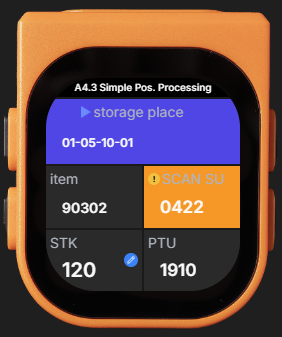
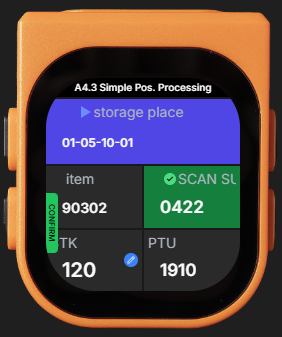
The ProGlove MAI (Mark Assistant Interface) is a small display device worn on the back of the hand and connected to the ProGlove scanner. Position processing in A4.3 is now mirrored on the MAI display in sync with the MDE: storage place, storage unit, item, PTU and quantity appear directly at the wrist, so the picker can perform key validations and confirmations without removing the device from the holster.

Hinweis
Currently, the ProGlove MAI can only be used in A4.3. In the next releases we will implement more and more features for it. If you are interested in the ProGlove MAI feel free to contact your SIEVERS WMS consultant.
Process:
When the user selects a position in A4.2, the corresponding picking data appears automatically on the MAI display. The picker travels to the storage place, scans the storage unit and confirms the quantity:
- Quantity correct: Press the green action button on the MAI.
- Quantity change required: Tap the quantity display - a quantity wheel opens in which the correct quantity can be entered and confirmed with the green action button.
Once all positions of a picking document are completed, the MAI shows the message Picking Done | Select next picking. When the picker selects the next document and a new position on the MDE, the MAI updates automatically.
Error and status messages on the MAI (Item 136018):
If an error popup occurs on the MDE, the MAI automatically displays the message Continue on Mobile Device. As soon as the popup on the MDE is confirmed and A4.3 is active again, the message on the MAI disappears automatically. No interaction on the MAI is required. For errors displayed in the MDE taskbar, an acoustic signal is issued instead.
The following specific error states are displayed on the MAI:
- WRONG LC: An incorrect storage unit was scanned.
- MISSING SU: Quantity confirmation was attempted without scanning a storage unit first.
- MISSING PTU: The storage unit was scanned without selecting a target PTU.
Hinweis
To use the ProGlove MAI, the device must be paired with the MDE (TC73 or MC3400) via the ProGlove Insight app over Bluetooth. The setup is device-based. For setup instructions, see ProGlove MAI Setup.
Variant Filter in "Cancel Released Items" - Item 135653
In the Cancel Released Items page, the Variant filter previously listed all variants across all items. It now only shows variants belonging to the entered item, making it much easier to find the correct variant.
Variant Filter in "Release Items For Picking" - Item 135654
The same variant filtering now also applies to the Release Items For Picking page. The Variant Code field only shows variants belonging to the entered item.
Default Inventory Measure when using Blanco Barcode in Return-Storage Support - Item 134516
When a new load carrier is created via blanco barcode in A4.4 Return-Storage Support, the default inventory measure from the SIEVERS WMS Setup is now pre-selected instead of the first entry in the list. Previously, the first available inventory measure (e.g. 2XEUR) was pre-filled regardless of the configured default.
Additional Fields in the Outbound Stock Post Lines - Item 134934
In the SWMS Outbound Stock Post lines, three additional fields are now displayed:
- Location Code
- Packaging Team: Shows the packaging team assigned to the process.
- Shipment Process Team: Shows the shipment process team assigned to the process.
Additional Fields in the Posted Outbound Stock Post Lines - Item 134938
In the Posted Outbound Stock Post Lines list, five additional fields are now displayed:
- Load Carrier Inventory Measure, Load Carrier Type and Load Carrier State: These values are taken from the load carrier at posting time and allow traceability of the load carrier after posting.
- Packaging Team: Appears before the Packaging Process Number.
- Shipment Process Team: Appears before the Shipment Process Document No.
Zebra Enterprise Browser Setup - Item 136019 and Item 136788
For using Mobile on Zebra devices (e.g. TC73) via the Zebra Enterprise Browser (ZEB), all required configurations can now be applied to a device using StageNow barcodes. Three barcodes are available:
- Start Page: Sets the Business Central start page in the ZEB. Without this barcode, the mobile pages are displayed at the wrong resolution and icons appear incorrectly.
- Menu: Adds the menu to the ZEB and enables the response to function keys (F1-F12).
- Enterprise Keyboard: Installs the Zebra Enterprise Keyboard on the device via StageNow.
Full instructions including all barcodes are available in the setup documentation.
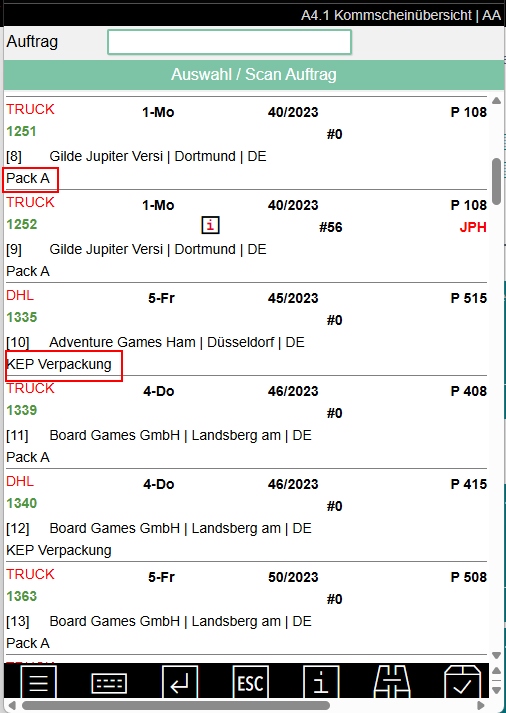
Custom Field in MDE Forms (A4.1 and A4.2) - Item 123800 and Item 123900
The Mobile Setup now includes a new section MDE Forms Custom Fields, where a custom field can be configured per mobile form.
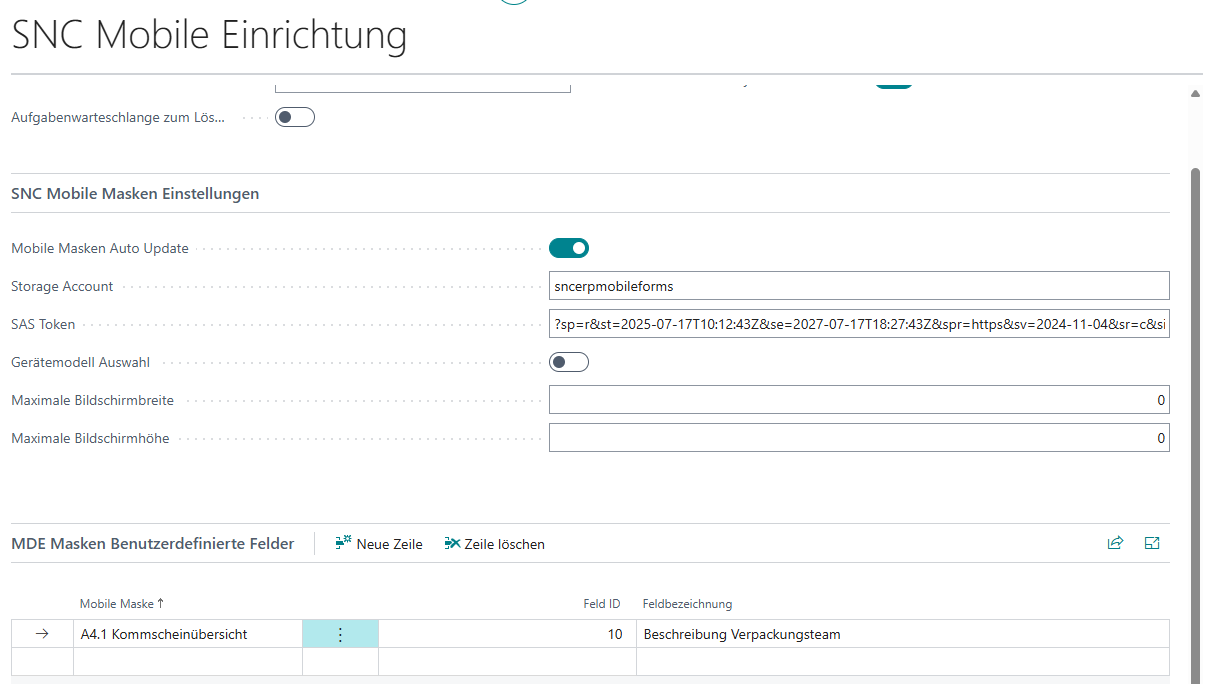
The following forms are currently supported:
- A4.1 Picking List
- A4.2 Picking Positions
For each form, any field from the corresponding table can be selected via the Field Id field. The Field Caption field automatically shows the label of the selected field.
If a field is configured and the corresponding record contains a value, it is shown as an additional row in the mobile form. If no field is configured or the value is empty, no additional row is displayed.
WMS Setup
Reorganization of Fields in the Warehouse Shipment Tab - Item 135518
In the SIEVERS WMS Setup, two fields have been moved into the Warehouse Shipment tab under the Picking group to make the setup page more organized:
- Allow Gaps in Picking Container Number for PTU in Picking Documents (previously in the general section)
- Manual Change Qty. Packed and Flag Packed (previously in the Warehouse Shipment tab, but outside the group)
The Manual Change Qty. Packed and Flag Packed field is hidden by default and must be made visible manually via Personalize.
WMS Setup Import/Export: Additional Tables Added - Item 130901
The WMS Setup Import/Export has been extended with additional tables that were previously not available for export/import:
- Warehouse Shipment Automation
- Outgoing Warehouse Posting Automation
- Order Types
- Order Type Categories (exported/imported together with order types)
- Shipping Agents incl. Shipping Agent Services and Assignment Packaging Teams (exported/imported together with shipping agents)
Dependencies between tables are validated during import: for example, if order type categories are to be imported, order types must also be selected. For assignment packaging teams, both shipping agents and logistics teams must be selected.
Mobile Setup
Portrait and Landscape Screen Scaling - Item 128087
Two new fields have been added to the Mobile Setup for portrait mode display:
- Maximum Screen Width Portrait: Limits the maximum width of the mobile display in portrait mode in pixels.
- Maximum Screen Height Portrait: Limits the maximum height of the mobile display in portrait mode in pixels.
The existing fields Maximum Screen Width and Maximum Screen Height apply to landscape mode. All four fields are pre-filled with default values:
- Landscape: 1480 × 800 pixels
- Portrait: 800 × 1480 pixels
This ensures that the display on tablets scales correctly in both landscape and portrait orientation.
Pre-Configured Device Models - Item 128108
On installation or upgrade, the Device Model List is automatically populated with four common devices, provided no entries exist yet:
| Code | Description | Scale Factor | Keyboard Type |
|---|---|---|---|
| ET60AW | 10" Tablet | 1.60 | Tablet without keyboard |
| MC33|MC34 | Handheld scanner with function keys | 0.00 | Handheld Scanner with function keys |
| PC | PC | 1.54 | Tablet without keyboard |
| TC73 | Touch device without function keys | 0.00 | Handheld Scanner without function keys |
If device models are already configured, no changes are made.
Stocktaking
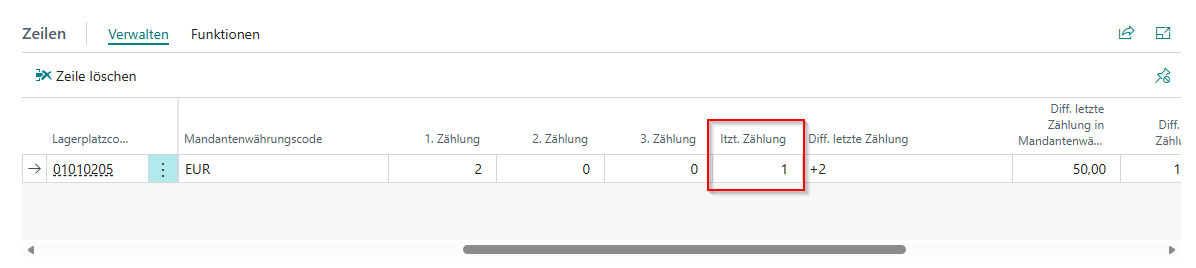
"Last Count" Field in Stocktaking Lines - Item 132918
The Last count field is now available in the lines of the stocktaking document (SWMS Stocktaking). It shows the number of the last count list, making it easy to see at a glance whether a second or third count has been performed for a stocktaking line. The field behaves analogously to the field of the same name in the posted stocktaking.
Rack Compartment and Rack Bay Management
Rack Bays and Compartments: Process Storage Places - Item 133622
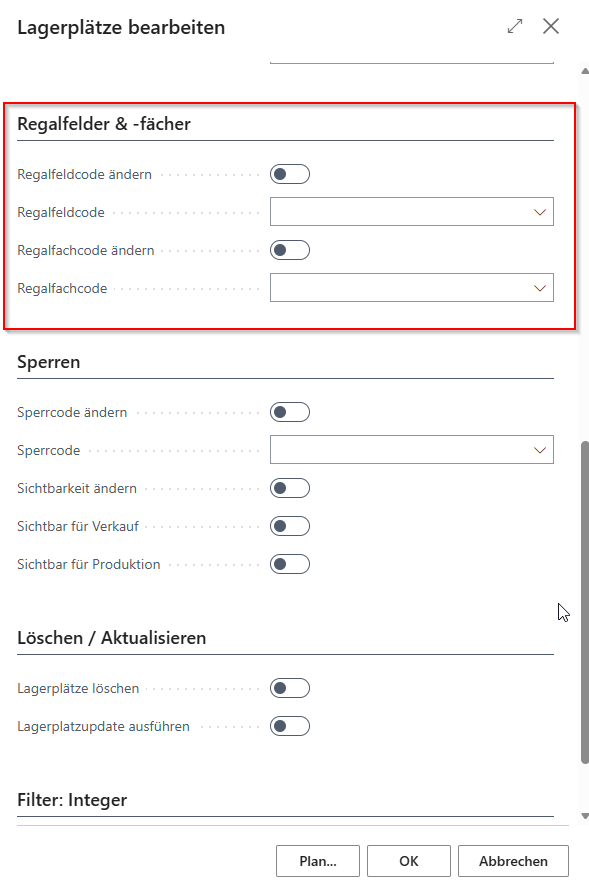
The Process Storage Places function now includes a new Rack Bays & Compartments section when Rack Compartment and Rack Bay Management is active. This allows the Rack Bay Code and Rack Compartment Code to be set for multiple storage places at once:
- Change Rack Bay + Rack Bay Code: Activate the checkbox and select a rack bay code to apply it to all selected storage places.
- Change Rack Compartment + Rack Compartment Code: Activate the checkbox and select a rack compartment code to apply it to all selected storage places.
Existing rack bay or rack compartment codes are overwritten.
Storage Place Card Cleanup - Item 133639
The SWMS Storage Place Card has been reorganised for better clarity:
- The obsolete field Blocked by Storage Place Code has been removed.
- The Dimensions tab has been renamed to Dimensions and Load Capacities.
- The field Category has been renamed to Storage Place Category.
- Rarely needed fields have been hidden in the Occupancy section: Available Depth, Occupied Depth, Space Code, Available Space Codes and Multiple Occupancy Space Code.
- The labels for the occupancy fields have been clarified: Occupied Storage Place Weight and Occupied Storage Place Volume.
- Descriptive tooltips have been added to various fields (e.g. Route Optimization, Warehouse Code, Storage Shelf Code, Side, Row Code, Level Code, Rack Bay Code, Rack Compartment Code).
Rack Bays and Compartments in the SWMS Menu Ribbon - Item 135292
The SWMS menu ribbon in Business Central has been extended with entries for rack compartment and rack bay management. The following pages are now directly accessible from the menu:
- Rack Bay Types
- Rack Bays
- Rack Compartment Types
- Rack Compartments
The entries appear below the Storage Zones and are only visible when Rack Compartment and Rack Bay Management is activated in the SWMS Feature Setup. The previous menu entry Storage Fields has been removed.
Correct Calculation of Current Max. Units for Rack Compartments - Item 135370
The Current Max. Units field on the rack compartment is now correctly determined dynamically. It shows how many load carriers can currently fit into the rack compartment, depending on the inventory measure of the stored stock.
The field is checked and updated with every deposit or removal:
- Deposit into an already-occupied rack compartment: The max. quantity from the inventory measure assignment of the newly stored inventory measure is compared with the current value. If the new value is lower, Current Max. Units is updated to the lower value. If it is higher, the value remains unchanged.
- Rack compartment is emptied: When the last inventory measure is removed from the rack compartment, Current Max. Units is automatically reset to 0.
Volume Calculation with Unit Conversion - Item 135308
When calculating the volume of rack compartments and rack bays, the conversion from the Base Unit of Measure List is now correctly applied. Previously, discrepancies could occur in the volume calculation when the units used differed from the base unit.
Batch for Rack Bay and Compartment Number Generation - Item 133624
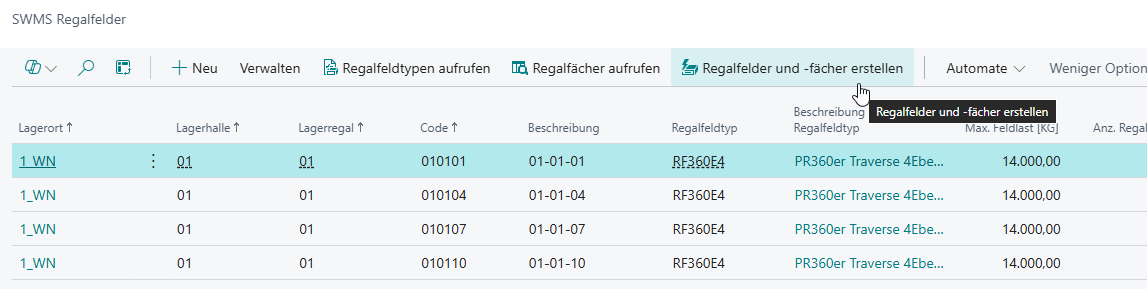
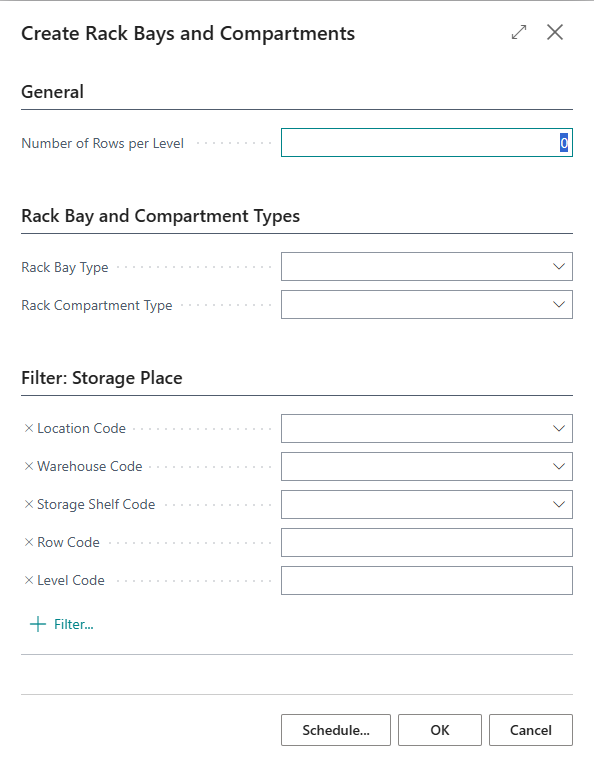
The new report Create Rack Bays and Compartments generates rack bay codes and rack compartment codes for storage places automatically. The report is accessible via the Create Rack Bays and Comp. action button on the SWMS Rack Bays, SWMS Rack Compartments and SWMS Storage Place List pages.
Filter selection:
The storage places to be processed can be restricted in the dialog using the following filters: Location Code, Warehouse Code, Storage Shelf, Row Code and Level Code.
Number generation schema:
The system processes storage places in ascending order by warehouse code, storage shelf code, row code and level code. The mandatory field Number of Rows per Level defines how many consecutive row codes are grouped into one rack bay. The rack bay code is composed of: warehouse code + storage shelf code + the smallest row code in the bay. For each rack bay, one rack compartment is created per level code; the rack compartment code is derived from the rack bay code + level code.
When the warehouse code or storage shelf code changes during processing, the current group is finalized and a new one begins.
Optional type presets:
In the Rack Bay and Compartment Types section, a Rack Bay Type and a Rack Compartment Type can optionally be specified. If left empty, the types can be updated afterwards in the SWMS Rack Bays and SWMS Rack Compartments overviews using multi-selection.
Hinweis
This function requires active Rack Compartment and Rack Bay Management in the SWMS Feature Setup.
Extended Storage Place List - Item 133637
The SWMS Storage Place List has been extended with several new fields and reorganised into a clearer sequence.
The new field Number of Spaces by Category has been added, showing the theoretical storage capacity of the storage place based on the assigned storage place category.
With active Rack Compartment and Rack Bay Management, the following additional fields are shown:
- Rack Compartment Code, Rack Compartment Type, Rack Compartment Type Description
- Rack Bay Code, Rack Bay Type, Rack Bay Type Description
- Current Max. Units: Maximum permissible number of load carriers in the rack compartment.
- Number of Unit Assignments: Current number of load carriers on the storage places of the rack compartment.
- Rack Compartment Current Load / Rack Comp. Max. Load: Current and maximum weight in the rack compartment.
- Rack Bay Current Load / Rack Bay Max. Load: Current and maximum weight in the rack bay.
- Rack Compartment Occupation, Rack Bay Occupation: Occupancy status of the rack compartment and rack bay.
Warehouse Receipt
Employee Marking in the Warehouse Receipt Overview - Item 134527
The warehouse receipt overview screens A1.1 and B4.1 now display the employee marking on the right side of row 4, next to the warehouse receipt state. It shows which employee is currently processing the warehouse receipt.
The marking is set automatically when an employee selects a warehouse receipt in A1.1 or B4.1, and is removed again when they leave the load carrier overview or log out. Multiple employees are listed separated by commas.
Employee Marking Displayed in Red in A1.1 and B4.1 - Item 136838
The employee marking in screens A1.1 and B4.1 is now displayed in red, consistent with the picking screens. This improves visibility when a colleague currently has a warehouse receipt open.
Red Highlighting for Mismatched Load Carrier Count - Item 134458
In the warehouse receipt lines, the Quantity Load Carrier field is now highlighted in red when the actual number of load carriers in the storage unit lines differs from the entered quantity.
The check is triggered once the quantity check for the line has been confirmed and a value greater than 0 is entered in the Quantity Load Carrier field. Once the actual number matches the entered value again, the highlighting is removed.
Order Assignment and Special Order in Warehouse Receipt: Consistent Processes - Item 135060, Item 135065, Item 135077 and Item 135079
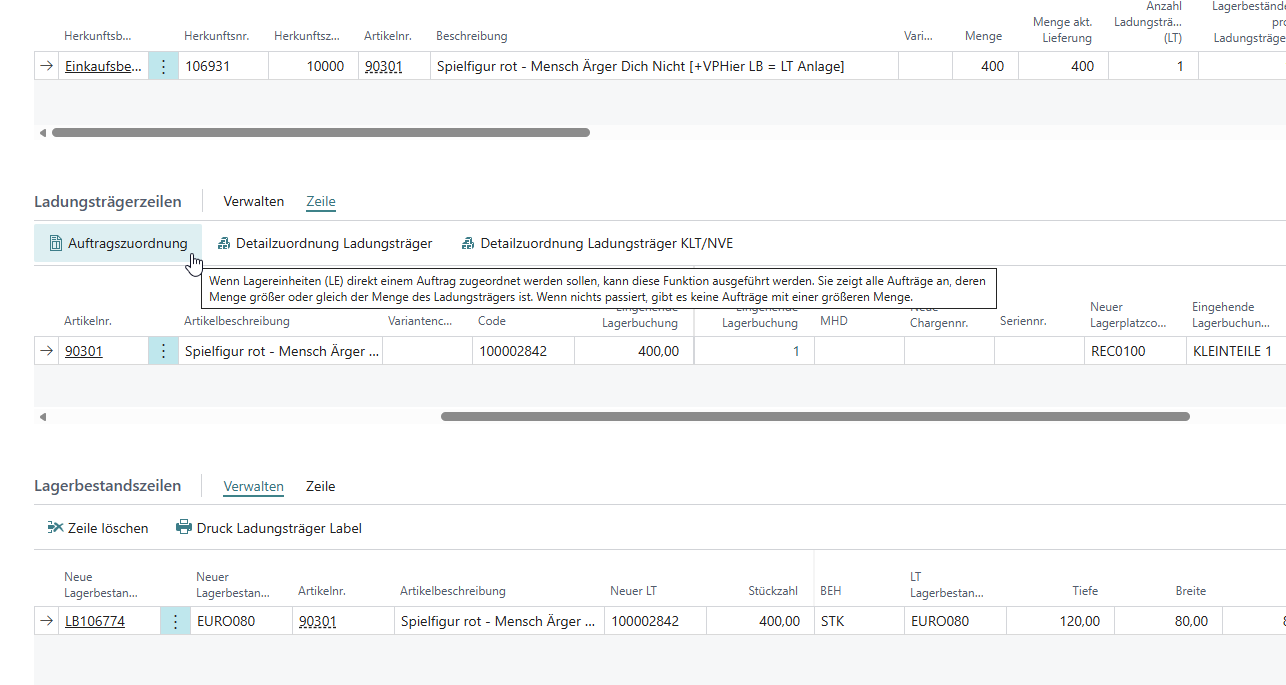
The setting Create Whs Sip/stock document during order assignment in whse receipt in the SIEVERS WMS Setup has existed since an earlier version. However, the associated logic delivered inconsistent results in various scenarios - both for manual order assignments and for special orders (purchase orders linked to a sales order). In this sprint, the behavior has been fundamentally corrected.
Process reminder: Order assignment takes place in the warehouse receipt, before posting. The user assigns a load carrier to an order. For special orders, the assignment is derived automatically from the link between the purchase order and the sales order. The automatic processing then only takes effect when the warehouse receipt is posted.
Setting deactivated (= False)
- If no warehouse shipment exists for the assigned order, the assignment is rejected with an error message. No PTU or SSCC are created.
- The error message indicates that a warehouse shipment must be created manually, the automatic creation must be activated, or the warehouse receipt must be posted without order assignment.
- If a warehouse shipment exists, the system validates during posting that a suitable picking team is available. If no team is found, posting is rejected.
Setting activated (= True)
- A warehouse shipment is created automatically if one does not yet exist.
- Outbound stock post lines are created 1:1 matching the assignment in the warehouse receipt.
- All picking data is fully populated: picking document no., consolidation no., picking state and packed flag.
- For SSCC, only a single packaging process is created and completed.
- Quantities that have already been assigned are no longer displayed in the order assignment. If a line has been processed in the meantime when assigning, the assignment is rejected.
- Team selection now also supports purchase return orders and transfer orders in addition to sales orders.
Hinweis
A valid picking team must be set up for the location. If no suitable team is found, posting is rejected in both cases.
Achtung
Limitation: The automatic processing with the setting activated (= True) currently only supports the assignment of the total quantity of a warehouse receipt line to one order. Partial quantity assignments (e.g. the order requires 1,000 pieces but only 400 are assigned in the warehouse receipt) are not yet processed correctly. This scenario will be addressed in follow-up work.
Inbound Stock Post / Move Job
Merge Inventories with same Characteristics - Item 133720
The setting Merge Inventories with same Characteristics is now visible in the SIEVERS WMS Setup as well as on the Item Card, the Item Category Card and the Stockkeeping Unit Card. It is disabled by default.
When activated, the system checks on posting to an existing load carrier whether an inventory with the same item (No., Variant, Lot, Sell-by Date) already exists. If so, the quantity is added to this inventory instead of creating a new one. Merging only occurs for inbound stock posts and move job postings, and only when the target load carrier has the load carrier type SU or no target load carrier is set.
Storage without Storage Unit and Storing Various Inventories Not Allowed - Item 131999, Item 132035 and Item 132057
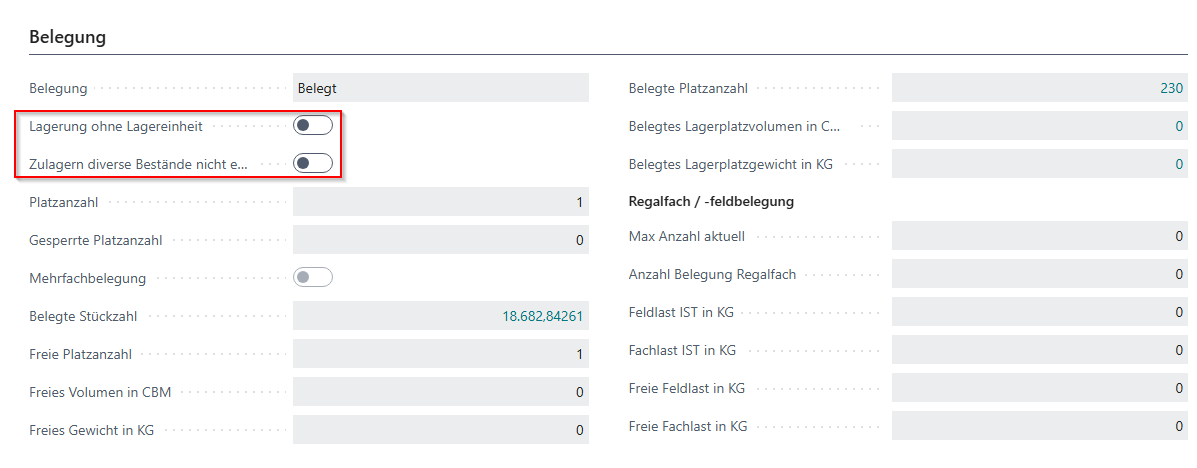
Two new fields are available on storage places to control deposit behavior:
Storage without storage unit: Specifies that no storage units (SU) are to be managed at this storage place. When an SU is deposited via a move job or inbound stock post, the load carrier is automatically dissolved and the inventory is posted directly to the storage place without a load carrier. STU, PTU and SSCC are not dissolved. Inventories with identical characteristics (item, variant, lot, sell-by date) are automatically merged.
Storing various inventories not allowed: Prevents depositing inventories with different characteristics (item, variant, lot, sell-by date, serial number) to this storage place. If inventory with differing characteristics already exists at the storage place, the move job or inbound stock post is rejected with the following error message:
"Only similar inventories may be stored on SP 'XXXXXX'."
Setup
Both fields can be set at the following locations:
- SWMS Storage Place Card
- SWMS Storage Places
- Process Storage Places
- Storage Place Category - Please note that existing storage places belonging to this category do not automatically receive both fields. You must update these manually.
Both fields can be set directly on the SWMS Storage Place Card and in the Storage Place List. Using Process Storage Places, both fields can be set for multiple storage places simultaneously. Newly created storage places assigned the category automatically inherit both fields.
When Storage without storage unit is activated, Storing various inventories not allowed is automatically set as well.
Hinweis
The Storage without storage unit field only applies to storage units (SU). STU, PTU and SSCC are not dissolved and remain as independent load carriers.
Hinweis
The Storing various inventories not allowed field on the storage place prevents manual depositing of mixed inventories. The automatic target place finding of the inbound stock post strategy is controlled separately via the Storage of various inventories field in the strategy lines (see below).
Inbound Stock Post Strategy: Field "Storage of various inventories" - Item 132056
A new field Storage of various inventories (Boolean, default: Yes) is available in the lines of the inbound stock post strategy (inbound stock post strategy lines).
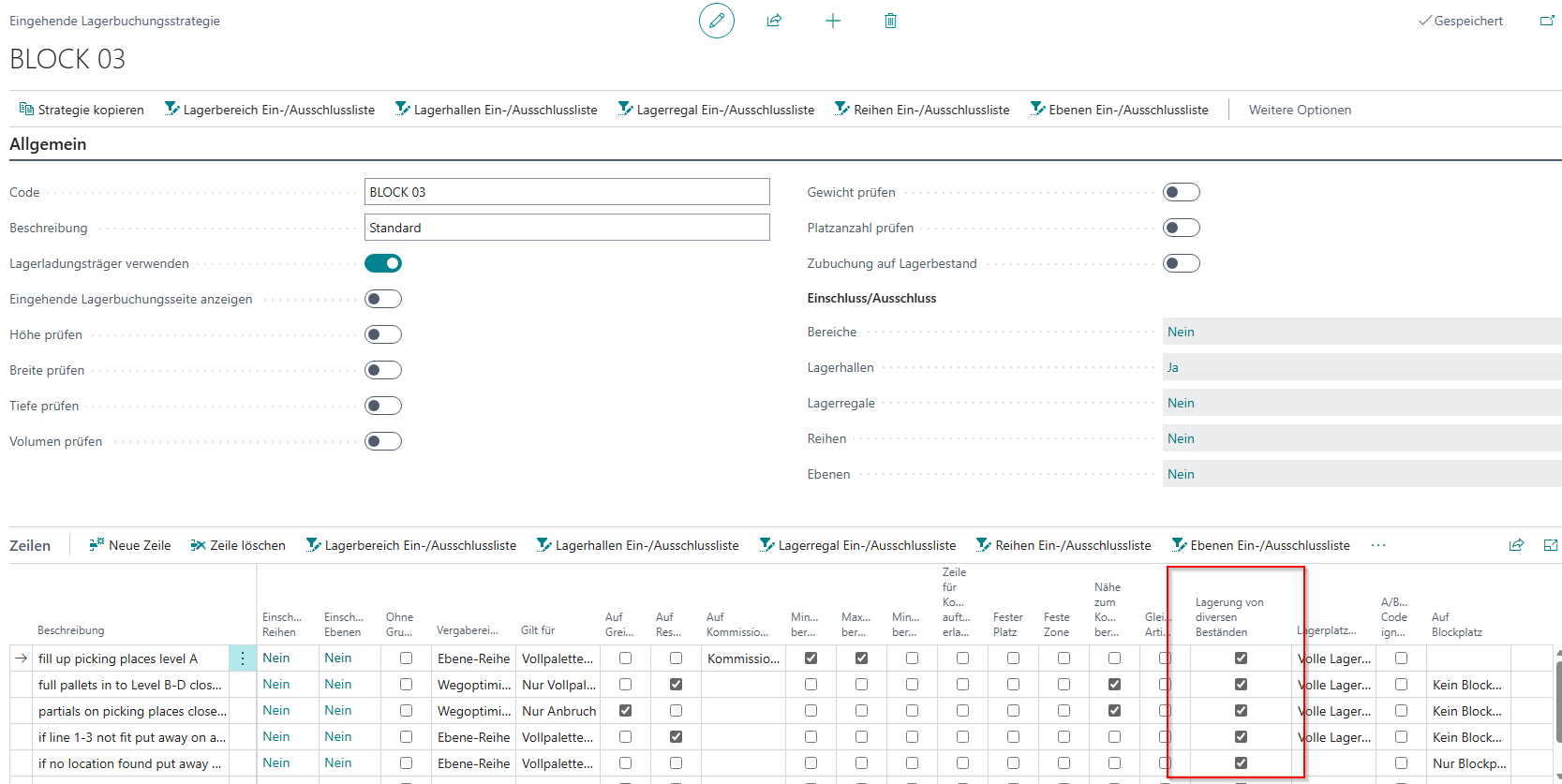
When set to Yes (default), the automatic target place finding behaves as before: storage places already containing inventories with differing characteristics (item, variant, lot, sell-by date, serial number) are still considered as valid targets.
When set to No, the strategy restricts target place finding. Only the following storage places are then eligible:
- Empty storage places (no existing inventory)
- Storage places that already contain inventory of the same item with identical characteristics (variant, lot, sell-by date, serial number)
This setting applies exclusively to the automatic target place finding of the inbound stock post strategy and acts independently of the Storing various inventories not allowed field on the storage place.
Warehouse Shipment
MOP Monitor Accessible via Related in Warehouse Shipment Planning - Item 134529
In the warehouse shipment planning, the MOP Monitor can now be opened directly via Related. The monitor is filtered to the stock document of the currently selected warehouse shipment, so only the associated MOP batches are displayed. The behaviour is analogous to the existing Show Picking Series Monitor entry.
Warehouse Shipment Merging Criteria No Longer Overwritten by WS Automation - Item 135620
Building on Sprint 60 Item 132793, the merging criteria in the warehouse shipment header (e.g. Customer Specific, Ship. Address Specific, Order Specific WS, Shipping Agent Code) have been further protected.
Previously, these criteria could be overwritten when a more general automation line added a further order to an existing shipment. This opened the possibility that orders from different shipping agents or customers would end up in a restricted warehouse shipment, leading to further contamination in subsequent automation runs.
The merging criteria in the warehouse shipment header are now immutable once set by the first assigned order. New orders can still be assigned to the shipment if they meet the criteria. The header criteria will not be changed.
Create Warehouse Shipment and Reservations per Item - Item 133497 and more
The Create Warehouse Shipment and Reservations per Item page provides a function to create warehouse shipments and SWMS stock document lines on a per-item basis and reserve inventory in advance – independently of the regular automation cycles. This allows inventory to be allocated to specific orders before normal processing begins.
The page is accessible from the SIEVERS WMS Role Center in the Reports section via Item related WHS setup, reserve SWMS inventory. A full description of the page is available in the page documentation.
How it works:
After entering an Item No. (and optionally a Variant Code), the page shows a list of all released source document lines for which no complete stock document line exists yet. Lines are colour-coded by inventory availability: no colour (fully available), yellow (partially available only), or red (no available inventory).
The Warehouse Document Creation option controls whether a stock document line with reservation is also created (With Reservation) or only a warehouse shipment without reservation (Without Reservation). Create New Warehouse Document determines whether a new warehouse shipment is always created or whether an existing one may be reused.
The Create Warehouse Shipments and Reservation for Selection action processes only the selected lines. For partially available lines, a warehouse document is created only for the actually available partial quantity.
Improvements in Sprint 61:
- Performance (Item 135650): Opening the page was reduced from 13–14 seconds to under 2 seconds.
- Variant selection via lookup (Item 135678): Selecting a variant from the lookup now correctly refreshes the availability indicators.
- Partial availability (Item 135841): Lines with only partially available inventory are highlighted in yellow. When processing, a warehouse document is created for the available partial quantity and the inventory is reserved.
- Creation for marked line only (Item 135842): Warehouse documents and reservations are now created exclusively for the selected lines – no longer for all orders in the warehouse shipment.
- Correct sorting (Item 135844): Lines are sorted in ascending order by loading date (fallback: planned shipment date), with source number as the second sort criterion.
SIEVERS Shipping
ShipXpert Cloud Interface - Item 133320
The new ShipXpert Cloud interface enables fully automatic generation of shipping labels via the ShipXpert SaaS service. Labels are created directly on ShipXpert servers and returned to the WMS together with the tracking number.
Download Shipping Profiles:
After entering the login credentials and running Request Access Token in the ShipXpert Cloud Setup, the Client ID and Shipping Profiles URL are set automatically. The Download Shipping Profiles action then retrieves all available shipping profiles from ShipXpert Cloud and stores them in the ShipXpert Cloud Shipping Profiles table. The table contains the following information:
- Carrier ID and Carrier Name
- Service Id, Service Code and Service Code Description
Assigning Shipping Agents and Services:
The downloaded shipping profiles are assigned directly to shipping agents and shipping agent services:
- Shipping Agent: Use the new ShipXpert Shipping Carrier field to select the matching entry from the downloaded shipping profiles.
- Shipping Agent Services: Use the new ShipXpert Service Code field to select the corresponding service code. Each shipping agent service requires a service code for shipping labels to be printed.
For the full setup guide, see Label Printing with ShipXpert Cloud.
Achtung
Before activating the ShipXpert Cloud setup, make sure there are no open warehouse documents for shipping agents that send via ShipXpert. Otherwise, inconsistent data constellations may occur.
Reports and Printing
Initialization of the SWMS Assignment Report/Format List - Item 134865
The page SWMS Assignment Report/Format List now has a new Initialization action. It automatically fills the table with all standard SIEVERS WMS reports and their corresponding formats. This eliminates the need to manually create each entry during new installations.
When the action is run, a first prompt asks whether existing entries should be deleted and completely re-populated. If declined, a second prompt asks whether only missing entries should be added. Individual custom reports still need to be entered manually.
Small Improvements
- Loading and sorting in the Picking Series Monitor has been significantly improved - Item 127540
- After pressing the Create Picking Documents button in the SWMS Outbound Stock Post, a confirmation message is now displayed - Item 129974
Bugs
Assembly-to-Order (ATO)
ATO: Order Connection Preserved on Posting Error - Item 135594
When posting an assembly-to-order (ATO), a warehouse shipment is automatically created. If this process failed with an error (e.g. a missing shipping agent code in the sales order), the link between the assembly order and the sales order was previously permanently deleted – even though the assembly order still needed to be processed as an order-specific assembly.
This behavior has been fixed. When a posting error occurs, the link is now fully preserved and the entire transaction is cleanly rolled back. The assembly order can then be posted correctly after resolving the error (e.g. adding the missing shipping agent code).
Warehouse Shipment
Default Values for Warehouse Shipment Creation on Customers and Vendors - Item 135617
The fields Source Type Filter and Ship. Address Specific WS in the Warehouse Shipment Creation section of the customer and vendor cards were not correctly initialized when creating new records.
This behavior has been fixed: Source Type Filter now defaults to all standard source types (sales order, transfer order, assembly order). Ship. Address Specific WS is now active by default. An upgrade codeunit automatically sets both fields on all existing customer and vendor records when updating to this version.
Picking
Print Picking Documents for Storage without Load Carrier - Item 132091
Picking documents containing positions to be picked from storage places with the Storage without storage unit field active can now be printed. Previously, printing such documents was not possible - the print preview was empty and the print job failed. Releasing, posting the warehouse shipment, and the feedback function were already working.
Missing Packaging Team Validation in Serial Picking - Item 117857
When creating warehouse documents for serial picking, the packaging team on the order was not validated. If the field was missing, picking documents were created without a packaging team. This has been corrected: if a packaging team is missing, an error is now displayed.
A4.MOP: Error When Putting Away with Printed Shipping Label - Item 133858
When putting away an entire rack in MOP picking, an error was incorrectly displayed if a shipping label had already been printed. Putting away is no longer blocked by a printed shipping label.
A4.3 MOP: Duplicate Dialog “Post to PTU or Convert LC to PTU” - Item 134309
When clearing a storage unit in MOP picking (A4.3), the dialog “Post to PTU or Convert LC to PTU” appeared twice. The error has been fixed.
A3.2: Incorrect Inventory Filter on Inventory Scan - Item 135082
When scanning an inventory in A3.2, the inventory list was not correctly filtered to the scanned inventory. The filter now correctly considers the scanned inventory.
A4.3: SU Field Displayed Too Wide - Item 135183
The SU input field in A4.3 was displayed too wide. The size has been adjusted to 10 characters.
A4.3: Focus Not Set Correctly After Scanning SU or Load Carrier - Item 136948
After scanning a storage unit or load carrier in A4.3, the focus was not correctly moved to the required quantity field. The behavior has been fixed.
WMS Setup
WMS Setup Import/Export: Bug Fixes - Item 130900 and Item 130902
Two errors in the WMS Setup Import/Export have been fixed:
- Load carrier import: The import of load carriers was failing with an error and now runs without errors.
- Number series: If number series already existed at import time, an error was thrown. Existing number series are now skipped, allowing the import to be run multiple times and with different setups.
Warehouse Receipt
Focus Loss in GS1 Process and Serial Number Entry (A1.6s) - Item 132667 and Item 133131
In two warehouse receipt screens, an unexpected focus loss occurred: during scanning in the GS1 process and during serial number entry in A1.6s. Both issues have been fixed.
A1.GS1: Processing of Different Source Document Types - Item 134121
In the GS1 warehouse receipt (A1.GS1), SSCCs could not be correctly scanned and validated when different source document types were present. The error has been fixed.
Inbound Stock Post: Error Message for Already Stored Load Carrier - Item 133719
When posting an inbound stock post to a load carrier with the status “newly stored”, an unclear error message was displayed. This has been corrected: the posting is now possible, or the displayed message clearly describes the reason.
A1.GS1 Mobile: Booking to Wrong Load Carrier with Multiple GS1 References - Item 135960
In the mobile GS1 warehouse receipt, all positions were booked to the same load carrier when capturing multiple load carriers. Each GS1 SSCC now correctly creates its own load carrier.
Warehouse Shipment
Keyword Field Not Populated for Purchase Returns and Warehouse Shipment Planning - Item 135616
For purchase return orders and warehouse shipment planning, the Keyword field was no longer populated correctly. It is now filled analogously to regular sales orders: vendor name, separator "|" and delivery country from the ship-to address.
Reservation
Variant Selection from Lookup: Availability Indication - Item 135678
When selecting a variant from a list or lookup, the screen was not correctly initialized regarding the availability indication. The error has been fixed.
Printing
Standard BC Report: Direct Printing to Virtual Printer Fails - Item 136312
When printing a standard BC report directly to a virtual printer, an error occurred due to the print station logic. Direct printing to virtual printers is now possible.
Production
Canceling an Output Entry Is No Longer Possible When the Inventory Is Already Reserved - Item 134979
We fixed an error where an output entry could be canceled even though the resulting inventory was already reserved in another stock document (e.g. outbound stock movement, physical inventory, transfer, or move job). This could lead to inconsistent inventories.
Canceling is now rejected when the inventory or its associated container is reserved:
- "Inventory XXXXXX is already reserved by another stock document."
- "Load Carrier XXXXXX is already reserved by another stock document."