Automations
Automatic Stock Transfer Posting
Transfers can be posted automatically in SIEVERS WMS. This can be useful, for example, if inventory has to be regularly sorted out to another location because it is broken, for example. The Automatic Stock Transfer Posting also works for outside storage inventory.
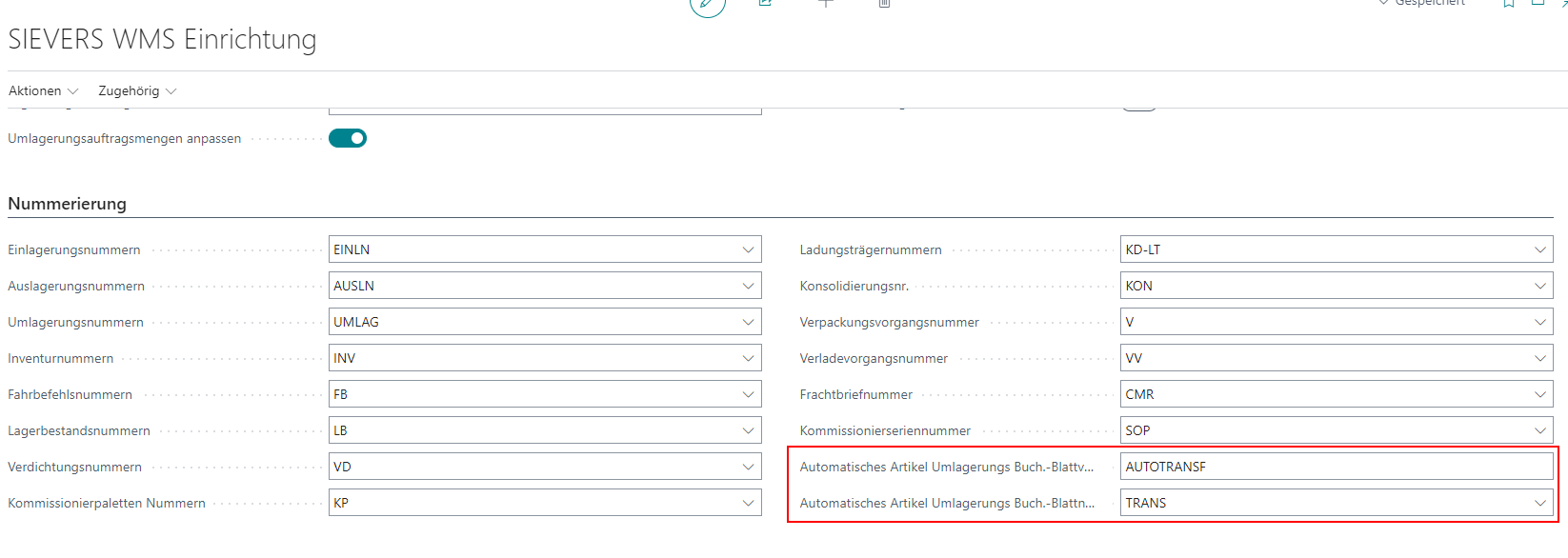
In the SIEVERS WMS setup, configure the fields Automatic Item Transfer Jnl. Template Name and No. Series for Auto. Item Transfer Jnl. Batch Names. In the No. Series for Auto. Item Transfer Jnl. Batch Names field, enter a BC number series from which the system automatically generates journal batch names.
Also make sure that you have filled in the Inventory Posting Setup for the Location Code.
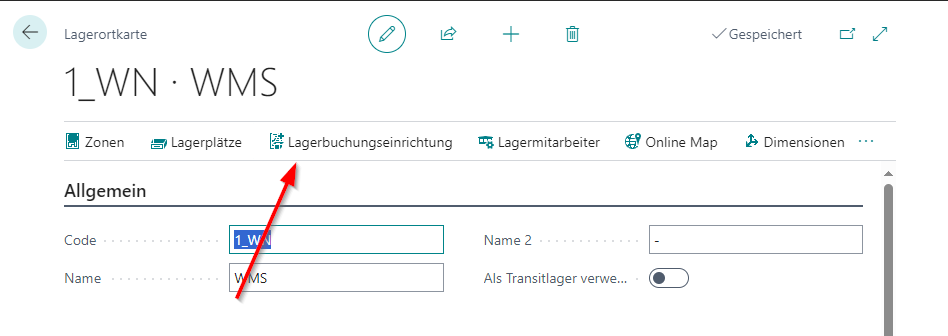
Then open the storage place card for the storage place from which you want to make an automatic transfer. Here you will find the fields
- Transfer Location Code
- Transfer Storage Place Code.
Here you enter the destination location and place for the transfers. Ideally, this is a place or location that all employees know as a drop-off point for sorting out, for example. If the storage location is a SIEVERS WMS-managed storage location, you must also enter a storage place. If this is not the case, the storage place field remains empty. The location entered here must be different from the location of the storage place to which the current storage place card belongs. The reason for this is to ensure a clean separation of inventories so that broken items are not sold by mistake.
If an item transfer or an internal transport is now posted from a storage place to the transfer location or place, the system automatically creates a transfer posting in the corresponding item transfer journal.
Delete Empty Move Orders
The report Delete empty Move Orders (report 71310367 for AppSource/SaaS/OnPrem or 77367 for PTE) cleans up empty move job headers. It deletes only move jobs without move job lines and without Employee Marking that are not in state Finish Message. Move jobs with an employee marking or move job lines remain.
Empty move jobs can intentionally remain, for example for organizational work instructions on the MDE. Open the report through search when needed or set it up as a recurring job queue entry. The report runs without an additional filter prompt.
Automatic Empties Registration on Completion
When an inbound stock post is finished, the system determines empties for the source document lines and writes the quantities to their empties lines if Automatic Empties Loading is enabled on at least one master record related to the source document.
For purchase documents, the system checks this setting on the Vendor Card and the Shipping Agent; for sales documents, it checks the Customer Card and the Shipping Agent. The setting only needs to be enabled on one of the two records.
The calculation uses the inbound stock post lines and empties assignments present at completion. Manually entered empties lines remain unchanged. Resetting the Finished status deletes only automatically created empties lines. If the stock document is finished again, the system runs the calculation again.
Warehouse Shipment Automation
This automation is used to automatically create warehouse shipments or assign source documents to existing warehouse shipments according to certain rules. The Whse. Ship. Automation page is used as the configuration table. Here you can not only set the rules in question, but also access the log and start processing the automation.
Ideally, you have set up the warehouse shipment automation as a job queue entry. If the processing is to be executed automatically via job queue, please use the CodeUnit 71310347 for the AppSource onPrem and SaaS versions and 77347 for PTE.
The setup rows of the Whse. Ship. Automation are executed in the order in which they are sorted. The following setup columns are available on the page:
When a warehouse shipment is created via the automation, the purity flags from the setup line are transferred to the warehouse shipment header. These flags then prevent source documents of other customers, vendors, orders, or shipping addresses from being added to this warehouse shipment, regardless of whether this happens manually or via the automation.
- Sorting: The automation rows are processed in this order when the automation is started
- Deactivated: When this field is checked, the automation row is not applied
- Location Code: Specifies that this automation is only applied to orders at this warehouse location
- Description: Describes the automation row
- Priority: Defines a priority for all warehouse shipments created with this setup line. If you do not enter anything here or enter a 0, the priority will be formed regularly according to weekday + priority value and shipping agent + priority value.
- Source Type Filter: Defines the type of source document to which this automation line is applied.
- Customer Clean: Specifies that all subsequent orders must have the same customers as the first order. This is how single-customer warehouse shipments are formed.
- Customer No. Filter: Specifies that this automation line only applies to a specific customer. If nothing is entered here, the line is applied to all customers.
- Vendor Clean: Specifies that all subsequent orders must have the same vendors as the first order. This is how single-vendor warehouse shipments vendors are formed.
- Venor No. Filter: Specifies that this automation line only applies to a specific vendor. If nothing is entered here, the line is applied to all vendor.
- Order Specific WS: Specifies that a separate warehouse shipment must be created for each order.
- By Shipping Address: Specifies that all source documents in the warehouse shipment must have the same shipping address.
- Shipping Agent Code Filter: Specifies that all warehouse shipments created have this shipping agent. Please note that the shipping agent also serves as a filter when adding new orders to warehouse shipments
- Lead Time: Specifies how many working days before the delivery date a warehouse shipment can be created. If a 10 is entered here, a warehouse shipment can be created 10 days before the loading date. See also Warehouse Shipment Dates.
- Warehouse Shipment Release Horizon: Specifies how many working days before the first loading date matching open warehouse shipments are released automatically. If 0 is entered, automatic release is disabled for this setup line. Working days are determined by the base calendar at the customer or location.
- Deadline: Specifies the number of days before the first loading date of the warehouse shipment that no more orders are assigned. This can be useful if it takes one or more days from the creation of the warehouse shipment until loading is possible. If no base calendar is entered, calendar days apply.
- Grace Period Shipment Date: Tolerance period around the first loading date in which various orders can be grouped into a warehouse shipment. For more information, see Warehouse Shipment Dates.
- Loading Day: Specifies the loading day for each warehouse shipment created with this setup line. The system tries to find a date in the current week before the shipment date. If this is not possible, the next possible date in the following week is set as the loading date.
- Update Loading Date: If you have not specified a loading day in the previous field, use this radio button to activate the automatic update of the loading date based on the earliest loading date from the source documents.
- Variable for Whse. Shipment Auto. Creation: Control attribute for the Warehouse Shipment Automation. Source documents from customers or vendors with the same variable value are grouped together across customer boundaries into a single warehouse shipment. The corresponding counterpart can be found on the Customer Card and the vendor card.
When the Warehouse Shipment Release Horizon is reached, the automation releases matching open warehouse shipments automatically. If Automatic Replenishment on Whse. Shpt. Release is enabled in SIEVERS WMS Setup, Replenishment Action is started for the warehouse shipment lines afterwards. The release remains effective if replenishment fails; the error is recorded in the Whse. Ship. Automation Protocol. Warehouse shipments that have already been released are skipped without an action or protocol entry. The Warehouse Shipment Release Action and Replenishment Action are marked in the Whse. Ship. Automation Protocol.
Outbound Stock Post Automation
This automatically creates Outbound Stock Post documents for warehouse shipments once the configured lead time before the loading date is reached. The automation is executed by a job queue or the button Start Processing on the Outbound Stock Post Automation page. This is where you can set up lines that are passed through when the automation is executed. The table has the following fields:
- Sorting: The automation lines are processed in this order when the automation is started
- Deactivated: If this field activated, the automation line is not applied
- Location Code: Determines that this automation will only be applied to orders in this location
- Description: Describes the automation line
- Source Document: Defines the source document type this automation line will be applied on. Right now there are only warehouse shipments possible
- Shipping Agent Code Filter: Determines that this automation will only be applied to orders of this shipping agent
- Lead Time: Determines the time in working days how far before the delivery date a Outbound Stock Post may be created. If a 10 is entered here, a Outbound Stock Post may be created 10 days before the loading date. The working days are based on the calendar from the location.
- Reservation Order: Determines the order in which the documents are sorted to create the Outbound Stock Posts
- Variable for Auto. Creation Filter: Here you can determine a variable as filter for the automatic Outbound Stock Post. You can find the corresponding counterpart of the field in the warehouse shipment planning. The optional field is called Variable for aut. creation of stock doc.. The value can also be maintained as a default on the Customer Card or Vendor Card. When a warehouse shipment is created for a vendor, it is copied to the field with the same name on the warehouse shipment unless a value is already present.
- Delete Protocol after days: Specifies after how many days the protocol should be deleted. Can be disabled with 0
After the execution is started via the button or a job, all source documents with warehouse shipments that match the filter criteria are searched for. The filter criteria include
- Order type
- Shipping agent
- Variable for aut. creation of stock doc.
After that, a check is made to see if the lead time of, for example, three days before the loading date has been reached.
Before creating an Outbound Stock Post, the automation checks whether at least one item on the warehouse shipment has available stock that covers part or all of its demand. If no item is available, no Outbound Stock Post is created and no number from the number series is consumed.
If this is the case, Outbound Stock Post documents and shipping orders are now created on the basis of the source documents and sorted by delivery date and priority of the order. If the system finds that a stock document is empty, it is automatically deleted.
Hinweis
The runtimes of the Outbound Stock Post automation can differ greatly. Sometimes the processing is quickly finished and sometimes it takes a long time. This is often because many new stock documents have to be created and these are already processed during the next run. In addition, a cache is filled during processing, which can be retrieved again as needed during later runs. This can also speed up processing.
Automatic Picking Team Determination
In both manual and automatic goods issue processing, a picking team must be found and assigned during the process. Sometimes this does not work right away, for example, because team master data is not set up correctly. This may not be noticed immediately, especially in automated processes. To avoid this, you can set up a job queue entry with the code unit SNCL Pick Team Determ Mgt. This automatically searches for picking documents without a picking team and attempts to assign a team to them. The code unit has the following IDs:
- SaaS/OnPrem: 70294248
- PTE: 77248
Hinweis
If you have any questions about this, please contact your SIEVERS partner.
Automatic Picking Documents
With this automation, created picking documents can be released automatically. This reduces the manual effort involved in processing warehouse shipments. The automation mainly runs via three setups:
- Job Queue Entry: If you want the processing to be carried out automatically in the job queue, please use CodeUnit 70294228 for the Appsource onPrem and SaaS versions and 77228 for PTE. This releases the picking documents based on the release lead times.
- Order Type Release Lead Time
- Picking & Packaging Release Lead Time
The release lead time indicates how many days before the loading date the picking document is automatically released. The release lead time in the order types always has the highest priority. If the current work date falls within the release lead time, the appropriate picking documents for the corresponding team are released via job queue entries. The automatic release can also be executed manually via the Picking -> Automatic Release action on the team.
In the teams themselves, you can also start the automatic release manually via the action menu. Automatically released picking documents are logged.
Picking Release Automation Protocol
This page displays a log of the automatically released picking documents. If an error occurs, it will be written in the Error Message field. An error does not necessarily mean that the release run is cancelled completely. For example, if a blocked inventory is found during the release, it will only be mentioned in the error message and skipped.
- Entry No.
- Location Code
- Source No.
- Source Subtype
- Source Type
- Warehouse Shipment No.
- Outbound Stock Post No.
- Picking Document No.
- Picking Team
- Order Type
- Shipping Agent Code
- Successful
- Error exist
- Error Message
Assembly-to-Order (ATO) Automations
In assembly-to-order (ATO), an assembly order is directly linked to a sales line. In the Business Central standard, this fixed link prevents flexible WMS processing: the item must first be assembled before it can be packed and shipped. SIEVERS WMS automates the entire flow from inbound stock posting to shipment readiness, enabling full WMS processing without manual intervention.
Setup
The following setup is available in the Assembly tab of the SIEVERS WMS Setup:
- Create Warehouse Shipment / Stock Document for Order Assembly: Specifies whether the warehouse shipment is created automatically when the inbound stock post for an assembly-to-order is posted.
- Enabled: SIEVERS WMS creates a warehouse shipment if none exists. An outbound stock post line is created for the posted quantity, including partial quantities, and processed with the required picking and packaging data.
- Disabled: A warehouse shipment is not created automatically. If none exists, posting is aborted and the user must create it manually. If a warehouse shipment already exists, an outbound stock post line is still created for the posted quantity and processed.
- Auto. Print LC on Assembly: Activates automatic label printing for PTU and/or SSCC after successful order assignment.
Process Flow
- In the Business Central standard, an assembly order is automatically created when a sales order with an assembly item is created. It is linked to the sales line via the ATO Link table and reservation entries.
- A warehouse shipment is created from the sales order.
- The components are picked from stock via the assembly order and the item is assembled.
- When the inbound stock post for the finished assembled item is posted, SIEVERS WMS automatically runs the following steps:
- The BC standard link (ATO Link) is temporarily removed internally to enable the WMS inbound posting, and automatically restored for remaining quantities afterwards.
- The newly created inventory is linked to the corresponding reservation entry, ensuring the reserved stock remains uniquely assigned to the sales order.
- If the setup is enabled, the warehouse shipment is created automatically when needed. If disabled, it must already exist or posting is aborted. An outbound stock post line is created for the posted quantity and processed with the required picking and packaging data.
- During automatic order assignment when the stock document is created:
- A PTU is automatically created and fully supplied (status, picking lines, packaging process).
- The warehouse shipment planning is updated.
- Once all dimensions (depth, width, height) and weight are maintained on the PTU and the status 7 - Packed is reached, an SSCC is automatically created.
- Optionally, a label for PTU and/or SSCC is automatically printed.
Automation Overview
- Posting compatibility at WMS locations: The fixed BC standard link between the assembly order and the sales order (table "ATO Link") is internally and temporarily removed at WMS-managed locations before posting to enable the inbound warehouse entry, and automatically restored afterwards if remaining quantities exist. This process is fully transparent to the user.
- Reservation entry linkage: When posting an inbound warehouse entry, the newly created inventory is automatically linked to the corresponding reservation entry. This ensures the reserved stock remains uniquely assigned to the sales order so that subsequent WMS processes (e.g. warehouse shipment, stock posting) can be executed correctly and without manual intervention. During partial postings, split reservation entries use the planning flexibility of the original source reservation. For 1:1 order-related assignments, the reservation entry remains firmly linked to the original source reservation and cannot be rescheduled by planning.
- Validation before posting: Before the final posting of an automatic order assignment, SIEVERS WMS checks the consistency of the data. Warehouse and document quantities are compared in the Base Unit of Measure of the respective Business Central document, so individual output journals in partial postings are not incorrectly aborted because the system determines that no quantity remains. The reported quantities must still not exceed the open remaining quantity of the original line, and the item number, variant, lot number, and serial number must match the original line. If quantities are actually invalid or item data differs, SIEVERS WMS aborts the process completely so that no partial postings occur, and displays a clear error message stating the reason for the abort.
- Automatic PTU creation: At order assignment, at least one PTU is automatically created (load carrier type PTU, status at least 6 - in Packaging). All picking lines are fully supplied: the packed quantity equals the posted quantity, the packed indicator is set, and the picking status is set to 9 - Completed. The By Series indicator is ignored if it would prevent processing.
- Automatic SSCC creation: As soon as all attributes on the load carrier are complete (depth, width, height, and weight) and the status 7 - Packed is reached, an SSCC is automatically created. If dimensions or weight are missing, no automatic SSCC is created.
- Packaging lines and packaging process: The related packaging lines are automatically created and the packaging process is fully supplied.
- Warehouse shipment planning update: The warehouse shipment planning is automatically updated after processing. The picking status is correctly displayed for both partial and full quantity postings.
- Automatic label printing: Via the setup field Auto. Print LC on Assembly in the Assembly tab of the SIEVERS WMS Setup, a label for PTU and/or SSCC can be printed automatically after successful processing.
If errors occur during processing, the entire transaction is rolled back and the link between the assembly order and the sales order is fully preserved.