Warehouse Shipment Planning
The Warehouse Shipment Planning is the central overview page for all open warehouse shipments. It summarizes the state of all associated source documents and lines, giving warehouse dispatchers, clerks, and managers a quick overview of the current processing status. The page also serves as a control center: priorities can be changed, packing teams assigned, picking and packing documents released, and warehouse shipments posted.
On this page you will find an overview of the currently planned warehouse shipments and their state in the individual stations. The source documents can also be displayed for each warehouse shipment. The orders are sorted as follows:
For item-based creation of warehouse shipments and reservations, the separate page Create Warehouse Shipment and Reservations per Item is available.
- By column Status Stock
- By unloading place
- By priority
- By order
Menu
- Post Shipment
- Daily closing
- Set/show filters: With these filters, the employee can set personal filters for Warehouse Shipment Planning. See Set/show filter.
- Actions
- New document
- New warehouse shipment
- Create stock document: Creates a new SNCL Outbound Stock Post and new shipping order per unloading place in warehouse shipment. After creation, the pick overview opens automatically, where the pick documents can be released. See Releasing picking documents.
- Create packaging process: Creates a packaging process for this warehouse shipment.
- Create shipment process: Creates a new shipment process. Only possible if the shipping agent is set and the No shipping orders option is not activated for it. You can also create a shipment process without a stock document in order to plan loading effort
- Open stock document: Opens the associated SNCL Outbound Stock Post.
- Delete stock document: Deletes the associated SNCL Outbound Stock Post document. This resets the picking status.
- Use filter to get source documents
- Get source documents
- Release Items for Picking: With this action, you can release items for picking. Filter by
- Item no.
- Variant
- Cancel Released Items: This action allows you to cancel picking lines with the status 0-created or 2-released. Filter by
- Lot no.
- Variant
- Sell-by date and
- Serial number, which picking lines you want to cancel. This action not only cancels the picking lines, but also the removes the lines from the Outbound Stock Post lines. Items that are on printed picking documents or are part of a packaging process cannot be canceled using this function.
- Check replenishment
- Post & Print Shipment: Posts and prints delivery note.
- Print
- Print Packaging Process
- Print Shipment List
- Print Packlist Exportdata (only possible if at least one SSCC is available in the selected warehouse shipment)
- Print International Bill of Lading
- Delete selection: Deletes all currently selected warehouse shipments
- Update availabilities: Recalculates all availabilities and updates the list
- Update State: Updates the status of the selected warehouse shipments
- Release: You can also select several warehouse shipments and release them at the same time.
- Reopen
- Create picking series: Creates a picking series
- Other
- Post Packaging Process
- Post Shipment
- New document
- Related
- Show Warehouse Shipment
- Show Warehouse Shipment Content: Shows the source documents and items of this warehouse shipment
- Show SSCCs
- Posted Warehouse Shipments
- Show Picking Document
- Show Picking Series Monitor
- Show MOP Monitor
- Show Packaging Process
- Show Shipment Process
Factbox
On the right-hand side you will find the warehouse shipment fact box. This contains a lot of information about the currently selected warehouse shipment.
Tipp
The fact box is the most important tool for quick decisions: use it for clearing tasks (checking for missing parts), freight planning (weight and volume), and to assess whether packing or loading can already start. Some KPIs have a drill-down directly to the corresponding list. The fact box can be toggled using the icon in the top right or with Alt+F2.
Dimensions
- Qty. open to deliver
- Calculated Weight
- Calculated Volume
Picking
- Picks open
- Picks total
- Full Load Carriers total
- Partials total
- Number of open picklists
- Number of finished picklists
Packaging
- Number of open pack processes
- Number of finished pack processes
- Number of Consolidation Storage Places
Loading process
- Number of planned shipments
- Number of finished shipments: : This includes completed and posted loadings
- SSCC Weight packed
- SSCC Weight total
- SSCC packed
- SSCC total
Shipping orders
- Number of shipping orders
Assembly
- Number of assembly orders: Shows the number of assembly orders linked to this warehouse shipment. Clicking on the value opens a list of the assembly orders with order number and status.
Source documents
- Source document
- Source no.
Dimensions
- Quantities open to deliver
- Calculated Weight
Picking
- Picks open
- Picks total
- Full Load Carriers Total
- Partials Total
Loading process
- SSCC Weight packed
- SSCC Weight total
- SSCC packed
- SSCC total
Warehouse Shipment Planning Overview
In this area you will find an overview of all warehouse shipments that are in progress. To display specific warehouse shipments, use the Set/show filter action in the menu.
- No.
- Keyword: This field is automatically pre-assigned with Customer name | Delivery country, but can be edited manually - provided the user has the appropriate rights to do so
- Shipping Agent Code: This Shipping Agent Code can also be changed during warehouse shipment. However, a change is not possible as long as loading processes for this warehouse shipment exist that do not have the status 9-Finished. The affected loading processes must first be completed or deleted.
- State
- Loading week
- Loading day
- Priority
- Partial
- Stock/availability/picking/packaging/loading: Indicates the state of the corresponding partial steps of the warehouse shipment. See Warehouse Shipment Planning state. For a more detailed insight into the individual sub-areas, use the pages of the Related menu. For example, you can check the availability of the individual items in the warehouse shipment via Warehouse shipment content.
- First Loading Date
- First loading date: Specifies the expected first loading date.
- Stock document no.
- Stock document status
Can also be displayed:
- Number of shipping orders: Specifies the number of released shipping orders assigned to this warehouse shipment
- Number of Assembly Orders: Shows the number of assembly orders in the Open, Released, or Finished state that are linked to this warehouse shipment through sales orders. Clicking the number opens the filtered list of related assembly orders. Drill-down is not possible when the number is 0.
- Storage location code
- Series Distribution: Shows the current status of the series distribution, if there is one for this warehouse shipment
- Delivery transport type code
- Terms of delivery code
- Picking date: Defines the date on which picking of the warehouse shipment may begin. This date results from first loading date minus outgoing warehouse lead time. The latter is setup in the storage location.
- Created on
- Source Type Filter: Shows in text form which source types are allowed for this warehouse shipment
- Customer Specific: Shows whether this warehouse shipment is restricted to one customer
- Vendor Specific: Shows whether this warehouse shipment is restricted to one vendor
- Order Specific WS: Shows whether this warehouse shipment is restricted to one order
- Ship. Address Specific: Shows whether this warehouse shipment is restricted to one shipping address
- Variable for aut. creation of stock doc: Here you can enter a flexible value or a description, which is used as a filter in the Outbound Stock Post automation. Only warehouse shipments that have entered a value corresponding to the Outbound Stock Post automation are taken into account in the automation. In short: With this field you can manually decide which warehouse shipments should be processed automatically.
Set/show filters
Use the filters in Warehouse Shipment Planning to control which warehouse shipments should be shown in the overview. For example, employees can show all warehouse shipments made this week with the shipping agent DHL. This filter is saved individually for each user.
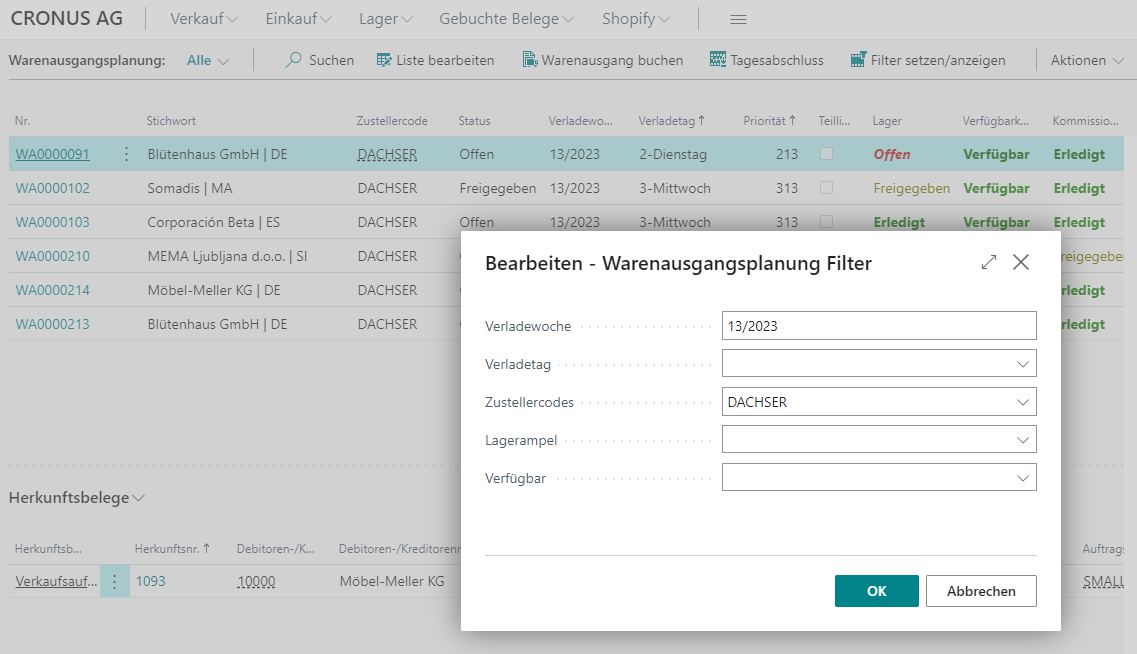
The following filter options are available:
- Loading week
- Loading day
- Shipping Agent Code
- Stock Light
- Available
Source Documents
If you have selected a warehouse shipment in the Warehouse Shipment Planning Overview, the assigned source documents are displayed in this area. Orders are sorted as follows:
- By column Stock Status
- By unloading point
- By priority
- By order
The order level provides not only an overview of the processing status but also targeted control over the warehouse process. The fields Priority, Packaging team, Order types and Unloading place can be edited directly in the table, affecting picking sequence, goods routing and document creation. The flags Order Specific WS, By Shipping Address and Picking creation by consolidation no. control whether picking and packing are carried out on a per-order basis or in a consolidated manner.
Functions
- Print picking documents for selection: Opens the Print/release picking document window, in which the picking documents can be prepared and printed.
- Show picking documents for selection: Shows the picking documents belonging to this order. If none exists, the picking documents associated with the warehouse shipment are shown.
- Show PTU: Shows an overview of the PTUs already generated for this source document
- Show SSCC: Shows an overview of the SSCCs already created for this source document
- Show packaging processes
- Outside storage resources
Table
- Source document: Indicates the type of document
- Source no.
- Customer/vendor no.
- Customer/vendor name
- Ship-to name
- Ship-to address
- Ship-to zip code
- Ship-to location
- Country/region code
- Shipping Agent Code: If you change this shipping agent, the shipping agent in the source document will also be changed
- Shipping Agent Code: If you change this shipping agent, the shipping agent in the source document will also be changed
- Order types: This field is automatically filled if the order type table on the SIEVERS WMS team card is filled. The order types are first checked and assigned when the order is created and then again when the warehouse shipments are created.
- Packaging team: Editable field for assigning a packaging team. If a packing team is directly assigned to the picking team, this is automatically entered here. Otherwise, the entry must be made manually. This field must be filled in before picking is released.
- Priority: Affects the sequence of this order in the mobile picking dialogs. A change immediately influences the position of the order in ongoing picking processes. The priority is derived from the weekday of the first loading date and the priority value of the shipping agent. See Weekday Priorities.
- Partial delivery
- Stock status, availability, picking status, distribution status, packaging status, loading status: Shows the current state of the source document in the respective areas. See Warehouse Shipment Planning status.
- Shipping Advice Rules
- Shipping Advice
- Unloading place: Specifies where the goods for this order are to be unloaded from the transport vehicle. Changing the unloading place can alter the loading sequence and, depending on the flags set, also affects how picking documents are created.
- Order Specific WS: Picking and packing may only be carried out on a per-order basis. Applies to conventional picking methods (parallel and serial picking). This flag has no effect on series-oriented or multi-order picking.
- By Shipping Address: If this flag is set, the order may be packaged together with other orders that meet the following requirements: same warehouse shipment, same unloading point, same packing team. The setup Consolidation by Shipping Address allowed must be enabled.
- Picking creation by consolidation no.: If By Shipping Address is active and this flag is set, cross-order picking documents are created. The picking quantities are consolidated per picking team, item, load carrier and consolidation no. from the Outbound Stock Post.
- Employee Marking
Print Picking Document
On this page, you can print and release picking documents for the selected source documents. You can also execute a process that finds the correct team for all picking documents without a team. To do this, execute Find Picking Teams.
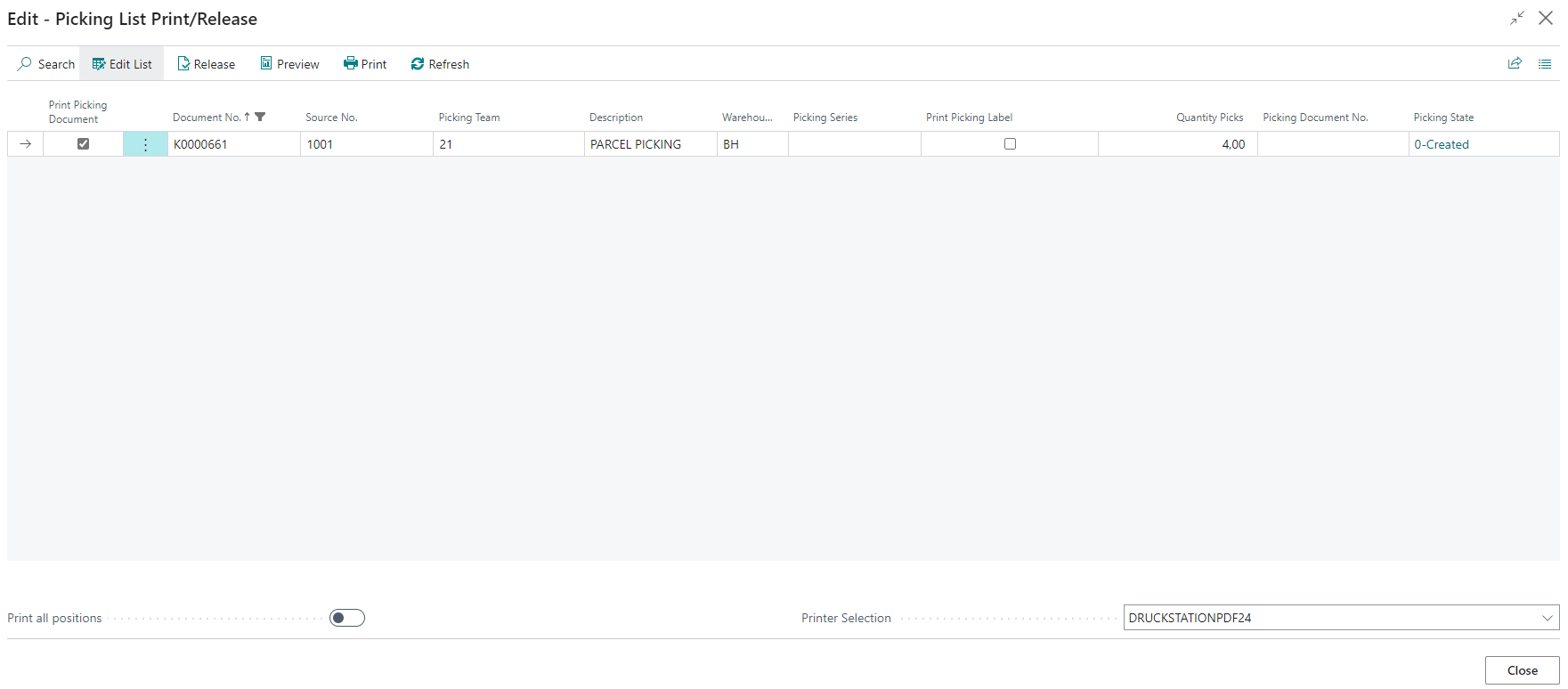
Print Picking Document: Selects whether this document should be printed
Document No.
Source No.
Picking Team (Selection depending on Location Code): You can also change this picking team. The new picking team is then assigned to all Outbound Stock Post lines that belong to the current document.
Description
Warehouses
Priorities
Shipping Agent Codes
Order Type Codes
MOP Batch No.
Picking Series
Print Picking Label: Selects whether picking labels should also be printed when printing the picking documents. As a rule, these are not required if the vendors/producers have already labeled the items with the GTIN.
Quantity picks
Picking document no.
Picking state
Print all positions: After activating this option, all positions are printed - regardless of whether they are already in packaging or not.
Printer selection: Selects the printer to be used to print the documents and labels.
Hinweis
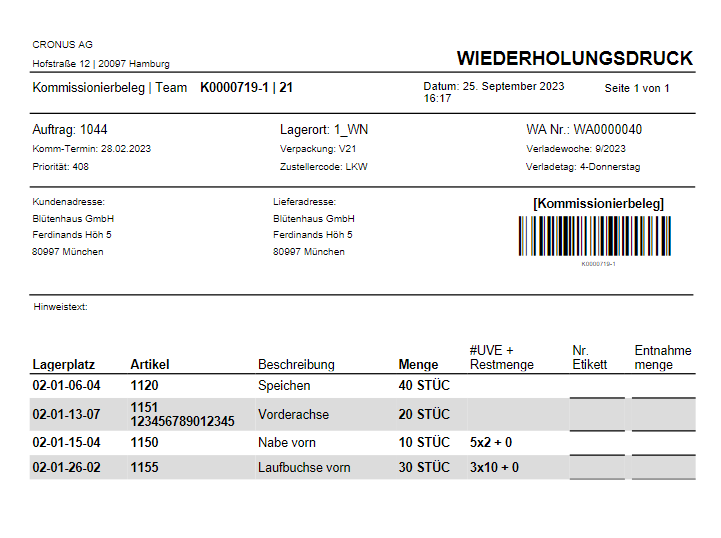
If another print is carried out after the first print, the document is titled Reprint. This is to prevent a second picking being carried out unintentionally.
Hinweis
If it is a picking series, all items with the same item no., the same Load Carrier code and the same storage place are grouped together.
View - Picking documents
This page shows the picking documents for the selected source document.
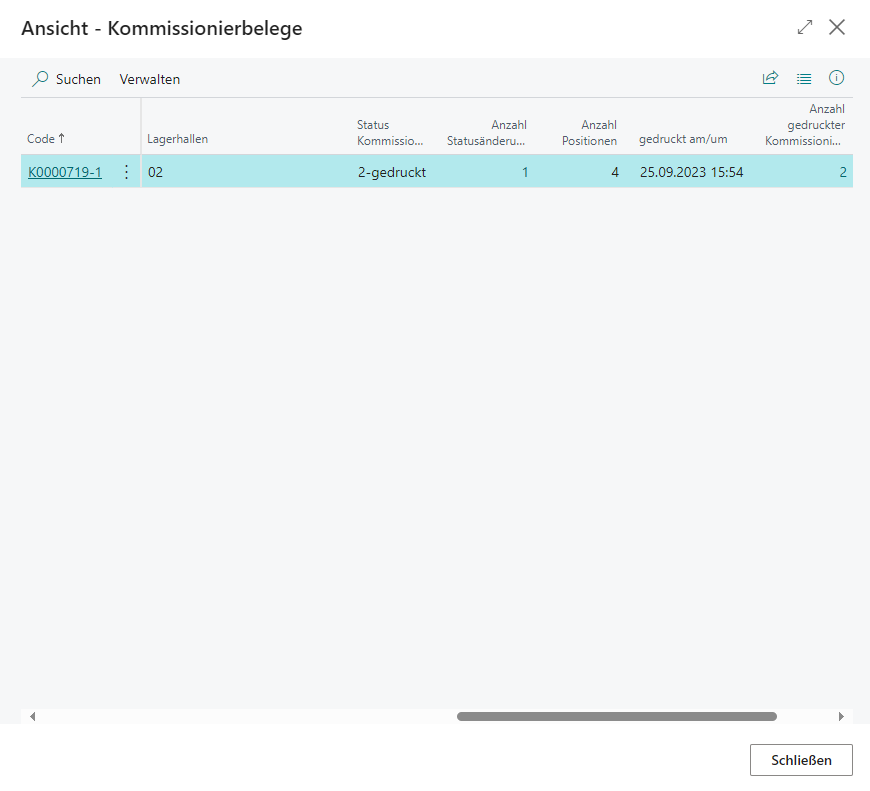
- Code
- Location code
- Source type
- Source no.
- Warehouse shipment no.
- Picking team
- Picking team Description
- Packaging team
- Packing team Description
- Warehouses
- Picking state
- Number of status changes: Specifies the number of status changes. One click leads to the corresponding entries in the SNCL Time protocol list
- Number of positions: Specifies the number of picking positions/picks
- Printed at Datetime
- Number of printed picking documents: Specifies the number of printed documents. A click leads to the corresponding entries in the SNCL Time protocol list
- Printed by User
- Priority
Warehouse Shipment Content
Shows the source documents and associated items of the selected warehouse shipment.
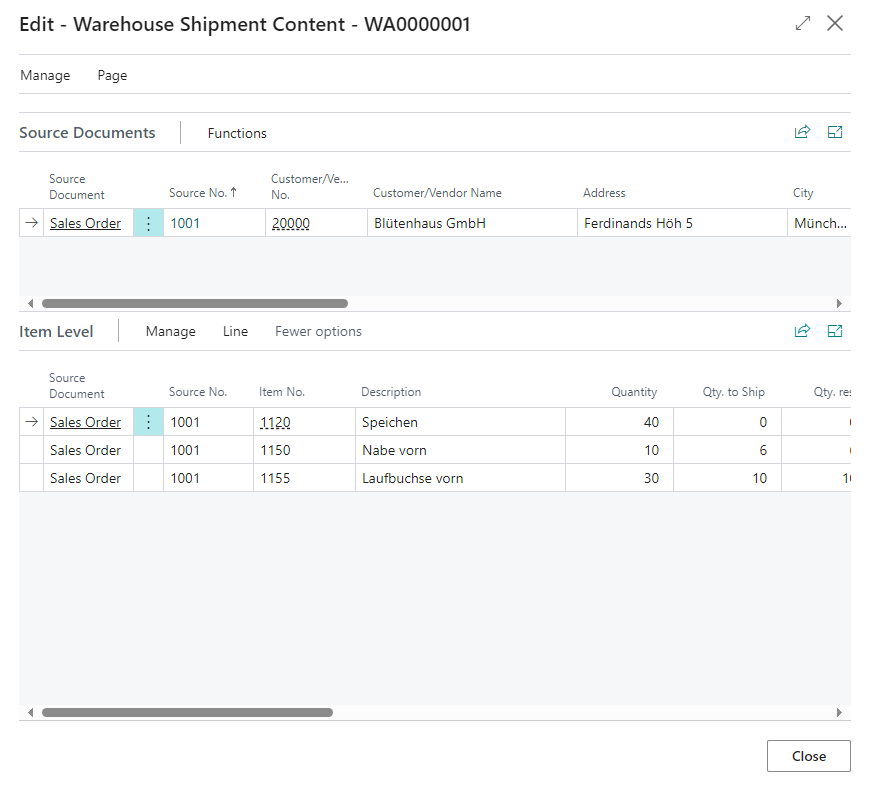
Source documents
This table does not differ from the table in Warehouse Shipment Planning
Item Level
The item level shows the detailed process status of each item quantity in the warehouse shipment, broken down by the warehouse processes picking, packaging and loading. It is the basis for the status indicators at order level and at warehouse shipment level: the worst quantity status of the lines aggregates upwards. The item level therefore serves as the central tool for clearing tasks (checking shortfalls, availability), for freight estimation (quantities, weights) and for stock information on a warehouse shipment line.
Line
- Source document line: Shows the source documents with this item
- Inventories: Shows the inventory items filtered to this item
- Item tracking lines: Shows the item tracking lines related to this item
- Outside storage resources: Shows the assigned resources
Table
Shows the items assigned to the warehouse shipment of the source document selected above. The quantity fields form the basis for the status indicators at order and warehouse shipment level.
- Source document
- Source no.
- Item no.
- Description
- Quantity
- Quantity to ship
- Quantity reserved
- Quantity in picking
- Quantity picked
- Quantity in distribution
- Quantity in packing
- Quantity packed
- Quantity in loading
- Quantity loaded
- Quantity shipped
- Quantity outstanding
- Due date
- Unit of measure code
- Quantity per unit of measure
- Employee Marking
- Inventory Selection
- Purchasing Code: Shows the purchasing code from the underlying sales or purchase document line. The field is hidden by default and can be shown through personalization. With SPEZ.AUFTRAG, the item is ordered for the specific order and assigned to the customer order during warehouse receipt.
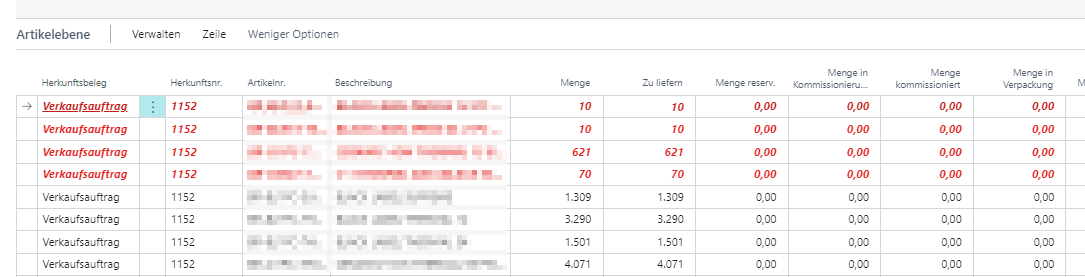
If there is a lack of availability, the lines are colored:
- Red: This item quantity is not available
- Blue: This item quantity is partially available
Hinweis
Only items with the item type Inventory are considered for the availability calculation. Items with the type Non-Inventory or Service have no influence on availability.
Releasing picking documents
Once an outbound stock document has been created, the associated picking documents can be released manually. The action is called from the Warehouse Shipment Planning via Action > Create Stock Document. If outbound stock documents already exist for the warehouse shipment, SIEVERS WMS detects this automatically and releases the existing picking documents instead of creating new ones.
After release, the picking document has status Released and is available for the pickers to process.
Withdrawing a picking release
If the release has not yet been processed, it can be withdrawn. Select one or more picking documents in the View - Picking Documents section and run Reset Released Picking Document. The inventory reservation of the associated outbound lines is retained.
If the entire outbound stock document is to be cancelled, delete the stock document directly. This removes both the picking document and the outbound lines.
Hinweis
Automatic release of picking documents based on a release lead time can be configured in the SIEVERS WMS Teams. For more information about the automation, see Automatic Picking Documents.
Deleting warehouse shipments
Using the Delete Selection action in the Warehouse Shipment Planning, one or more marked warehouse shipments can be deleted in a single step. This is only possible as long as the warehouse shipments have not yet been processed. When deleted, the assigned source documents are released again.
Posting a warehouse shipment
Posting a warehouse shipment completes the warehouse processes and transfers the transaction to accounting and connected systems (e.g. customs software). SIEVERS WMS posts the Business Central delivery, writes the item ledger entries, and reduces the BC inventory. All SIEVERS WMS documents are converted into posted documents and load carriers into posted containers.
Prerequisites for posting a warehouse shipment:
- Shipping agent with loading step: Loading must be completed.
- Shipping agent without loading step (partial delivery): At least one packed SSCC must exist.
- Shipping agent without loading step (complete): All warehouse shipment lines must be packed.
Select one or more warehouse shipments in the Warehouse Shipment Planning and run Post WS. For partial deliveries, the remaining open WS lines stay in the warehouse shipment and can be posted again once the outstanding quantity is processed. Posted warehouse shipments are created and accessible via the Posted Warehouse Shipments field in the warehouse shipment header.
For a partial posting, the partial-delivery confirmation "Do you really want to make a partial delivery? Not all quantities have been packed / loaded!" is shown first. After Yes, posting starts directly without an additional general posting confirmation. After No, the process is cancelled. For a complete posting, the general posting confirmation remains. The result message after posting remains available.
Hinweis
Posting can also be automated via a job queue entry.