Organise Replenishment
If storage places have been configured as picking places, they can be replenished from reserve locations. This can be done automatically or via the check replenishment action. In both cases, correctly set up replenishment strategies are essential.
Automatic replenishment
The option for automatic replenishment can be found in the SIEVERS WMS setup. If this is activated, inventory or Load Carrier move jobs are automatically generated depending on the replenishment strategy and demand.
Check Replenishment
You can use this action to manually trigger a replenishment check for a Location Code and any other filters. A replenishment check should be carried out regularly, especially if Automatic replenishment is not activated in the SIEVERS WMS setup. You can also automate the replenishment check using Schedule.
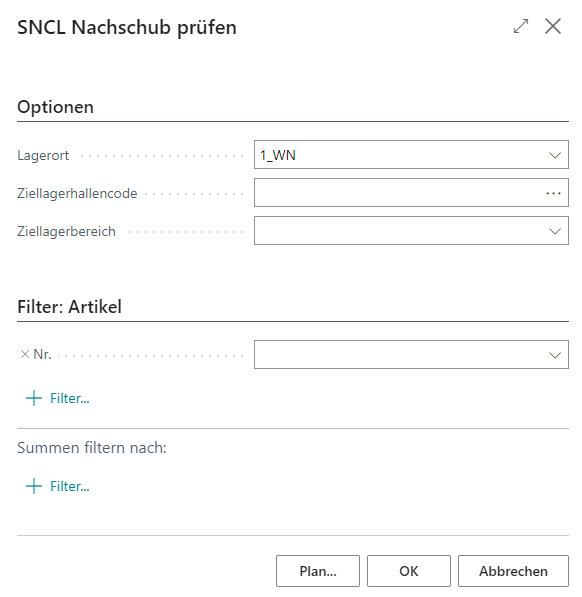
In the Replenishment Mode field you choose the logic used to determine the demand:
- Min/Max: The previous default mode. Demand results from the minimum and maximum inventory levels configured on the item or inventory data.
- Order-Based: Demand per item results from the outstanding quantity of released warehouse shipments with a shipment date from today onwards. In addition to inventory in the picking area and open replenishment move jobs, expected inbound quantities and ongoing inventory movements are considered in the demand calculation. Inbound quantities include open warehouse receipt lines and transfer lines to the relevant location within the date window, as well as deposit documents with a target in the picking area. Ongoing dislocations, open move jobs, and transfers are included in the net inventory calculation. If inventory and inbound quantities fully cover the order demand, no move job is created. If demand exceeds available inventory, a move job is created for the difference. A prerequisite is that a picking area or at least one fixed picking place is set up for the item; otherwise the item is skipped. For items without a picking warehouse and picking area, inventory on fixed picking places is considered; their minimum and maximum inventory levels are not used in order-based mode. If exactly one fixed picking place exists, it is set as the move job's target place. If multiple fixed picking places exist, the move job can be created without a specific target place and the target place is assigned manually later or during put-away. Use the Order-Based Date Window field to limit the considered time horizon with a date formula (default from the SIEVERS WMS setup, empty = all open warehouse shipments without a time limit). If there is not enough inventory in the reserve area, a partial replenishment is created when inventory is available. A message lists the items for which the full replenishment quantity could not be provided. If multiple items are affected, they are listed together in one message. The message is also shown when no reserve inventory is available; in that case, no move job is created. If no free target storage place is available in the picking area, the move job is still created without a target place; the target place is then assigned manually later or during put-away.
If errors occur, they are skipped. You can view them on the Check Repl. Aut. Protocol page.
Automatic Replenishment on Warehouse Shipment Release
If the setting Automatic Replenishment on Whse. Shpt. Release is activated in the SIEVERS WMS setup, releasing a warehouse shipment automatically checks whether the items it contains require replenishment in the picking area or on fixed picking places. The demand calculation follows the same logic as order-based check replenishment: the outstanding quantity from the warehouse shipment is compared against the inventory in the picking area or on fixed picking places and any already open replenishment move jobs. If demand exists, a move job is created automatically; if the reserve area does not hold enough inventory, a partial replenishment is created as usual, along with a corresponding message.
Hinweis
The automatic trigger only considers the items of the warehouse shipment that was just released, not all open warehouse shipments. The order-based date window from the setup does not apply here, since the demand is derived directly from the specific warehouse shipment. Items for which neither a picking area nor a fixed picking place is set up are skipped.
Production Storage Place Replenishment
With this report you can determine and create replenishment for fixed production storage places – independently of open production orders. This way the replenishment of the rest of the warehouse is completely separated from production. The report takes into account the replenishment strategies configured on the item or inventory data, as well as the minimum and maximum inventory levels of the production storage places.
The report can be opened via the Business Central search and can be scheduled for automated execution via a job queue entry.
- Group by: Defines how replenishment move jobs are grouped. By default, grouping is done per item. To optimize route guidance in production supply, the following options are available (only one option can be active at a time):
- Target Storage Place: Creates replenishment move jobs per target storage place (production storage place). Activate this option to avoid mixing move jobs across different target places. A move job can contain multiple items if they have the same target storage place. Conversely, multiple move jobs can be created for one item if it needs to be distributed to different production storage places.
- Target Storage Area: Creates a replenishment move job for the specified target storage areas. Enter one or more storage areas separated by "|" (e.g., "PROD-A|PROD-B"). Only one move job is created that contains all lines with matching target storage area. Replenishments for other storage areas are not created.
- Target Storage Area: Creates a replenishment move job for the specified target storage areas. Enter one or more storage areas separated by "|" (e.g., "HALLE1|HALLE2"). Only one move job is created that contains all lines with matching target warehouses. Replenishments for other warehouses are not created.
- WMS Teams: Activates the team-based grouping of move jobs. When activated, all other grouping options are deactivated. The move job creation follows this logic:
- Primary grouping: Internal Transport Team from SNCL Move Job
- Secondary grouping: Internal Transport Follow-up Team from SNCL Move Job
- Per move job, only lines with an identical team combination are consolidated
The following filter options for the storage places are available:
- Location Code
- Warehouse Code
- Storage Area
- Row Code
- Level Code
- Storage Place Type
- ABC Code
- Blocking Code
If no filter field is filled, the report checks and creates replenishment move jobs across all production storage places. The calculation and creation of the replenishment corresponds to that of the regular Check Replenishment report.