Strategies
Inbound Stock Post strategies
Inbound Stock Post strategies serve the purpose of optimally controlling the process of Inbound Stock Posts in the warehouse. A Inbound Stock Post strategy should always be customized to the concept and tasks of the warehouse.
In the SIEVERS WMS setup, the corresponding strategy is stored in the "Strategies" tab, if one has already been created. Further setup options can be found on the item, in the item groups and in the stockkeeping units. When the item is deposited, the system checks the setups in the following order:
- Load Carrier
- Stockkeeping units
- Item
- Item group
- SIEVERS WMS setup
The order of the checks is basically the priority list of the setups. The setup for which entries were found first is always used.
A strategy consists of these parts:
- General options
- Inclusion/exclusion
- Strategy lines
The general options and the upper inclusion/exclusion options apply to the entire Inbound Stock Post strategy. The lines of the strategy are processed in sequence until the filter settings match the Inbound Stock Post. If the Inbound Stock Post can already be carried out with the first strategy line, the remaining lines are ignored.
General
- Code
- Description
- Use storage Load Carrier: Specifies that Load Carriers must be utilized
- Show Inbound Stock Post page: Specifies that the Inbound Stock Post page is shown before the Inbound Stock Post. This enables manual adjustment of the Inbound Stock Post. This is particularly useful for outside storage, as Inbound Stock Posts are used here anyway
- Check height, width, depth, volume, weight: Matches the dimensions and maximum weight of the storage places with the properties of the items to be put away, so that no items that are too large or heavy are posted to storage places that are too small
- Check Number of Spaces: Checks whether there are still enough free places in storage places for the new inventories
- Post on existing inventory: If this setup is active, the system checks whether an inventory with suitable parameters (item, serial no., lot no., etc.) already exists in the warehouse. If this is the case, the system assigns the already existing order no. as the new order no.. No new LB no. is created.
- Include/Exclude areas/warehouses/storage shelves/rows/levels: The setups listed here allow you to include or exclude certain storage areas. You can select whether you want to include or exclude the storage area.
Lines
Detailed setups are made in the Inbound Stock Post strategy lines. Any number of strategies can be stored here. When the items are deposited, these strategies are processed in sequence. If no storage place is found via the first line, the setup of the second line is checked and so on. The corresponding fields are explained in more detail in the following section.
- Description: A strategy name for the corresponding strategy line is stored in this field
- Deactivated: If this box is checked, this Inbound Stock Post strategy line is deactivated and will be skipped
- Belongs to Stock Document Type: Specifies for which Stock Document Type this strategy line should apply
- Include / Exclude list | Areas / Warehouses / Storage Shelves / Rows / Levels: The setups listed here allow you to include or exclude certain parts of the warehouse. In each case, you can select whether the Inbound Stock Post is to take place including or exclusively in this part of the warehouse.
- Search without grouping: Specifies whether the storage pallet is determined grouped by warehouse and Storage Shelf.
- Allocation order: Specifies the sort order in which the storage places are to be searched
- level-row sorts by level first, so the rows of a level are run through first
- Row level sorts by row first, so the levels of a row are searched first
- Code sorted by storage place code, i.e. it is run through in the order of the storage place codes
- Road optimization sorted according to the stored path optimization
- Volume path optimization ascending: Sorted according to the stored path optimization with the aim of finding the smallest possible places where the items physically fit best. Please note that the following setups are ignored after activating this allocation sequence: Consider proximity to picking place, grouping
- Volume code
- Applies to:
- Full pallets and opening
- Opening only
- Full pallets only
- On pick location
- To reserve location
- To picking place: Specifies whether to putaway to a picking place or a normal storage place. With the default setting, the system ignores this indicator. If the Chaotic picking location setting is selected, the storage locations in the Picking storage locations table are not used, but all storage locations with the storage type "Pick location" are considered to be picking locations and are taken into account.
- Consider min/max inventory: Specifies whether the inventory of the picking place should be taken into account
- Consider min/max replenishment quantity: Specifies whether the replenishment quantity should be taken into account when finding a picking place. If the number of pieces to be stored is too low, the picking place is not suggested as the destination.
- Splitting line for picking place allowed: If a picking place needs to be replenished but only requires part of the quantity of the actual warehouse document line, this indicator allows the system to split the warehouse document line. The original line is stored in the picking place, the second line receives the quantity remaining to be put away in another storage place.
- Fixed storage place: If parameters (storage area, warehouse, shelf, ...) are specified by the item, but no storage place can be found within these parameters, this field indicates whether the filters may be deleted or whether the parameters are fixed.
- Fixed zone: If this option is activated, items are only stored in the zone defined in the master data. If this zone is not available, items are stored in storage places without a zone.
- Next to Pick Place: The closest storage place to the picking place is found. This function can only be used with fixed picking places. This function cannot be used if volume route optimization has been set in the allocation sequence
- Find same item: The item is only stored in an inventory in which the same item already exists. If the item does not yet exist in the warehouse, no storage place is allocated
- Storage of various inventories: When active (default: Yes), the target place search also considers storage places that already contain inventories with differing characteristics (item, variant, lot, sell-by date, serial number). When set to No, only empty storage places or storage places with identically matching inventory characteristics of the same item are accepted as targets. This setting acts independently of the Storing various inventories not allowed field on the storage place and applies exclusively to the automatic target place finding.
- Storage place Occupancy: Specifies how the storage place assignment is to be filtered. There are:
- Free storage places
- Exclude full storage places
- Consider available space codes
- Consider available space codes and exclude full storage places
- Ignore A / B / C code: The A/B/C code is not taken into account when selecting the storage place in the Inbound Stock Post. The system posts the item to the storage place, regardless of the A/B/C code of the place and the item.
- To Bulk Place: Specifies whether the destination may or must be a block bin.
Replenishment Strategies
Replenishment strategies are used to setup replenishment at picking places. The aim is to find an inventory for replenishment.
The strategy can be stored on the item and in the warehousing data, which specifies it as the standard strategy. If no code is stored for the item, no replenishment is created for it.
Hinweis
Please note that there are further replenishment setup fields in the item card and in the warehousing data card that are not covered by the replenishment strategy.
To execute the replenishment strategy, either run Check replenishment or activate Automatic replenishment in the SIEVERS WMS setup.
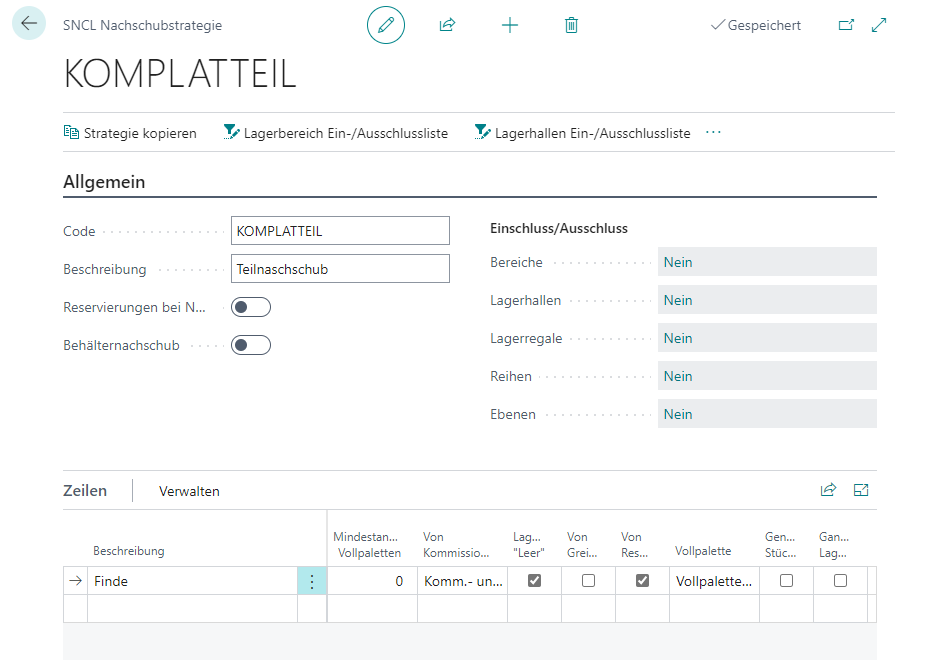
When the storage place is found, the setups are processed in the following order:
- Storage data
- Items
Hinweis
Please make sure that a picking place has already been defined for the item for which a replenishment strategy is entered.
To define the options of the replenishment strategy more precisely, there are different setup options on the card in the "General" and "Lines" tabs.
General
- Code
- Description
- Ignore reservations for replenishment: If this setup is activated, both free and reserved inventory is transferred. The reservation is transferred from the reserve location to the picking place. If reservations are also to be transferred, only full pallets can be replenished. This means that no minimum or maximum stock levels can be set up for replenishment, only the number of full pallets.
- Inclusion/exclusion of areas/warehouses/Storage Shelves/rows/levels: The setups listed here allow you to include or exclude certain parts of the warehouse. You can select whether the inventory is to be found including or exclusively in this part of the warehouse.
- Load Carrier Replenishment for PS: Specifies that a load carrier move job must always be generated when the generated move job is for production supply and the entire quantity of a non-mixed carrier is required. If one of these conditions is not met, an inventory move job is generated.
Lines
In the lines of the replenishment strategy, detailed setups are made that apply to the individual strategy lines. When the storage place is found, these strategies are processed in sequence. If no storage place is found via the first line, the setup of the second line is checked and so on. The corresponding fields are explained in more detail in the following section.
- Description
- Deactivated: If this box is checked, this line is deactivated and will be skipped.
- Inclusion / Exclusion list | Areas / Warehouses / Storage Shelves / Rows / Levels: The setups listed here allow you to include or exclude certain parts of the warehouse. In each case, you can select whether the Inbound Stock Post should be included or excluded in this part of the warehouse. The storage section selected in the General area is extended by this selected section.
- Minimum number of full pallets: Data maintenance on the item is important for this setup. The corresponding "Number of pieces per inventory" is stored here. If a value is stored in this setup, the filters in this line only take effect if at least the number of stored full pallets has been requested.
Example: "Number of pieces per inventory" = 50 pieces, minimum number of full pallets = 3. In addition, an inclusion list for the "SUPPLY" area has been defined in this inventory determination strategy line. If at least 150 pieces, i.e. the full pallets, are now required for a Outbound Stock Post, this line takes effect and inventory is taken from the "NEXT STOCK" storage area. In a second line, the rest could then be retrieved from the pick location. This strategy line therefore ensures that a high demand for full pallets is retrieved from a different area/storage location than a normal demand from the pick location. - From picking place: This setup specifies whether the inventory must be in a fixed picking place. With the default setting "Pick and not picking place", the system does not care whether the inventory is in a picking place or not.
The following setups are also possible: picking place only, no picking place. - Storage place type empty: If this setup is activated, only inventory that is located in a storage place with the empty storage place type is selected during the search.
In relation to the next fields, it makes sense to select "From reserve location" so that inventory is always found for replenishment that is in a reserve location. - From pick location / From reserve location: If one or more of these setups are activated, the search will only select inventory that is in a storage location of the respective type.
- Full pallet: Specifies whether the inventory must be on a full pallet. With the default setting "Full pallets and opening", the system does not care whether the inventory is on a full pallet or not.
- Full Quantity: If this setup is activated, the system searches for an inventory for replenishment that has exactly the number of pieces you are looking for. If there is no inventory with this number of pieces, no replenishment is created for the desired quantity. The number of pieces is not split between several inventories.
- Full inventory: If this setup is activated, only inventories that are completely transferred to Outbound Stock Post are found. If only part of an inventory is required, this inventory is skipped so as not to create an opening.
Inventory Selection Strategies
The purpose of inventory selection strategies is to set specifications for the correct selection of stored items. For example, if an item is to be removed from storage, the system uses the inventory selection strategy to search for the specific item to be removed. For example, it can be specified that items are first removed from a specific area and only from pick locations. If no items can be found according to this rule, items should be removed from the reserve stock. With an inventory selection strategy, you ensure that the inventory is systematically searched and selected for corresponding transactions.
You can setup the inventory selection strategies in the following places:
- Stockkeeping units
- Item
- SIEVERS WMS Setup
This sequence is also the sequence in which the correct strategy is searched for before an inventory is found. The search continues until a suitable strategy is found.
You can create and manage inventory selection strategies on the page of the same name. You can set the following:
General
- Code
- Description
- Include / Exclude Areas / Warehouses/ Shelves / Rows / Levels: The configurations listed here allow you to include or exclude certain parts of the warehouse. You can select whether the inventory is to be found including or exclusively in this part of the warehouse.
- Reservation Entry Restriction: If this setup is enabled, inventories are only found with the inventory selection strategy if they are explicitly assigned to the reservation item contained in the source document line. It is not possible to assign unreserved inventory. If the setup is deactivated, the strategy does not take into account the reservation items in the source line or the assignment to the inventory. As a result, lines with reservation items may reserve inventory that is not assigned to a reservation item and vice versa.
Lines
- Description: A strategy name for the corresponding strategy line is stored in this field.
- Deactivated: If this box is checked, this strategy line is deactivated and will be skipped.
- Include/Exclude List | Areas / Warehouses / Shelves / Rows / Levels: The setups listed here allow you to include or exclude certain parts of the warehouse. In each case, you can select whether the Inbound Stock Post is to take place including or exclusively in this part of the warehouse. In the Include/exclude list line actions, specify what is to be included or excluded. The storage part selected in the General area is extended by this selected part.
Hinweis
The warehouse part selected in General is extended by this selected part. What does this mean? The strategy lines take the inclusion and exclusion list entered in General as a basis. This therefore applies to all. However, if, for example, a warehouse level is excluded in a strategy line, both lists are added together. For the example inclusion of levels 01, 02 and 03 in General and the exclusion of level 02 in the strategy line, the inclusion of levels 01 and 03 applies to this line.
- Minimum number of Full Pallets: Data maintenance on the item is important for this setup. The corresponding “Number of pieces per inventory” is stored here. If a value is stored in this setup, the filters in this line only take effect if at least the number of stored full pallets has been requested. Example: “Number of pieces per inventory” = 50 pieces, minimum number of full pallets = 3. In addition, an inclusion list for the “SUPPLY” area has been defined in this inventory determination strategy line. If at least 150 pieces, i.e. the full pallets, are now required for a Outbound Stock Post, this line takes effect and inventory is taken from the “AFTER-SUPPLY” storage area. In a second line, the rest could then be retrieved from the pick location. This strategy line therefore ensures that a high demand for full pallets is retrieved from a different area/storage location than a normal demand from the pick location.
- From Picking Place: This setup specifies whether the inventory must be in a fixed picking place. With the default setting “Pick and not picking place”, the system does not care whether the inventory is in a picking place or not. The following setups are also possible: Picking place only, no picking place.
- Storage Place Type Empty / From Pick Location / From Reserve Location: If one or more of these setups are activated, only inventory located in a storage place of the respective type is selected during the search.
- Full Pallet: If this setup is activated, the system checks whether the “Opening” check mark is set for the inventory. If this is the case, this inventory is ignored.
- Full Pallets Without Reservation only: If reservations are to be made from a full pallet, this field can be used to set whether reservations may already exist on this full pallet. If the field is set, a full pallet is only found if it has no reservations. Otherwise, this full pallet is skipped. In this case, it is not treated as an opening.
- Full Quantity: If this setup is activated, the exact number of pieces is searched for. An inventory with exactly this number of pieces must therefore exist. The number of pieces is not split between several inventories.
- Full Inventory: When this setup is activated, only inventories that are completely transferred to Outbound Stock Post are found. If only part of an inventory is required, this inventory is skipped so as not to create an opening.
- Full Load Carrier: If this setup is activated, the system checks whether the “Opening” checkbox is set for the inventory. If this is the case, this inventory is ignored.
- Only full Load Carrier without reservation: If reservations are to be made from a full Load Carrier, this field can be used to set whether reservations may already exist on this full Load Carrier. If the field is set, a full Load Carrier is only found if it has no reservations. Otherwise, this full Load Carrier is skipped. In this case, it is not treated as an opening.
- Whole Load Carrier only: If this setup is activated, only Load Carriers that are completely transferred to Outbound Stock Post are found. If only part of a Load Carrier is required, it will be skipped so as not to create an opening.
- Minimum Number of SPUs: This field defines at which required quantity (expressed in full inner packaging units, SPUs) the strategy line becomes applicable. The strategy line is only considered if the remaining required quantity meets or exceeds the configured number of full SPUs. The SPU quantity is determined from the item's packaging hierarchy. If the value is 0, the field is not taken into account.
- Whole SPU: When this setup is active, the system reserves inner packaging units (SPUs) as complete units without splitting the quantity across multiple load carriers. The system selects as few load carriers as possible. If this field is deactivated, quantities are distributed across load carriers without regard to SPU boundaries.
Picking Strategies
Warnung
Picking strategies are deprecated and no longer actively used. The functionality has been replaced in version 2514.1 by SIEVERS TEAMS.
Picking strategies are used to specify the different ways in which items can be picked. For example, you can specify which stock removal items are to be processed and in which order this should take place.
In the SIEVERS WMS setup, the corresponding strategy is stored in the “Strategies” tab.
The individual setup fields of a picking strategy are described below:
General
- Code
- Description
- Include/Exclude Areas / Warehouses / Shelves / Rows / Levels: The setups listed here allow you to include or exclude certain parts of the warehouse. You can select whether you want to include or exclude the storage part.
Determine rows
- Sort Key Finding: This setup provides a selection of possible table keys. The selected key determines the sorting of the Outbound Stock Post lines. For example, “Shipment Date, Priority, Order” means that the rows are sorted by Shipment Date.
- Sort Key Finding Ascending: If this setup is active, the selected warehouse document rows are determined in ascending order, otherwise in descending order.
- Full Pallets: If this setup is activated, only Outbound Stock Post lines with full pallets are determined.
- Opening Inventory: If this setup is activated, only Outbound Stock Post lines with opening pallets are determined.
- Entire Document: If this setup is active, an employee must always be able to edit the entire document. If this is not possible, e.g. due to exclusion lists or the full pallet/opening setup, the document is skipped and not progressed by an employee with this strategy.
- Entire Storage Area: If this setup is active, an employee must always be able to edit all lines of the storage area contained in a document. If this is not possible, e.g. due to exclusion lists of a level (e.g. 4th level cannot be reached), the document is skipped and not progressed by an employee with this strategy.
- Clean Storage Area: Activating this setup specifies that all lines found must come from the same storage area. This ensures that an employee does not change areas during picking.
Multi Order Pick
- Cross-Document: If this setup is active, picking is not carried out per Outbound Stock Post, but the warehouse document lines are determined across all documents. The employees pick several orders at the same time.
- No. of Doc. to Consolidate: This setup is used to specify how many documents can be progressed at the same time.
- Cross-Doc Criteria Fields
- Max. Number of Lines: This setup specifies the maximum number of lines that can be reserved for an employee in the Multi Order Pick. This setup is required due to the size or number of boxes of the picking trolley, for example.
- Max. Weight: This setup specifies the maximum weight that is reserved for an employee in Multi Order Pick. This setup is required due to the load capacity of the picking trolley, for example.
MDE control
In this section, the setup for the MDE (Mobile Data Entry) control is specified. In other words, it specifies how an employee is guided through the determined Outbound Stock Post lines using the MDE. The individual fields are explained in more detail in the following section.
- Sorting Key Picking: This setup provides a selection of possible table keys. The selected table key determines the order in which the Outbound Stock Post lines are progressed.
- Sort Key Picking Ascending: If this setup is active, the selected Outbound Stock Post lines are processed in ascending order.
- Use Load Carrier: This setup enables the use of Load Carriers. The options are picking pallet or storage Load Carrier.
- Pick Load Carrier No. from Nos.: If this setup is active, the picking pallet numbers are taken from the number series in the SNC Logisitics setup and entered automatically. Otherwise, barcodes that have already been generated must be used.
- Manual Pick Load Carrier No.: If this setup is active, the numbers can be taken from the number series or already created in the system.
- Picking Buffer Storage Place: A picking buffer location can be stored via this setup. If a place is stored, the item is temporarily posted to a buffer storage place when the line is completed.
- Target Storage Place Code: This setup shows the destination storage place. If the setup post move order to destination is active, the item is posted to the specified storage place accordingly. Otherwise, the destination is only confirmed but not posted.
- Post Move Job on Target: If this setup is active, the inventory is posted to the specified destination storage place by move order. Otherwise, the destination is only confirmed but not posted.
- Confirm Line: This setup specifies which action is performed to confirm the warehouse document line. For example, the “Storage place” option means that when the storage place is reached in picking, the line must be confirmed by scanning the storage place.
- Finish Line: This setup specifies which action is performed to close the warehouse document line. The “Inventory” option means, for example, that the line must be closed by scanning the inventory when the inventory is picked in the picking process.
Series Creation Strategies
The series creation strategies determine which order lines are combined in a series and how the series is created.
You can set the following for each line:
- Code
- Description
- Automatic Release: Automatically releases new series created by this strategy after creation. A picking document is generated. If this option is not activated, series must be released manually.
- Split Orders: Specifies whether an order may be split into several series. This can be useful in a large warehouse with long distances, for example, as it can make picking much more time and route efficient. If the option is not activated, all lines of an order are always assigned to the same series.
- Single Item Batches: If this flag is activated, item-pure batches are created. This means that outbound stock lines with multiple items are also split across multiple batches. The first item added to the batch determines all subsequent outbound lines with the same item. Activating this flag also automatically activates Split Orders.
- Sorting Order: Specifies the sorting order of the lines found. The options are by Storage Place or by Road optimization.
- Customer Filter Exists: An inclusion/exclusion list can be specified here
- Location Code: mandatory field. Specify here for which Location Code this strategy line should apply
- Default Picking Team/Packing Team: Specify here which picking or packaging team the series created with this strategy line should be assigned to. This specification overwrites other team specifications.
- Outside Storage: Restricts this strategy line exclusively to outside storage or SNCL Outbound Stock Posts.
- Max. Number of Orders/Positions/Number of Pieces/Volume: Specifies how high the maximum number of this property may be in the series.
- Order Type: Only orders with this order type are eligible for this series creation strategy
- Shipment Date: This is a date filter that is based on the order shipment date.
- Priority Filter: Here you can set a priority filter, e.g. >100, so that only orders with a suitable priority are considered
- Parcel shipping only: Specifies that only orders with shipping agents who have deactivated the No Shipping Orders option will be considered
- Ship-to Country Category: Limits the orders eligible for the series based on the country category. Set it for each entered country in the Country Category (SWMS) field on the Countries/Regions page. It also controls batch creation and enables different strategies per category. The following categories are available
- Interior
- EU
- Third Country
- Ship-to Code Filter: Limits the orders based on the ship-to code
- Custom Event Code: An event number from a custom event can be entered here. Please only use if you know what you are doing!
Achtung
Do not enter anything in the User-defined event field, as this will disable the regular series creation strategy!
Movement Strategy
This page is used to define the movement strategies according to which teams should work. The movement strategy determines the order in which the load carriers to be picked are displayed and has an enormous influence on the efficiency of the team.
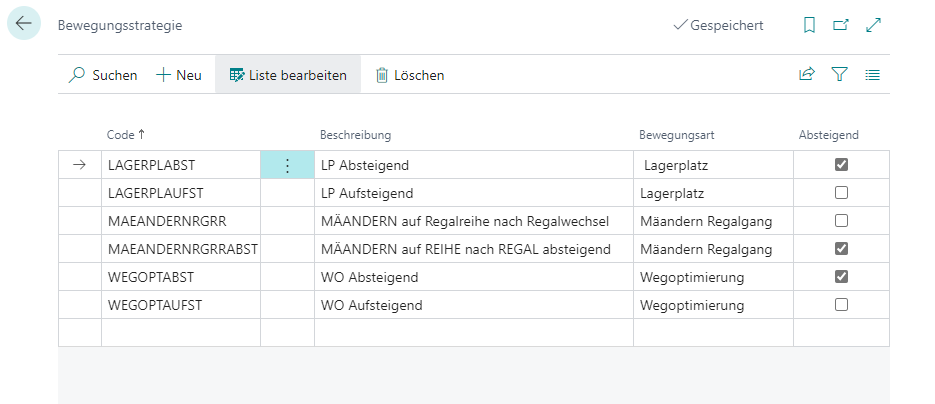
- Code
- Description
- Movement type: Specifies the team's movement type. The following options are available here:
- Storage place: Sorts the list in ascending order by storage place number
- Road optimization shelf aisle: Sorts the list per shelf aisle in ascending order according to the path optimization value stored in the storage place cards
- Meandering shelf aisle: Sorts the list per shelf aisle alternatively in ascending and descending order so that the warehouse employee does not always have to go back to the beginning of the aisles to work through the next shelf aisle. As a result, he goes from the front to the back through an aisle and starts the next aisle from the back to the front. The next aisle is then started again from the front to the back.
- Descending: Reverses the sorting sequence
The movement strategy influences teams working in A2, A3 and A4.
Provisioning Strategy
Provisioning strategies are used to determine the destination storage places in move orders for all input materials required for production orders. These strategies are necessary if, for example, only the storage area and/or warehouse are entered for the items, meaning that the inventory can be located in a very large area.
When creating a move order with the type production supply, the provisioning strategies are taken into account with the following priorities:
- Machine center
- Stockkeeping unit
- Item
- Item category
- Production order
Priority 1 always applies. If this is not available, priority 2 is used, and so on.
If the Check production supply process is executed and only the storage area and/or warehouse are entered for the required components, the provisioning strategy is used to determine the target locations for the generated move orders. These target locations should ideally be located near the machine centers.
A strategy consists of these parts:
- General options
- Inclusion/exclusion
- Strategy lines
The general options and the upper inclusion/exclusion options apply to the entire Inbound Stock Post strategy. The lines of the strategy are processed in sequence until the filter settings match the Inbound Stock Post. If the Inbound Stock Post can already be carried out with the first strategy line, the remaining lines are ignored.
General
- Code
- Description
- Use storage Load Carrier: Specifies that Load Carriers must be utilized
- Show Inbound Stock Post page: Specifies that the Inbound Stock Post page is shown before the Inbound Stock Post. This enables manual adjustment of the Inbound Stock Post. This is particularly useful for outside storage, as Inbound Stock Posts are used here anyway
- Check height, width, depth, volume, weight: Matches the dimensions and maximum weight of the storage places with the properties of the items to be put away, so that no items that are too large or heavy are posted to storage places that are too small
- Check Number of Spaces: Checks whether there are still enough free places in storage places for the new inventories
- Post on existing inventory: If this setup is active, the system checks whether an inventory with suitable parameters (item, serial no., lot no., etc.) already exists in the warehouse. If this is the case, the system assigns the already existing order no. as the new order no.. No new LB no. is created.
- Include/Exclude areas/warehouses/Storage Shelves/rows/levels: The setups listed here allow you to include or exclude certain storage areas. You can select whether you want to include or exclude the storage area.
Lines
Detailed setups are made in the Inbound Stock Post strategy lines. Any number of strategies can be stored here. When the items are deposited, these strategies are processed in sequence. If no storage place is found via the first line, the setup of the second line is checked and so on. The corresponding fields are explained in more detail in the following section.
- Description: A strategy name for the corresponding strategy line is stored in this field
- Deactivated: If this box is checked, this Inbound Stock Post strategy line is deactivated and will be skipped
- Belongs to Stock Document Type: Specifies for which Stock Document Type this strategy line should apply
- Include / Exclude list | Areas / Warehouses / Storage Shelves / Rows / Levels: The setups listed here allow you to include or exclude certain parts of the warehouse. In each case, you can select whether the Inbound Stock Post is to take place including or exclusively in this part of the warehouse.
- Search without grouping: Specifies whether the storage pallet is determined grouped by warehouse and Storage Shelf.
- Allocation order: Specifies the sort order in which the storage places are to be searched
- level-row sorts by level first, so the rows of a level are run through first
- Row level sorts by row first, so the levels of a row are searched first
- Code sorted by storage place code, i.e. it is run through in the order of the storage place codes
- Road optimization sorted according to the stored path optimization
- Volume path optimization ascending: Sorted according to the stored path optimization with the aim of finding the smallest possible places where the items physically fit best. Please note that the following setups are ignored after activating this allocation sequence: Consider proximity to picking place, grouping
- Volume code
- Applies to:
- Full pallets and opening
- Opening only
- Full pallets only
- Find same item: The item is only stored in an inventory in which the same item already exists. If the item does not yet exist in the warehouse, no storage place is allocated
- Storage place Occupancy: Specifies how the storage place assignment is to be filtered. There are:
- Free storage places
- Exclude full storage places
- Consider available space codes
- Consider available space codes and exclude full storage places
- To Bulk Place: Specifies whether the destination may or must be a block bin.
MOP Batch Creation Strategies
The MOP batch creation strategy enables the automatic consolidation of multiple orders into a multi-order picking batch. Analogous to the series formation strategy, the setup is done via a central table in which filter criteria, quantity limitations, and behavior rules are defined. The goal is optimized picking through precise batch creation according to the order structure.
The strategy is set up via the SNCL MOP Batch Creation Strategy page and can be executed manually or automatically via the job queue.
Prerequisites
- MOP batch number series stored in the SIEVERS WMS Setup
- Order types must be activated for MOP batch formation
- Warehouse shipments must be released
- Orders must be within the defined delivery date horizon
Menu
- Create MOP batches: Creates MOP batches based on the strategy lines below
- MOP Monitor: Opens the MOP Monitor
Setup Fields
- Code: Unique identifier of the strategy (max. 10 characters)
- Description: Description of the strategy for better identification
- Location Code: The location in which to search for lines for batch formation
- Automatic Release: Automatic release of the created MOP batch directly after creation. If this option is activated, the batch can be picked immediately
- Same Packaging Team: Specifies that only identical packing teams are allowed in one batch
- Customer Filter Exists: Indicates whether a customer inclusion/exclusion list is stored. Via navigation, you can specifically include or exclude customers for this strategy
- Shipment Date Horizon: Lead time for the delivery date as a date formula (e.g., 5D or 2W). Only orders with a first loading date ≤ work date + date formula are eligible for the batch. When using days (D), the shop calendar of the location is considered to correctly determine working days. Example: With work date Thursday and formula 3D, orders with loading date Thu, Fri, Mon, Tue are considered (Sat/Sun are free days). With 0D, only orders with loading date = work date are included
- Order Type: Restriction to specific order types. Only orders with the order type stored here are considered for batch formation
- Ship-To Country Category: Limits batch formation to a shipping country category (Domestic / EU / Third Country). Orders from different categories are not consolidated
- Default Packaging Team: Default packing team for all orders in the batch. This value overrides the entries in the Warehouse Shipment Planning at order level
- Same Delivery Address: Only orders with identical shipping addresses are consolidated in one batch. Activating this option ensures shipping address-pure batches
- Max. Number of Orders: Maximum number of orders per batch. If this value is exceeded, the next order is added to a new batch
- Min. Number of Orders: Minimum number of orders per batch. If this value is not reached, the batch is only created but not automatically released. It can be released manually or discarded
- Max. Number of Lines: Maximum number of lines in the batch. If this value is exceeded, the next order is added to a new batch. Example: Order type allows 5 positions, Max. Number of Orders = 10 → theoretically 50 positions. With Max. Number of Lines = 40, a second batch is formed for the remaining positions
- Max. Number of Pieces: Maximum number of pieces in the batch. If this value is exceeded, the next order is added to a new batch. Particularly useful for homogeneous products with similar assortments to limit the batch scope. For heterogeneous part relations, the field remains empty
- Max. Weight: Maximum weight of the batch in kilograms. If this value is exceeded, the next order is added to a new batch. Enables limiting the batch size based on the load capacity of picking carts or physical conditions
- Max. Volume: Maximum volume of the batch in cubic meters. If this value is exceeded, the next order is added to a new batch. Useful for limiting the batch size
- Custom Event Code: Custom event during the batch formation process. If filled, an event with the stored code is triggered during MOP batch formation and the standard MOP process is not executed
Achtung
Only enter something in the Custom Event field if you know exactly what you are doing. This will disable the regular MOP batch formation strategy!
Batch Formation Process
Batch formation follows this logic:
- Order Determination: The system determines all released warehouse shipments that meet the filter criteria (order type, delivery date horizon, shipping country category, customer filter)
- Sorting: Orders are sorted by loading week and priority
- Batch Compilation: Orders are added to the batch one after another as long as all criteria are met:
- Filter criteria (shipping address, packing team) match
- Quantity limitations are not exceeded
- Batch Completion: As soon as a threshold is reached or no more matching orders are available, the batch is completed
- Release: With Automatic Release activated, the batch is automatically released, otherwise the release must be done manually
- Minimum Quantity: If Min. Number of Orders is not reached, the batch remains in "created" state and can be released manually or discarded
Strategy Execution
The MOP batch creation strategy can be executed in two ways:
Manual Execution:
- Open the SNCL MOP Batch Creation Strategy page
- Select the desired strategy
- Click Create Batch
- The system creates the batches according to the setup
Automatic Execution:
- Set up a recurring task in the job queue
- Select the codeunit SNCL Create MOP Batches
- Define the execution interval (e.g., hourly)
- The batches are automatically created according to the stored strategies
Example Scenarios
Scenario 1: Customer-Pure Batches for Domestic Shipping
- Same Shipping Address: Activated
- Shipping Country Category: Domestic
- Max. Number of Orders: 10
- Automatic Release: Activated
Result: Batches with a maximum of 10 orders are automatically created, all having the same shipping address and shipping country category "Domestic".
Scenario 2: Packing Team-Oriented Batches
- Batches by Packing Team: Activated
- Lead Time Horizon (Delivery Date): 3D
- Min. Number of Orders: 3
- Max. Number of Lines: 50
Result: Only orders with the same packing team and loading date within the next 3 working days are consolidated. The batch is only released if at least 3 orders are available and a maximum of 50 lines are included.
Scenario 3: Number of Pieces-Limited Batches for Homogeneous Products
- Max. Number of Pieces: 600
- Order Type: STANDARD
- Automatic Release: Activated
Result: Batches are limited to a maximum of 600 pieces, regardless of the number of orders. Ideal for warehouses with similar products (e.g., hairbrushes) to physically limit the batch size.