SIEVERS Shipping Setup
SIEVERS Shipping is used for shipping processing in the WMS. This is not only used to carry out general process setups, but also to set up label printing, which can be carried out automatically by an external service provider.
The actual SIEVERS Shipping solution should be set up using the setup wizard. If you want to change the setup later, you can access the setup wizard again or open the SIEVERS Shipping setup page. If you want to print labels using an external service provider, the SIEVERS WMS offers the options ECOMSUITE or ShipXpert. These must be set up separately using the setup wizard or setup page.
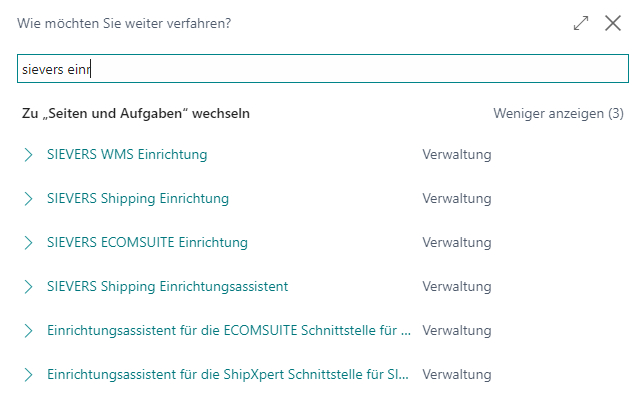
Before you set up SIEVERS Shipping, please make sure that you have set up users, Location Codes, shipping agents and shipping units.
Shipping Setup Wizard
As the setup wizard itself already describes in detail what needs to be done, it will only be described briefly in this section.
- Specify which users should have access to SIEVERS Shipping.
- Specify the Location Codes for which shipping orders are to be used. To do this, select on the Location Codes page for which locations Shipping order required should be used.
- Specify for the shipping agents whether No shipping orders should be generated for them. If the check mark is not set, shipping orders are generated.
- Make sure that the shipping units are set up correctly.
- Assign the shipping units to the shipping agents.
- Specify the number series and the provider for the label print implementation.
- Further setups are available in the SIEVERS Shipping setup
Shipping Setup
Here you can make further setups in addition to the Setup wizard.
Shipping Order No.: Specifies the Shipping Order No. series
Use Shipping Source Doc. Form: Allows items to be distributed across multiple shipping units after a shipping order has been created
Show Weight Exceeding Confirm: Specifies whether the user should receive a warning if the total gross weight of the items exceeds the maximum gross weight of the selected delivery shipping unit
Content creation: Specifies whether content creation should be possible without a source document and, if so, whether with or without a warning
- Allow without source document
- Warning without source document
- Only with source document
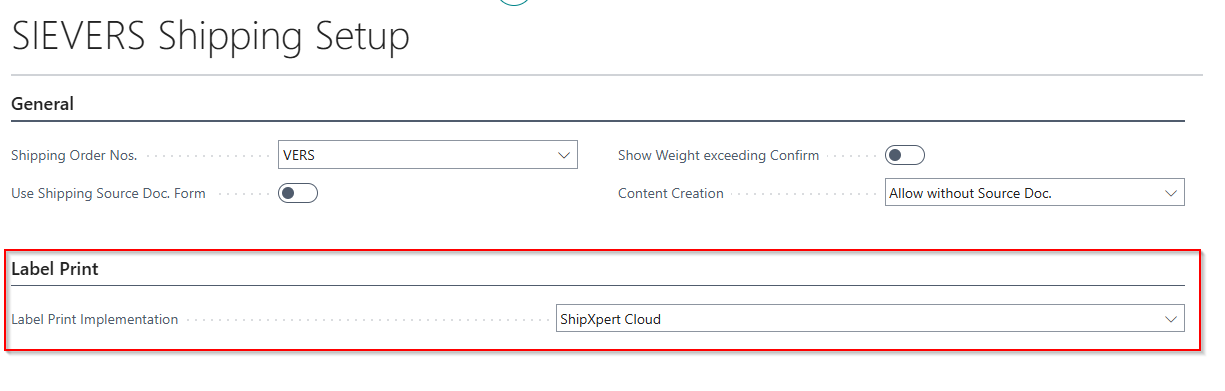
Label Print Implementation: Specifies which service provider is to be used for label printing. For ECOMSUITE and ShipXpert, please carry out the corresponding setup/setup wizards. Not Defined is default and also ECOMSUITE.
ECOMSUITE Setup Wizard
This setup wizard describes how to set up the ECOMSUITE interface for SIEVERS Shipping. As the setup wizard itself already describes in detail what needs to be done, the individual steps are only briefly summarized.
- Set up ECOMSUITE on the SIEVERS ECOMSUITE setup. Please read the corresponding section.
- Store the shipping profiles with the shipping agents.
Then set the Label Print Implementation field in the SIEVERS Shipping setup to ECOMSUITE.
SIEVERS ECOMSUITE Setup
On this setup page, you prepare the SIEVERS WMS for the use of the shipping label service provider ECOVIUM. If it is necessary to change the API URLs, you can show them via Actions -> Show API URLS.
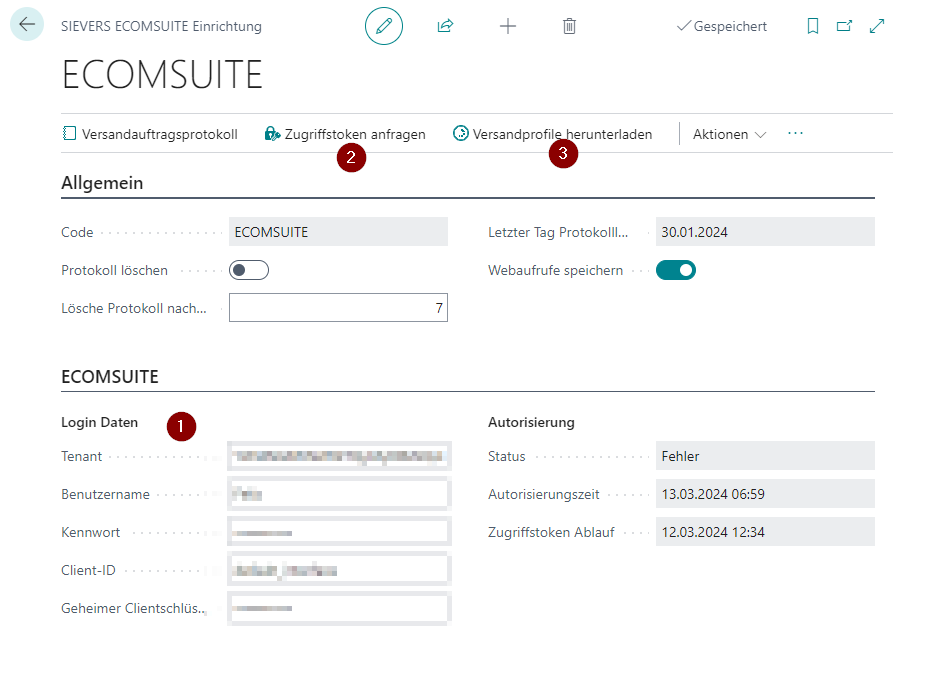
- Enter your login data
- Check the login data via Request Access Token
- Then request via Download Shipping Profiles. These are now saved in the SIEVERS ECOMSUITE Shipping Profiles table.
- Now assign the stored shipping profiles on the Shipping Agent page to the shipping agents or Shipping Agent Service.
A shipping label is from now on automatically requested from ECOVIUM and printed out for the shipping agents with shipping profiles when using Print shipping label in the shipping order. You can find out how the shipping process works in Process a document-based warehouse shipment.
The individual fields are described below.
Menu
- Shipping Order Log: Shows the log of shipping orders
- Request Access Token: Requests an access token with the login data entered. This process is used to test the login data
- Download shipping profiles: Downloads the shipping profiles for the interface to the Business Central system. The shipping profiles are stored in the SIEVERS ECOMSUITE shipping profiles table.
- Actions
- Show API URLs: Adds the API URLs fields to the setup page. This is not usually necessary
General
- Code
- Delete Logging: Specifies whether only the most recent shipping order action should be saved
- Clear log after x days: Enter here after how many days the log should be deleted
- Last Day Log Cleanup: Shows when the log was last deleted
- Save Webcalls: When enabled, all HTTP requests and responses to the shipping API are logged for debugging and auditing purposes
ECOMSUITE
- Login data
- Tenant
- User Name
- Password
- Client ID
- Client Secret
- Authorization
- Status
- Authorization time
- Token Expiration
Setup Wizard for the ShipXpert Interface
This setup wizard describes how to set up the ShipXpert interface for SIEVERS Shipping. Since the setup wizard itself already describes in detail what to do, the individual steps are only briefly summarized.
- set up ShipXpert on the ShipXpert setup. Please read the corresponding section.
- set up a job queue for the shipping labels and for archiving or deleting the service provider's requests and responses
Then set the Label print implementation field in the SIEVERS Shipping setup to ShipXpert.
Label Printing with ShipXpert Cloud {}
The quickest way to handle label printing via ShipXpert is ShipXpert Cloud. With this option, labels are generated entirely on ShipXpert servers, which greatly simplifies setup and usage.
Achtung
Before activating the ShipXpert Cloud setup, make sure there are no open warehouse documents for shipping agents that send via ShipXpert. Otherwise, inconsistent data constellations may occur.
- Set the Label Print Implementation field in the SIEVERS Shipping Setup to ShipXpert Cloud.
- Open the ShipXpert Cloud Setup, go to the ShipXpert CLOUD section, and enter your login credentials there (see point 1 in the screenshot below):
- API URL: Usually https://web-api.shipxpert.com
- API Key Name: Will be entered by SIEVERS-GROUP
- Cloud Alias Name: Provided by ShipXpert
- Username and Password: Provided by ShipXpert
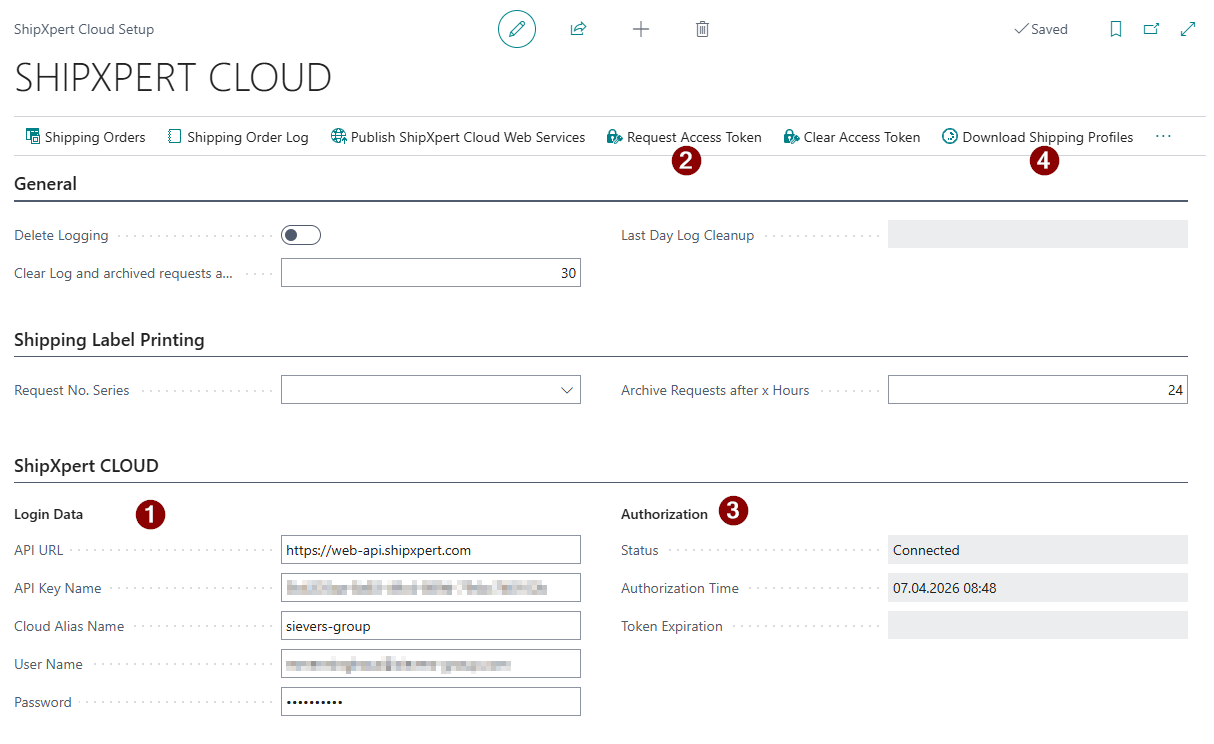
- The authorization is initially empty. Use Request Access Token (2) to connect to the ShipXpert system using the entered login credentials. If successful, the status shows Connected (3). The Client ID and Shipping Profiles URL are set automatically.
- If the connection was successful, download the shipping profiles (4). A list of all available shipping methods and service codes will appear.
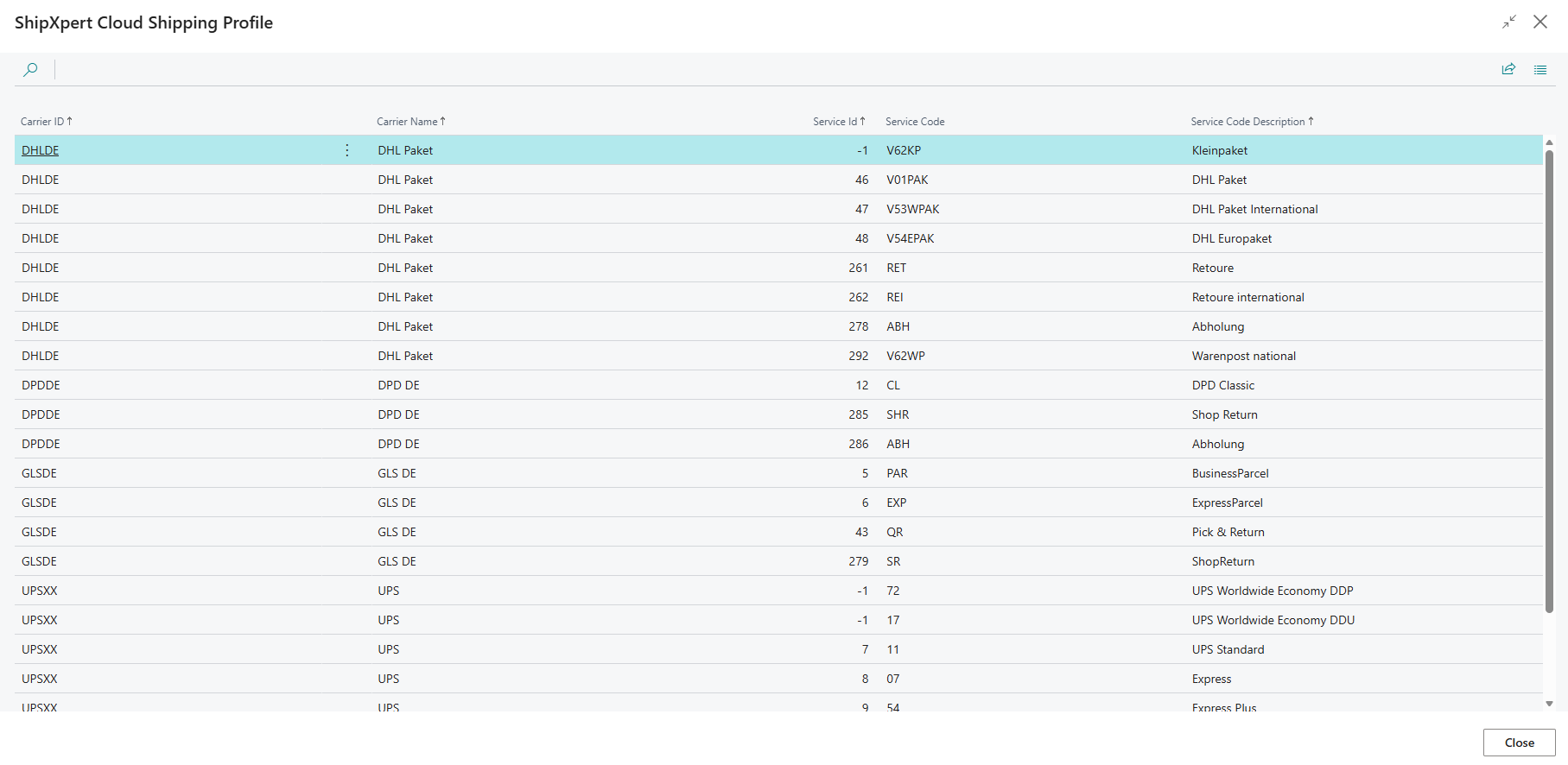
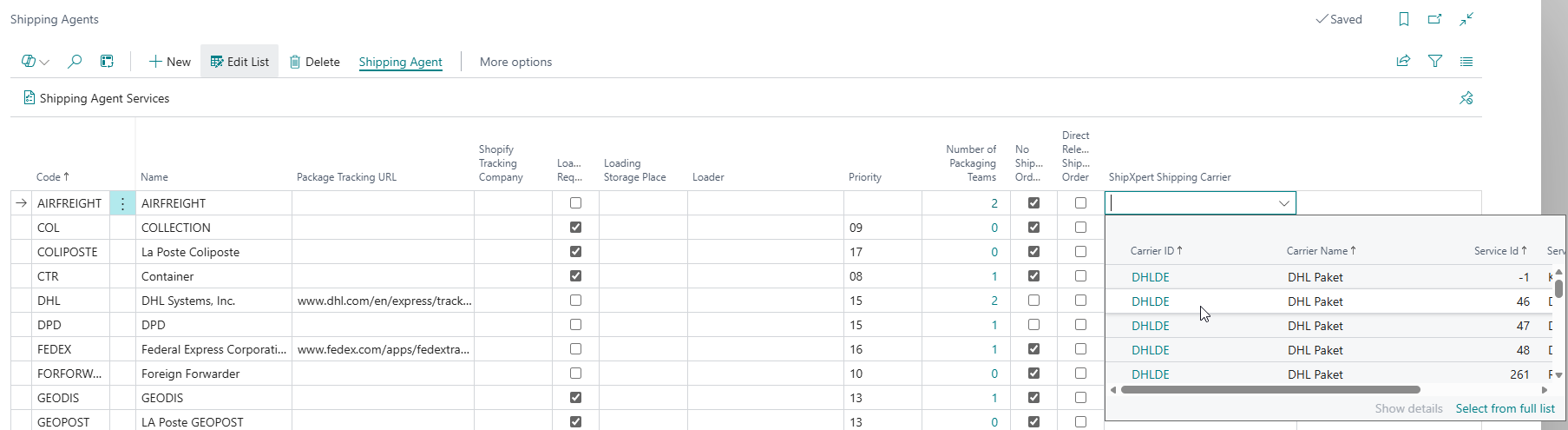
- Next, assign the downloaded profiles to the Shipping Agent using the ShipXpert Shipping Carrier field. Since Shipping Agent IDs and Shipping Agent Names may appear multiple times in the list, pay attention to the Service Code and Service Code Description.
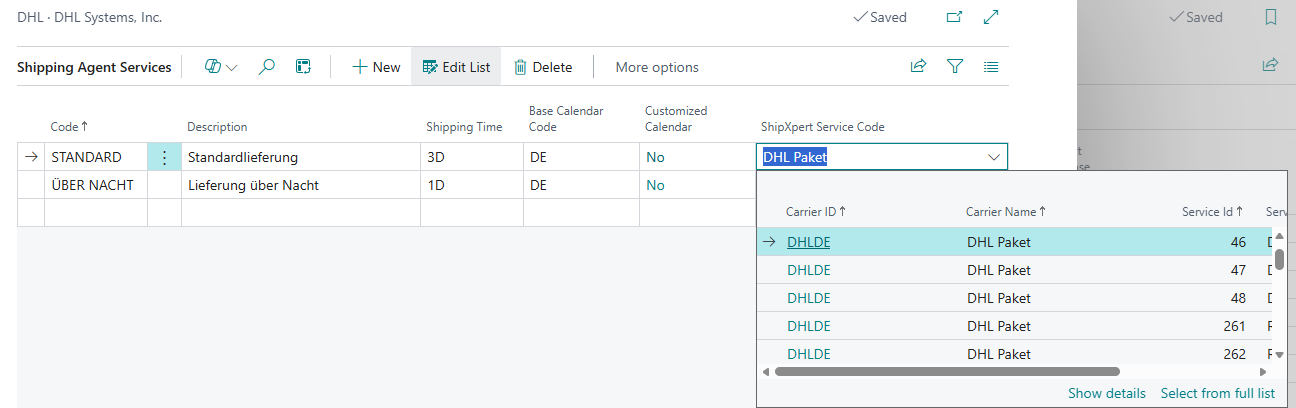
- For the Shipping Agent Services, select the appropriate entry in the ShipXpert Service Code field. Each shipping agent service requires a service code; otherwise, the label cannot be printed.
Hinweis
If an error occurs at this step, please contact ShipXpert directly, as the shipping profiles are downloaded from their servers.
- If the setup was successful, you can now print labels as usual.
ShipXpert Setup
On this page you can set up the ShipXpert interface.
Menu
- Shipping orders
- Shipping Order Log
- Shipping Label Requests
- Job queue shipping label responses
- Archive shipping label requests and delete archived requests and responses Job queue
- Shipping Label Responses
- Archived Shipping Label Requests
- Archived Shipping Label Responses
- Publish ShipXpert Web Services: Publishes the ShipXpert web services for the following pages:
- Item Card
- Shipping Agent
- Shipping Agent Transport Types
- Comments
- Lines
- Posted Sales Shipment
- Warehouse Shipment
General
- Delete log: Specifies whether the log should be deleted when a new action is performed for a shipping order or daily closing. Only the last log is saved, the previous ones are deleted.
- Delete log and archived requests and responses after x days: Specifies when entries in the log and archived requests and responses are to be deleted automatically. Standard is 30 days.
- Last Day Log Cleanup: Specifies the day on which the log was last deleted
Shipping Label Printing
- Request No. Series
- Archive Requests After x Hours: Deletes requests to ShipXpert automatically after x hours
- Show Printer Station Selection: Determines whether the printer station selection should be opened when printing a shipping label. The printer station selected here by the user is saved as the default for this user. If this option is not activated, the printer station stored for the shipping user is automatically selected.
ShipXpert Cloud Setup
On this page you can set up the ShipXpert Cloud interface. Please refer to the section Label Printing with ShipXpert Cloud.
Menu {.unlisted -}
- Shipping Orders
- Shipping Order Log
- Publish ShipXpert Cloud Web Services: Publishes the ShipXpert Cloud web services for the following pages:
- Item Card
- Shipping Agent
- Shipping Agent Transport Types
- Comments
- Lines
- Posted Sales Shipment
- Warehouse Shipment
- Request Access Token: Requests an access token from ShipXpert using the login credentials in the ShipXpert CLOUD section
- Clear Access Token: Clears the current access token
- Download Shipping Profiles: Downloads the current shipping profiles from the ShipXpert servers. The profiles are stored in the ShipXpert Cloud Shipping Profiles table and contain Carrier ID, Carrier Name, Service Id, Service Code, and Service Code Description
General {.unlisted -}
- Delete Logging: Specifies whether the log should be deleted when a new action is performed for a shipping order or daily closing. Only the last log is saved, the previous ones are deleted.
- Clear Log after x Days: Specifies when entries in the log and archived requests and responses are to be deleted automatically. Default is 30 days.
- Last Day Log Cleanup: Specifies the day on which the log was last deleted
Shipping Label Printing {.unlisted -}
- Request No. Series
- Archive Requests after x Hours: Deletes requests to ShipXpert automatically after x hours
- Show Printer Station Selection: Determines whether the printer station selection should be opened when printing a shipping label. The printer station selected here by the user is saved as the default for this user. If this option is not activated, the printer station stored for the shipping user is automatically selected.
ShipXpert CLOUD {.unlisted -}
Enter the login credentials you received for ShipXpert Cloud here. See Label Printing with ShipXpert Cloud. In the Authorization section you can see the status of the current access token. After successful authentication, the Client ID and Shipping Profiles URL are filled in automatically.
ShipXpert Shipping Label Requests
Shows the shipping label requests to the service provider ShipXpert. Entries in this list are automatically archived via job queue.
You can remove individual shipping requests via Manage -> Delete.
- No.
- Shipping Order No.
- Shipping Order Line Entry No.
- Printer Station
- Function
- Status
- Created At
- Modified At
ShipXpert Shipping Label Responses
Shows the shipping label responses from the service provider ShipXpert. Entries in this list are automatically archived via job queue.
- Shipping Order No.
- Shipping Order Entry No.
- Function
- Status
- Error Code
- Error Message
- Tracking No.
- Tracking URL
- Waybill No.
- Weight
- Shipping Agent Code
- Shipping Agent Service Code
- Carrier Name
- Shipping Costs
ShipXpert Archived Shipping Label Requests
Shows the archived shipping label requests to the service provider ShipXpert. Entries in this list are deleted after a few hours depending on the setup.
- No.
- Shipping Order No.
- Shipping Order Entry No.
- Printer station
- Function
- State
- Created on
- Modified on
ShipXpert Archived Shipping Label Responses
Shows the archived shipping label responses from the service provider ShipXpert. Entries in this list will be deleted after a few hours depending on the setup.
- Shipping Order No.
- Shipping Order Entry No.
- Function
- State
- Error Code
- Error Message
- Tracking No.
SIEVERS Shipping Log
Shows a collected list of responses and requests to and from shipping labels. Here you can also export or import the list as .json via Export request/response data.
- Labelprint Setup Code
- Type
- Webrequest
- Webresponse
- Shipping Order
- No./Code
- Order Line Entry No.
- Process
- Processing Date
- Processing Time
- Messagetext