Important Topics
- Return Storage Support Released
- Serialization Inventory in Picking
- Serialization Inventory: Check During Picking Document Response
- SPU Extension in the Inventory Selection Strategy
- Rack Compartment and Rack Bay Management
- Cleanup of Legacy SNCL Storage Field Fields
- Order-Pure Warehouse Shipments Remain Order-Pure
Setup
- Serialization Inventory in Picking
- SPU Extension in the Inventory Selection Strategy
- Rack Compartment and Rack Bay Management
- Cleanup of Legacy SNCL Storage Field Fields
- Sell-by Date Option "Optional" Removed
- Obsolete Fields Hidden in the Warehouse Card
- Warehouse Storage Type in the Warehouse Card Revised
- Warehouse Function in the Warehouse Card Revised
- Shipment Process Can Be Disabled
- Allow Gaps in "Label No." for PTUs in Picking Documents
- Order-Pure Warehouse Shipments Remain Order-Pure
Features
Return Storage Support Released
The functions for Negative Picking and Return Storage Support (A4.4) introduced in Release 58 are fully released as of Release 60 and can be used in production. Several improvements and bug fixes have been made to ensure stable operation.
PTU, STU and SSCC Excluded as Return Storage Targets - Item 132702
PTUs, STUs and SSCCs are no longer displayed as return storage targets in form A4.4 and cannot be scanned manually either. Inventory must not be mixed with order-related stock. Only regular storage units (SUs) qualify as return storage targets.
Negative Picking for Load Carriers with Other Reservations - Item 132713
If additional reservations from other orders exist on a storage unit that is being retrieved via negative picking, these are handled automatically: The affected released picking positions are cancelled and the quantities are bundled for re-release. This allows previously split positions to be consolidated again.
Blocked Inventory Excluded as Return Storage Targets - Item 132728
Storage units carrying blocked inventory are no longer offered as return storage targets in form A4.4.
Info Accessible from A4 Menu - Item 132744
From form A4.4, the A7.1 Inventory and Order Info can be opened without pre-selection using the right arrow key.
Serialization Inventory in Picking
With the new Serialization Inventory feature, GS1-compliant quantity serialization can be activated in picking. All withdrawal quantities are provided with GS1 SSCCs or serial numbers, which are stored on the outbound stock post lines.
Setup - Items 133302, 133318, 133322, 133326
Serialization is activated in stages:
- SWMS Feature Setup: The Serialization Inventory feature must be enabled. It controls the visibility of all related fields in the system.
- Customer Card: The field Activate Serialization Inventory in Whse. Shipment enables or disables the recording obligation per customer. This allows the procedure to be introduced gradually without overwhelming the organization.
- Item Category Card: The field Serialization Required Inventory activates the obligation for all items of this category.
- Item Card: The field Serialization Required Inventory activates the obligation per item. Cannot be active simultaneously with Serial No. Required.
Serialization only takes effect when the corresponding fields are activated on both the customer and the item (or its item category).
New Field in the Outbound Stock Post Lines - 133330
The outbound stock post lines and the posted outbound stock post lines contain the new field Serialization No. Inventory. The field is only visible when the feature Serialization Inventory at Picking is active.

The field serves the purpose of complete traceability: for each dislocation line, it records which specific packaging unit (GS1-SSCC) or individual item (serial number) was delivered to the customer. This allows users to determine after posting which physical unit was removed from the warehouse and dispatched.
The field stores either a GS1-SSCC or a serial number and is displayed and editable at the following locations:
- Outbound stock post lines: The field can be edited manually.
- Picking documents: The field is displayed next to the serial number and can be edited manually.
In the posted outbound stock post lines and in the posted picking document lines, the field is read-only after posting. The entered value is automatically transferred to the posted lines when the goods issue is posted.
The field is also available as a mapping target in the GS1-SSCC DB Field Assignments. The GS1 data identifiers (00) (SSCC) and (21) (serial number) can be mapped to it.
Hinweis
The automatic population of the field via GS1 scan in mobile picking (A4.3) is not yet available in this release and will be added in a subsequent release. The plan is that when a GS1 barcode is scanned, the serialization information from data identifier (00) (SSCC) or (21) (serial number) will automatically be written to the Serialization No. Inventory field of the associated dislocation line.
New Page: Posted Outbound Stock Post Lines - 133331
The new page SWMS Posted Outbound Stock Post Lines shows all posted outbound stock post lines as a standalone list. The page is accessible via Business Central search (Alt+Q) and in the Role Center under History > Posted Stock Documents.
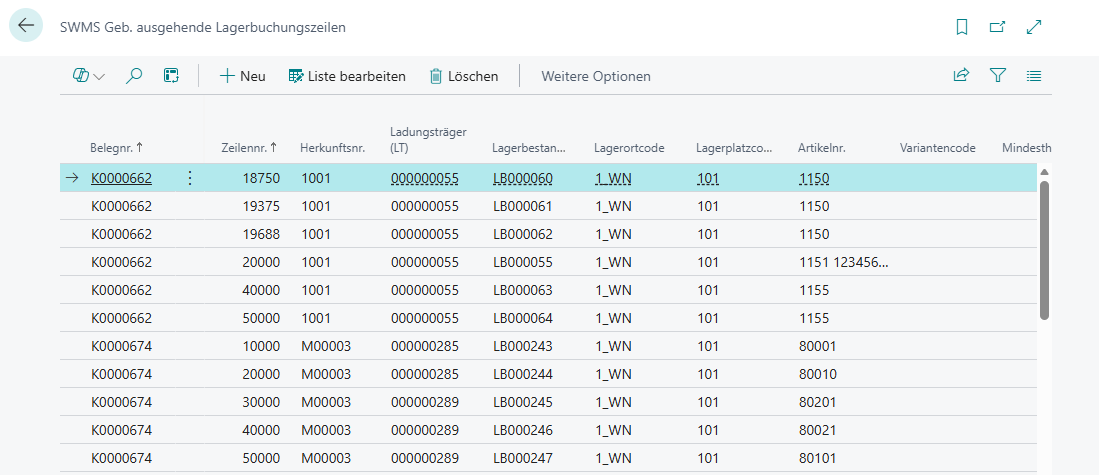
Column Alignment of Outbound Stock Post Lines - 133332
The column view of the outbound stock post lines list has been aligned with the subpage of the outbound stock post (38 columns incl. Serialization No. Inventory).
GS1-SSCC DB Field Assignments
During the upgrade, two new GS1-SSCC DB field assignments are automatically created, mapping GS1 data identifier 00 (SSCC) and 21 (serial number) to the new field Serialization No. Inventory in the Outbound Stock Post Line table.
Check During Picking Document Response - Item 133383
When responding to a picking document, the system checks whether the Serialization No. Inventory field is filled for positions that require serialization.
The check applies when both the customer has the option Activate Serialization Inventory in Whse. Shipment enabled and the item or item category has the field Serialization Required Inventory activated. If the field is empty in this case, an error message appears. Positions without a serialization obligation are responded without restriction.
Hinweis
If an item requires serial numbers (Serial No. Required) and the item category requires serialization, the existing rules continue to apply: The response is based on the serial numbers stored in the inventory. The Serialization No. Inventory field does not need to be filled in this case.
SPU Extension in the Inventory Selection Strategy - Item 131141
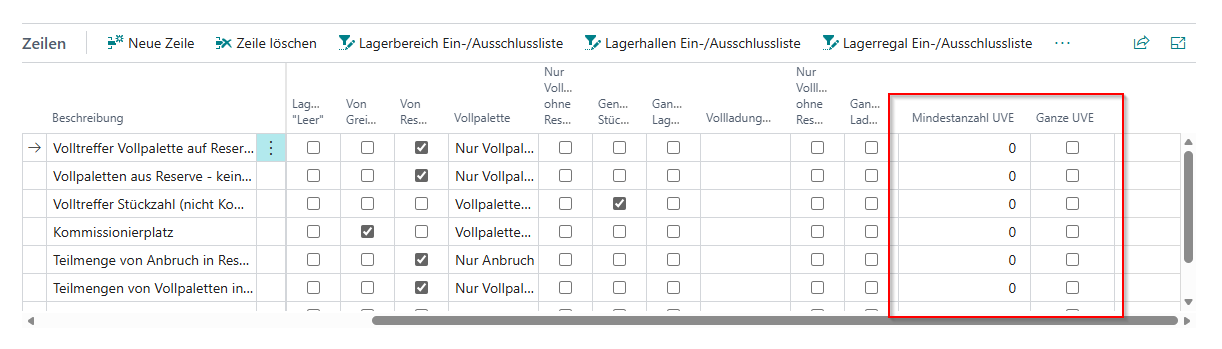
The inventory selection strategies have been extended with two new fields in the strategy lines, enabling more precise control of reservations based on subpackaging units (SPUs). This allows full pallet, SPU and opening pickings to be precisely separated and combined.
Hinweis
Existing inventory selection strategies are not affected by the update. Both fields default to 0 or disabled in all strategy lines after the update, so the previous behavior does not change. The new fields must be actively configured to take effect.
Minimum Number of SPUs
The new field Minimum Number of SPUs defines the minimum demand quantity in whole SPUs for a strategy line to apply. The strategy line is only considered if the remaining quantity equals or exceeds the defined number of whole SPUs.
The quantity of an SPU is determined from the item's packaging hierarchy.
Example: With a Minimum Number of SPUs of 3 and an SPU quantity of 60 pieces, the strategy line only applies when at least 180 pieces are required.
Whole SPU
The new field Whole SPU activates logic that ensures SPUs are reserved completely and without quantity splitting across multiple load carriers. The system attempts to take the required SPUs from as few load carriers as possible.
If the field is disabled, the system behaves as before: quantities are split without regard to SPU boundaries.
Hinweis
The SPU quantity is derived from the item's packaging hierarchy. Ensure that the packaging hierarchy is maintained before using these fields.
Rack Compartment and Rack Bay Management
With the new Rack Compartment and Rack Bay Management feature, storage places can be managed in a deeper structure of rack bays and rack compartments. This enables bay and compartment load checks as well as extended occupancy rules. This is especially safety-relevant in larger long-traverse racking areas of a certain height and can simultaneously lead to more sensible target storage place suggestions.
Structure overview:
| Level | Structure | Purpose | Check |
|---|---|---|---|
| Rack Bay Type | Template entity | Pre-population of max. bay load on rack bays | - |
| Rack Bay | Groups storage places across multiple levels | Monitoring of aggregated bay load in tall racks | Bay load check |
| Rack Compartment Type | Template entity (per location) | Pre-population of dimensions, compartment load and inventory measure assignments | - |
| Rack Compartment | Groups storage places within one level | Control of occupancy and compartment load per compartment | Compartment load check, max. no. of load carriers |
| Storage Place | Lowest unit | References exactly one rack compartment and one rack bay | - |
The hierarchy runs from top to bottom: A Rack Bay comprises multiple Rack Compartments on different levels, and a Rack Compartment comprises multiple Storage Places on the same level. Via the Types (Rack Bay Type, Rack Compartment Type), default values can be centrally maintained and automatically inherited when assigned to bays/compartments.
Setup
The new field Enable Rack Bay & Compartment Management in the SWMS Feature Setup is disabled by default. Only after activation do all related tables and fields appear in the system. When disabled, they are hidden again to keep the interface clean.
Rack Bay Types - Item 133612
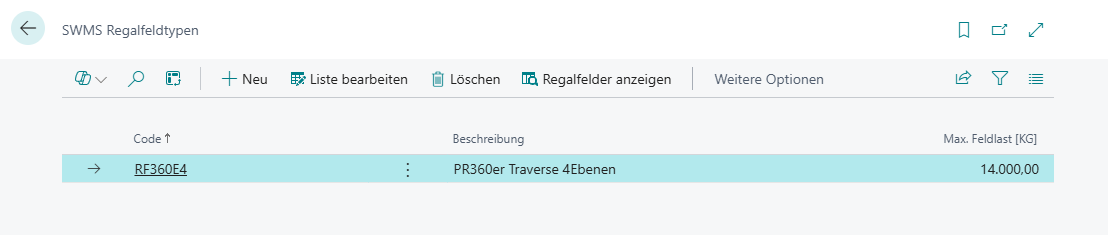
Rack bay types serve to pre-populate values on rack bays. In the new list view Rack Bay Types, the following fields can be maintained:
- Rack Bay Type Code: Unique code for the rack bay type.
- Description: Free-text description of the rack bay type.
- Max. Bay Load: The maximum permissible load for rack bays of this type.
The action Open Rack Bays allows direct navigation to the rack bays belonging to this type.
Rack Bays - Item 133611
Rack bays group multiple storage places across levels under a common code. In particularly tall racks, they serve to monitor the aggregated bay load and prevent overloading of the rack.

The new list and card view Rack Bays contains the following fields:
- Location Code: Only WMS-managed locations.
- Warehouse / Storage Shelf Code: Assignment of the rack bay.
- Rack Bay Code: Unique code of the rack bay.
- Description: Free-text description of the rack bay.
- Rack Bay Type / Rack Bay Type Description: Link to a rack bay type for automatic pre-population of bay load values.
- Max. Bay Load: Maximum permissible load of the rack bay. When this limit is reached, no further put-away is allowed on the associated storage places.
- Rack Compartments: Number of assigned rack compartments.
- Number of Storage Places: Number of storage places that have this rack bay code assigned.
Rack Bay Occupancy:
- Free: No assigned storage place is occupied.
- Occupied: At least one storage place of the rack bay is occupied by a load carrier or inventory.
- Full: The available bay load is less than or equal to 0.
Hinweis
The columns Occupancy and Row Codes are hidden by default in the list view and must be manually shown via Personalize Columns.
Available actions: Open Rack Bay Types, Open Rack Compartments.
Rack Compartment Types - Item 133587
Rack compartment types allow simple pre-population of dimensions and compartment loads on rack compartments. In the new list view Rack Compartment Types, the following fields can be maintained:
- Location: Only WMS-managed locations.
- Rack Compartment Type Code: Unique code for the rack compartment type.
- Description: Free-text description of the rack compartment type.
- Height / Depth / Width [cm]: Dimensions of the compartment. These currently serve only as specifications and are not yet used for target storage place determination.
- Max. Compartment Load: Maximum permissible load per compartment with unit from the base unit of measure list.
- Inventory Measure Assignments: Number of assigned inventory measure assignments.
The action Open Rack Compartments allows direct navigation to the rack compartments belonging to this type. When deleting a rack compartment type, the system checks whether it is still in use.
Hinweis
The dimensions of rack compartment types currently serve only as specifications and are not yet considered during target storage place determination or load checks.
Rack Compartments - Item 133572
Rack compartments group multiple storage places within one level. They are used to represent mixed occupancy of different packaging types on e.g. a long-traverse rack and to protect the storage place from overloading.
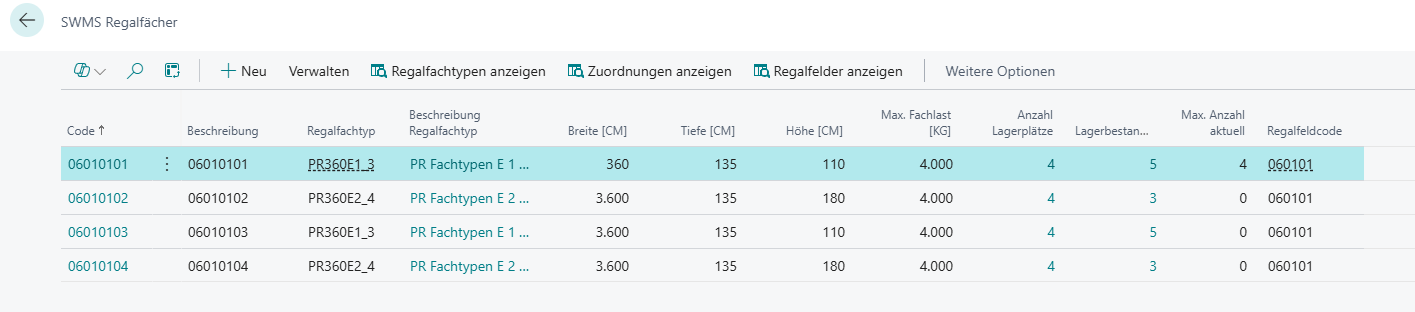
The new list and card view Rack Compartments contains the following fields:
- Rack Compartment Code: Unique code of the rack compartment per location.
- Description: Free-text description of the rack compartment.
- Warehouse Code / Warehouse Description: Assignment to the warehouse.
- Storage Shelf Code: Associated storage shelf.
- Level Code: A rack compartment always spans exactly one level.
- Rack Compartment Type / Rack Compartment Type Description: Link to a rack compartment type; on assignment, dimensions, compartment load and inventory measure assignments are automatically pre-populated.
- Height / Depth / Width: Dimensions of the rack compartment.
- Max. Compartment Load: Maximum permissible load of the rack compartment.
- Number of Storage Places: Number of storage places assigned to the rack compartment.
- Rack Bay Code: Associated rack bay (for bay load monitoring).
The Rack Compartment Occupancy, hidden by default, shows the current state:
- Free: No assigned storage place is occupied.
- Occupied: At least one storage place is occupied by a load carrier or inventory.
- Full (Count): Number of load carriers = current maximum count.
- Full (Load): The available compartment load is less than or equal to 0.
Available menu actions:
- Open Rack Compartment Types: Opens the list of rack compartment types.
- Show Assignments: Opens the inventory measure to rack compartment type assignments.
- Open Rack Bays: Opens the associated rack bays.
Hinweis
When setting up the compartment load, a small tolerance buffer is recommended, as the check only takes effect after a put-away action by the user.
Inventory Measure to Rack Compartment Type Assignment - Item 133594
Each rack compartment type can have one or more inventory measures assigned via the new list view Inventory Measure to Rack Compartment Type Assignment. This defines which packaging types fit into a rack compartment and how many load carriers per inventory measure can be accommodated.
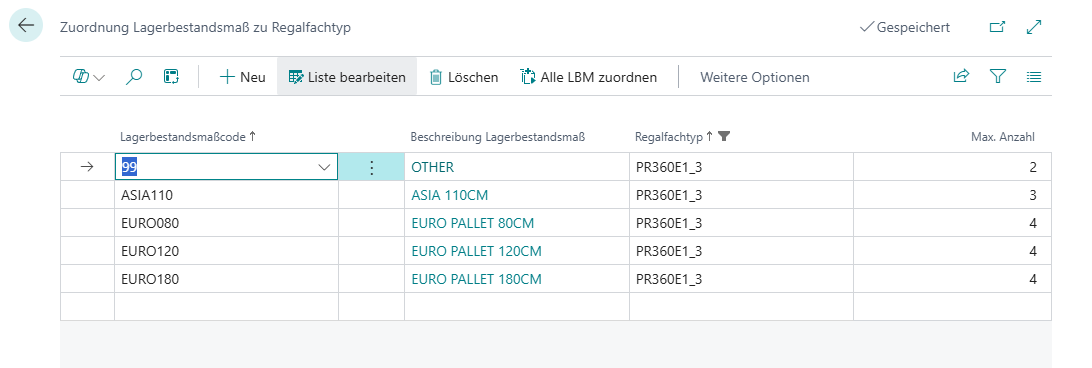
The table contains the following fields:
- Inventory Measure / Inventory Measure Description: The inventory measure to be assigned.
- Rack Compartment Type: The rack compartment type to which the inventory measure is assigned.
- Max. Number of Units: Defines how many load carriers of this inventory measure type fit into a rack compartment in total. When a previously empty rack compartment is filled with a load carrier, the system automatically enters the appropriate maximum number in the Max. Number Current field on the rack compartment. If a different inventory measure is subsequently stored, the value may be reduced to the lower number.
The action Assign all Inventory Measures assigns all available inventory measures at once.
The assignments are directly accessible via the Show Assignments action in the rack compartments list.
Storage Place Card Extensions - Item 133636
When Rack Bay & Compartment Management is activated, the Storage Place Card is extended with the following fields:
Tab General (below the Box Code):
- Rack Bay Code: Assignment of the storage place to a rack bay.
- Rack Compartment Code: Assignment of the storage place to a rack compartment.
Tab Dimensions (new area Rack Compartment):
- Rack Compartment Type, Depth / Width / Height [cm], Max. Compartment Load [kg], Rack Compartment Volume [m3]
Tab Dimensions (new area Rack Bay):
- Rack Bay Type, Max. Bay Load [kg]
Tab Occupancy (new area Rack Compartment/Bay Occupancy):
- Max. Number Current: Maximum permissible number of load carriers in the rack compartment.
- Rack Compartment Occupancy Count: Current number of load carriers on the storage places of the rack compartment.
- Compartment Load Actual [kg]: Aggregated weight of all load carriers on the storage places of the rack compartment.
- Bay Load Actual [kg]: Aggregated weight of all load carriers on the storage places of the rack bay.
- Available Compartment Load [kg]: Max. Compartment Load minus Compartment Load Actual.
- Available Bay Load [kg]: Max. Bay Load minus Bay Load Actual.
- Rack Compartment Occupancy / Rack Bay Occupancy: Occupancy status (Free / Occupied / Full).
Cleanup of Legacy SNCL Storage Field Fields - Item 133501
As part of the introduction of the new Rack Compartment and Rack Bay Management, the legacy SNCL storage field fields have been cleaned up.
- The table SNCL Storage Field is set to obsolete and is no longer available as a page.
- On the Storage Place Card, the following fields have been hidden:
- Storage Field Code
- Available Place Count Storage Field and associated dimension fields (available weight, available depth, height, width, volume)
- The Storage Fields tab has been removed from the Storage Place Creation.
- These fields are no longer considered in occupancy determination and storage strategies.
The Storage Place Category remains in the system and continues to define the category of the storage place. However, the previous cross-place effectiveness (e.g. for occupancy and load checks across fields) is discontinued.
Hinweis
The new Rack Compartment and Rack Bay Management takes over the task of fine-grained capacity management going forward.
Sell-by Date Option "Optional" Removed - Item 131905
The sell-by date option Optional was available in SIEVERS WMS without functional significance and made neither technical nor business sense. The option has therefore been removed from the following locations:
- Item Card (Tab SWMS Classification and Units): The field With Sell-by Date now only supports the values Without Sell-by Date and Mandatory.
- SIEVERS WMS Setup (Tab Warehouse Receipt): The field Default With Sell-by Date now only supports the values Without Sell-by Date and Mandatory.
Hinweis
Items where the sell-by date option was previously set to Optional retain this value in the database. No automatic migration takes place. The system continues to work correctly, as the value Optional is internally treated like Without Sell-by Date (no sell-by date is required, but none is blocked either). The value can no longer be set in the interface. A manual switch to Without Sell-by Date or Mandatory is recommended.
Warehouse Card
Obsolete Fields Hidden in the Warehouse Card - Item 131982
The following fields have been hidden in the SNCL Warehouse Card, as they originate from the legacy SNCL era and have no meaningful function in SIEVERS WMS:
- Altern. Warehouse 1-5: These five fields for alternative warehouses had no known function in the current system.
- Buffer Warehouse: This field had no known function in the current system.
Warehouse Storage Type in the Warehouse Card Revised - Item 131993
The field Warehouse Storage Type in the SNCL Warehouse Card and the SNCL Storage Place List has been completely revised. The previous technical labels (e.g. Fixed Shelf, Automatic Warehouse) have been replaced by more precise and universally understandable labels. The field describes the primarily used storage technology in a warehouse area.
Existing values are automatically migrated to the new labels.
The new Warehouse Storage Type values are:
| No. | English |
|---|---|
| 0 | 0-Not Specified Racks |
| 1 | 1-Block Storage |
| 2 | 2-Pallet racks |
| 3 | 3-Shelving Racks |
| 4 | 4-Narrow Aisle Racks |
| 5 | 5-Cantilever Racks |
| 6 | 6-Flow Racks |
| 7 | 7-Drive-in Racks |
| 8 | 8-Mobile Shelving System |
| 9 | 9-Not Specified Automatic Storage System |
| 10 | 10-Autostore Systems |
| 11 | 11-Lift Systems |
| 12 | 12-Automatic small parts warehouse |
| 13 | 13-Automatic high-bay warehouse |
| 14 | 14-Silo |
Migration of Existing Warehouse Storage Types
During the update, all existing values are automatically transferred to the new values of the Warehouse Storage Type field:
| Old Value | New Value |
|---|---|
| Fixed Shelf | 0-Not Specified Racks |
| Block Stock | 1-Block Storage |
| Shifting Shelf | 8-Mobile Shelving System |
| Retractable Shelf | 7-Drive-in Racks |
| Slide-through Shelf | 6-Flow Racks |
| Slide-in Shelf | 7-Drive-in Racks |
| Silo | 14-Silo |
| Automatic Warehouse | 9-Not Specified Automatic Storage System |
Hinweis
The new Warehouse Storage Type values Pallet racks, Shelving Racks, Narrow Aisle Racks, Cantilever Racks, Autostore Systems, Lift Systems, Automatic small parts warehouse and Automatic high-bay warehouse are new and have no previous value. These must be set manually if desired.
Warehouse Function in the Warehouse Card Revised - Item 131998
The field Warehouse Function in the SNCL Warehouse Card and the SNCL Storage Place List has been completely revised. The previous labels (e.g. Quality Warehouse, Picking Warehouse) described the type of warehouse rather than the actual task. The new values describe the primary task performed in a warehouse area and deliberately differentiate from the Warehouse Storage Type field, which describes the storage technology used.
Existing values are automatically migrated to the new labels.
The new Warehouse Function values are:
| No. | English | Description |
|---|---|---|
| 0 | 0-Picking | Shelving areas, pallet areas, block storage or automatic systems where customer demands are picked |
| 1 | 1-Transfer Areas | Warehouse receipt places, put-away/retrieval stations, transfer places |
| 2 | 2-Replenishment Storage | Areas used exclusively for stocking to supply picking areas as needed |
| 3 | 3-Production | Areas where production takes place and required input materials are stored for immediate consumption |
| 4 | 4-Assembly | Areas where assembly takes place and required input materials are stored for immediate consumption |
| 5 | 5-Production and Assembly Supply Area | Areas storing only item quantities intended for supplying production and assembly workstations |
| 6 | 6-Shipping Storage | Packed goods await the arrival of the collecting transport here |
| 7 | 7-Quality Inspection | Areas where goods are presented and inspected for quality assurance |
| 8 | 8-Blocked Storage | Areas with blocked, defective goods whose disposition is still undetermined |
| 9 | 9-Recycling Storage | Areas where defective item quantities are collected for raw material recycling |
| 10 | 10-Supply of empties and packaging materials | Areas for the storage and supply of empties and packaging materials |
| 11 | 11-Value - Added Services | Areas where kitting, assembly and/or packaging tasks are performed |
| 12 | 12-Finishing Storage | Controlled areas where maturing and finishing processes take place |
Migration of Existing Warehouse Function Values
During the update, all existing values of the old field Warehouse Function (obsolete) are automatically transferred to the new values of the Warehouse Function field:
| Old Value | New Value |
|---|---|
| Quality Warehouse | 7-Quality Inspection |
| Sales Warehouse | 0-Picking |
| Blocked Warehouse | 8-Blocked Storage |
| Buffer Warehouse | 6-Shipping Storage |
| Picking Warehouse | 0-Picking |
| Empties Warehouse | 10-Supply of empties and packaging materials |
| Transfer Warehouse | 1-Transfer Areas |
Hinweis
The new Warehouse Function values Replenishment Storage, Production, Assembly, Production and Assembly Supply Area, Recycling Storage, Value - Added Services and Finishing Storage are new and have no previous value. These must be set manually if desired.
Only WMS-Managed Locations in Lookup - Item 134127
When creating a new warehouse, only WMS-managed locations are displayed in the location lookup. This prevents non-WMS-managed locations from being accidentally selected.
Renamings
Tabs on the Item Card Renamed from SNC to SWMS - Item 132227
The tabs on the item card have been renamed from the previous SNC naming to SWMS. The following tabs now carry an SWMS prefix:
| Old Name | New Name |
|---|---|
| SNC Put-away/Retrieval/Storage | Replenishment | SWMS Put-away/Retrieval/Storage | Replenishment |
| SNC Strategies and Movement Data | SWMS Strategies and Movement Data |
| SNC Classification and Units | SWMS Classification and Units |
| SNC Assembly & Production Supply | SWMS Assembly & Production Supply |
| SNC External Storage | SWMS External Storage |
| Dangerous Goods | SWMS Dangerous Goods |
Inventory and Storage Places Renamed - Item 132232
The pages have been renamed according to BC convention (list views in plural):
- Inventory Overview is now called Inventories
- Storage Place Overview is now called Storage Places
Warehouse Receipt
Employee Marking in the Warehouse Receipt - Item 134526
The new field Employee Marking is available in the warehouse receipt header. It displays the mobile user who selected this warehouse receipt on the MDE device in program A1.1. This makes it possible - analogous to other processes (picking, move jobs, packaging) - to track which employee started the operation in the warehouse receipt as well.
Renaming: Number of Pieces per Inventory to Quantity per Inventory - Item 134399
In the warehouse receipt, the field Number of Pieces per Inventory has been renamed to Quantity per Inventory. The new label is neutral and accommodates warehouses that primarily work with weight or length units (e.g. kg, m) and did not identify with the previous pieces terminology.
Quantity Checked Is Reset on Field Changes in the Warehouse Receipt - Item 134411
If the field No. of Inventories per LC or Quantity per Inventory is changed in a warehouse receipt line while Quantity Checked is already set, the flag is automatically reset and the created load carriers and inventory are deleted. The behavior now matches that of other field changes in the line and ensures that no inconsistent load carrier lines remain.
Warehouse Shipment
Order-Pure Warehouse Shipments Remain Order-Pure - Item 132793
When processing multiple lines of the Whse. Ship. Automation, it could previously happen that order-pure or customer-clean warehouse shipments were supplemented by another automation line with orders from other customers or order types. This behavior is now corrected.
The following indicators from the warehouse shipment creation are stored in the warehouse shipment header and checked during further processing by the automation:
- Source Type Filter: Allowed source types (e.g. sales order, purchase return order)
- Customer Clean: All source documents must have the same customer
- Vendor Clean: All source documents must have the same vendor
- By Order (formerly By Order): A separate warehouse shipment is created for each order
- By Shipping Address: All source documents must have the same shipping address
These fields are populated from the setup lines of the Whse. Ship. Automation during automatic warehouse shipment creation. For manual creation, the default values are taken from the customer or vendor card.
The fields can be shown in the Warehouse Shipment Planning (initially hidden) and are displayed in the Warehouse Shipment Protocol. They can also be viewed directly on the warehouse shipment.
Additionally, the field By Order in the Whse. Ship. Automation was renamed from its previous German label to By Order Whse. Shipment.
Inventory Selection on Item Level in Whse. Shipment Planning - Item 134729
On the item level of the warehouse shipment content in the Warehouse Shipment Planning, the field Inventory Selection is now also visible. This allows the setting Automatic or Manual to be viewed directly on the item overview without having to navigate to a sub-level.
Picking
Allow Gaps in "Label No." for PTUs in Picking Documents - Item 122597
The new field Allow Gaps in "Label No." for PTUs in Picking Document is available in the SIEVERS WMS Setup. When this flag is activated, gaps in the numbering are allowed when assigning PTU label numbers. Instead of searching for the next gap-free available number, the last used number is simply incremented.
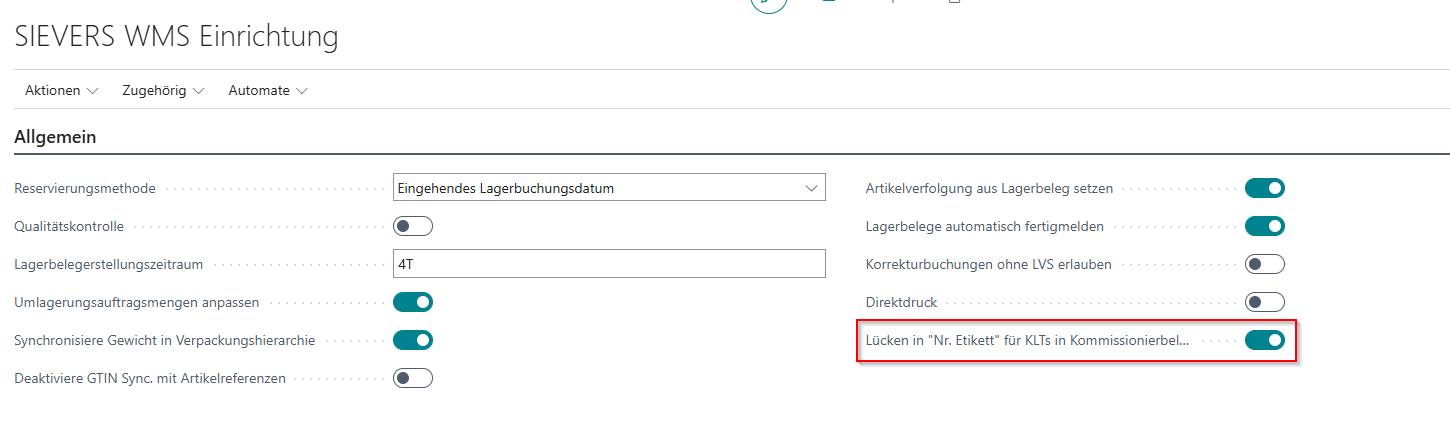
This significantly improves performance, especially for customers with a large number of PTUs. If gap-free numbering is not required, we recommend activating this flag.
A4.2 / A4.3 Full Pallet Retrieval for Serial Number Items - Item 132175
For positions with serial number-tracked items that correspond to a full pallet retrieval, the picker in A4.3 can now scan the entire load carrier to convert the storage unit directly. The scan field in A4.3 shows a neutral barcode symbol in this case instead of the label "Inv / SNo.", and the instruction reads Approach SP | Scan SU to convert.
After scanning the storage unit, the conversion to a PTU or SSCC is executed:
- If no PTU is selected, the SU is converted directly into a PTU or SSCC with a second scan.
- If a PTU is already selected, the system asks whether the quantity should be added to the existing PTU or a new PTU/SSCC should be created.
Alternatively, the picker can scan the full pallet from A4.2 and is taken directly to the conversion confirmation.
Storage Places and Locations
Shipment Process Can Be Disabled - Item 134569
The new field Shipment Process is available in the SWMS Feature Setup (Default: Enabled). Warehouses that do not work with the shipment process can disable this feature. This hides the following elements:
- Shipment processes and posted shipment processes
- In the Warehouse Shipment Planning: Action Create Shipment Process, Related link Show Shipment Process, as well as the columns In Loading and Loaded and the status area Loading
- On Load Carriers and Posted Load Carriers: Field Shipment Process
- Report Loading List
Menu Item "Storage Shelf by Category" Removed - Item 133083
The menu item Storage Shelf by Category in Storage Places (Related) and the associated page have been removed, as the functionality did not work correctly and caused an error when opened.
Warehouse Storage Type Shown on Storage Place Card and Editable in Edit Storage Places - Item 134705
The field Warehouse Storage Type is now shown by default on the SWMS Storage Place Card. Additionally, the Warehouse Storage Type can be set for multiple storage places simultaneously via Edit Storage Places. This allows different storage technologies to be described per storage place within a warehouse.
Location: Warehouse Management Automatically Activates Required Receipt and Shipment - Item 134123
When activating the Warehouse Management field on a location, Require Receipt and Require Shipment are now automatically activated as well. This ensures that all settings necessary for WMS warehouse management are consistently set.
MDE
Scanning a Serial Number Opens Inventory Info A7.4 - Item 132453
When a serial number is scanned in the A7 info forms, the system automatically opens the Inventory Info A7.4 and displays the matching inventory. Previously, this was not directly possible via the serial number.
Small Changes
- Mobile users operated in Business Central with a D365 Business Central Device license are no longer counted during the WMS license check. This avoids double billing - Item 132953
- A1.6 Create LC: The photo symbol is now displayed when a photo is stored on the item - Item 133116
- On the MDE program A7.4 Inventory Info, the layout has been slightly changed. The dimensions now have slightly more space - Item 132451
- If an error occurs on the info programs (A7.x) of the MDE, it is now displayed in the feedback area and no longer as a popup - Item 132452
Bugs
Purchase Return Order Cancellation Could Not Be Posted from Stock Document - Item 127407
When cancelling a posted purchase return order via Cancel Line, a cancellation stock document with negative quantities was created. Posting this stock document via Post Stock Document resulted in an error message. As a workaround, the cancellation had to be posted via Post via Cancellation instead. This bug is fixed. The cancellation can now be posted directly from the stock document.
MOP Batch Status Was Not Updated After Picking - Item 133014
After completing MOP picking in SWMS Mobile, the MOP Batch Status remained at 1-Released even though all positions had been processed. The status was not set to 2-In Picking or 3-Picked. This bug is fixed.
A1.6: Decimal Numbers Not Allowed in "Number of Load Carriers" Field - Item 133128
In the warehouse receipt (A1.6), decimal numbers could be entered in the Number of Load Carriers field, even though only integer values greater than 0 are permitted. This bug is fixed.
Vendor No. in the Warehouse Receipt Was Automatically Populated - Item 133963
In the warehouse receipt, the Vendor No. was automatically populated as soon as a purchase order was entered. This made it impossible to subsequently enter a second purchase order from a different vendor. This bug is fixed.
MOP Batch Reset Did Not Reset Outbound Stock Post Lines - Item 132552
When resetting a released MOP Batch via the MOP Monitor, the associated outbound stock post lines were not reset to the status "Created". This bug is fixed.
Consolidation Storage Place Not Suggested for Serial Number Items - Item 132236
When putting down a PTU in mobile picking (A4.3) with F8, no consolidation storage place was suggested for serial number-tracked items. The rule to determine the consolidation storage place first from the picking team and alternatively from the packing team was not correctly applied for these items. This bug is fixed.
A4.3 Serial No.: Switch to Next Position When Scanning Highest Serial No. Despite Open Quantity - Item 132228
When picking serial number-tracked items in A4.3, the system automatically switched to the next picking position as soon as the highest (last) serial number of the current position happened to be scanned - regardless of whether the total required quantity had already been fully picked. This caused confusion and unnecessary additional scans or travel. The next position is now only displayed once the full required quantity has been validated and picked. This bug is fixed.
Warehouse Receipt Not Closed After Complete Assignment and Posting - Item 135031
After the complete assignment of a single-position order in the warehouse receipt, the warehouse receipt remained visible in the view after posting, even though it was correctly posted. Additionally, item numbers were no longer displayed in the load carrier lines. This bug is fixed.
Stocktaking: Different Decimal Places in Stocktaking Lines and Cycle Counting Lines - Item 130759
Quantity fields in stocktaking lines and cycle counting lines had different numbers of decimal places. This could cause a stocktaking difference to be reported despite identical counted quantities. Stocktaking lines and cycle counting lines now consistently use 5 decimal places. This bug is fixed.
SOP: Creating a Picking Series with Mixed Order Types Not Possible - Item 132531
If a warehouse shipment contained orders with mixed order types (e.g. SOP, regular picking and MOP), a picking series could not be created for the SOP orders. This bug is fixed.
A3: Missing Location Separation When Scanning - Item 133232
In A3 (Item Transfer), it was possible to scan and process load carriers or inventory from a different location. This could cause inventory to be accidentally transferred to storage places of the wrong location. Only load carriers, storage places and inventory of the location of the currently logged-in mobile user are now accepted. This bug is fixed.
Direct Print: Error When Printing BC Standard Reports - Items 133297, 133980, 133975
A bug was fixed that prevented the printing of various reports via direct print and printer station.
WHS Receipt Create from Purchase Order Opened Wrong Warehouse Receipt - Item 133935
When a warehouse receipt was created from a purchase order, the window was closed, and Create WHS Receipt was clicked again, the system did not open the warehouse receipt belonging to the order but an unrelated one. This bug is fixed.
A1.GS1 Source Documents: Error When Scrolling with Arrow Keys - Item 133946
A bug was fixed that caused an error message when scrolling through the source document selection list in A1.GS1 using the arrow keys.
WHS Receipt: Inventory Measure in Load Carrier Lines Not Editable - Item 135028
In the warehouse receipt, it was not possible to change the inventory measure in the load carrier lines. The field was not editable. This bug is fixed.
Whse. Shipment: Get Source Documents Caused Error Message - Item 133745
When creating a new warehouse shipment and executing the action Get Source Documents in the Warehouse Shipment Planning, an error message appeared stating that the warehouse shipment header record could not be saved because the page information was not up to date. This occurred for both single and multi-selection of orders. This bug is fixed.
Posting via Warehouse Shipment Planning with Multi-Selection Faulty - Item 134691
A bug was fixed where the new Ship and Invoice dialog did not appear when posting multiple documents simultaneously in the Warehouse Shipment Planning.
A3.2: Picking Up Inventory with Different Items Not Possible - Item 133857
A bug was fixed that caused an incorrect error message when picking up multiple inventories with different items in A3.2.
A1.6: Quantity Distribution Faulty After Changing Number of Load Carriers - Item 133927
During entry in the warehouse receipt (A1.6), quantities were incorrectly distributed across load carriers after changing the number of load carriers. The underlying quantity distribution logic has been corrected; Number of LCs and Quantity per LC are now correctly considered.
A1.6: No Quantity Suggestion from Packaging Hierarchy for Serial Number Items - Item 133931
In the warehouse receipt (A1.6), the quantity suggestion for serial number-tracked items was not correctly determined from the packaging hierarchy. If such an item has an entry with the usage Load Carrier Creation in the packaging hierarchy, this is now considered when the total quantity is greater than or equal to the defined quantity. If no such entry exists, the full remaining quantity continues to be suggested. The behavior now matches that of regular items. This bug is fixed.
WHS Receipt: Manually Created Load Carrier Inherited Foreign GS1-SSCC - Item 134355
During mixed warehouse receipt (GS1 scan in A1.GS1 and subsequent manual load carrier creation in A1.6), the manually created load carrier inherited the SSCC of the previously GS1-scanned pallet. This caused the wrong SSCC to be printed on the SU label, and follow-up processes such as picking could no longer be executed correctly. An SSCC can now only be assigned to one load carrier. This bug is fixed.
Small Bugfixes
- Missing translation added - Item 133498
- On the MDE program B5.1, the keyword was displayed in an excessively large font size. This has been corrected - Item 133808
- A4.3 Picking: The quantity field was too narrow and the SU field too wide. The field widths have been corrected - Item 133683
- A4.3 Picking: The variant text for variant items was truncated. This bug is fixed - Item 133686
- A3.3b Dimensions and Weight: The storage place field was displayed too wide. The field width has been corrected - Item 133716
- A1.2 Warehouse Receipt MDE: The character
<in an item description caused an unwanted line break in the line display. This bug is fixed - Item 133820 - A4.3 Picking: The label SNo. was displayed incorrectly. This bug is fixed - Item 134857