Picking Document
The picking document summarizes the items, item quantities, load carriers, storage places and other information of a picking process in the warehouse shipment. Picking documents for which all items have been completed can be reported back and are converted to posted picking documents.
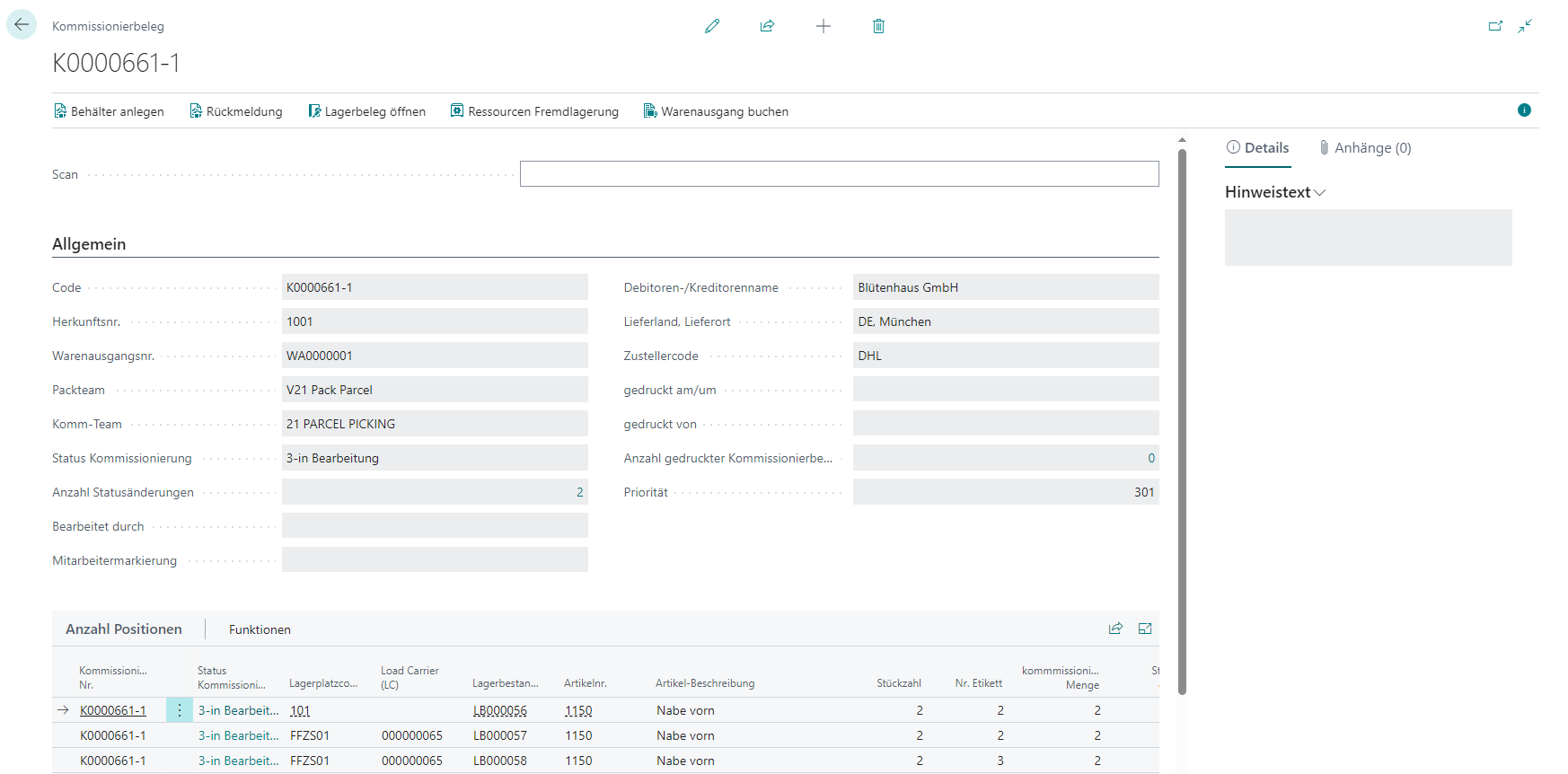
Menu
- Create Load Carriers
- Response picking list: Confirms the picking including the noted quantities. The Response is the procedural end of picking for the items it contains. Who performed the Response is logged in the Time protocol list. If Serialization Inventory is active, it is checked for each position whether the field Serialization No. Inventory is filled, provided the item and customer are configured as subject to serialization. If the field is empty, the response is prevented with an error message. Please note that the picking positions can no longer be deleted once the Response has been made.
- Open stock document
- Outside storage resources
- Release Created Picking Document: Releases this picking document
- Reset Released Picking Document: Resets status of this released picking document
- Post shipment
General
- Code
- Consolidation No.: Groups multiple orders that are to be packed together under one number. See various order handling. If it is a picking series or a multi order picking batch, this field generally remains empty, as multiple consolidation numbers can be assigned to one document.
- Source No.. If it is a picking series or a multi order picking batch, this field generally remains empty, as multiple source numbers can be assigned to one document.
- Warehouse Shipment No.: If it is a picking series or a multi order picking batch, this field generally remains empty, as multiple warehouse shipment numbers can be assigned to one document.
- Picking Series
- Packing team: Can be assigned when creating the document or retroactively (by entering a code or using lookup) as long as the field is empty. Once assigned, the field becomes read-only.
- Picking team
- Picking state: See Picking state in the keyword directory
- Number of status changes: Clicking on the number opens the Time log
- Processed by
- Employee marking
- Type
- Regular: Standard pick document for individual orders
- Series: Picking document for series picking
- MOP batch picking: Pick document for MOP batches
- Various picking document: Indicates whether the picking document is part of a various order handling. This means that several orders with this picking document are being progressed at the same time
- Customer/vendor name
- Ship-to Country, Ship-to City
- Shipping Agent Code: From Warehouse Shipment
- Printed at Datetime
- Printed by User
- Number of printed picking documents
- Priority: Changes depending on the priority in the warehouse shipment line
- Number of Full Load Carrier Picks
- Number of Partial Picks
Details
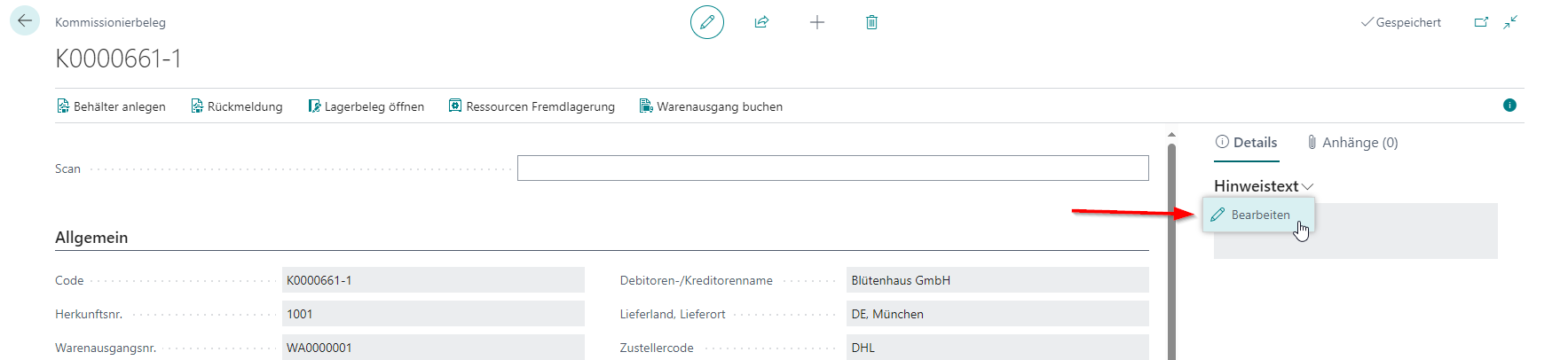
On the right-hand side of the picking document in the Details area, you will find the Comment text, the Long Notice and the taken pictures. In the Comment text (up to 2,048 characters) and in the Long Notice (unlimited length) you can enter information that can be accessed in the MDE on the pages of the A4 picking program using the i button. If both fields are filled, the contents are combined in the MDE display. In addition, the comment text is printed on the printed pick report.
If you someone took a photo on the MDE in A4.2 oder A4.3 during picking you can see these photos in the pictures section.
Picking Positions
Menu
- Convert SU to PTU: Converts a single selected SU to a PTU. The prerequisite for this is that the SU quantity is equal to the picking quantity.
- Convert all SUs to PTUs: Executes the above function for all SUs in the rows. If only a single SU is present, use the Convert SU to PTU function instead.
- Outside Storage Resource
- Swap Inventory
- Cancel marked picking lines
Lines
- Picking Document No.
- Picking State
- Storage Place
- Code
- Load Carrier
- Inventory No.
- Item No.
- Item Description
- No. of Pieces
- BUM (Base Unit of Measure)
- Picking Load Carrier Number
- Number of Pieces picked
- Number of Unity packed
- Processed by
You can also add the following columns via Personalize to the table:
- Serial No.
- Warehouse Shipment No.
- Source No.
- SSCC of Full Pallet
Load Carriers Picking
All load carriers associated with this picking document are shown in this table. You can also print the load carrier labels from here.
Menu
- Manage
- Delete line
- Functions
- Delete picking information: Clears picking references from the Load Carrier (dislocation no., consolidation no., warehouse shipment no. and picking container number). Only possible if no open Outbound Stock Post lines reference this Load Carrier
- Post Load Carrier to storage place: Posts the selected Load Carrier to a storage place to be selected
- Print load carrier label: Opens Print load carrier label
- Create shipping order line: Transfers the Load Carrier data to a new shipping order line. The prerequisite for this is that a shipping order already exists and the Load Carrier has the state 7-packed.
- Post shipment: You can post the warehouse shipment here. This is useful at this point if you want to partially post the warehouse shipment. All possible shipments are created and the remaining processes retain their state
Lines
- Picking Load Carrier Number
- Code
- Inventory Measure Code
- Description
- Depth, Width, Height
- Weight
- Load Carrier Type
- State
- Storage Place Code
- Barcode
You can also add the column Warehouse Shipment No. via Personalize to this table.
Cancel Marked Picking Lines
This function allows you to cancel the selected picking lines and transfer the inventory to new Load Carriers and/or new storage places via a move order. Please note that cancellation is not possible for lines that are in a packaging process.
Cancelled lines are given the state 8-Cancelled and the quantities are set to zero.

Enter the quantity to be canceled per line in the Cancel quantity field. Then create a new target Load Carrier and/or generate a move order for the canceled quantities. The new Load Carrier is entered in the Target SU field and the new storage place from the move order is entered in the Target storage place field.
- Item No.
- Item Description
- Variant Code
- Number of Pieces picked
- Cancel Quantity
- Base Unit of Measure
- Load Carrier (LC)
- Storage Place Code PTU
- Target SU
- Target Storage Place Code
The original location of the inventory is preassigned in the Target SU and Target storage place code fields to simplify returns.