SWMS Warehouse Receipt
Information on the warehouse receipt process can be found in the process section.
This is the main document of the Warehouse Receipt.
Menu
Home
- Open Stock Document
- Delete Stock Document: Deletes the stock document. If serial numbers were imported via Import Serial Nos., the imported serial numbers are also deleted from item tracking and the temporary import table is cleared. A new import is then possible again.
- Autofill Qty. to Receive: The Qty. to Receive in the receipt lines is automatically set equal to the Quantity remaining.
- Delete Qty. to Receive
- Open Empties Journal
- Use filter to get source documents
- Get Source Documents
Print/Send
- [Move Order List](#move-order-list-Inbound Stock Post)
Post
- Post Receipt
Navigate
- Posted Whse. Receipts
General
- No.
- Shipping Agent Code: Changing this shipping agent will also change the shipping agent in the source document
- Vendor Shipment no.
- Customer No.
- Barcode In the Warehouse Receipt Process, this barcode is utilized to create a Warehouse Receipt Process, e.g. on the forklift or on a mobile device. As soon as a barcode is scanned, the measurement of the unloading time begins. If you remove the barcode and scan a new Blanco Barcode, the time fields are set to the current time.
- SNCL Whse. Receipt State: See State of the Warehouse Receipt
- Posting Date: Specifies the posting date of the warehouse receipt. If the warehouse receipt has the state 5-posted, it is the date on which the quantities were posted in the warehouse receipt and reported as available for the subsequent area in the warehouse.
- Expected Arrival
- Warehouse Receipt Info
- Unloading Place
- Unloading Location
- No. of Load Carrier
- Start commercial Warehouse Receipt: See Warehouse receipt
- End of commercial Warehouse Receipt: See Warehouse receipt
- Start clearing Purch.: See Warehouse receipt
- End clearing Purch. See Warehouse receipt
- Start clearing QA: See Warehouse receipt
- End clearing QA: See Warehouse receipt
- Arrival time
- Departure time
- Employee Marking: Shows the mobile user who has selected this warehouse receipt on the MDE device (A1.1).
Hinweis
In some cases, the Posting date field is automatically aligned with the Expected arrival field.
- Expected arrival is after the posting date.
- Expected arrival is before the posting date, but Expected arrival is today or in the future.
Receipt Entry
Receipt entry makes it possible to enter a batch of shipment notes into the warehouse receipt. The order of entry is retained so that the batch does not have to be sorted.
Menu
- Manage
- Delete line
- Line
- Source document line
- Item tracking lines
- Print item label: Starts the print run with selected item for neutral item labels
- Item availability by
- Event
- Period
- Variant
- Location
- Outside storage resources
- Register Empties
Table
- Source document: Specifies the type of document to which this line refers. Source documents that are already being processed in the warehouse cannot be selected. Source documents can be in warehouse receipt:
- Purchase orders 38/39
- Sales return orders 36/37
- Transfers 5740,5741: These are transferred to a WHS Receipt via the expected stock movements.
- Production orders 5405/5406
- Assembly orders 900/901: are posted to the stock via an SNCL Inbound Stock Post - i.e. without WHS Receipt.
- Source no.
- Source Line No.
- Item no.
- Description
- Base Unit of Measure Code: Shows the base unit of measure code of the item in this line. The field is not editable.
- Quantity (BUM): Indicates the total quantity that should be present in the warehouse receipt according to the source document, in the item's base unit of measure.
- Qty. to Receive (BUM): The quantity to be received in the item's base unit of measure. Must equal the sum of the quantities in the load carriers. If this is not the case, this line is marked red. In the GS1 warehouse receipt, the quantity cannot be increased if the related stock document has already been finished.
- Quantity: Indicates the total quantity that should be present in the warehouse receipt according to the source document. The quantity is shown in the unit of measure of the source document (e.g. purchase order). The field is read-only and hidden by default. It can be shown via personalization to look up the originally ordered quantity.
- Quantity load carrier: Specifies the number of load carriers to which the quantity of this line is to be divided. The field is automatically calculated from the packaging hierarchy (row Carrier - Creation) when a receipt line is created or when the Qty. to Receive changes, and is editable. If no corresponding entry exists in the packaging hierarchy, the value is set to 0.
- No. of Inventories per Load Carrier: Specifies the number of inventory items per load carrier. The field is automatically calculated from the packaging hierarchy (row Inventory Creation) when a receipt line is created or when the Qty. to Receive changes, and is editable. If no corresponding entry exists in the packaging hierarchy, the value defaults to 1. If this field is changed while Quantity checked is set, the flag is automatically reset and the created load carriers and inventories are deleted.
- Quantity checked: Transfer - checkbox. Ensures that the load carrier lines for the line are created based on the values entered in the receipt line (Qty. to Receive (BUM), Quantity load carrier, No. of Inventories per Load Carrier, Quantity per Inventory). The packaging hierarchy is no longer used for calculating inventory quantities. If one of the fields No. of Inventories per Load Carrier or Quantity per Inventory is changed, this flag is automatically reset and the created load carriers and inventories are deleted. When the flag is reset, all related load carriers and inventories are discarded; this also applies to load carriers created on the MDE. If the load carrier lines are generally to be recreated, change the data in the fields and activate this checkbox again. This will recreate the load carrier lines. Please note that Quantity checked also checks for matches with the item tracking lines, if item tracking requirements exist. If the value in Quantity load carrier is 0, an error message is displayed and the action is cancelled.
- Keep Load Carrier Numbers by Transfer: This checkbox is relevant for the warehouse receipt in a transfer. If it is activated, the original Load Carrier number from the other location is adopted and no new Load Carrier is created. In addition, the Load Carrier properties (inventory measure, dimensions, weight) are also transferred.
- Qty. Received (BUM): Indicates the quantity that has been posted as received for this line (in base unit of measure).
- Qty. Outstanding (BUM): The remaining open quantity in base unit of measure.
- Due date: Indicates the expected delivery date of the items in the line. This is usually the delivery date agreed with the vendor.
- Unit of measure code: Shows the unit of measure code of the source document (e.g. TRAYS or PCS). The field is hidden by default and can be shown via personalization. Together with the Quantity field, it allows warehouse staff to look up the originally ordered quantity and unit of measure.
- Qty. to Receive: The quantity to be received in the unit of measure of the source document. The field is hidden by default (can be shown via personalization).
- Quantity received: Indicates the quantity that has been posted as received for this line (in the unit of measure of the source document). The field is hidden by default (can be shown via personalization).
- Quantity remaining: The remaining open quantity in the unit of measure of the source document. The field is hidden by default (can be shown via personalization).
- New Lot Number: You are only able to edit this field if the item has Lot No. necessary activated in the SWMS Classifications and Units section.
- Sell-by Date: This field can only be edited if the item requires a sell-by date. It is automatically populated if a sell-by date is required and an expiry date is entered on the item tracking line or an expiry date formula is entered on the item.
- Number of Tracking Lines
- Number of Empties Lines: Shows the number of empties lines assigned to the source document of this warehouse receipt line. The field is read-only. Drilling down opens the empties lines filtered to this source document.
- Proposal SPU Inventory Unit of Measure: Proposes the SPU entered on the Items page. Only SPUs that are declared as sub-packaging units in the Packaging hierarchy of the item can be entered here.
- Quantity per Inventory: Specifies how many units of an item are to be created per inventory item. The field is initially calculated from the packaging hierarchy (row Inventory creation) and is editable. If no packaging hierarchy is configured, the field defaults to the current delivery quantity. The value is not copied from the source document but is always recalculated when the warehouse receipt line is created. It is directly linked to the field No. of Inventories per Load Carrier: when one of the two fields is changed, the system automatically recalculates the other. Likewise, the field is recalculated when the Quantity Load Carrier is changed – in each case taking into account the current delivery quantity and the number of load carriers. If this field is changed while Quantity checked is set, the flag is automatically reset and the created load carriers and inventories are deleted. When Inventories Without Packaging Hierarchy - Open Inventory = No is enabled and no packaging hierarchy exists, the system automatically adjusts Quantity per Inventory after a quantity change so that the inventory is not marked as opening inventory.
- Qty. per Base Unit of Measure (BUM): Specifies how many base units are contained in one purchase unit.
- Special order sales no.
- Blocking Code WR: Shows the blocking code assigned to the item. The field can be shown through personalization and is displayed next to Special Order Sales No. by default.
- Target Warehouse Code
- Storage Area Code
- Picking Storage Area Code
- Picking place
- Inbound Stock Post strategy Code
- Weight Item
- Size range
- Stock quantity reserved
- Storage quantity packed
- Over-Receipt quantity
- Over-Receipt code
Hinweis
When receiving items with different units of measure (e.g. TRAYS and PCS), the Rounding Precision field on the item card under Related -> Item -> Units of Measure must be set to 1 to ensure that piece goods are converted to the base unit as whole numbers (without decimal places). The field is located on the item card in the General FastTab.
You can also make these fields visible:
- Variant Code
- Use on Load Carrier
Empties Lines
The Register Empties action opens Empties Lines for the source document of the selected warehouse receipt line. Empties can be entered manually. Load Empties automatically calculates them from an active inbound stock post. Existing lines remain unchanged; only missing lines are added.
The page contains these fields:
- No.
- Variant Code
- Description
- Quantity
- Location Code
- Unit of Measure Code
- Registered
- Type: Distinguishes Item from Load Carrier; it remains blank on manually entered lines.
Manual Empties Entry Without a Source Document
The Open Empties Journal action opens a dedicated Empties Journal from the warehouse receipt to record empties without a source document. A unique journal batch name is created for each warehouse receipt. The location, vendor or customer, shipping agent, and warehouse receipt number as the document number are prefilled. The automatically generated journal batch name is deleted after successful posting; standard journal batches and manually created journal batch names remain unchanged.
Item Availability by Location
This overview shows the current availability of the item sorted by Location Code. It shows not only the inventory and planned entries, but also the state of items currently in the logistics process. You can have these options:
- Show by
- Day
- Week
- Month
- Year
- Quarter
- Accounting period
- Show as
- Net Change
- Balance at Date
You can view the following standard information here:
- Location Code
- Name of the Location Code
- Gross Requirement
- Planned Receipt
- Inventory
- Projected Available Balance
- Planned Order Releases
We have also added the following SIEVERS WMS-specific fields:
- Quantity Outbound: Quantities that are in a Outbound Stock Post but for which a warehouse shipment has not yet been posted
- Reserved: Reserved for picking in the context of open Outbound Stock Posts
- Released Picking: In the context of open Outbound Stock Posts in released or in progress pickings
- Printed Picking: Quantities that have been printed on picking documents and are in open Outbound Stock Posts
- Picked & Packed: Completed picking as part of open Outbound Stock Posts. Item quantities may already be in packaging or loading.
- Blocked Inventory: Inventory blocked for Outbound Stock Posts or provided with a blocking code.
Allocated Load Carriers
This table contains the load carriers/Load Carriers related to this warehouse receipt.
Menu
- Manage
- Delete line
- Print Load Carrier Label
- Line
- Order assignment: This function assigns the load carrier to an order. Please note that PTUs can then no longer be manually changed to the type SSCC.
- Detailed assignment of load carriers: In this window, the relationships between items and load carriers can be maintained and changed.
- Detailed assignment of load carriers PTU/SSCC
- Import Serial Nos.
Print Load Carrier Label
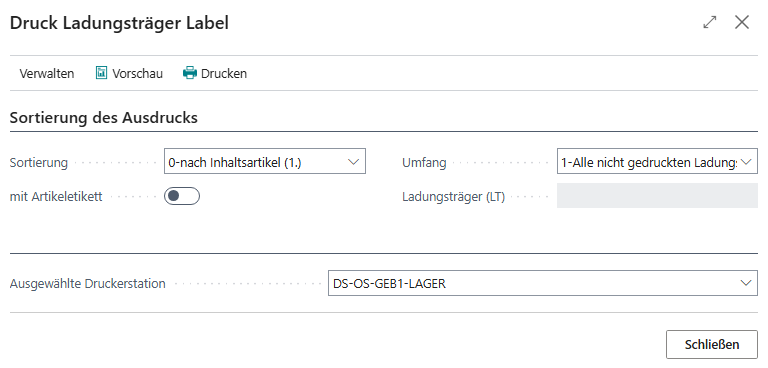
All labels belonging to the warehouse receipt process can be printed via this menu. In the upper area, you can specify the sorting of the printout. The following options are available here:
- 0-Content items: First ascending by item, then ascending by load carrier no.
- 1-Load carrier barcode: First ascending by load carrier no., then ascending by item
- 2-Purchase order + item: First ascending by document no., then ascending by item
- 3-Order + item: First ascending by order, then ascending by item
Use Selection to specify the load carriers for which the labels are to be printed:
- 1-All non-printed load carrier label(s): If there are no non-printed labels, none will be printed.
- 2-All load carrier label(s)
- 3-Selected load carrier label(s)
If you select the latter, you have to enter a load carrier number in the Load Carrier field.
Use the With item label option field to determine whether neutral item labels should also be printed in addition to the load carrier labels, which are used to identify the items on the load carrier.
Once you have selected the Printer station, you can either generate a preview or start printing directly via the menu.
Order assignment
With order assignment, entire pallets of items can be assigned to orders directly in warehouse receipt. This allows the pallets to bypass Inbound Stock Post, picking and packing and be sent immediately to dispatch. The following documents can be selected:
- Sales order
- Sales return orders
- Stock transfer order
- Production orders
- Assembly Header
In the order assignment, those orders are displayed whose item quantity is greater than or equal to the load carrier quantity. Order assignment is not possible for PTU or SSCC.
- Order assignment type
- Order assignment code: Load carrier number
- Source document
- Source no.
- Source Line No.
- Source Quantity
- Quantity already assigned: The quantity that has already been allocated
- Quantity remaining source document
- Item
- Item description
- Variant Code
- Assign: This checkbox can be used to assign the quantity to assign to the order
- Quantity to assign: Quantity of the load carrier that is available for assignment
- Quantity to assign: Quantity that has already been assigned
- Base Unit of measure
- Shipment Date
Detailed assignment of load carriers
In this detailed assignment, all load carriers assigned to this warehouse receipt and the items stored on them are displayed.
Hinweis
Please note that PTUs and SSCCs are only displayed in the corresponding detailed assignment.
- NEW LC
- New item no.
- Item description
- Number of pieces
- Load carrier assigned: This column contains the respective number of the Load Carrier, which can also be seen at the bottom of the load carrier lines
- Assign load carrier: Enter the number of the Load Carrier to which you want to assign this item here
- New variant code
- New lot no.
- New serial no.
- New sell-by date
Detailed assignment of load carriers PTU/SSCC
In this detailed assignment, all load carriers assigned to this warehouse receipt with the load carrier types PTU and SSCC and the items stored on them are displayed.
This detailed assignment does not differ in structure from the Detailed assignment load carrier. The only difference is that only PTUs and SSCCs are displayed here. This facilitates the separate assignment of order-related lines.
This detailed assignment only applies to the load carrier types PTU and SSCC.
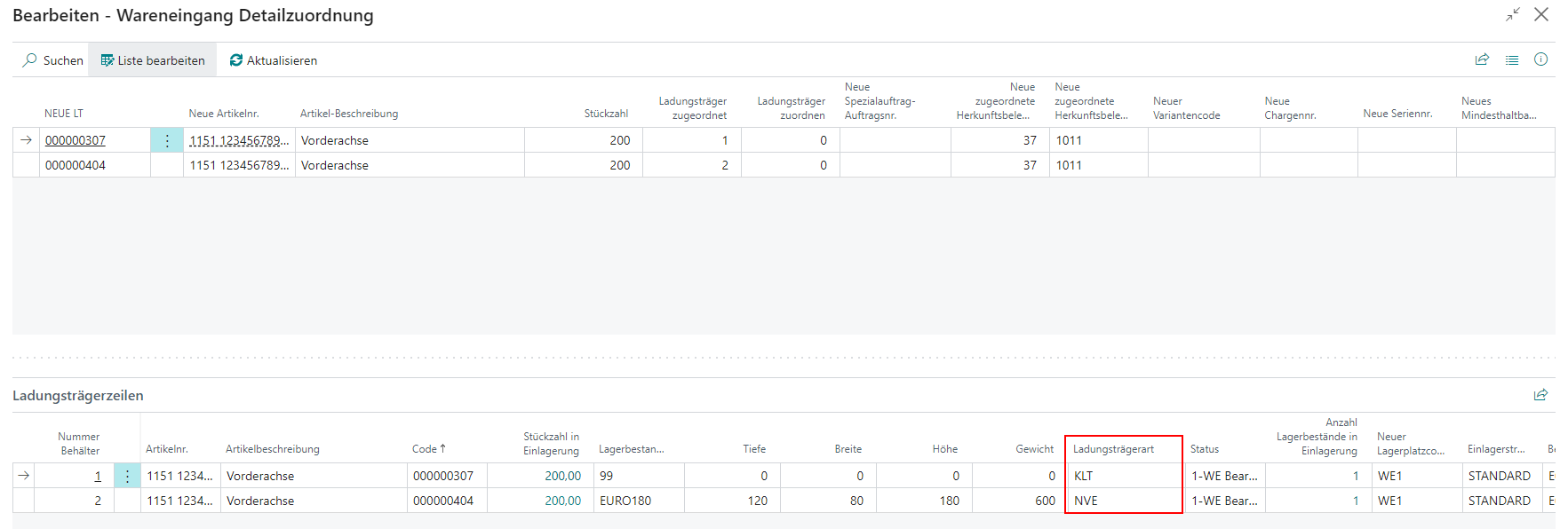
- NEW LC
- New item no.
- Item description
- Number of pieces
- Load carrier assigned: This column contains the respective number of the Load Carrier, which can also be seen at the bottom of the load carrier lines
- Assign load carrier: Enter the number of the Load Carrier to which you want to assign this item here
- New variant code
- New lot no.
- New serial no.
Import Serial Nos.
The Import Serial Nos. action opens the Import Serial Nos. dialog, which allows serial number assignments to be imported from an Excel file (.xlsx) into the warehouse receipt. The import file must contain the following columns:
- Column A: Label No. (required)
- Column B: Item No. (required)
- Column C: Serial No. (required)
The data may, but does not have to, include column headers. The Has Header Row option specifies whether the first row should be skipped as a header.
Use Import from Excel to start the import. The import is cancelled if any of the following conditions apply:
- A required field is missing
- A serial number appears more than once in the file
- The file contains no importable data
- The item is not part of the warehouse receipt
- The item does not require serial number tracking in SWMS
- The receipt line has already been quantity-checked or has no open quantity to receive
- The number of serial numbers exceeds the current quantity to receive in the warehouse receipt
- A serial number already exists in the SNCL Stock Entries
In each case an appropriate error message is displayed, including the affected items or serial numbers. If all checks pass, a confirmation dialog is shown with the following summary:
- Identified items
- Identified load carriers
- Unique serial numbers
If confirmed, the load carriers are created and the serial numbers are assigned automatically. The Comment Text for Label field on the load carrier is automatically filled with the corresponding Label No. from the import table. The system also automatically fills the Qty. to Receive (BUM) and Quantity Load Carrier fields on the warehouse receipt line and sets the Quantity Checked flag, which triggers the creation of stock entry lines with a quantity of 1 per serial number. If cancelled, the temporary import data is deleted.
Table
The assignments in the load carrier lines are based on the setups in the packaging hierarchy.
- Item no.: Shows the first item of the load carrier
- Item description
- Item variant
- Variant Code: If a GTIN is stored as an item reference, the system checks during load carrier processing whether the variant matches the GTIN. If they do not match, the load carrier is not transferred.
- Item code
- Number of pieces in Inbound Stock Post: Total number of items in the load carrier
- BUM (Base Unit of Measure)
- BUM (Base Unit of Measure)
- Inventory Measure Code: Specifies the inventory measure of the load carrier. The field can be changed in the warehouse receipt.
- Dimensions
- Weight
- Load carrier type
- State: See Status of load carrier
- Number of inventories Inbound Stock Post: How many inventory items have been assigned to the load carrier?
- Standard: 1 item no. corresponds to 1 inventory item equal to 1 load carrier.
- 2 item no. corresponds to 2 inventory items equal to 1 load carrier.
- For serial number-managed items, 1 serial number corresponds to 1 item, which in turn corresponds to 1 inventory item. 10 pcs. items on one load carrier = 10 inventory items.
- Sell-by Date: Changing this sell-by date automatically changes the sell-by date of the associated inventories. If the sell-by date differs from the most frequent sell-by date for the same item and lot in the same warehouse receipt, it is highlighted in red.
- New storage place code: Is generated based on the Inbound Stock Post strategy. For 2-step Inbound Stock Posts, this is the goods receiving bin at which the item was unloaded. For single-level Inbound Stock Post, the destination storage places are already entered here. You can edit this field.
- Inbound Stock Post strategy
- Document no.
- Special order
- Assigned order
- New Lot No.: If a lot no. has been entered in the receipt lines, it is transferred to the load carrier lines when they are created. If the lot no. in the receipt lines is now changed, the number in the load carrier lines remains the same. If you want the new lot no. to be transferred to the load carrier lines, these must be deleted and recreated.
- Comment text Label
- Proposal SPU Inventory Unit of Measure: The content of this field is transferred from the receipt lines. Only SPUs that are declared as sub-packaging units in the Packaging hierarchy of the item can be entered here.
- Checked in Warehouse Receipt
- Checked By
Hinweis
The Determination Load Carrier Weight setting in the SIEVERS WMS setup is responsible for calculating the dimensions and weight.
Allocated Inventories
This table is shown if you have set the option Whse. Receipt Subpage Lines to Inventory lines or Load Carrier Lines and Inventory Lines in the WMS setup. The table shows the item assignments according to inventory. This has the advantage that the contents of individual load carriers are also shown in detail, even if there are multiple different inventories in the same load carrier.
Menu
- Manage
- Delete line
- Print Load Carrier Label
- Line
- Order assignment: This function assigns the load carrier to an order. Please note that PTUs can then no longer be manually changed to the type SSCC.
- Detailed assignment of load carriers PTU/SSCC
Table
- New Inventory No.
- Item no.
- Item description
- Item code
- Number of pieces
- BUM (Base Unit of Measure)
- Inventory Measure Code
- Dimensions
- Weight
- Load carrier type
- State: See Status of load carrier
- Sell-by Date: If the sell-by date differs from the most frequent sell-by date for the same item and lot in the same warehouse receipt, it is highlighted in red. This makes possible input errors visible before posting.
- New storage place code: Is generated based on the Inbound Stock Post strategy. For 2-step Inbound Stock Posts, this is the goods receiving bin at which the item was unloaded. For single-level Inbound Stock Post, the destination storage places are already entered here. You can edit this field.
- Inbound Stock Post strategy
- Document no.
- Special order
- Assigned order
- New Lot No.: If a lot no. has been entered in the receipt lines, it is transferred to the inventory lines when they are created. If the lot no. in the receipt lines is now changed, the number in the inventory lines remains the same. If you want the new lot no. to be transferred to the inventory lines, these must be deleted and recreated.
- Comment text Label
- Proposal SPU Inventory Unit of Measure: The content of this field is transferred from the receipt lines. Only SPUs that are declared as sub-packaging units in the Packaging hierarchy of the item can be entered here.
- Checked in Warehouse Receipt
- Checked By