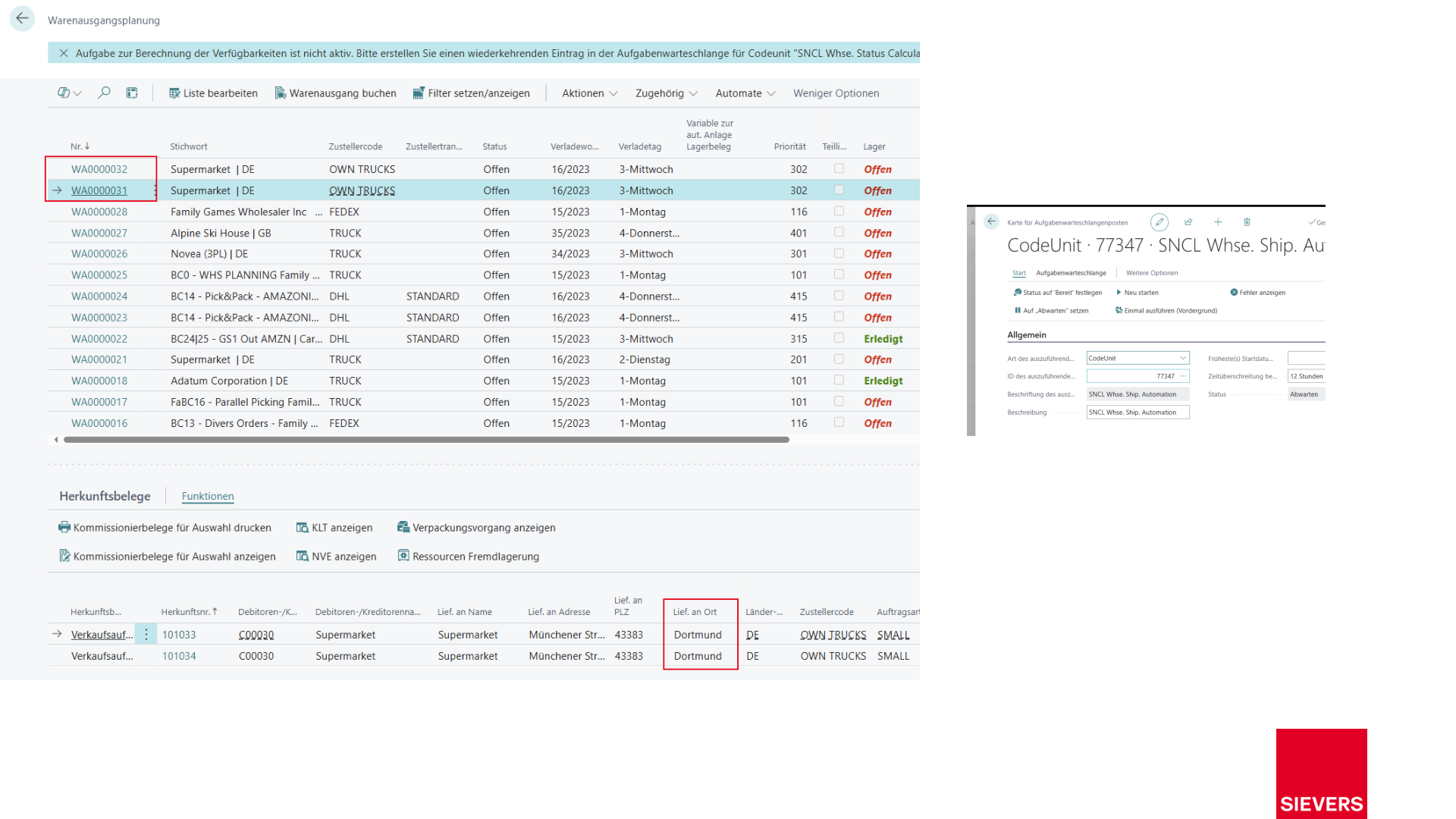
Warehouse Shipment
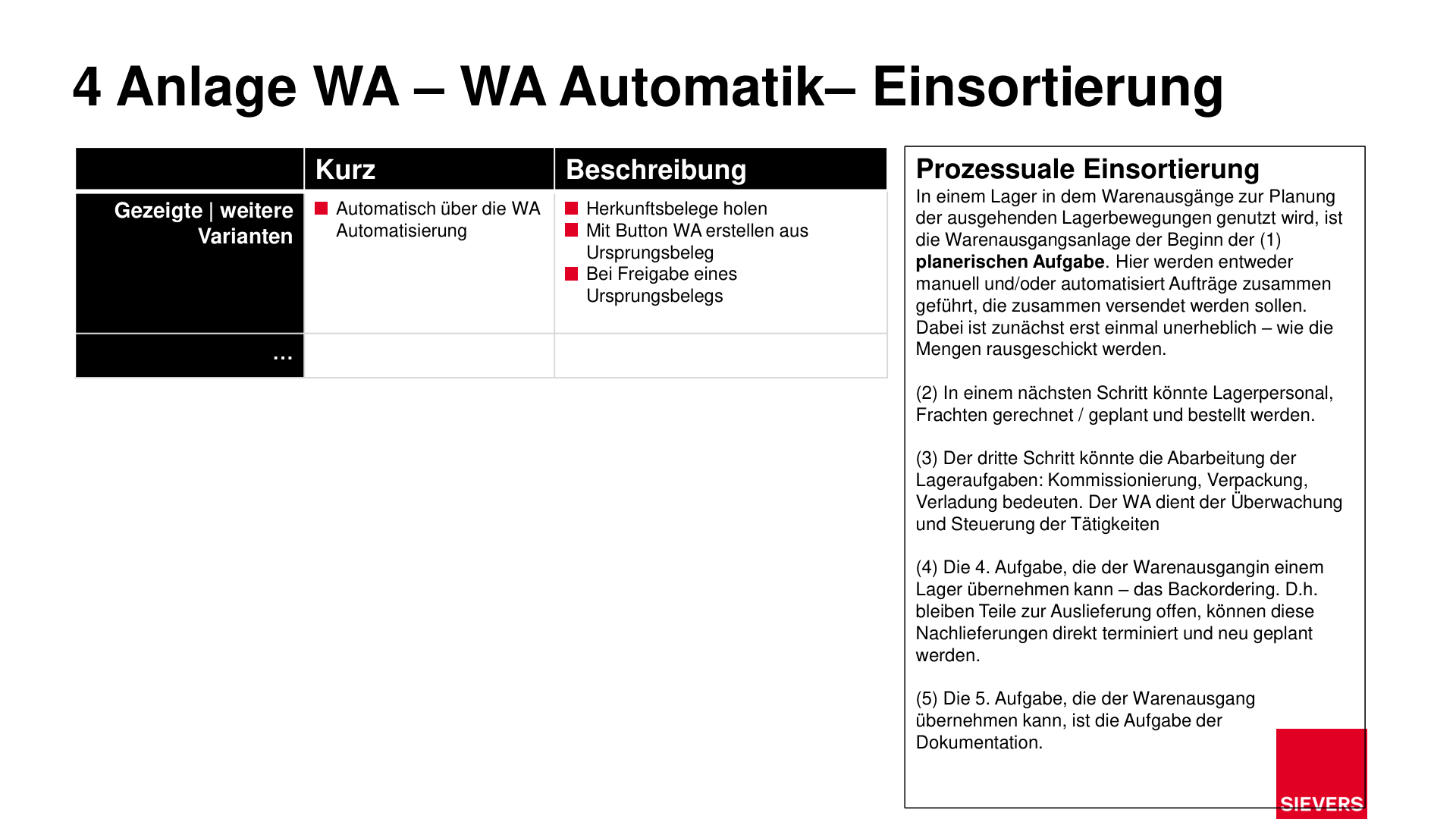
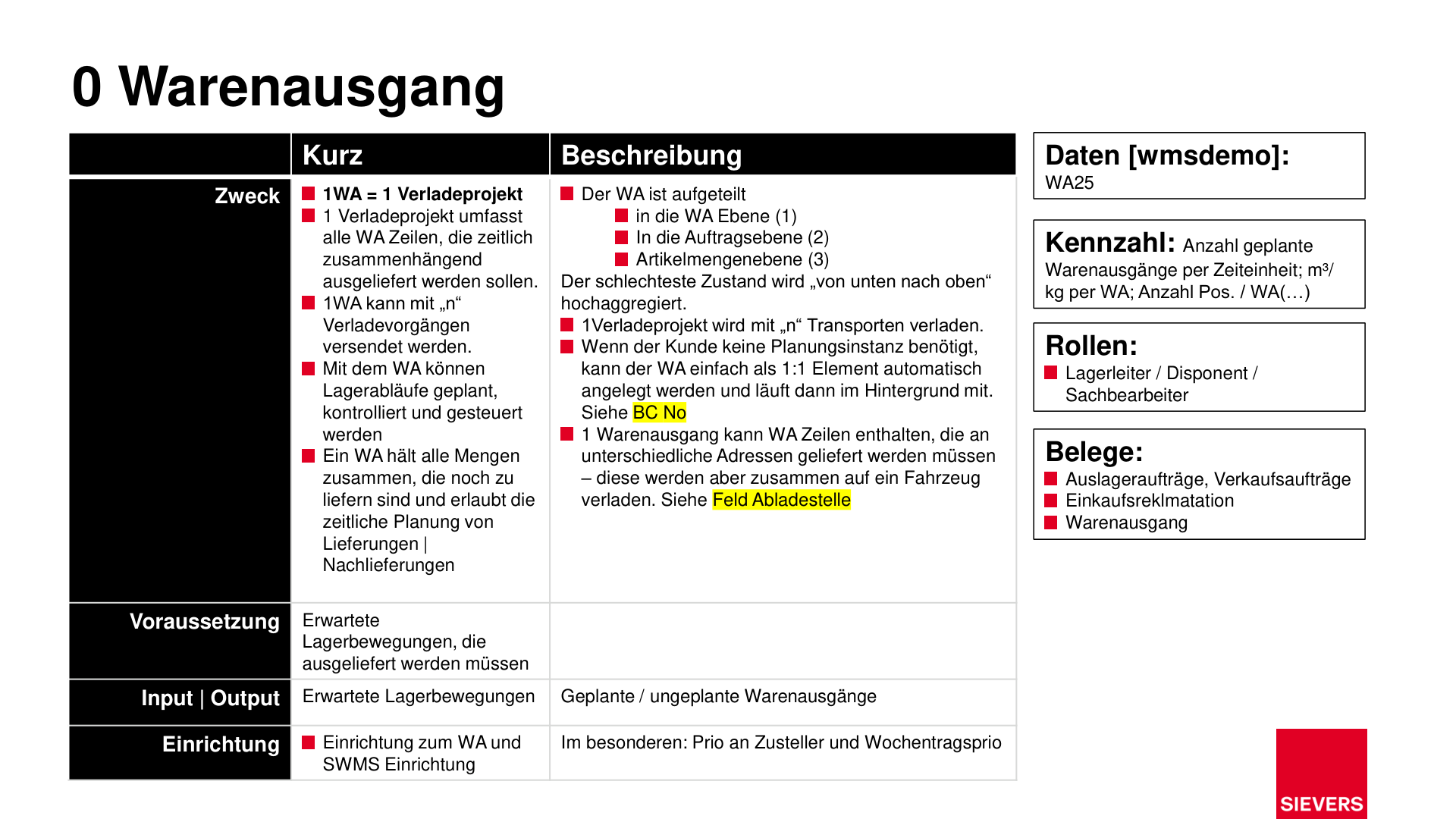
A warehouse shipment groups all outbound stock movements that are to be dispatched together. It covers all steps from order creation to warehouse shipment posting.
Warehouse Shipment in SIEVERS WMS
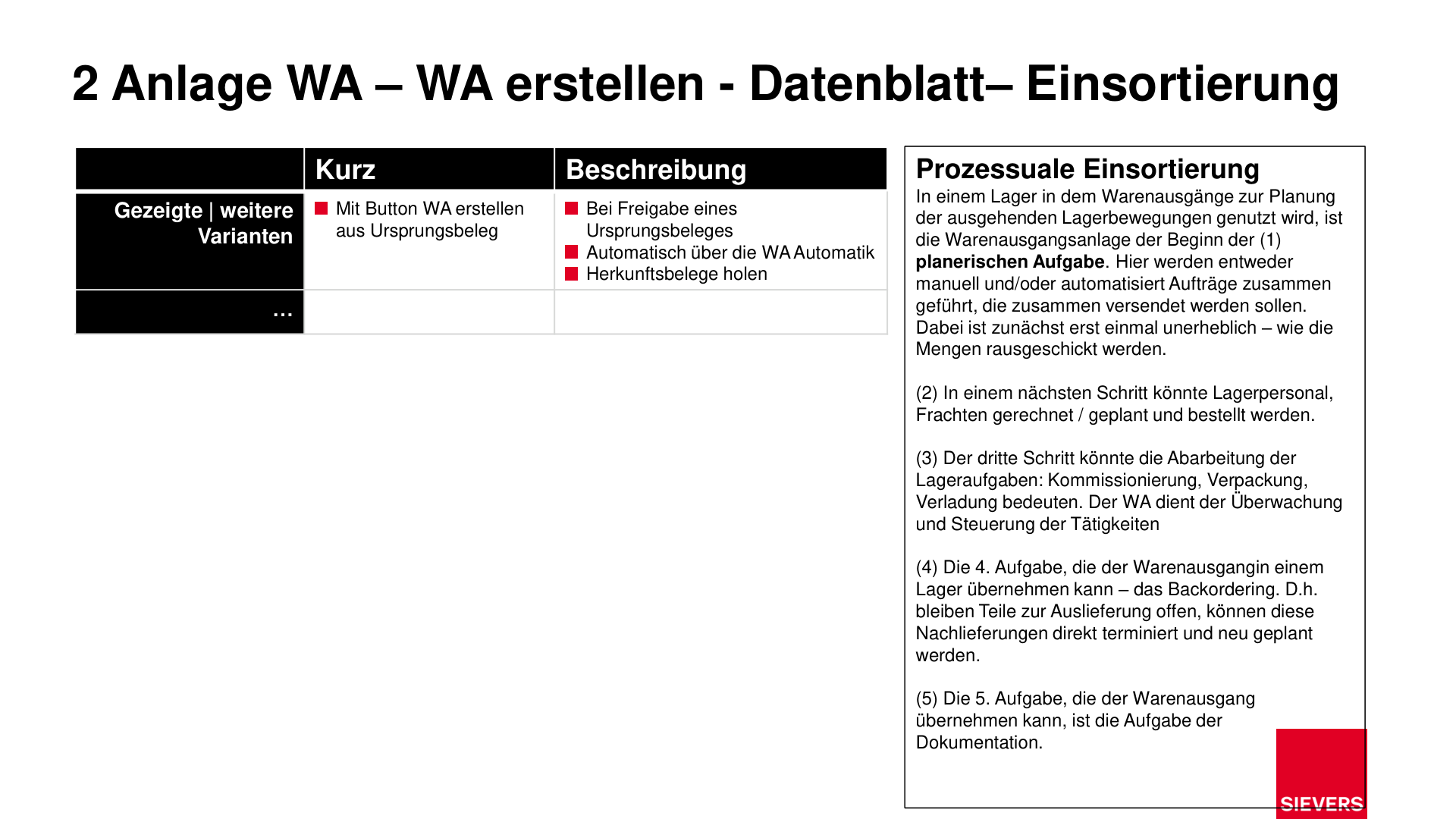
SIEVERS WMS maps the warehouse shipment process through Warehouse Shipment Planning. Warehouse shipments are created from source documents (sales orders, transfer orders, purchase return orders), planned, and released for picking. When the warehouse shipment is created, a move job from the storage location to the goods issue location is automatically created.
Picking is carried out on the MDE device via A4 Picking, packing via A5 Packaging, and dispatch via A6 Loading.
One warehouse shipment = one loading project: A warehouse shipment groups all shipment lines that are to be dispatched together in the same time window. A single warehouse shipment can be loaded across multiple shipment processes.
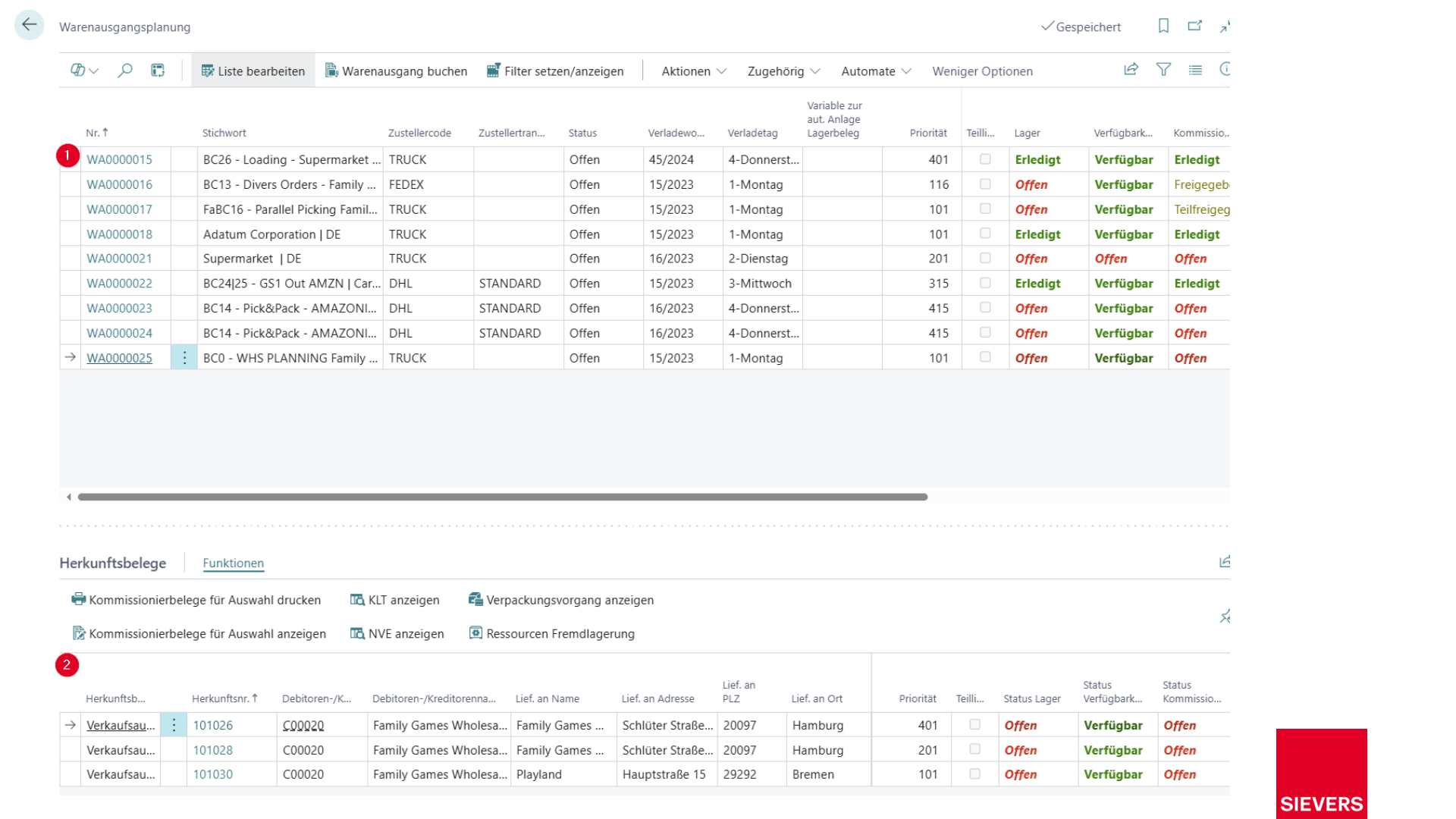
- The warehouse shipment is structured into the shipment level, the order level, and the item list level. The worst status is aggregated upwards from the lowest level.
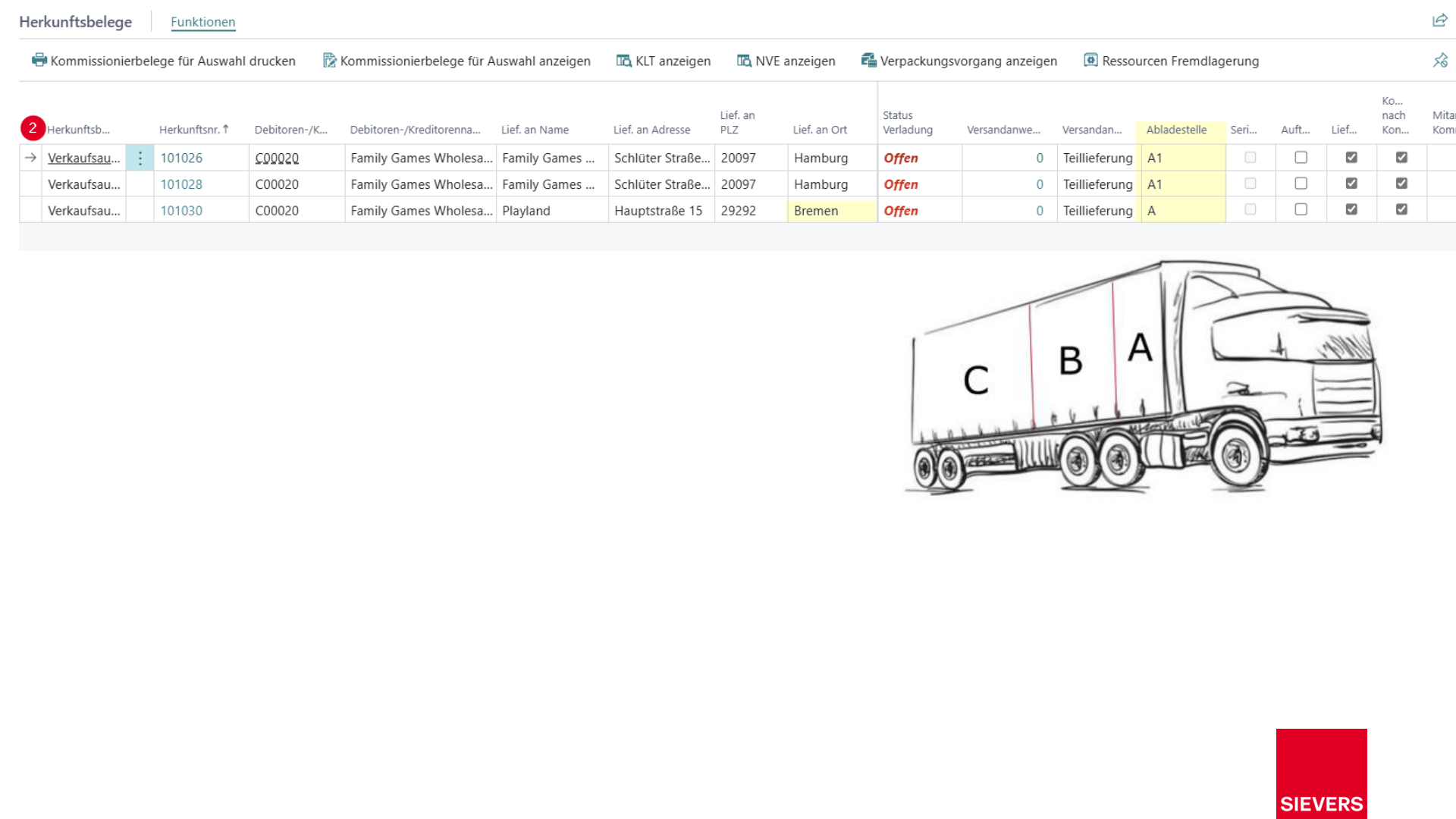
- A warehouse shipment can contain lines for different delivery addresses that are nonetheless loaded onto the same vehicle (field Unloading Point).
- When no planning instance is needed, the warehouse shipment can be created automatically as a 1:1 element and runs in the background.
Prerequisites
Before a warehouse shipment can be created, the following master data must be set up:
- SIEVERS WMS Setup (in particular the base calendar on the location)
- Released source documents: sales orders, transfer orders, or purchase return orders
In the sales order, the fields Shipping Agent and Location Code must be correctly set under the Shipping and Billing tabs. Possible source documents are:
- Sales order
- Outbound transfer order
- Purchase return order
- Service order
Create a Warehouse Shipment
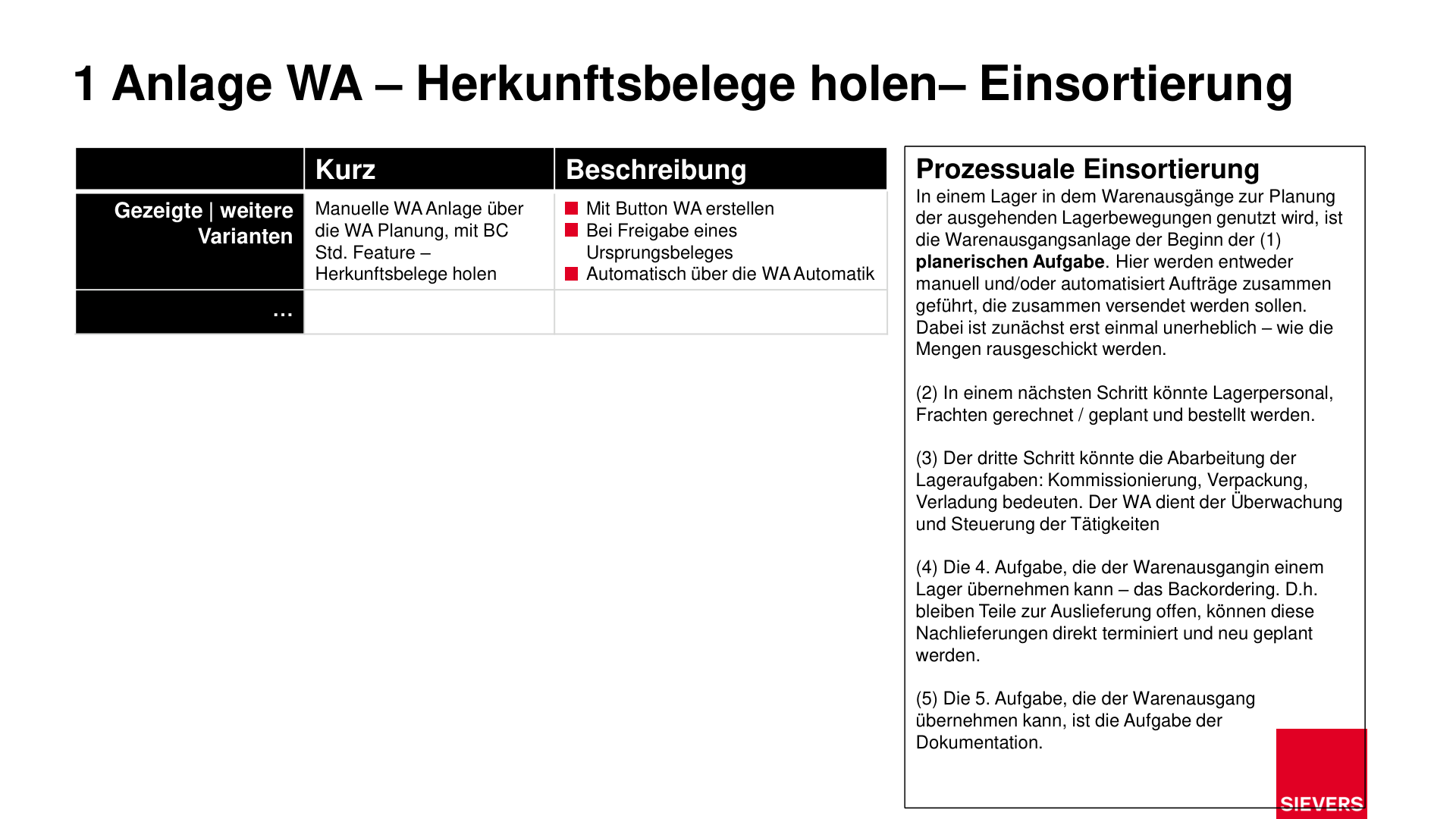
SIEVERS WMS provides four methods for creating a warehouse shipment. They differ in the degree of automation and where the process starts.
| Method | Starting point | Degree of automation |
|---|---|---|
| Get source documents | Warehouse Shipment Planning | Manual |
| Create warehouse shipment from source document | Sales order, transfer order, purchase return order | Manual |
| Automatic on release | Release of the source document | Semi-automatic |
| Warehouse shipment automation | Job queue | Fully automatic |
Get source documents
This method is useful when you want to deliberately combine multiple orders into a new warehouse shipment. You retain full control over which documents end up in which shipment.
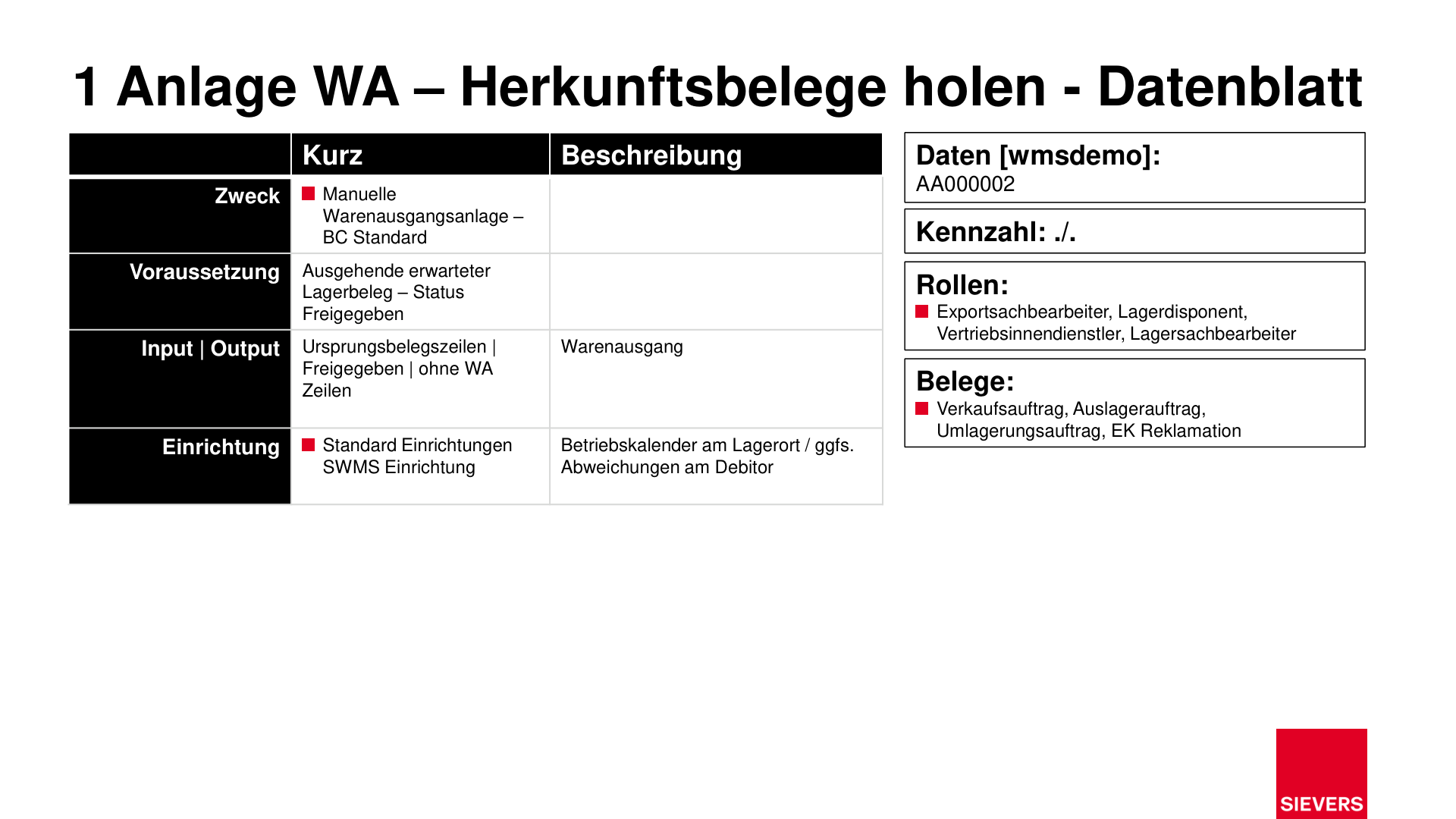
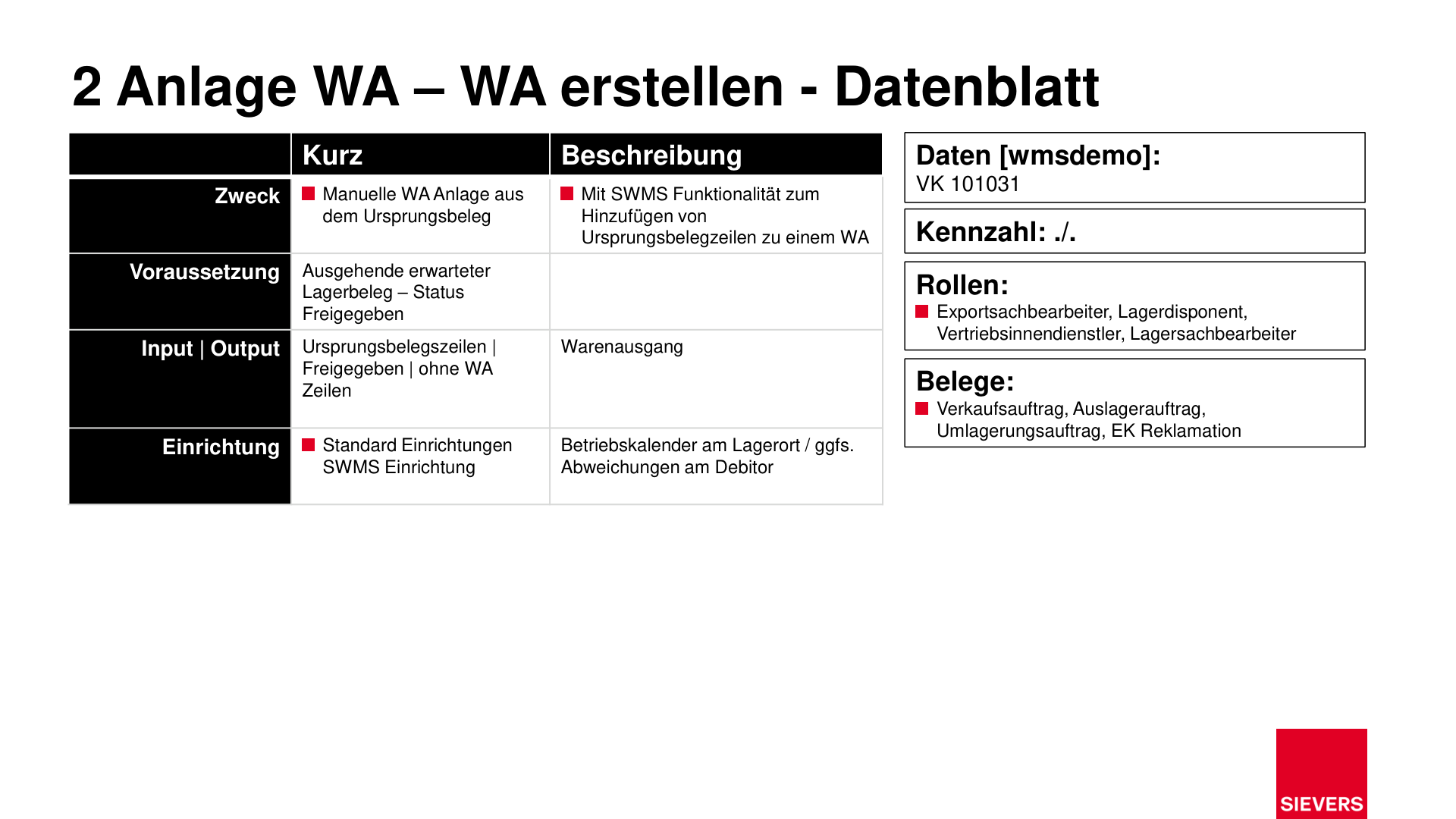
Typical roles: Export clerk, warehouse planner, inside sales representative, warehouse clerk
Prerequisite: The source documents must have the status Released and must not yet be assigned to any warehouse shipment line.
Steps:
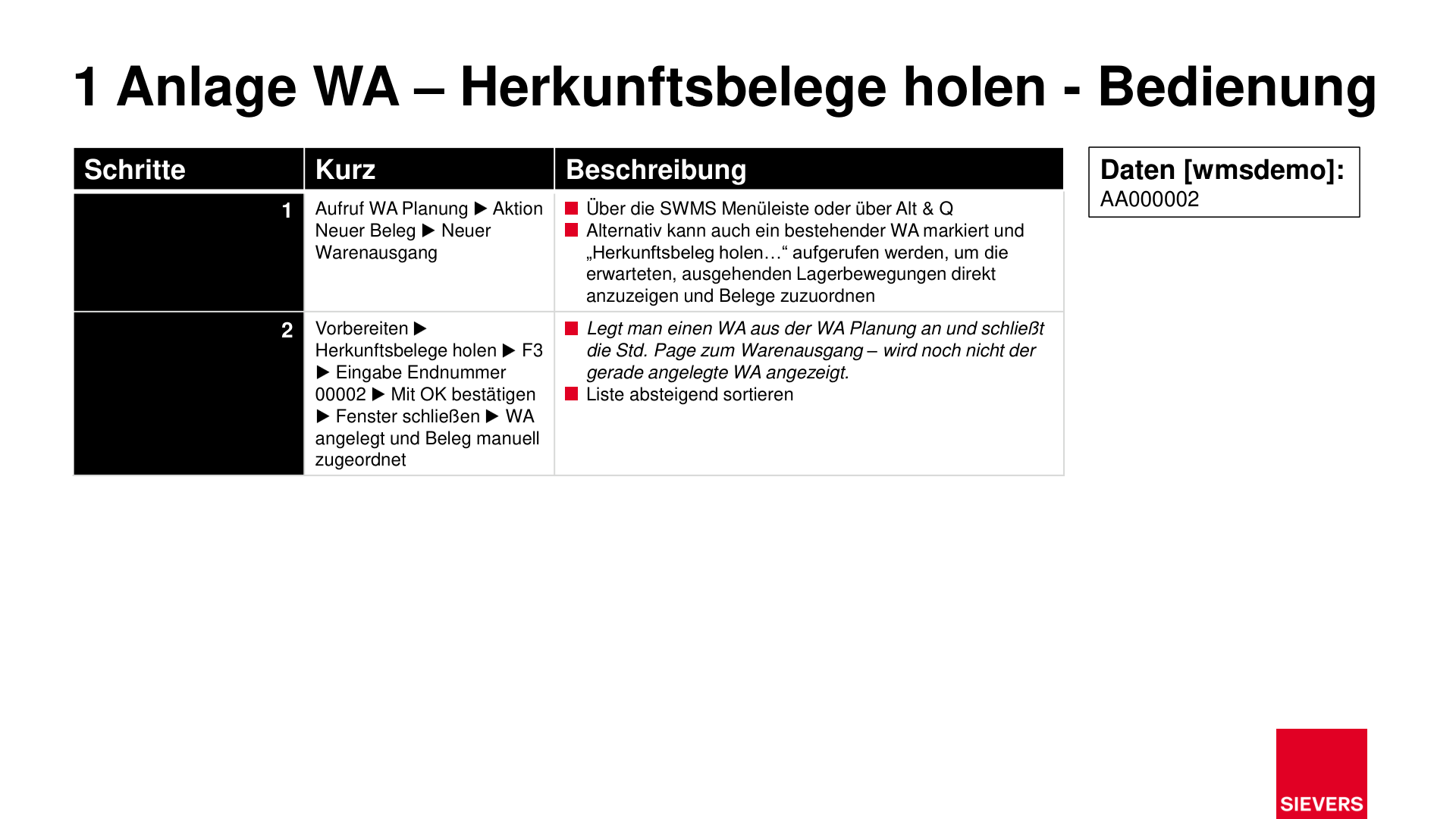
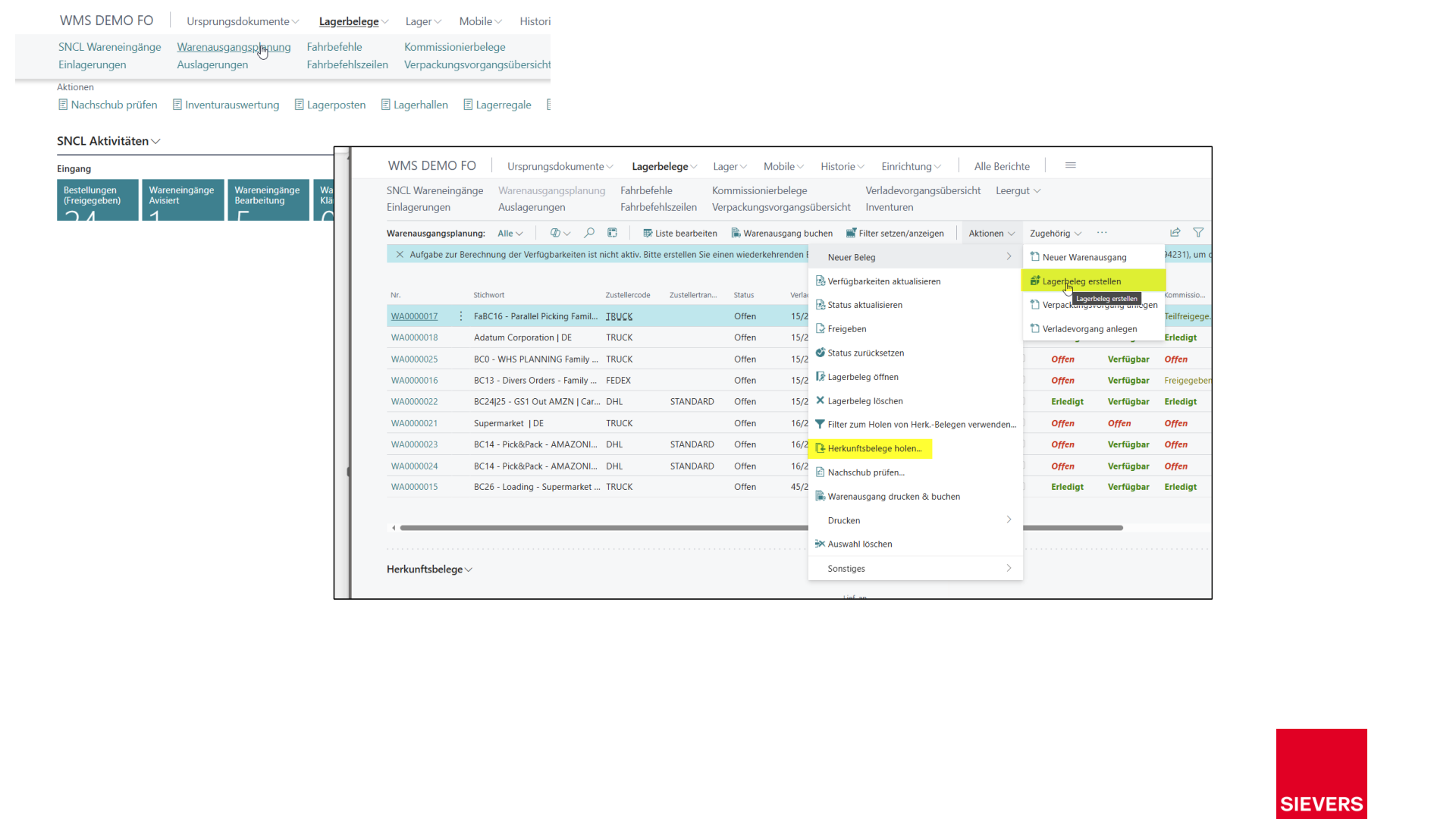
Open Warehouse Shipment Planning via the SIEVERS WMS menu.
Choose Actions > New Document > New Warehouse Shipment. The standard warehouse shipment page opens. Close it once the shipment has been created.
Tipp
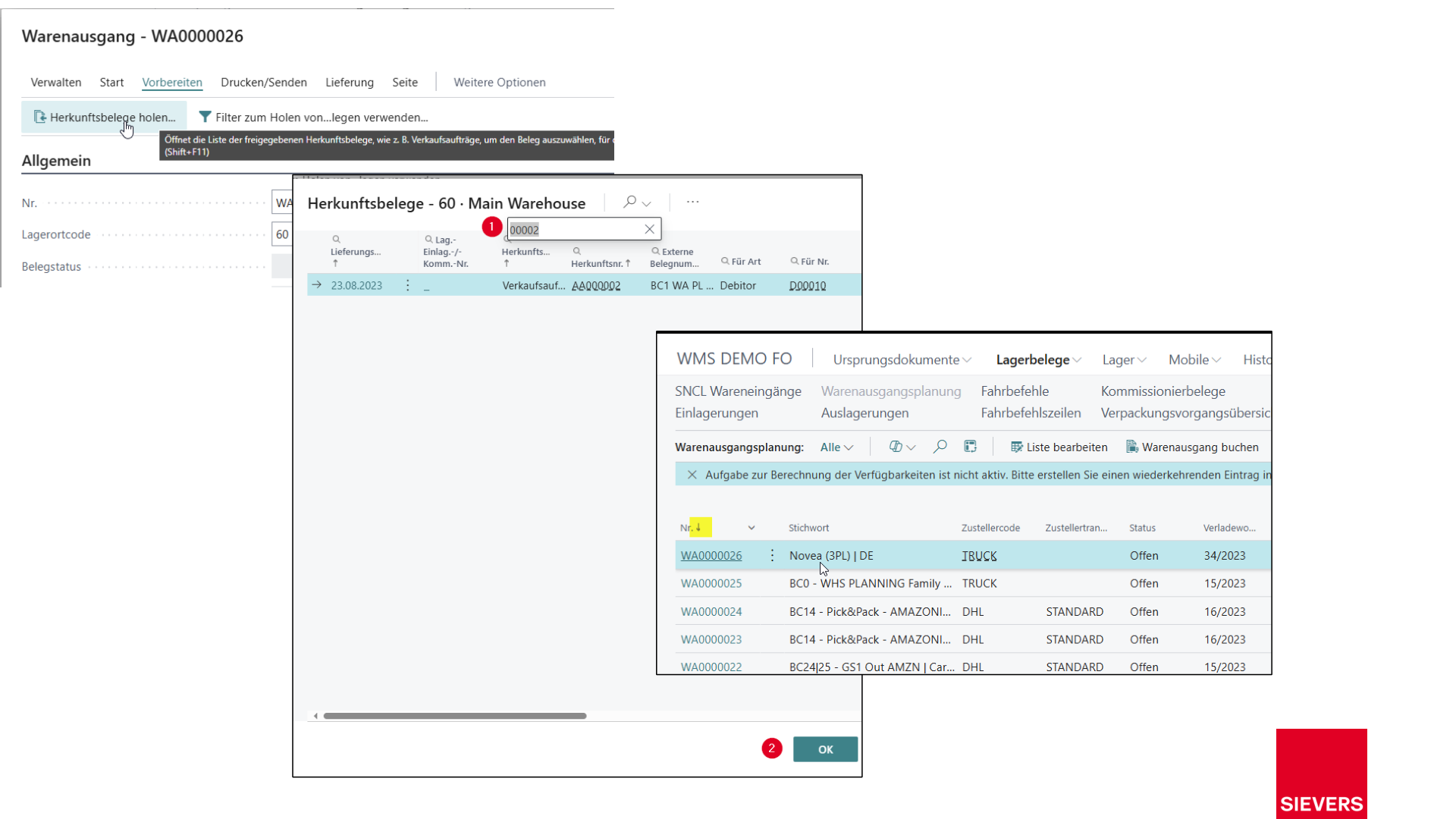
After closing the warehouse shipment page, the newly created shipment may not yet be visible in the list. Sort the list in descending order by warehouse shipment number to find it.
Select the newly created (or an existing) warehouse shipment in the list.
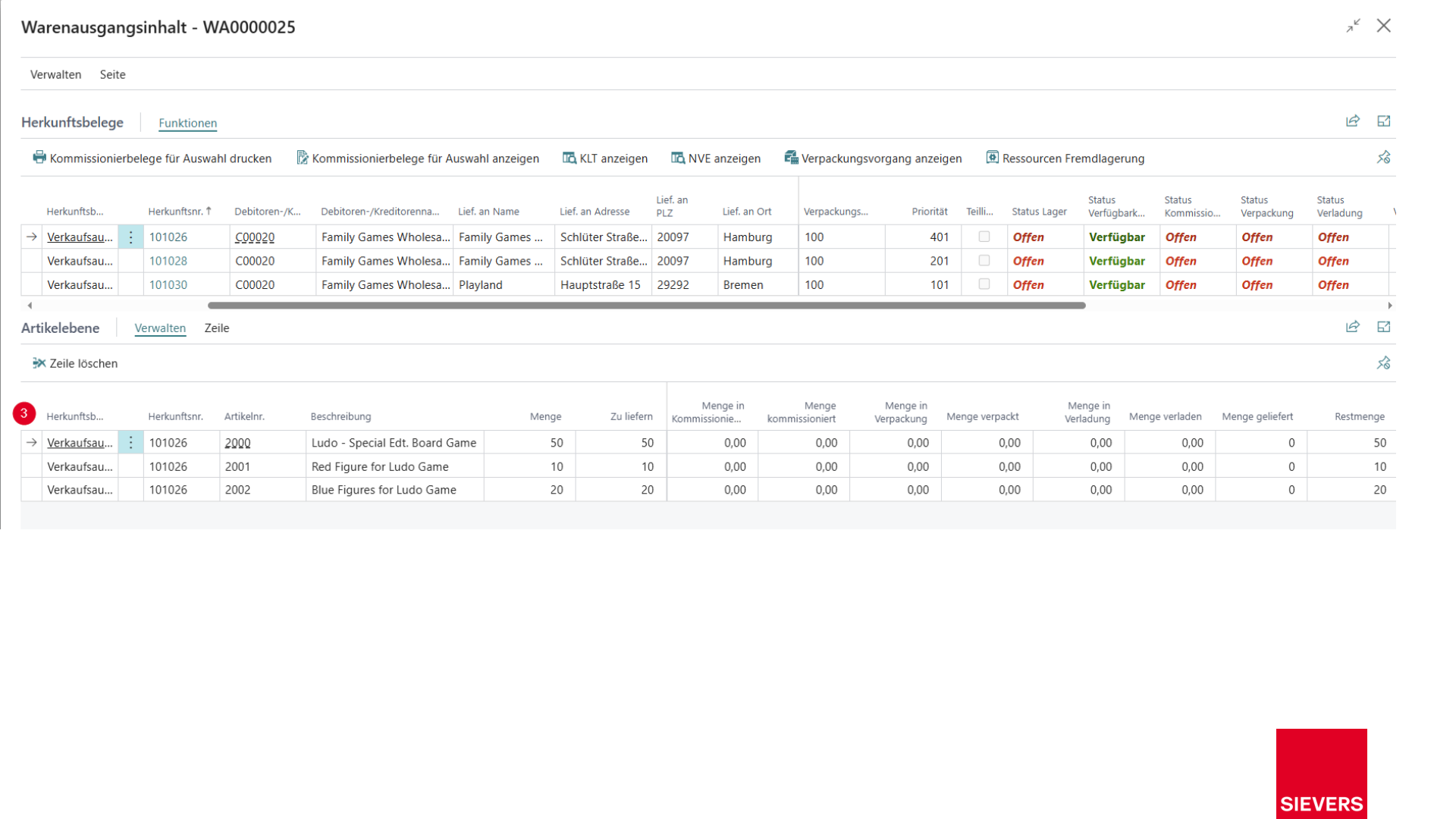
Choose Actions > Get Source Documents. A table opens showing all released, unassigned source documents.
Select the desired documents and confirm with OK. The documents are assigned to the warehouse shipment.
Hinweis
You can also call Get Source Documents for an existing warehouse shipment to assign additional orders afterwards, provided the SIEVERS WMS Setup has the option Add to Warehouse Shipment from Source enabled.
Create warehouse shipment from source document
This method creates a warehouse shipment directly from the source document. It is suitable when a single order should be transferred to warehouse shipment planning immediately.
Typical roles: Export clerk, warehouse dispatcher, inside sales representative, warehouse clerk
Prerequisite: The source document must have the status Released.
Steps:
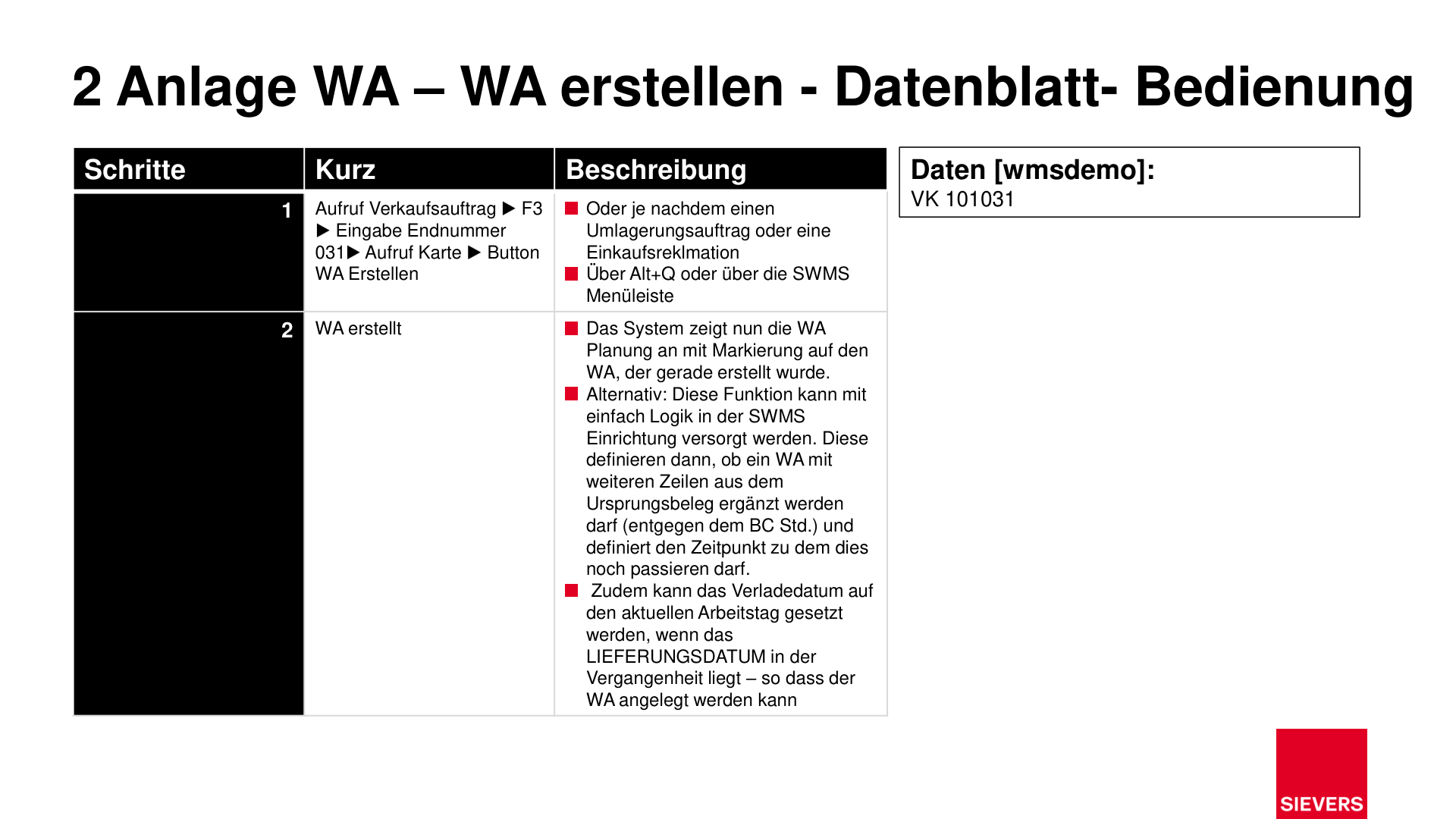
- Open the sales order (or transfer order or purchase return order).
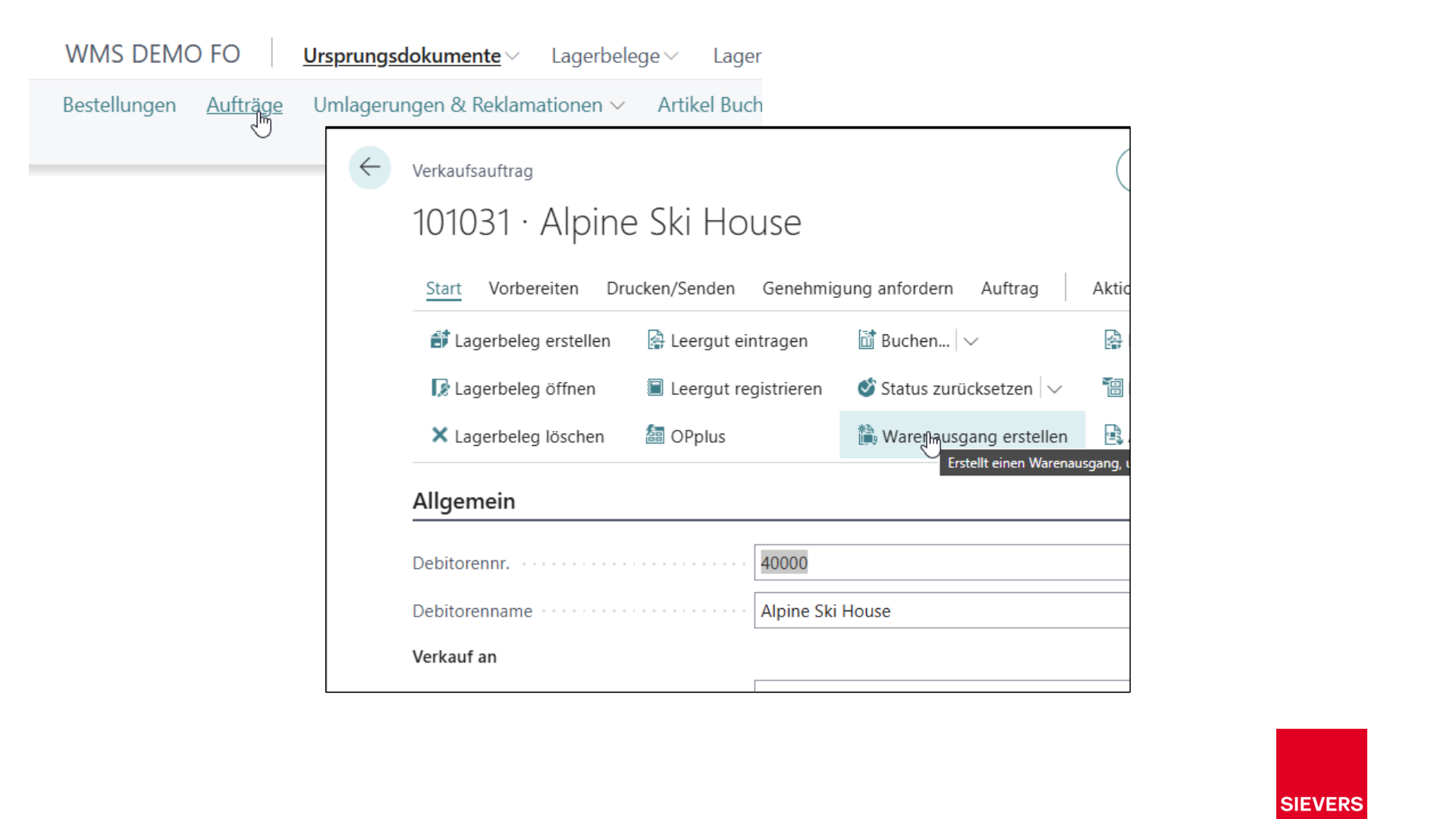
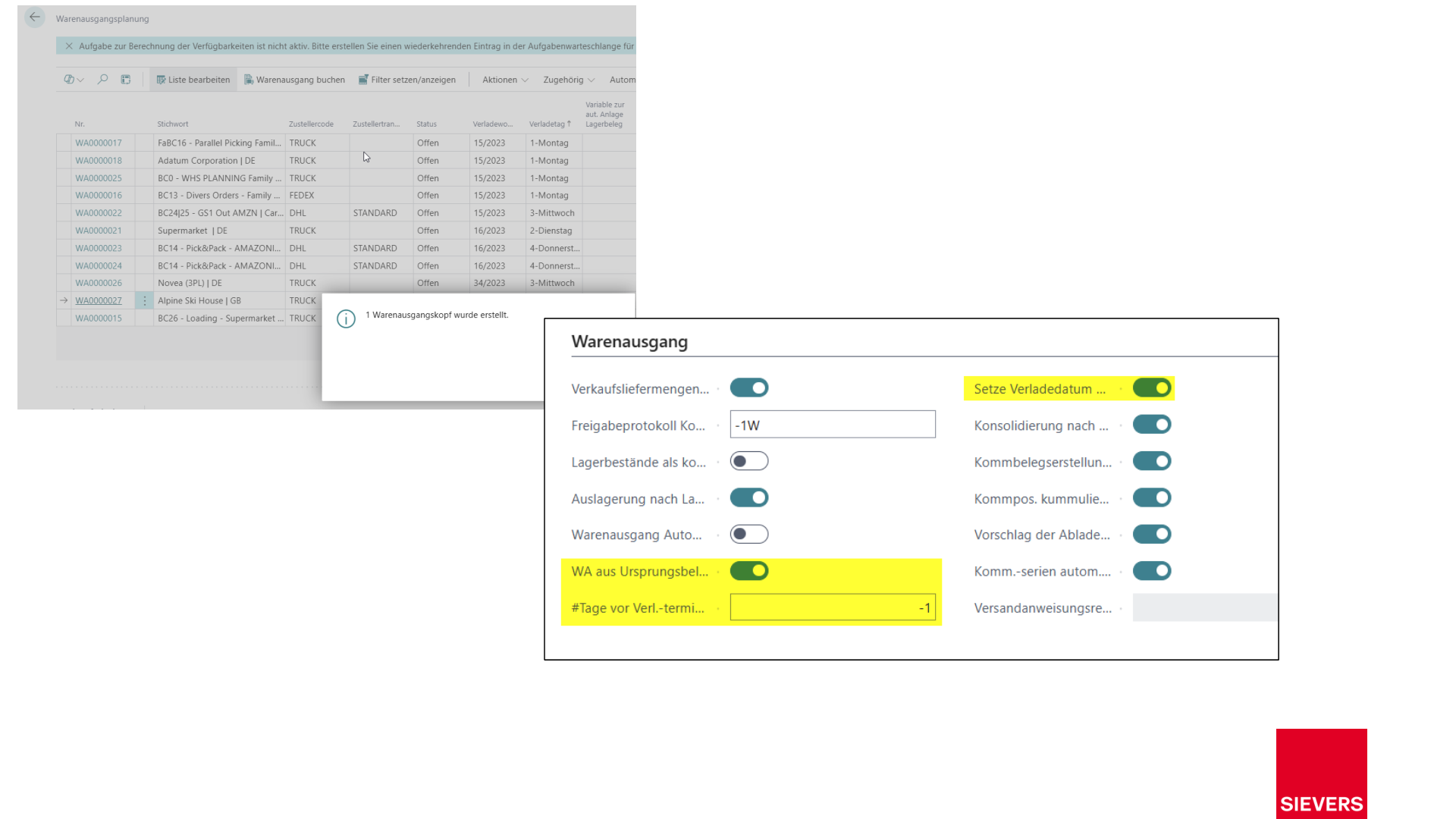
- Select the action Create Warehouse Shipment. The system creates the warehouse shipment and then opens Warehouse Shipment Planning, where the newly created warehouse shipment is highlighted.
Hinweis
The behavior of this action can be configured in the SIEVERS WMS Setup:
- Add to Warehouse Shipment from Source: When active, new lines from the source document are assigned to an existing warehouse shipment instead of creating a new one. This deviates from the BC standard.
- Set Loading Date to workdate when in past: If the delivery date of the order is in the past, the loading date is automatically set to the current work date so that the warehouse shipment can still be created.
The complete process of a document-oriented warehouse shipment from creation to posting is described in Process a document-oriented warehouse shipment.
Automatic on release
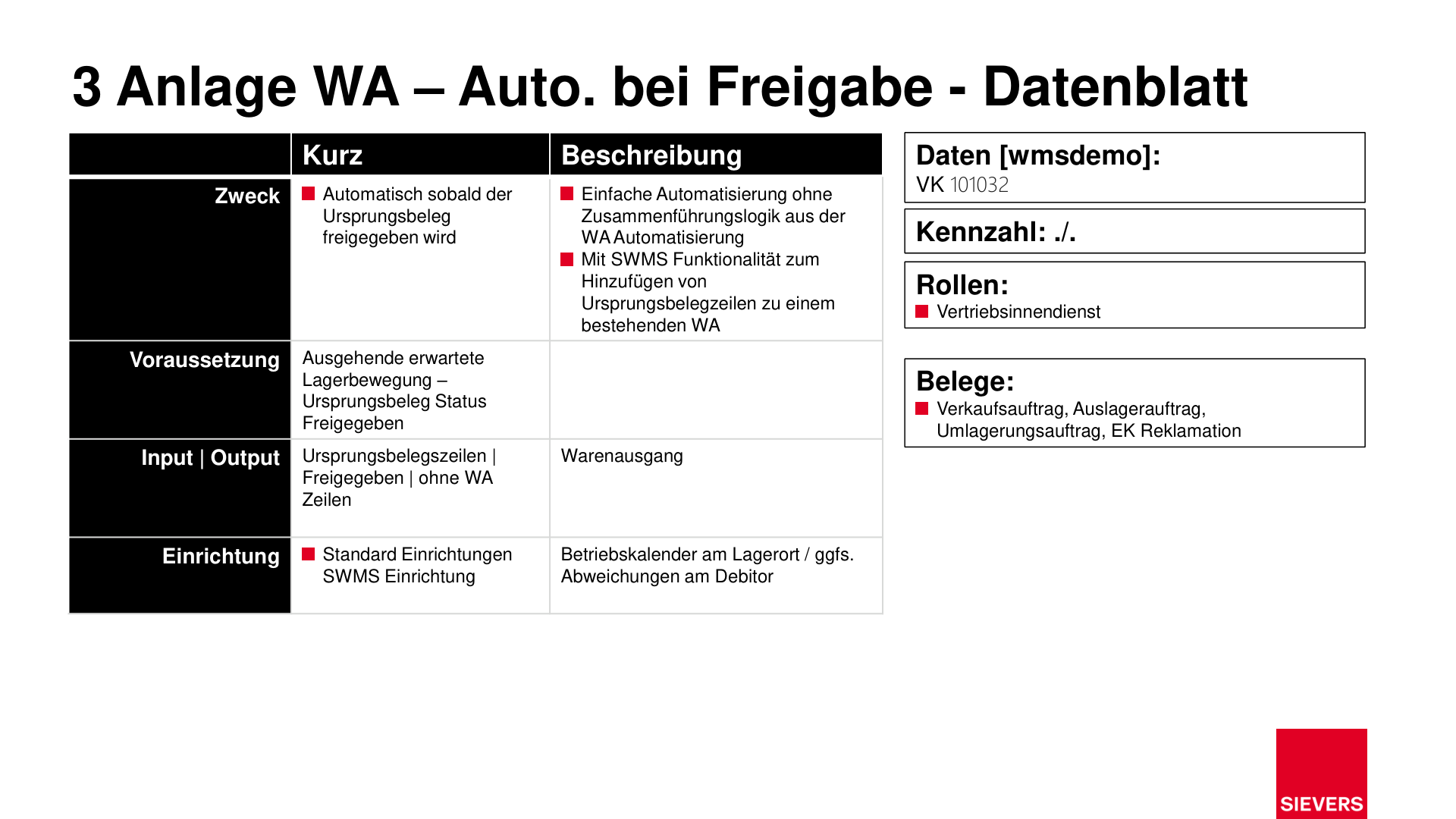
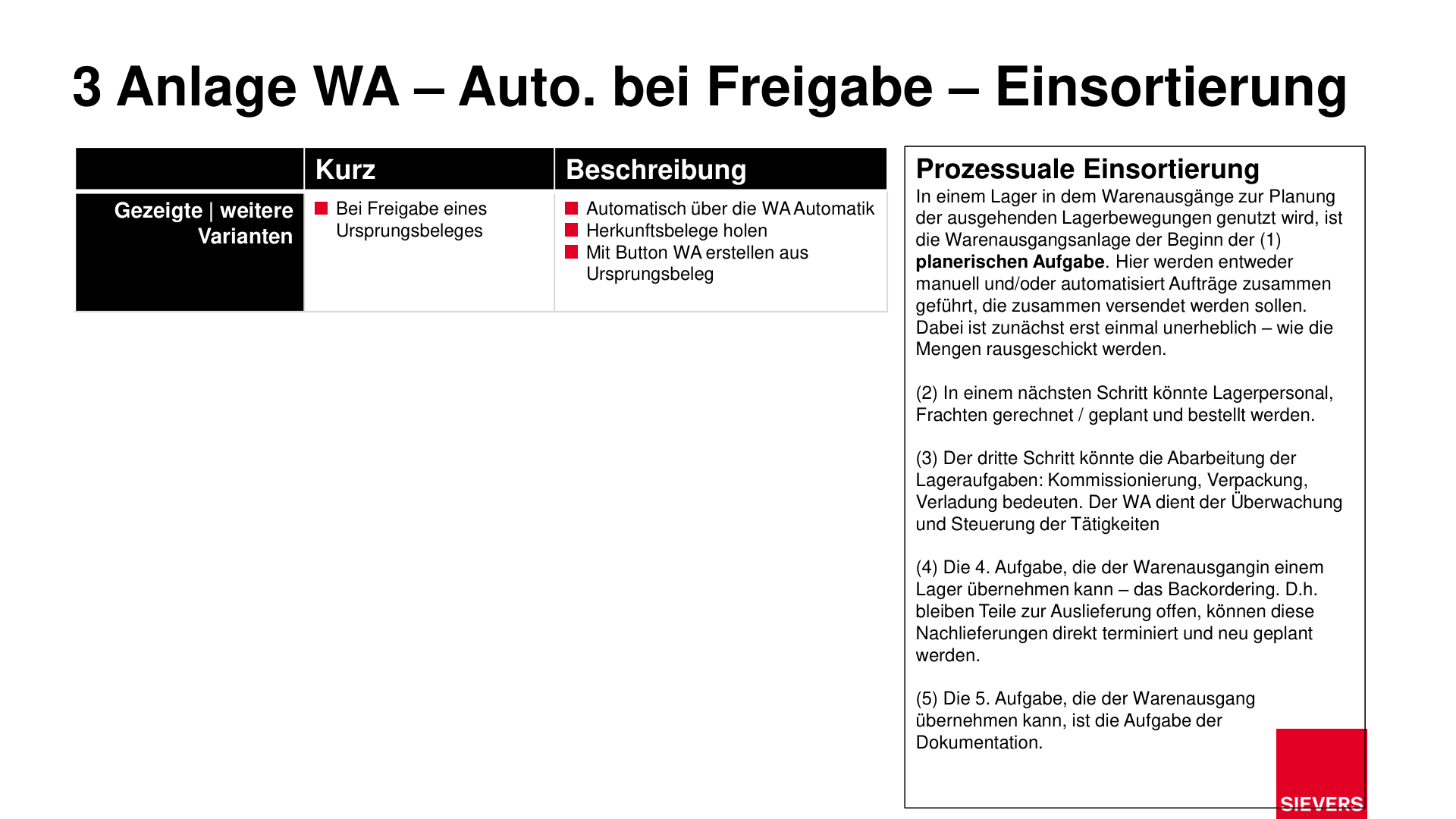
When a source document is released, a warehouse shipment is automatically created. If a matching open warehouse shipment already exists and Add to Warehouse Shipment from Source is active, the document is assigned to it instead. This method works without consolidation logic and is suitable for warehouses where every order should be scheduled immediately after release.
Typical roles: Inside sales representative
Prerequisite: The source document must have the status Released.
Steps:
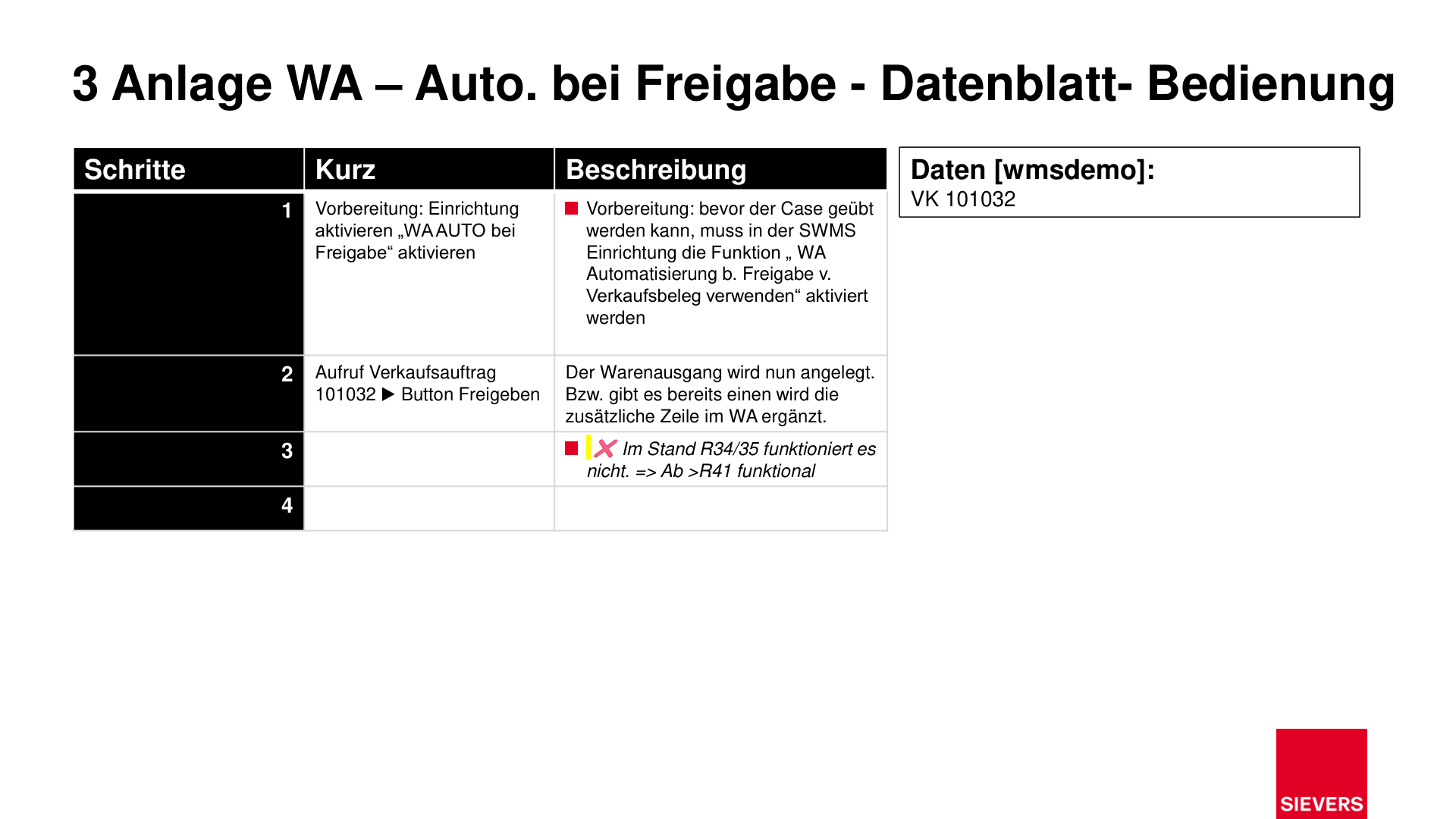
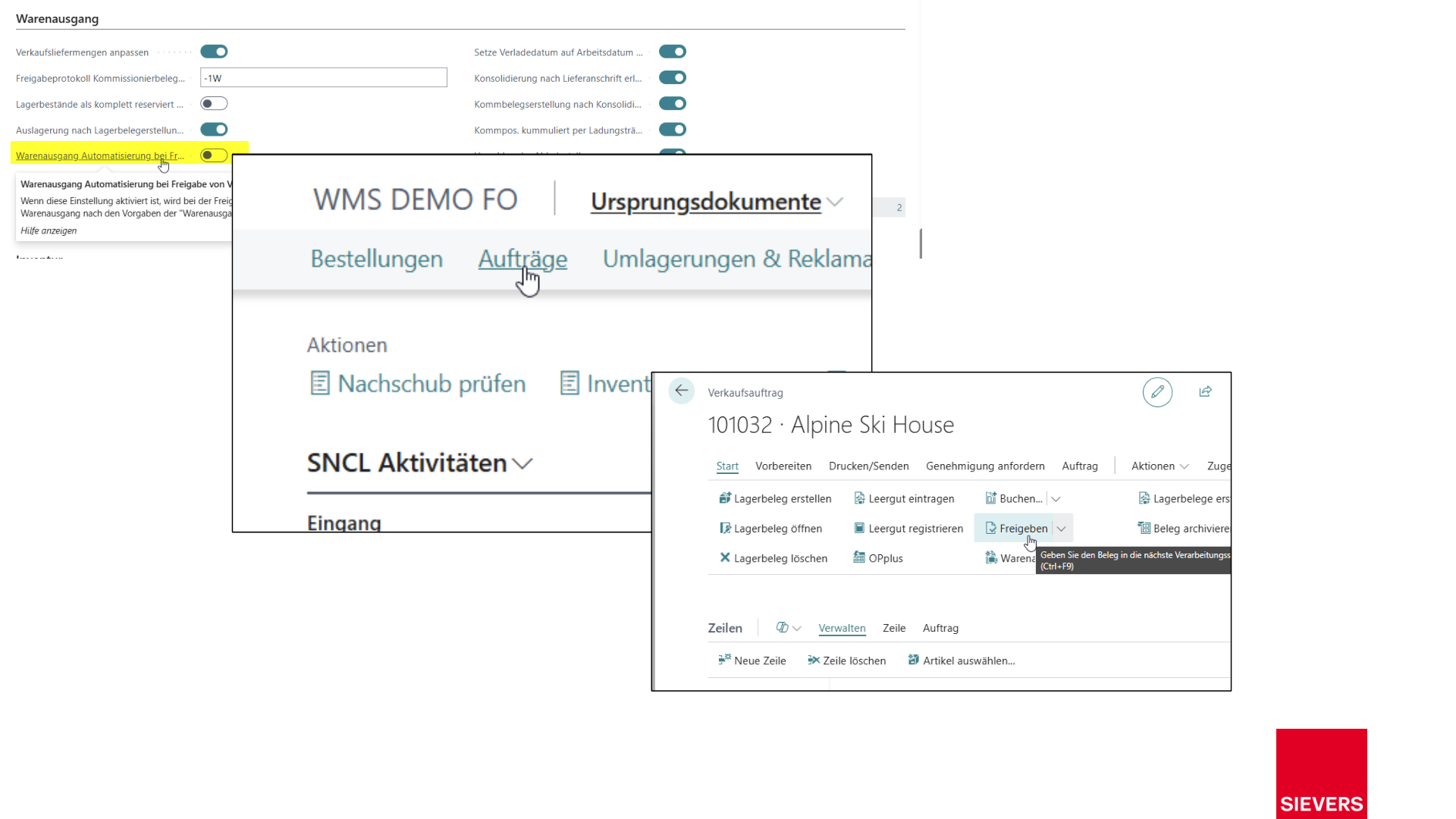
- Activate the option Use Whse. Automation by Release Sales Document in the SIEVERS WMS Setup.
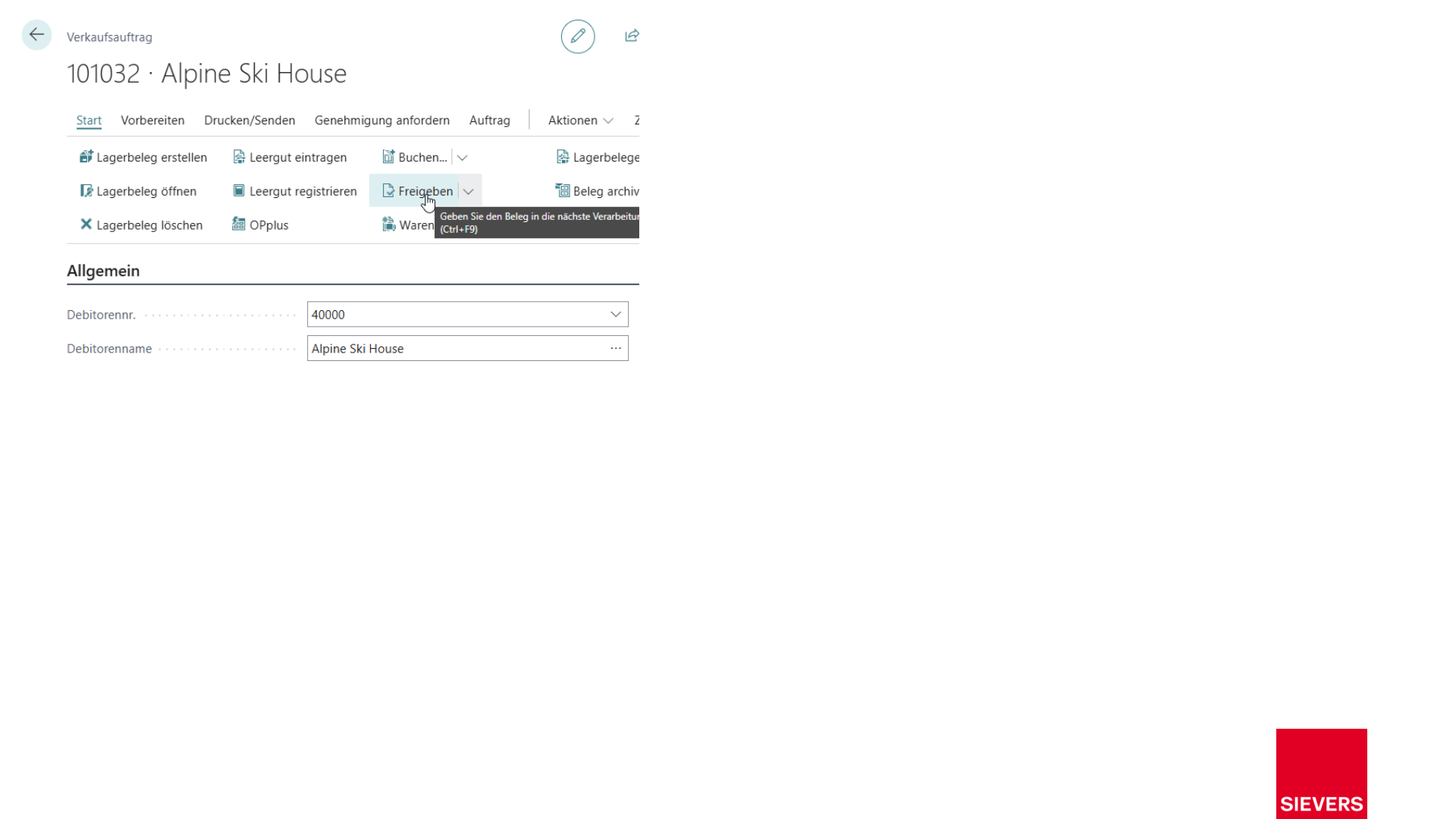
- Release the source document (sales order, transfer order, or purchase return order) using the Release action. The warehouse shipment is created automatically.
Hinweis
Unlike the Warehouse shipment automation, this method does not evaluate consolidation rules (carrier, grace period, lead time). Each released document gets its own warehouse shipment unless an existing one can be supplemented.
Warehouse shipment automation
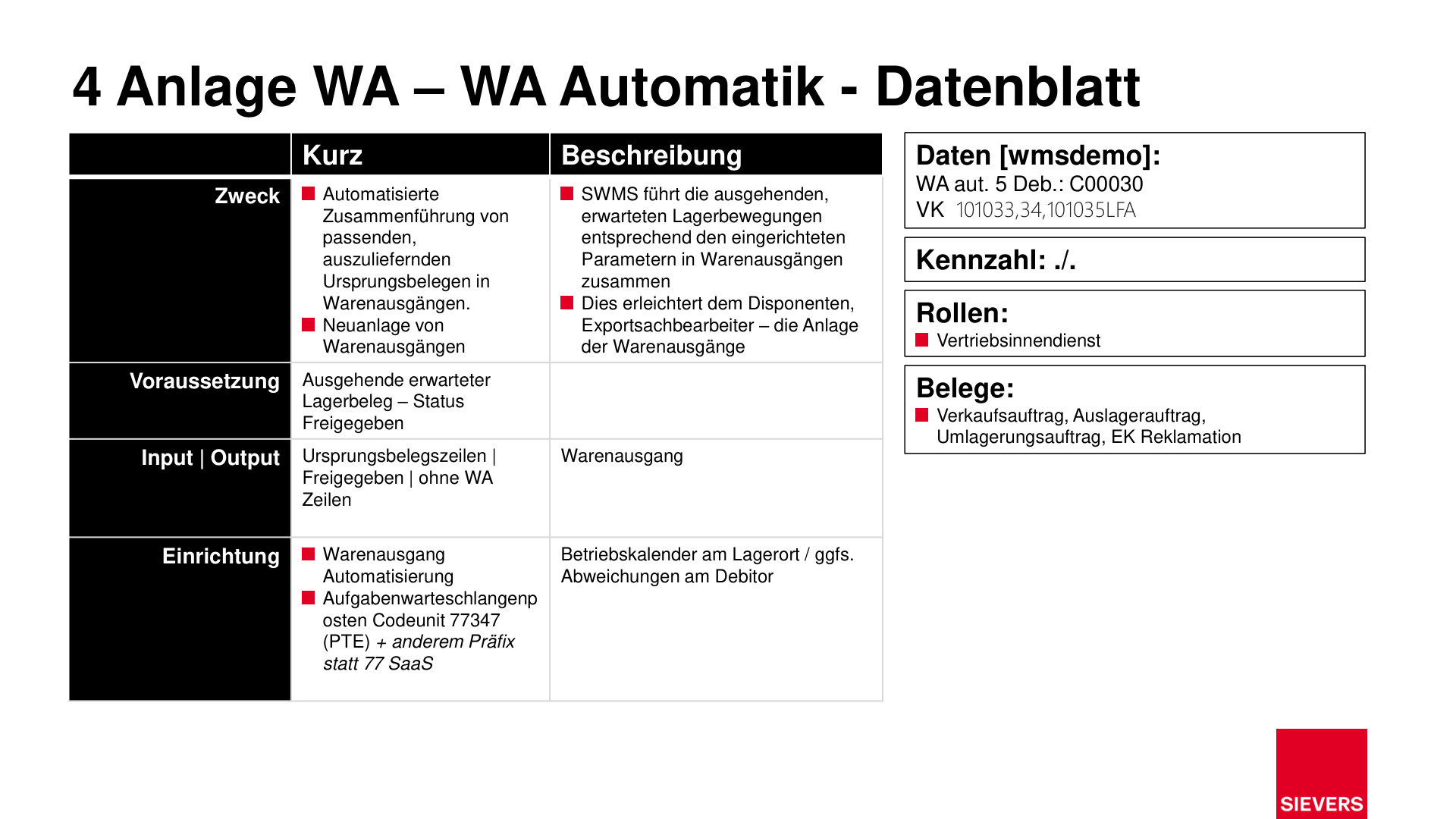
The warehouse shipment automation consolidates source documents into warehouse shipments according to configurable rules. It evaluates criteria such as shipping agent, customer, loading date, lead time, and grace period. It is particularly suitable for warehouses that bundle large volumes of similar orders for the same carrier on a daily basis.
Typical roles: Warehouse dispatcher, export clerk, inside sales representative
Prerequisite: Released source documents with no assigned warehouse shipment lines.
Operation:
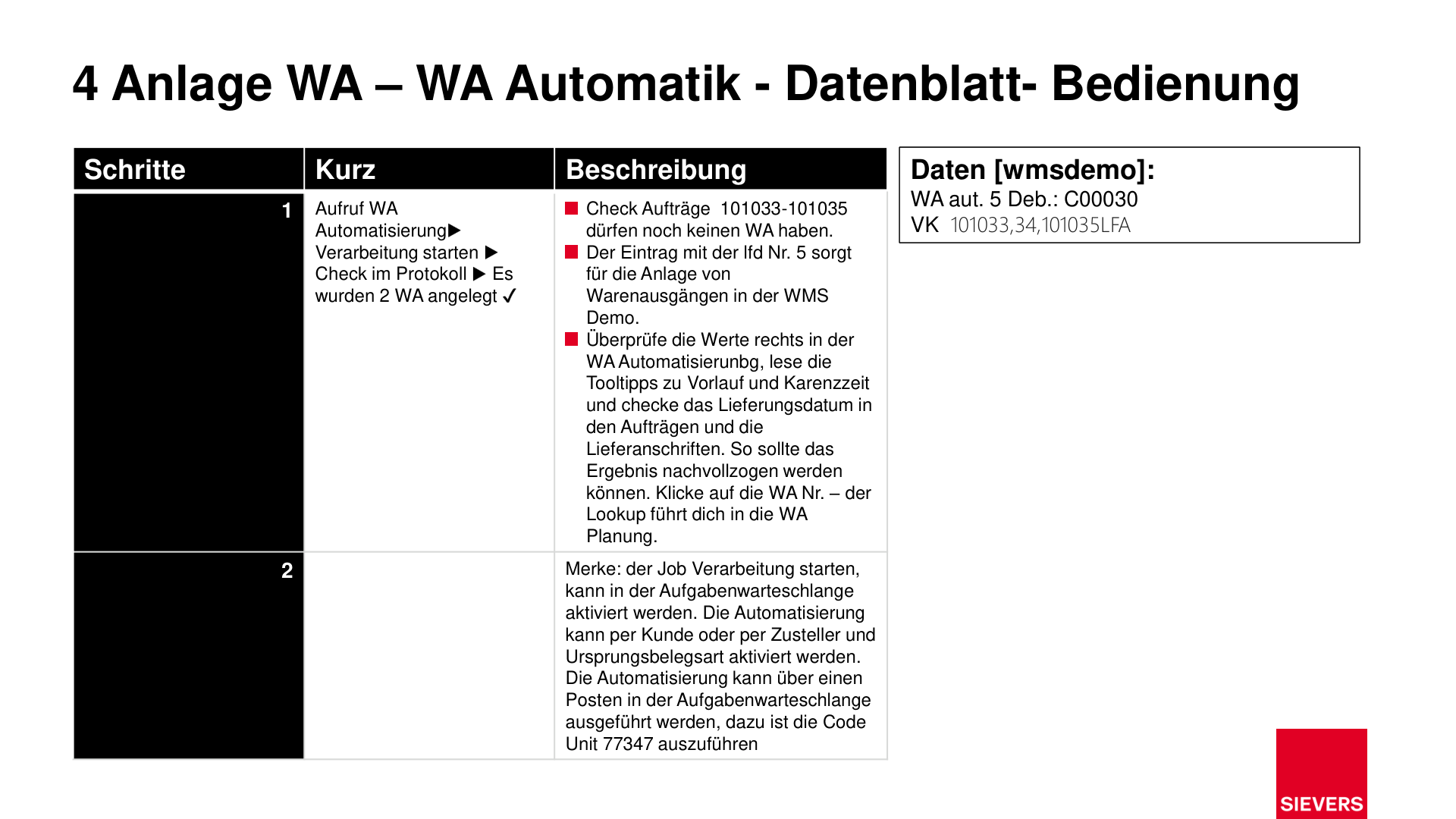
The automation can be run in two ways:
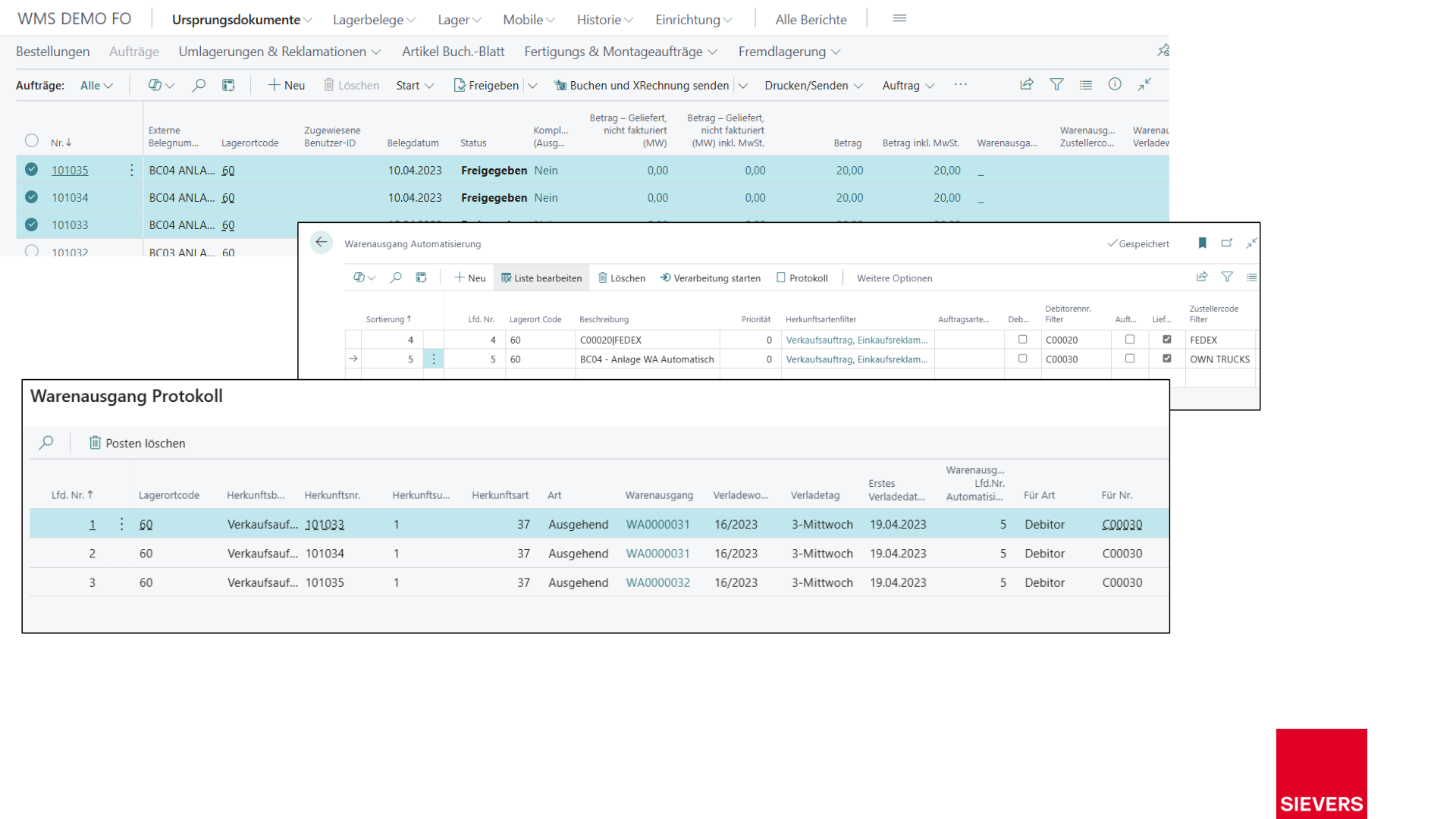
- Manually: Open the Whse. Ship. Automation page and choose Start Processing. The log then shows how many warehouse shipments were created or supplemented.
- Automatically via job queue: Set up a job queue entry with codeunit 71310347 (AppSource/SaaS/OnPrem) or 77347 (PTE). The run then takes place in the background according to the configured schedule.
If a Warehouse Shipment Release Horizon is configured on the setup line, the automation releases matching open warehouse shipments automatically once the configured working-day lead time before the first loading date is reached. If Automatic Replenishment on Whse. Shpt. Release is enabled in SIEVERS WMS Setup, Replenishment Action is started afterwards. Warehouse shipments that have already been released are skipped silently.
The complete setup of the automation lines (sorting, customer-clean, shipping agent filter, lead time, Warehouse Shipment Release Horizon, grace period) is described in Automations.
Process Areas
The warehouse shipment is divided into the following process areas:
| Area | Description |
|---|---|
| Warehouse Shipment (step by step) | Complete click-by-click guide: sales order, warehouse shipment, picking, packing, loading, posting |
| Picking | Assembly of goods: classic, parallel, series-oriented, and Pick & Pack |
| Packing | Formation of SSCCs, label printing, shipping preparation. Prerequisite: picking with status Completed. |
| Loading | Assignment of SSCCs to freight units, warehouse shipment posting, freight documentation |
Tipp
For simple, individual orders, the step-by-step guide is the recommended starting point. For special cases such as parallel picking or series-oriented processing, the specific variants are available.
What comes next?
After the warehouse shipment has been created and the source documents have been assigned, the following steps are required:
- Create warehouse document: In Warehouse Shipment Planning, use Actions > New Document > Create Warehouse Document to create the outbound warehouse posting document.
- Release picking document: Print or release the created picking document.
- Carry out picking: Full process description in Process a document-oriented warehouse shipment.
Slides
Definition
Get Source Documents
Create Warehouse Shipment from Source Document
Automatic on Release
Warehouse Shipment Automation