A6 Loading
A6.1 Loading Overview
This page provides an overview of all currently open loadings with the states
- 2-Released for preparation
- 3-Released
- 7-Loading Processing.
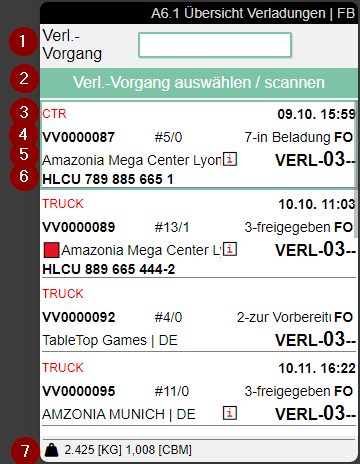
- Scan field for scanning a loading process
- Information and feedback field
- Left: Shipping agent | Right: Either planned loading time or start of loading
- Left: Loading process no. | Center: Number of SSCCs packed / number of SSCCs loaded | Right: Status of the loading process and loader's abbreviation
- Left: Green box: Warehouse finished state and no partial delivery. Red box: Warehouse open or released state and partial delivery. Keyword from the warehouse shipment. | Center: An "i" indicates that further information is available. Call up with F3. | Right: Loading storage location
- Freight Container No. or License Plate if no Freight Container No. is entered
- Weight and volume SSCC open
To continue, select or scan a loading process from the list. Alternatively, an SSCC can be scanned to automatically select the associated loading process. For more information on the selected loading process, press F3 to go to A6.1i Loading Info.
A6.2 SSCC Overview
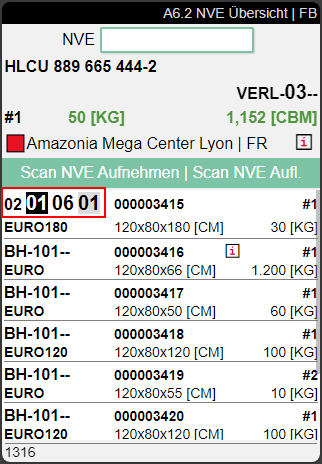
This page shows the contents of an SSCC that is part of a loading process. When the loader has selected a load process and pressed Enter or clicked it again, the system displays the SSCC Overview. This is the loader's primary processing screen.
- The loader can open the menu with Ctrl+m or P1
- To pick up an SSCC, any SSCC from the loading process can be scanned
- The loader can load the SSCC onto the loading storage place with a second scan
- The SSCC receives the loading process number and the state 8-loaded
- The SSCC then disappears from A6.2 from the list of SSCCs to be loader
If the SSCC is to be retrieved from the loading storage place, it must be scanned a third time.
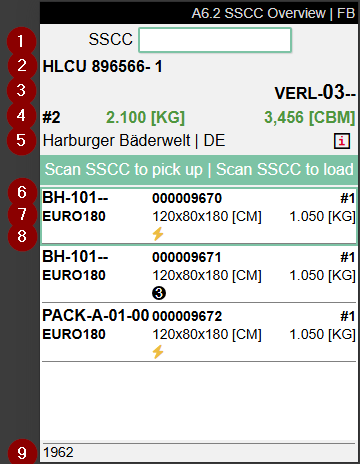
- Scanfield for SSCC no.
- If filled: Load Carrier no or GS1 SSCC. If no Load Carrier no is present, this field contains the trucks license plate
- Storage Place
- Left: No. of loaded SSCCs in the Load Carrier | Middle: Weight of loaded SSCCs in the Load Carrier | Right: Volume of loaded SSCCs in the Load Carrier
- Warehouse Shipment Keyword | An i means that further information is stored. Access this via F3
- Left: Storage Place of SSCC | Middle: SSCC no. | Right: No. of items in SSCC
- Left: Inventory measure code | Middle: Dimensions | Right: Weight
- Left: Unloading place | Center: Flash icon = High priority, 3 icon = Low priority
- Source no. If there is more than one, an * is shown
A6.2m Menu
The page has the following menus:
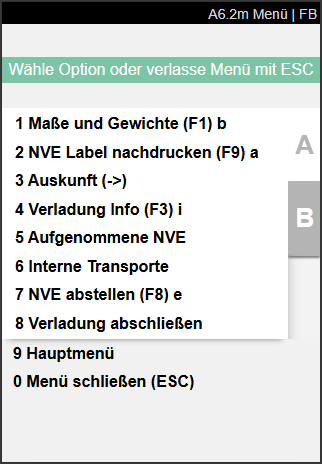
A:
- Weights and Measures
- SSCC Label reprint
- Information: A7.3 Load Carrier Info
- Loading Info: Use this menu or arrow button right. Opens MDE page A6.1i Loading Overview Info
- Internal Transport: Opens A2.0 Internal Movements
- Unload SSCC
- Finish Loading: Finishes Loading Process, sets state to 8-Loaded and removes loading process from A6.1.
- Main Menu
- Close Menu
B:
- Change View
- Picture (F6) f: This allows the user to take photos of motifs relevant to loading, for example to document truck loading and load securing. The photos taken are saved on the loading process. It is operated similar to the picture function in Warehouse receipt A1.0.
- Help (F10) h
- SSCC Info (<-)
- Update
- Main Menu
- Close Menu
Unload SSCC
There are possible scenarios in which SSCCs that are part of a loading process must be placed back in a storage place. This action is available for this case.
- Click on action or press F8 to start unloading process.
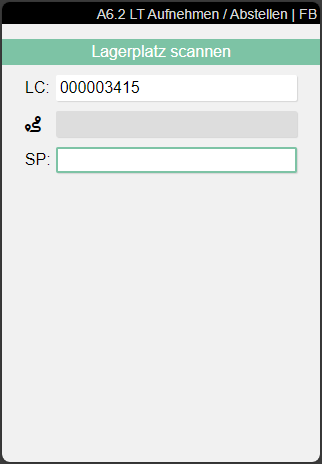
- Scan storage place.
- New storage place on SSCC.
A6.1i A6.2i Loading Overview Info
This page shows all relevant information about the current loading process. You can open it with F3.
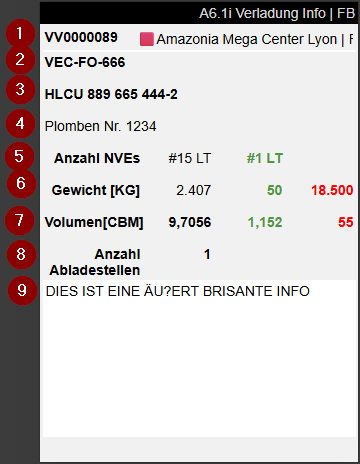
- Left: Shipment No. | Right: Warehouse Shipment Keyword
- License plate front/back
- Freight Container No.
- Vehicle Text
- Left: Number of open SSCC in this loading process | Right: Already loaded SSCC in this loading process
- Left: Weight of open SSCC | Middle: Weight of already loaded SSCC | Right: Maximum weight
- Left: Volume of open SSCC | Middle: Volume of already loaded SSCC | Right: Maximum volume
- Number of Unloading Points
- Loading instructions
A6.2o Loaded SSCC
This page is opened by the action Change View in menu B of A6.1 and A6.2. This page shows the currently loaded SSCC of the selected loading process. These SSCC have been scanned two times in the loading process. A third scan of an SSCC will unload it and change its state from 8-Loaded to 7-Packed.
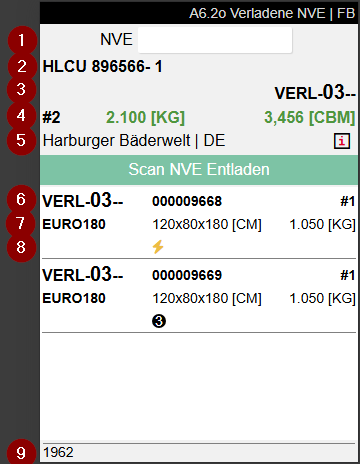
- Scanfield for SSCC no.
- If filled: Load Carrier no or GS1 SSCC. If no Load Carrier no is present, this field contains the trucks license plate
- Storage Place
- Left: No. of loaded SSCCs in the Load Carrier | Middle: Weight of loaded SSCCs in the Load Carrier | Right: Volume of loaded SSCCs in the Load Carrier
- Warehouse Shipment Keyword | An i means that further information is stored. Access this via F3
- Left: Storage Place of SSCC | Middle: SSCC no. | Right: No. of items in SSCC
- Inventory measure code | Middle: Dimensions | Right: Weight
- Left: Unloading place | Center: Flash icon = High priority, 3 icon = Low priority
- Source no. If there is more than one, an * is shown