A7 Information
The A7 program is used as information for items, storage places and load carriers. A7 information can be accessed from the other MDE programs after a selection via the menu - Information. However, you can also open the information program via the main menu and scan an item, storage place or load carrier to obtain more information about it.
Hinweis
The items/load carriers/storage places scanned and displayed in the information have nothing to do with those in the current work step. If you return to the work step after viewing the information, the MDE will show you the same content as before you called up the information.
In forms A7.1, A7.2 and A7.3, a uniform barcode symbol is displayed before each input field to indicate the scan functionality.
Below the title bar in A7.1, A7.2 and A7.3, there is a note and feedback field. It initially displays the text Scan type, GTIN, Inv, LC, GS1, SP, SN as an input hint and shows feedback as well as error messages (in red) directly in the form without pop-up dialogs. If a serial number is scanned, the system automatically opens the A7.4 Inventory Information with the matching inventory.
The information programs have an A and a B menu, which can be accessed via P1 on the MDE device.
A:
- Weights and Measures
- Information
- Refresh
- Print LC Label
- Print Inv Label
- Print Item Label
- Take Out <=> Put To
- Internal Transport
B:
- Help
- LC-Info
- Keyboard
- SSCC Info
A7.1 Item info
The item info shows information on the selected item, where and what quantity is currently located where. Here you can scan not only item labels but also GTINs.
Pressing the right arrow -> Opens A7.3 Load carrier information.
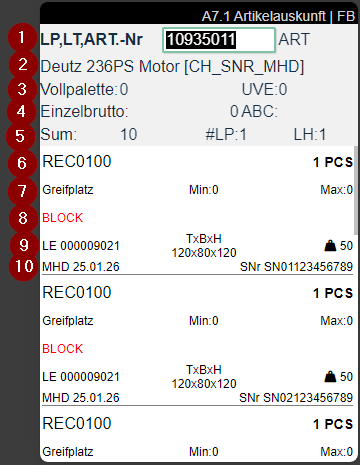
- Item number
- Item description
- Left: Number of full pallets | Right: SPU quantity from packaging hierarchy
- Left: Single gross amount | Right: ABC class | Far right: Camera symbol when a photo is stored on the item card. Access with F6
- Left: Total of stock | Center: Number of storage places | Right: Occurrence in different warehouses
- Left: Storage place | Right: Number of items in this storage place
- Center: Minimum stock values from replenishment | Right: Maximum stock values from replenishment
- Displays BLOCK when inventory is blocked
- Left: Load Carrier type and number or SSCC No. | Center: Dimensions | Right: Weight
- Displays Sell-by date, Serial no., Lot no. and Variant. If a serial no. exists, it is displayed in preference to the lot no.
A7.2 Information by storage place
The information by storage place is intended to help the warehouse employee understand what is posted in the storage place. For this purpose, target/actual checks can be carried out. In addition, the warehouse employee can use the menu to reprint labels and check the movements to and from the storage place.
Pressing the right arrow -> Opens A7.1 Item Info.
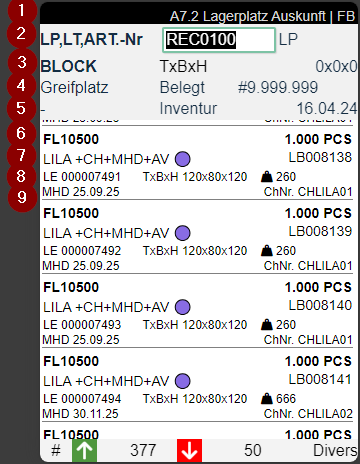
- Title bar - Page / Description / User
- LP = storage place | LC = load carrier | item input field
- Left: Category code of the storage place | Center + Right: TxWxH => Depth, width, height of the storage place.
- Left: Type of storage place | Center: State | Center Right: Number of load carriers permitted in the storage place | Right: ABC code "A"
- Blocking code in red
- Left: Item no: Item no. | Center: Shows red Blocked when the stock is blocked | Right: Quantity
- Left: Item description | Right: Inventory no.
- Left: Load carrier type and load carrier code or SSCC code | Center: Dimensions | Right: Weight | Far right: Camera symbol when a photo is stored on the item card. Access with F6
- Left: Sell-by date | Right: Prefers serial no., lot no. or variant
A7.3 Load carrier information
The load carrier information allows you to check the load carrier contents, correct dimensions and weight and reprint labels. Regular load carrier labels and GS1 SSCC labels can be scanned here.
Pressing the right arrow -> Opens A7.1 Item Info.
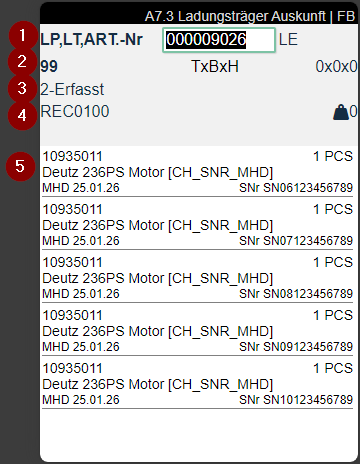
- Left: Load carrier no. or SSCC code and load carrier type | Right: Dimensions depth x width x height
- Inventory measure
- State of the load carrier
- Storage place where the load carrier should be located
- Left: Warehouse Shipment No. (if assigned to the load carrier) | Right: GS1 reference (if available)
- Contents with item no., item description, quantity, sell-by date, serial no., lot no. and variant. Serial number is shown in preference. | Center: Shows red Blocked when the stock is blocked | Far right: Camera symbol when a photo is stored on the item card. Access with F6
- Footer (PTU and SSCC only): Row 1: Order number | Carrier in red; Row 2: Customer name; City; Region from delivery address
A7.4 Inventory Information
The inventory information enables direct scanning and information retrieval of inventories. This form provides detailed information about a specific inventory and allows flexible navigation to other information forms.
Accessible from A7.1 Item Info by scanning an inventory number or directly via A7.4 by scanning item, GTIN, inventory, load carrier, GS1, storage place or serial number.
Pressing the right arrow -> Opens A7.1 Item Info.
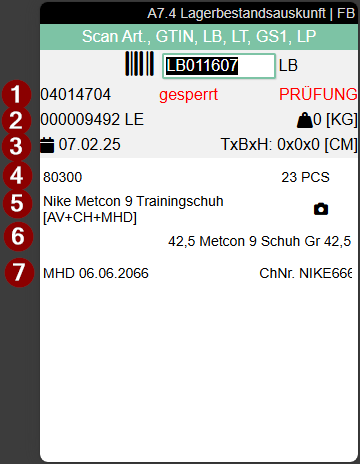
- Displays the storage place. For blocked inventories, the red notice "blocked" appears together with the blocking code
- Left: Load carrier code and load carrier type (SU, PTU, SSCC) | Right: Weight
- Left: Inbound warehouse receipt posting date | Right: DxWxH (Depth/Width/Height)
- Left: Item number | Right: Quantity
- Left: Item description | Photo symbol shows that an image exists for this item
- Variant
- Left: Sell-by date | Right: Lot or serial number (serial number is shown in preference)