A5 Packaging
A5.1 Packaging Process Overview
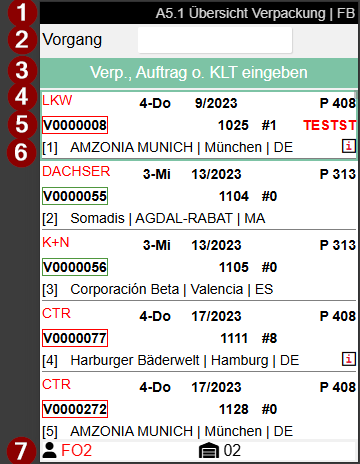
The overview lists packaging processes separately by warehouse shipment and Consolidation No., when one is assigned.
Packaging has the following main tasks:
- Packaging the picked items for shipment
- Checking the picked items (PTU)
- Consolidation of the picked items
In the packaging process overview, the packer can see for which orders packaging processes have been created and what is to be packed. If only a certain number of documents are shown here, this is due to the setting Max. # documents in the SIEVERS WMS Team. Scan a PTU or SSCC to be packed here or enter an order number to go to A5.2.
- Title bar with page no. / description | user abbreviation
- Pack. Proc. = Packaging process | here the packaging process can be selected by scanning the packaging process number or entering the order number. The process can also be selected by clicking and pressing Enter
- Note and feedback field
- Shipping Agent Code from Warehouse Shipment Planning | Middle: First Loading Day of the Warehouse Shipment | Right: Priority
- Packaging process number (Red or Green) | Middle: Source Document No. and Number of SPUs | Employee Marking Packaging
- Left: Customer name / city and country | Right: i symbol if information exists (access with right arrow key)
- Left: Employee Marking Picking | Right: Warehouses with the remaining Pickings
Hinweis
There is a green or red box around the packaging process number. Red = There are still items in the Outbound Stock Post that have not been picked and / or there are missing items in the Outbound Stock Post (= partial delivery). Green = All items have been picked and are ready for packaging.
You can access the following via the A menu:
- SSCC Info
- Information
- Order Info
- Main menu
- Close menu
A5.2 Load Carrier Overview
PTUs from multiple orders are displayed together only when the same Consolidation No. is assigned to them.
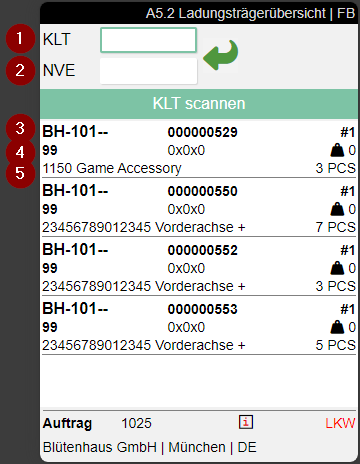
Here the packer or forklift driver of a packing group can see which PTUs have to be packed together for an order (i.e. a warehouse shipment). The sorting of the displayed list corresponds to the movement strategy stored in the packaging team. Scan a PTU or SSCC to be packaged here to go to A5.2.
Fields:
1: PTU number, state to the right (see next screenshot)
2: SSCC number, state to the right (see next screenshot)
3: Left: Storage place | Center: Load carrier number with type PTU | Number of the item in the PTU
4: Left: Inventory measure of the Load Carrier | Center: Dimensions | Right: Weight
5: Left: Item no: Item no. | Center: Item description | Right: Quantity
6: Left: Order No. | Center: Info (shown when Information Text on the packaging process is filled; open with F3) | Right: Shipping Agent Code
7: Ship-to Name | Ship-to City | Ship-to Country/Region Code
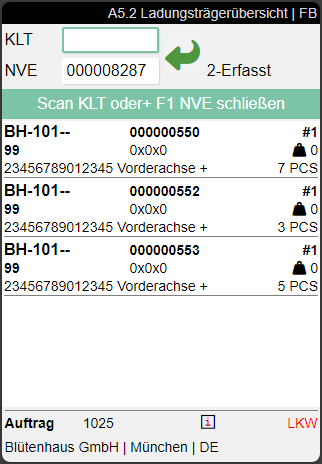
If an i is visible in a line, a comment text has been stored for this. You can access this via Info (F3).
Process:
- Scanning of the PTU to be packed
- Scanning of the SSCC (Blanco Barcode or existing SSCC)
- Confirm the packaging
- Continue from step 1 with the next PTU
- If all quantities are packed and the state is set to 7-packed, the packing process is automatically completed.
Menus:
A:
- Weights and Measures (F1) b
- SSCC Print label (F9) a
- SSCC Info (<-)
- Transfer (F2) i
- Internal transports
- Refresh (F8) e
- Main menu
- Close menu
B:
- Unpack
- New SSCC (F5) k: Spontaneously creates a new SSCC for the current packaging process. The SSCC automatically receives the default inventory measure from the SIEVERS WMS setup and the state 6-in packaging processing. The function is only available if the Create PTU/SSCC via hotkey A4, A5 flag is enabled in the SIEVERS WMS Team.
- Photo (F6) f: Create and view photos. The photos are stored at the packaging process
- Help (F10) h
- Move Job for all PTUs: Automatically creates movement orders of type "Transport to packing" for all PTUs that are not yet at the packing location
- Main menu
- Close menu
A5.3 PTU Pos. Overview
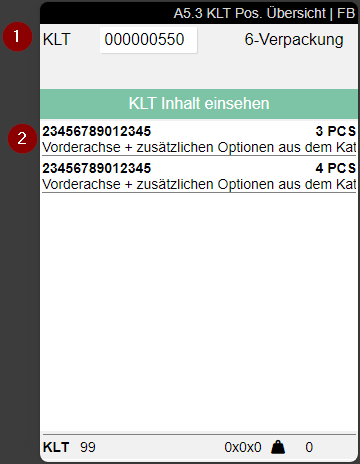
If you scan a PTU in A5.2 Load Carrier Overview, this page opens. The packer can check the contents here and then scan the target SSCC.
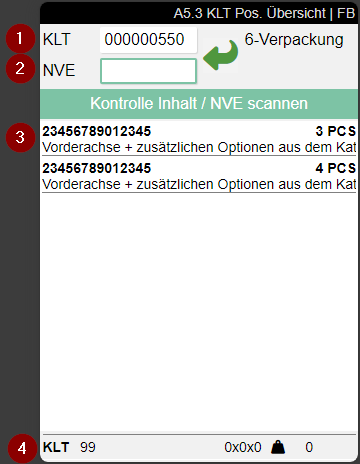
- Scanned PTU
- Target SSCC
- Content
- Left: Load carrier type, Inventory Measure Code of the SSCC and Order No. | Right: Dimensions and Weight of the SSCC, Infosymbol and Shipping Agent
The scanned target SSCC can be:
- Scanned PTU
- Blanco Barcode
- Existing SSCC
If you have selected a PTU in A5.2 Load carrier Overview by pressing Enter, a special info view of A5.3 opens. You cannot edit anything here and you cannot scan any SSCCs.
Menus:
A:
- Information (->)
- Transfer (F2) i
- Internal transports
- Refresh (F8) e
B:
- New SSCC (F5) k: Spontaneously creates a new SSCC for the current packaging process. The SSCC automatically receives the default inventory measure from the SIEVERS WMS setup and the state 6-in packaging processing. The function is only available if the Create PTU/SSCC via hotkey A4, A5 flag is enabled in the SIEVERS WMS Team.
- Item Rel. Packaging o
- Picture (F6) f: Shows the item picture or, if there is none, lets the user take a picture
- Help (F10) h
A5.4 Unpacking
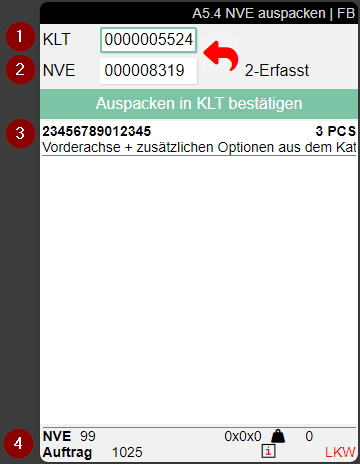
You can use this function to return the contents of the SSCC of the current packaging process to a PTU. To do this, scan the SSCC in the SSCC field (2) and the PTU in the PTU field (1). Then confirm the unpacking.
- PTU
- SSCC
- Left: Item no., item description | Right: Quantity
- Left: Load carrier type, Inventory Measure Code of the SSCC and Order No. | Right: Dimensions and Weight of the SSCC, Infosymbol and Shipping Agent
A5.5 Item Related Pack
With A5.5 you can package by item. This page is opened via the menu Packaging by item or F4 if you have scanned a PTU in A5.3.
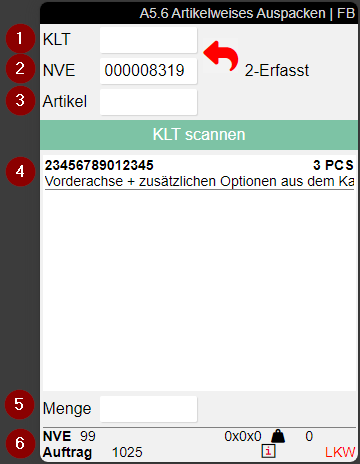
- Enter PTU
- Enter SSCC
- Enter item no.
- Available items with no., description and quantity
- Enter quantity
- Current load carrier. Left: Load carrier type, Inventory Measure Code of the SSCC and Order No. | Right: Dimensions and Weight of the SSCC, Infosymbol and Shipping Agent
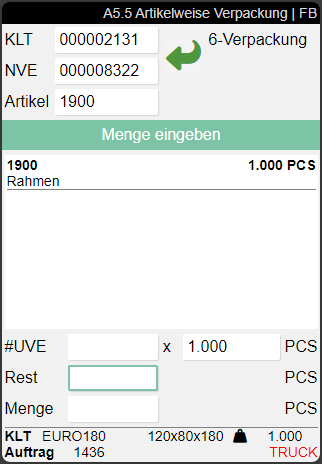
If there is a maintained SPU for the item/inventory, the #SPU x PCS and Left fields are also shown. This allows the packer to determine exactly how many SPUs are to be packaged or how much is left over.
If the quantity in the PTU is greater than or equal to one SPU, the focus is set on the #SPU field. If the quantity in the PTU is smaller, the focus is set to Left and the packer can confirm the quantity remaining directly.
Hinweis
Please note that the Quantity Suggestions Mobile from the SIEVERS WMS team also apply here.
If the Create PTU/SSCC via hotkey A4, A5 flag is enabled in the SIEVERS WMS Team, the menu function B2 New SSCC (F5) is also available in A5.5.
A5.6 Item Related Unpack
With A5.6 you can unpack by item. This page is opened via the menu Unpackaging by item or F4 if you have scanned a PTU in A5.4.
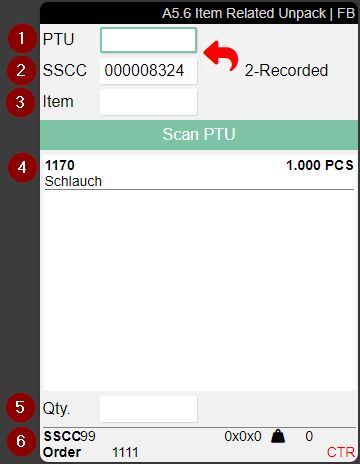
- Enter PTU
- Enter SSCC
- Enter item no.
- Available items with no., description and quantity
- Enter quantity
- Current load carrier. Left: Load carrier type, Inventory Measure Code of the SSCC and Order No. | Right: Dimensions and Weight of the SSCC, Infosymbol and Shipping Agent
If there is a maintained SPU for the item/inventory, the #SPU x PCS and Left fields are also shown. This allows the packer to determine exactly how many SPUs are to be packaged or how much is left over.
If the quantity in the PTU is greater than or equal to one SPU, the focus is set on the #SPU field. If the quantity in the PTU is smaller, the focus is set to Left and the packer can confirm the quantity remaining directly.
Hinweis
Please note that the Quantity Suggestions Mobile from the SIEVERS WMS team also apply here.