B5 Stocktaking
A warehouse employee can use the MDE device to start stocktaking at any time. The storage places and stocks are not blocked.
Hinweis
Please note that the creation and progress of a stocktaking is only possible if the corresponding setting in the SIEVERS WMS Setup is set to active.
- Select New process.
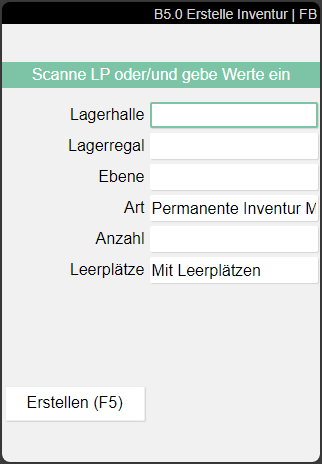
- Scan a Location Code or enter a Warehouse and a Storage Shelf or a Level.
- Enter the number of storage places to be counted now.
- Specify whether the stocktaking should also include Empty Storage Places, no Empty Storage Places or only Empty Storage Places.
- Press Create or the F5 key.
Hinweis
It is also possible to create an empty cycle counting list with the initial stocktaking type in the Business Central system and then scan the storage places you want to count one by one.
The stocktaking lines are added and the associated cycle counting list with the corresponding counting list lines is released directly for progress on the MDE.
Each storage place is now scanned individually by the stocktaking employee.
After scanning a storage place, the item page is opened:
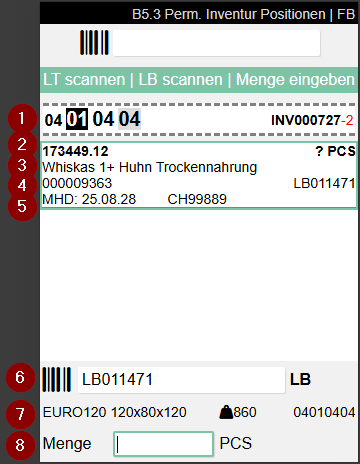
- Storage place
- Left: Item with item number, description and storage unit number |Right: Uunit of measure. There is no quantity at this point, so that it cannot simply be checked during stocktaking, but must actually be counted
Hinweis
Please note that storage places that have not been counted are deleted from the stocktaking and cycle counting list when the stocktaking employee leaves an open count. This does not apply to storage places that are to be counted a second or third time.
B5.0m Menu
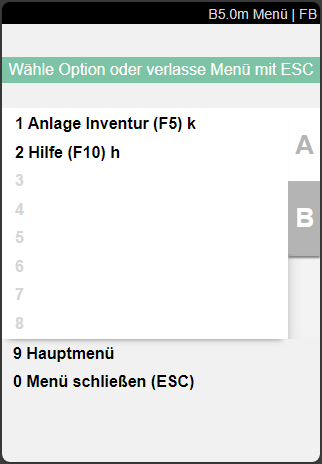
- Create Stocktaking (F5) k: Creates a stocktaking based on the parameters entered in B5.0
- Help (F10) h
B5.1 Perm Stocktaking Overview
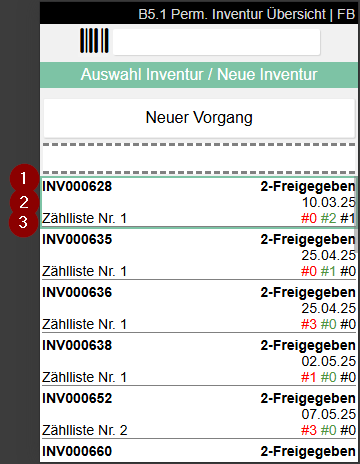
Shows the currently open stocktakings and allows the user to create a new stocktaking with New process.
- Left: Inventory no. | Right: Status of inventory
- Date of inventory
- Left: Cycle counting lists no. | Right: Red: Inventory still to be counted; Green: Inventory already counted; Black: Empty storage places
B5.2 Perm. Stocktaking Storage Places
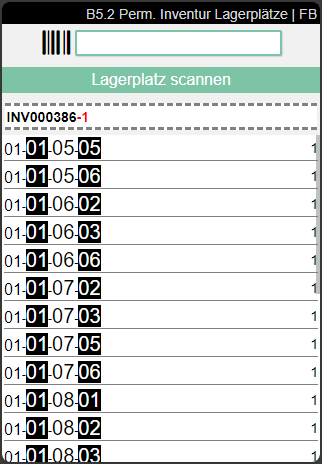
Shows the storage places to be counted for the selected stocktaking.
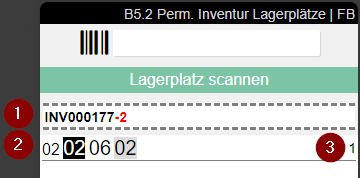
- Inventory No. and Cycle Counting List No.
- Storage Place
- Number of Inventories in stock to be counted
The order of the storage places displayed depends on the movement strategy entered for the SIEVERS WMS team.
Scan a storage place here to continue the process.
Achtung
When exiting B5.2, the current stocktaking is automatically deleted, unless it is a stocktaking with the type Annual stocktaking or Initial Stocktaking.
B5.2m Menu
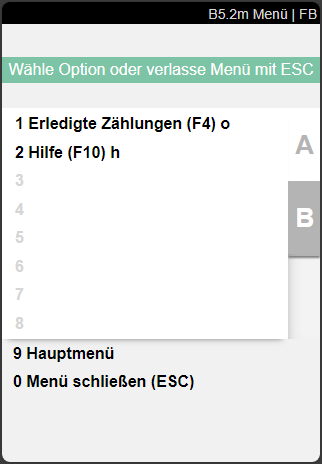
- Finished counts: Shows the finished counts for this cycle count
- help
B5.3 Perm. Stocktaking Positions
Either select the items on the screen or scan the inventory to do the stocktaking.
- Storage place and inventory no. + count list no.
- Left: Item number | Right: Unit of measure. No quantity is entered here so that items cannot simply be checked during stocktaking, but must actually be counted.
- Item description
- Left: Load carrier no. | Right: Inventory no.
- Sell-by date, lot no. and serial no.
- Inventory no. entry
- Left: Inventory measure and dimensions | Center: Weight: | Right: Storage place
- Enter quantity here
B5.3m Menu
A:
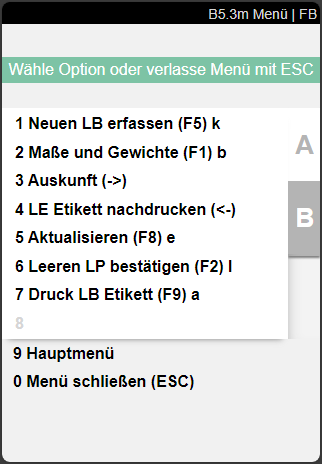
- New item found
- Dimensions and weights
- Information
- Update SU label
- Update
- Confirm empty SP: Confirm empty storage place
- Print Inv Label
B:
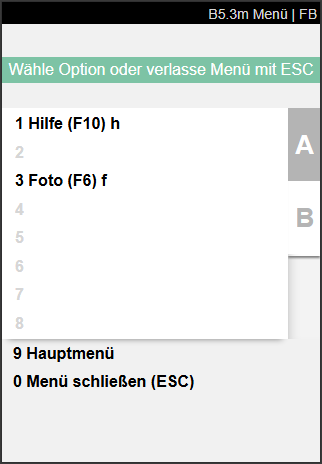
- Help
- Picture
B5.4 Perm. Stocktaking Storage Places Finished Counts
This page shows an overview of the count list lines that have already been counted.
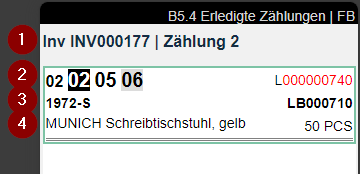
- Inventory no. and Cycle Counting List No.
- Left: Storage Place | Right: Load Carrier No.
- Left: Item No. | Right: Inventory No.
- Left: Item Description | Right: Quantity
B5.4 Menu
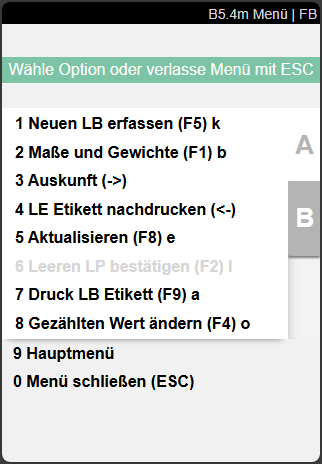
- Capture New Inv. (F5) k
- Weights and Measures (F1) b
- Information (->)
- Reprint SU label (<-)
- Refresh(F8) e
- Confirm empty SP (F2) l
- Print Inv Label (F9) a
- Change counted value (F4) o: The user can enter a new value for the inventory that has already been counted.
B5.5 New Inventory
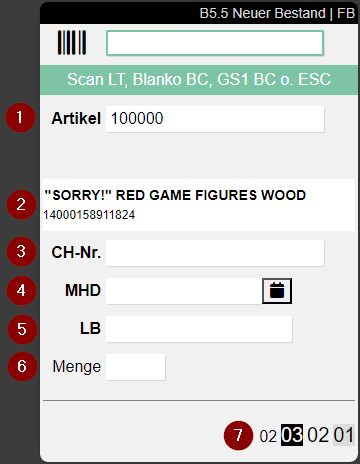
B5.5 is used to enter additional inventories that have arisen during stocktaking.
The following fields are available:
- Item: Scan the item found
- Item scanned
- Lot No.
- Sell-By Date/BBD: Input possible directly or via calendar
- Inv
- Quantity
- Selected storage place
The fields Lot No., BBD and Inv are only shown if they are set as mandatory fields for this item. If the item has variants, the corresponding field will appear. You must enter a variant here.
The handling of Lot No. is controlled by Lot Handling Stocktaking in the SIEVERS WMS Setup.
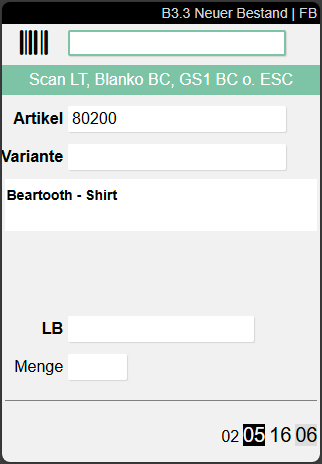
Here you can scan several types of codes:
- Item No.
- GTIN
- GS1 Barcodes
- Blanco Barcodes to create new Load Carriers
- Existing Load Carrier Barcodes
For more information on adding stock, see Add new inventory during a stocktaking.
B5.5 Menu
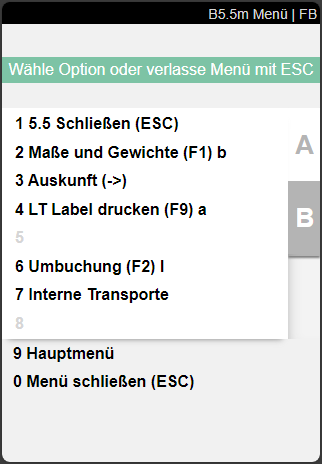
- 5.5 Close (Esc)
- Weights and Measures (F1)
- Information
- Print LC label (F9)
- Finished Counts (F4) o
- Transfer (F2)
- Internal transports