Important Topics
Warehouse Receipt
- Quantity Units in SWMS Warehouse Receipt Standardized to Base Unit of Measure
- Optional Quantity Field from Source Document Line in SWMS Warehouse Receipt
- WR Order Assignment: Consistent SSCC and PTU Creation with Automatic Stock Document
- WR Order Assignment: Partial Quantity Assignment with Disabled Stock Document Creation
- Serial Number Import from Excel in SWMS Warehouse Receipt
Change of Ownership
Setup
- Quantity Units in SWMS Warehouse Receipt Standardized to Base Unit of Measure
- "Visible to Sale" Flag Ignored for WR Order Assignment and Special Orders
- WR Order Assignment: Partial Quantity Assignment with Disabled Stock Document Creation
- Move Job: Automatic Mark as Finished When Posting
Features
Warehouse Receipt
Quantity Units in SWMS Warehouse Receipt Standardized to Base Unit of Measure - Item 141759
All quantity fields in the receipt lines of the SWMS Warehouse Receipt now show quantities in the item's base unit of measure (BUM). Previously, quantities were shown in the unit of measure of the source document (e.g. purchase order), which could lead to unexpected decimal values when units differed.
Wichtig
When receiving items with different units of measure (e.g. TRAYS and PCS), the Quantity Rounding Precision field on the item card under Related -> Item -> Units of Measure must be set to 1 to ensure that piece goods are converted to the base unit as whole numbers (without decimal places).
The receipt lines now show the following new fields, which replace the previous quantity fields in the source document unit as the default:
| New Field | Description |
|---|---|
| Base Unit of Measure Code | Shows the base unit of measure code of the item. |
| Quantity (BUM) | Total quantity according to the source document in base unit. |
| Qty. to Receive (BUM) | The quantity to be received in base unit. Must equal the sum of the quantities in the load carriers. |
| Qty. Received (BUM) | Quantity already posted as received in base unit. |
| Qty. Outstanding (BUM) | Remaining open quantity in base unit. |
| Qty. per Base Unit of Measure (BUM) | Specifies how many base units are contained in one purchase unit. |
The previous fields Quantity, Qty. to Receive, Qty. Received, Qty. Outstanding, and Unit of Measure Code (in the source document unit) remain available via personalization.
On the MDE device, GS1 scans continue to show the quantity and unit from the item reference, so physical verification can still be performed in the scanned unit. After confirmation, the quantity is converted to the base unit; all subsequent messages and remaining quantity displays also use the base unit. If a conversion does not result in a whole number, the decimal value is accepted.
Existing SWMS warehouse receipt documents are automatically converted when opened.
WR Order Assignment: Partial Quantity Assignment with Disabled Stock Document Creation - Item 137567
When the Create Whs Ship/stock document during order assignment in whse receipt setting is disabled, order assignment in the warehouse receipt now supports partial quantities. Previously, assignment was only possible if the load carrier quantity fully covered the order quantity.
The process remains unchanged: in the Order Assignment dialog, the relevant line is selected and confirmed via Assign. The quantity for assignment equals the load carrier quantity. What is new is that this quantity may now be less than the remaining quantity of the source document.
A warehouse shipment for the order must already exist at the time of assignment. If no warehouse shipment exists, the assignment is rejected with an error message.
WR Order Assignment: Consistent SSCC and PTU Creation with Automatic Stock Document - Item 137608
When the Create Whs Ship/stock document during order assignment in whse receipt setting is active, PTUs and SSCCs are now created correctly and consistently with the automatically generated stock document and warehouse shipment during order assignment in the warehouse receipt. Previously, SSCCs could be created that were not tracked on the stock document, causing an inconsistent state.
"Visible to Sale" Flag Ignored for WR Order Assignment and Special Orders - Item 135081
The Visible to Sale flag on a storage place normally prevents goods from being picked from there. This filter no longer applies when PTUs or SSCCs are created in the warehouse receipt via Order Assignment or via a document line with a Special Order.
In these processes, the goods are already fully prepared and only need to be completed in the system. The visibility for sales or production is therefore irrelevant here and is deliberately ignored to ensure smooth creation of PTUs and SSCCs.
Serial Number Import from Excel in SWMS Warehouse Receipt - Item 138254 · Item 138255 · Item 138256 · Item 138258 · Item 138259 · Item 141885
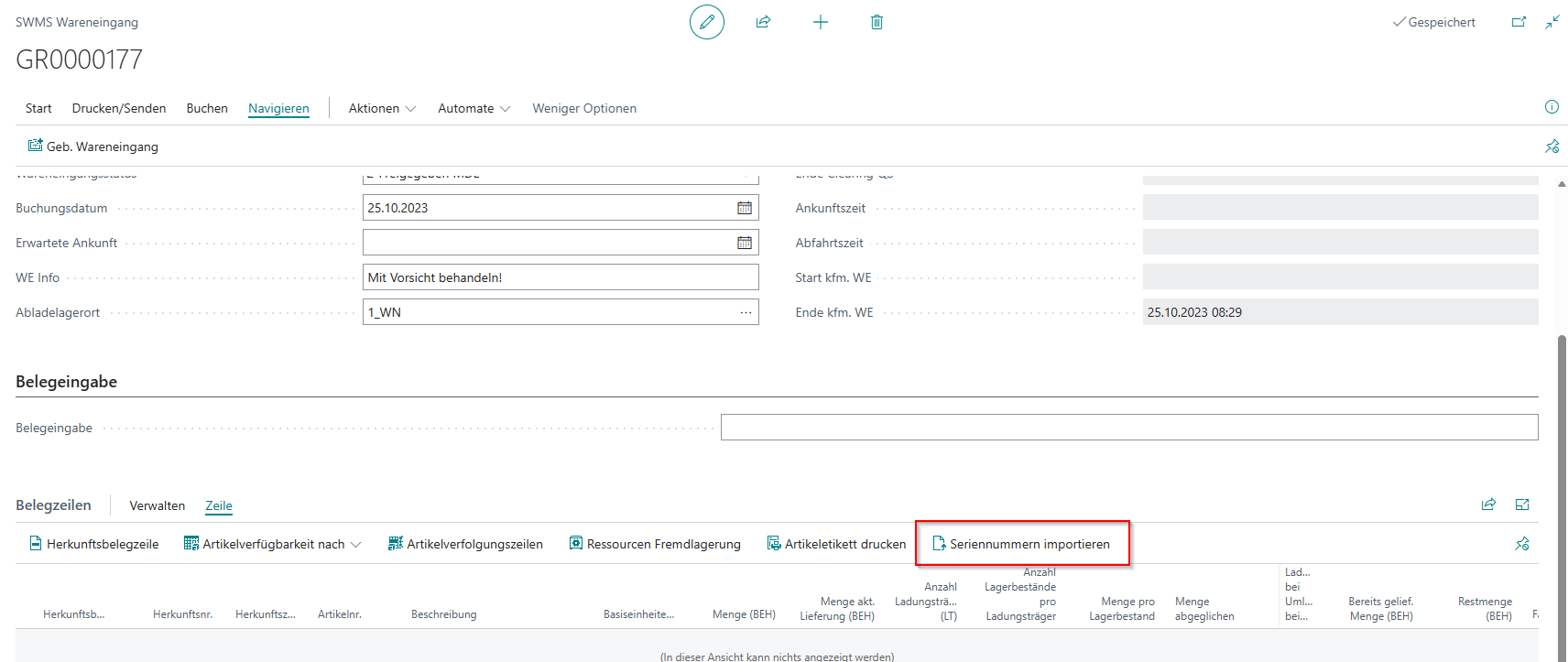
The SWMS Warehouse Receipt now includes the new action Import Serial Nos., which opens the Import Serial Nos. dialog. This dialog allows serial number assignments to be imported from an Excel file (.xlsx) fully automatically into the warehouse receipt.
The import file must contain the following columns:
- Column A: Label No. (required)
- Column B: Item No. (required)
- Column C: Serial No. (required)
The data may, but does not have to, include column headers. The Has Header Row option specifies whether the first row should be skipped as a header.
Step 1: Reading and Basic Validation
The import is cancelled with an error message if:
- a required field is missing (message: Import cancelled: Required field missing in row [row number])
- a serial number appears more than once within the file (message: Import cancelled: Serial number [value] appears multiple times in the file)
- the file contains no importable data (message: Import cancelled: The file contains no importable data)
Step 2: Content Validation Against Warehouse Receipt and Stock Entries
The system then validates the imported data against the warehouse receipt and the stock entries. The import is cancelled in full if at least one of the following conditions is not met:
- The item is not part of the warehouse receipt (message: Import cancelled: Item [No.] is not part of the warehouse receipt.)
- The item does not require serial number tracking in SWMS (message: Import cancelled: Item [No.] does not require serial number tracking (SWMS).)
- The receipt line has already been quantity-checked (message: Import cancelled: Receipt line for item [No.] is already quantity-checked.)
- The receipt line has no open quantity to receive (message: Import cancelled: Receipt line for item [No.] has no open quantity to receive.)
- The number of serial numbers exceeds the current quantity to receive in the warehouse receipt (message: Import cancelled: Number of serial numbers exceeds the current quantity to receive in the warehouse receipt.)
- A serial number already exists in the SNCL Stock Entries (message: Import cancelled: Serial number [SN] already exists in SNCL Stock Entry.)
Step 3: Confirmation Dialog
If all checks pass, a confirmation dialog is shown with a summary of the recognised import data:
- Identified items: [count]
- Identified load carriers: [count]
- Unique serial numbers: [count]
If cancelled, the temporary import data is deleted and the entire import process is aborted.
Step 4: Automatic Processing
If confirmed, the system automatically performs the following steps:
- Qty. to Receive (BUM) of the warehouse receipt line is filled with the total quantity from the import table.
- Quantity Load Carrier is set to the number of unique Label No. values from the import file.
- The Quantity Checked flag is set, which triggers the creation of load carrier lines.
- Each Label No. is assigned a unique load carrier code.
- For each row in the import file, a stock entry line is created in the Inbound Stock Post: the New Load Carrier Code field is filled with the assigned load carrier code; item no. and serial number are taken from the import file. The quantity is always 1.
- The Comment Text for Label field on the created load carrier is automatically filled with the corresponding Label No. from the import table.
Reversing the Import
If the stock document is removed via Delete Stock Document after a serial number import, the imported serial numbers are automatically deleted from item tracking and all data from the temporary import table is cleared as well. A new import of the file is then possible again.
Optional Quantity Field from Source Document Line in SWMS Warehouse Receipt - Item 141782
In the SWMS Warehouse Receipt, the fields Quantity and Unit of Measure Code are now available via personalization. Both fields are hidden by default and can be shown when needed.
- Quantity: Shows the total quantity from the source document line in the unit of measure of the source document (e.g. 1000 TRAYS). The field is read-only.
- Unit of Measure Code: Shows the unit of measure code of the source document (e.g. TRAYS).
By showing both fields together, warehouse staff can look up the originally ordered quantity and unit of measure without having to open the source document itself.
Hinweis
The Quantity field shows the quantity in the unit of measure of the source document. If the item's Base Unit of Measure is a different unit (e.g. PCS instead of TRAYS), this value differs from the quantity fields that show the quantity in Base Unit of Measure.
Service
SWMS Service Handling Cannot Be Changed When a Stock Document Exists - Item 141475
The SWMS Service Handling field on a service order can no longer be changed once a stock document has already been created for the service order. This ensures that the service handling mode remains consistent after the stock document has been created, preventing inconsistent documents.
Change of Ownership
Change of Ownership Order: Validate Deposit Customers - Item 134863
When entering a Change of Ownership Order, the system now validates the deposit customer of the items. The current items must match the old deposit customer and the new items must match the new deposit customer in the order header. If the respective deposit customer in the header is empty, only items without a deposit customer are permitted.
Warehouse Shipment
Zero-Quantity Lines in Outbound Stock Posts Are Now Archived - Item 138149
Previously, Outbound Stock Post Lines with a quantity of 0 (e.g. reported shortages from picking) were deleted when the warehouse shipment was posted. These lines are now archived in the same way as regular lines and remain visible and available for analysis via the SWMS Posted Outbound Stock Post Lines.
Archived zero-quantity lines cannot be edited in subsequent operational processes (e.g. loading, repicking). The behavior for all other lines remains unchanged.
Internal Movements
Move Job: Automatic Mark as Finished When Posting - Item 138204
The new Mark as finished when post setting in the Internal Movements tab of the SIEVERS WMS Setup simplifies the manual move job posting process. When this setting is active, clicking Post on a move job automatically marks it as finished first, if this has not yet been done.
Without this setting, the user had to manually mark the move job as finished via Change Status before being able to post it. All checks continue to be performed; if an error occurs, all steps are rolled back.
Warehouse
SWMS Create Storage Place: New Fields for Storage Without SU and Mixed Storage Restriction - Item 138209
The SWMS Create Storage Place dialog now includes the fields Storage without storage unit and Storing various inventories not allowed. These fields can be set directly when creating storage places and are applied to all storage places created in the dialog. They can also be set when updating existing storage places using the function.
- Storage without storage unit: Allows direct putaway without creating an SU first. See SWMS Storage Place Card for details.
- Storing various inventories not allowed: Prevents different items or batches from being stored at the same storage place. See SWMS Storage Place Card for details.
Mobile
Negative Picking: SU Scan Directly in A4.2 - Item 134517
For positions with negative picking, the picker can now scan the storage unit directly in A4.2 Position Overview . The system automatically jumps to A4.3 and validates the SU directly. The focus is then placed on the quantity field, which the picker can confirm.
This behavior mirrors the already known flow for full pallet withdrawal, where a full pallet can also be scanned directly from A4.2.
A7.3 Load Carrier Info: Warehouse Shipment Assignment and Layout Improvements - Item 139015
The A7.3 load carrier information now shows additional order identification details for PTUs and SSCCs that are assigned to a warehouse shipment.
In the header, the Warehouse Shipment No. appears in the last row when the load carrier is assigned to a warehouse shipment. The GS1 reference is shown to the right of it when available. The label has been shortened from "GS1-SSCC" to GS1.
A footer with order details is displayed below the inventory list:
- Row 1: Order number | Carrier (in red)
- Row 2: Customer name; City; Region from delivery address (abbreviated to one line)
For regular storage units (SU), the footer is not shown.
The Inventory Measure field has been widened by 2 characters but remains on a single line. The Weight is now shown with up to four digits without a line break.
Sales
Stock Document Actions and Status Fields Removed from Source Document Pages - Item 140353
The outdated actions Create Stock Document, Open Stock Document, and Delete Stock Document, along with the related status fields (Stock Document Type, Stock Document No., Stock Document Status), have been removed from the following source document pages:
- Sales Order and Sales Order List
- Purchase Order and Purchase Order List
- Transfer Order
- Sales Return Order
- Purchase Return Order
SIEVERS WMS works exclusively with the warehouse receipt and warehouse shipment flow of Business Central. The old stock document actions no longer provided any benefit and caused confusion by suggesting a workflow that is no longer supported. The Create Warehouse Receipt and Create Warehouse Shipment actions (BC standard) remain available as before.
Actions and fields on invoices, credit memos, assembly orders, and the warehouse receipt and warehouse shipment pages themselves remain unchanged.
Synchronization of Fields "Your Reference" and "External Document No." on Sales Documents Removed - Item 140045
The automatic synchronization between the BC standard fields Your Reference and External Document No. on sales documents has been removed. Both fields can now be maintained independently.
Background: Your Reference is a free-text field that appears on printed sales documents, while External Document No. is a code field that is also available in journal lines and can optionally be configured as a mandatory field when posting. The previous synchronization caused incorrect data for some customers, as both fields serve different business purposes.
All places in SIEVERS WMS that previously relied on the synchronized value (e.g. SSCC labels, shipment list) have been updated to use the External Document No. field directly.
Bugs
Non-inventory items cannot be posted - Item 140945
Items of type Non-Inventory or Service could not be posted on a WMS-managed location. The check now takes into account whether an item is inventory-tracked and correctly allows posting for non-inventory items.
[Packlist Exportdata] Lines duplicated per SSCC in Excel export (Data Only) - Item 141422
When exporting the Packlist Exportdata report as "Data Only" (Excel), item lines were output multiple times. The number of duplicates matched the number of SSCCs in the warehouse shipment. The filter issue in the dataitem has been resolved.
Manual inventory selection for purchase return orders with item tracking - Item 141057
When manually selecting inventory for a purchase return order with item tracking lines, the reservation entries were not filtered correctly. This caused the remaining quantity to appear as 0, preventing any inventory from being selected. The filter logic has been corrected.
GS1 Amazon SSCC Label: Rendering error when printing with best-before date items - Item 141513
A rendering error occurred when printing the GS1 Amazon SSCC label if the load carrier contained both a lot number and a best-before date (BBD). An empty string in a date field of the RDLC layout could not be converted to type "Date". The date field is now handled correctly and the label renders without errors.
Variable for Whse. Shipment Auto. Creation prevents entry of sales invoices and credit memos - Item 142106
If a value was set in the Variable for Whse. Shipment Auto. Creation field on a customer, it was no longer possible to create sales invoices or sales credit memos for that customer. The incorrect validation in the sales header extension has been corrected and now only applies to sales orders.
Error when opening SWMS Ledger Entries - Item 142146
Opening the SWMS Ledger Entries page sometimes caused an error that prevented the page from loading. The issue has been resolved.
Picking document status displayed incorrectly in picking release - Item 141480
In the picking release, a picking document's status was shown as 9-Completed even though the document still had the status 3-In Progress. The status is now displayed consistently and correctly in all places.
A3.3 Item Transfer: Quantity displayed incorrectly when picking from multiple source storage places - Item 141938
When the same item was picked from multiple source storage places with the setting Merge inventories with identical characteristics enabled, A3.3 incorrectly showed the total combined quantity in each line instead of the individual quantity per source storage place. The quantity display now correctly shows the amount picked per source storage place.