Production
Carrying out production
Production is a process from the Business Central standard and is used to assemble products in several work steps across multiple machine centers. It is therefore designed for more complex production than assembly. This process description describes a viable production process. Please note that the procedure in your company may be different.
Hinweis
For production, the user experience must be set to Premium in the company information. This requires a separate license. Please ensure that you have this license.
Production planning, control, and monitoring are carried out centrally via the production order.
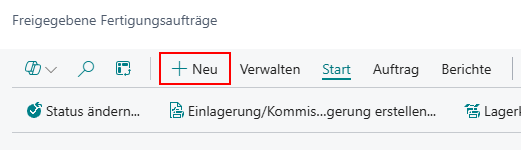
- Create a new Released production order. It is also possible to create a Planned production order, but we believe this is an unnecessary additional step, as a released order is generated anyway when the scheduled production order is released. However, if this is helpful in your process, you can of course still create a scheduled production order. The procedure is the same.
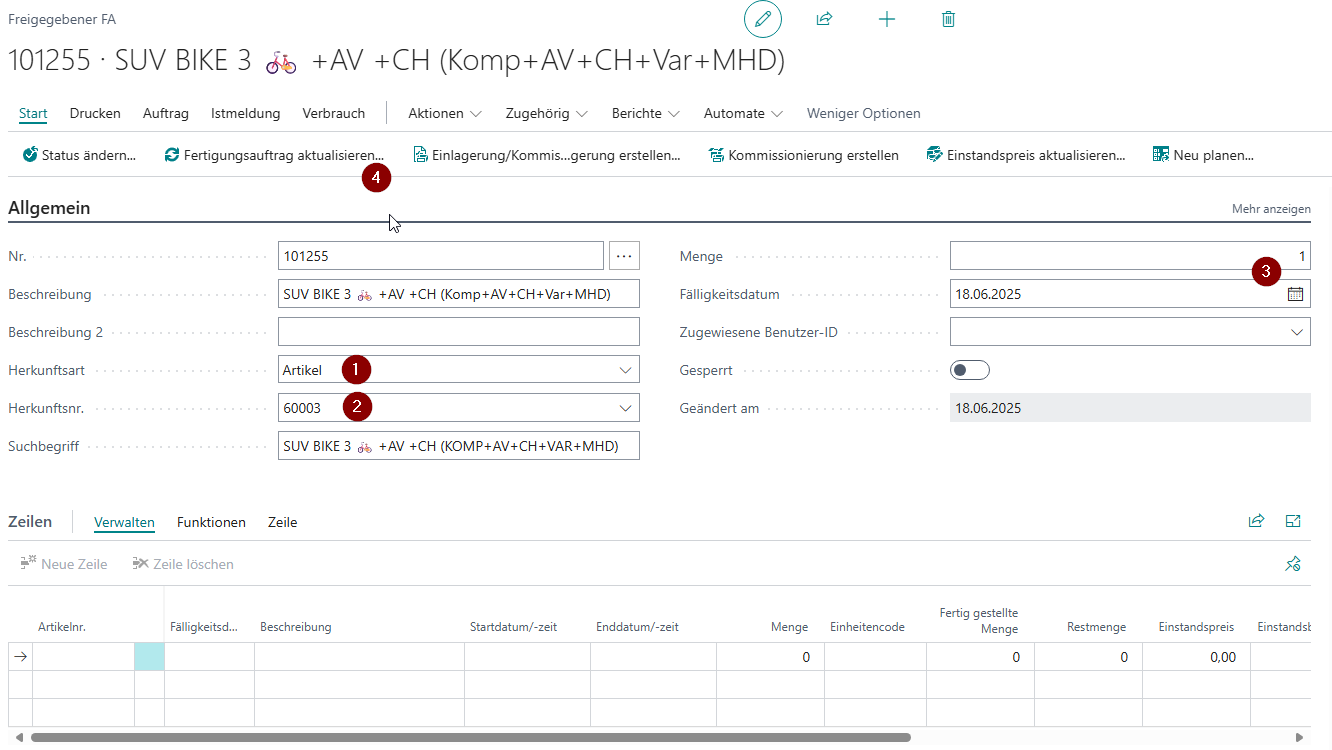
- In the production order header, select the source type. For example, if you want to start production based on a specific item, select Sales header and then the source no., quantity, and due date. Make sure that the item is suitable for production. You can see this, for example, if the procurement method for the item is set to Production order and the production type is set to Make-to-order or Make-to-stock. In addition, a production bill of materials should exist.
- Click Refresh production order to automatically fill the lines of the order. Leave the settings here as they are.
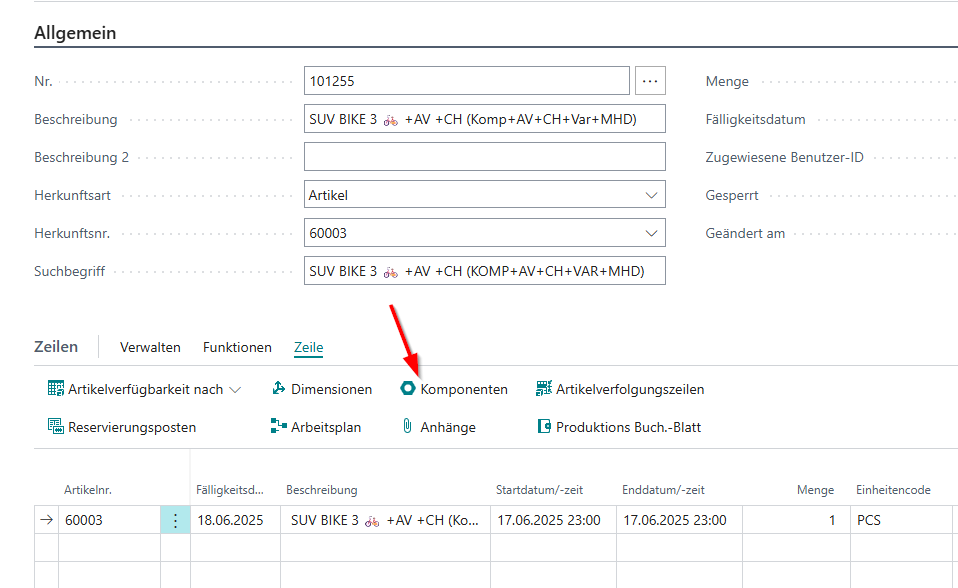
- At least one new order line should now appear. If you select this line and access the Component list via Line -> Components, you can ensure that the correct components in the required quantities from the correct storage place are assigned to this item.
- Also make sure that the Production replenishment is saved.
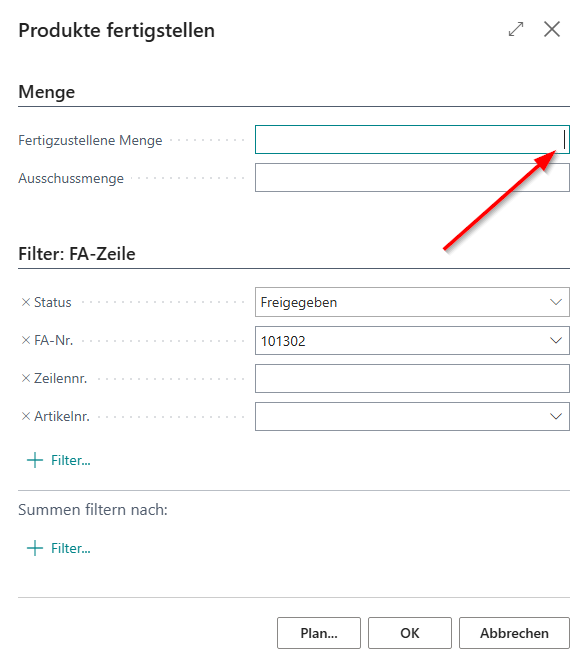
- You can now finish the products via Order -> Finish Product. This action combines the output journal and the consumption report. Enter the quantity to be finished and confirm with OK.
- Finally, you will be asked to create load carrier labels for the load carriers of the newly deposited products. The carrier type depends on the setup Create Warehouse and Stock Document on Output in the SIEVERS WMS setup:
- Setup active: The inventory is deposited on a PTU/SSCC, as a warehouse shipment and stock document are automatically generated
- Setup inactive: The inventory is deposited on an SU (Storage Unit)
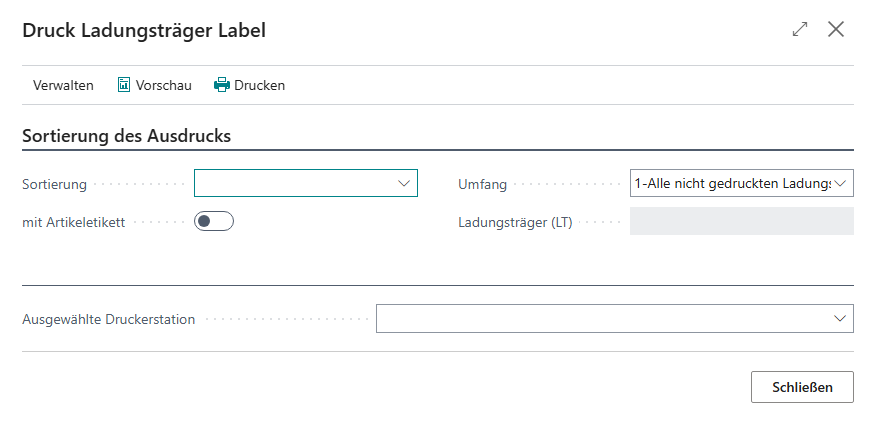
- Production is now complete.
Replenishment for production order
Production must also be adequately supplied with replenishment. This replenishment delivery is carried out by the production supply, which can be automated via a job queue or carried out manually. This description deals with the manual form of replenishment creation.
Replenishment is calculated via the Check production supply action. The Production quantity specifications fields of the Item are used for this purpose.
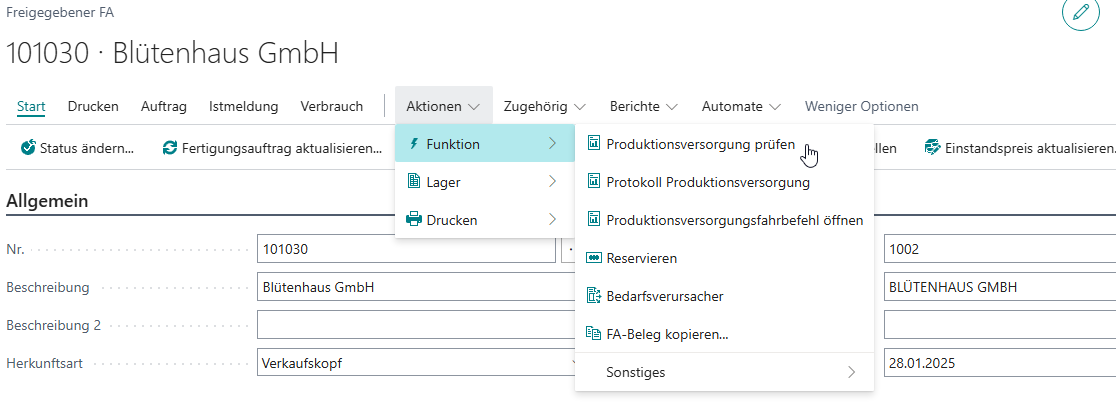
- You generate replenishment for production orders via Check production supply. You can find this action as a separate task via Business Central Search, but also in the Released Production Orders. Explanations of the fields can be found in the corresponding section linked above. For now, select the Details option.
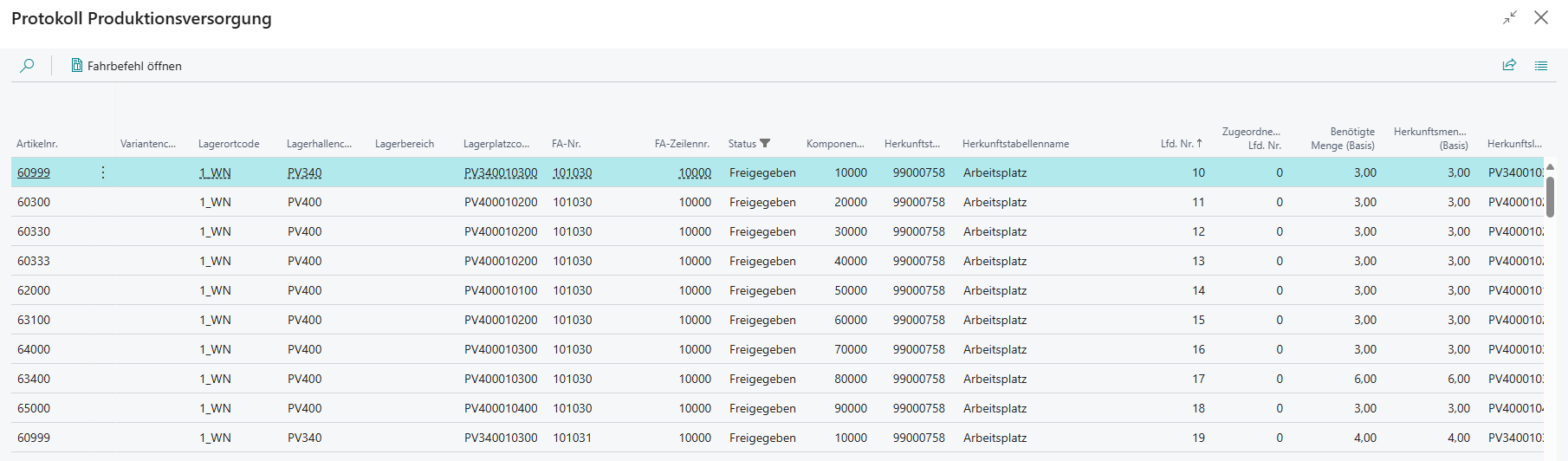
- If necessary replenishments are identified, the system creates replenishment move orders. A move job line is created for each component it finds. The number and composition of the move jobs depends on the selected grouping. See Check replenishment production places. If you have selected Details, the Production Supply Log opens automatically. Here you can now see which move orders have been created. You can monitor the progress of replenishment at any time via the Replenishment Status field:
- In the production order component lines you can see the status per component
- In the Released Production Order (header and lines) you can see the aggregated status
- In the list of Released Production Orders you can see at a glance which orders are ready on the supply side
- Depending on the setup, the move order created can then be executed with MDE C1 and C2 or document-oriented using the move order list printed on the move order.