C1 Production Take Out
This process is used to process quantities from the warehouse for production. Here, the employee can see which move jobs are released for processing, select move jobs, and edit them.
Hinweis
Move jobs of type Transport to Production, which are created in C1, automatically receive a team assignment based on the parameters maintained in the SIEVERS WMS Teams (location, warehouse, storage area, type, move job type filter). The parameters refer to the destination of the move job. If no matching team can be determined, the assignment remains empty. These move jobs are displayed in a separate stack in the role center.
C1.1 Overview Take Out
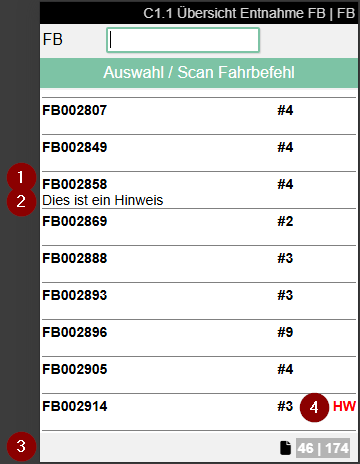
This page shows the current move jobs released for processing with the type Production supply.
- Left: Move job number | Right: Number of move job lines | Far right: Priority. Only the priorities High and Low are shown.
- Left: Comment text
- Shows the current workload. Left number: Move job headers that contain lines that are being processed with the current team. Right number: Move job lines that are to be processed with the current team.
- Employee marking from the move job
Selecting or entering a move job opens C1.2. Scan a move job barcode in the field above or enter a number to filter the list.
C1.2 Take Out Positions Overview
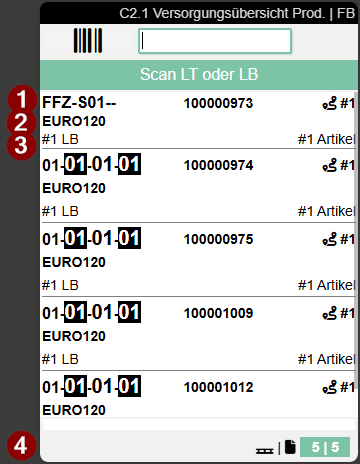
Here, warehouse staff can find out how many and which move job lines the selected move job contains and process them one after the other. To do this, a load carrier (always a SU) is first scanned and then the positions are moved.
If a load carrier is already on the forklift when this page is accessed, the user receives a warning message indicating this fact. This prevents accidental packing into the wrong SU. If a PTU or SSCC is on the forklift, it must be removed.
If the pick up was successful, the load carrier can be moved to the destination. Press F8 to open menu item 7 TU park. The destination is shown here.
Alternatively, when all positions have been processed, the storage place can be scanned directly in the "Take Out Positions Overview" screen to park the load carrier.
Hinweis
If the load carrier is not parked at the destination shown, a move job is automatically generated for that destination.
- Left: move job number | Right: Priority (High or Low only)
- Comment text from move job header
- SU number
- Left: Storage place of the position | Right: Item number
- Left: Lot no. if required | Right: Quantity
- Left: Item description and variant | Right: Employee marking
- Left: Shows whether it is a full pallet | Right: Left number: Number of different load carriers in the selected move job for the selected team. Right number: Number of move job lines in the selected move job for the selected team
Hinweis
Removing the quantity remaining on a pallet and transferring it as a load carrier is not currently supported.
Hinweis
If the field Take out pos. cum. per LC & item is enabled in the SIEVERS WMS Setup, the display in C1.2 changes: All move job lines with identical storage place, item, lot, variant, sell-by date and serial number are consolidated into one line. Selection is then made exclusively by:
- Scan of the carrier number (SU) or
- Manual selection in the list
Direct scan of an inventory item is not possible in this mode.
C1.2 Menü
A
- Order Info (F3) i: Opens the move job info containing the comment text
- Unload TU (F8) e: Opens a page where the user can scan a new storage place for the currently loaded load carrier.
B
- New SU (F5) k: Creates a new carrier (SU) without blank barcode and automatically prints the SU label. This function is only available if the field Allow New SU without Blank Barcode is activated in the SIEVERS WMS Setup. The new SU automatically receives the default inventory measure and the associated standard dimensions.
- Keyboard
C1.3 Take Out Pos. Processing
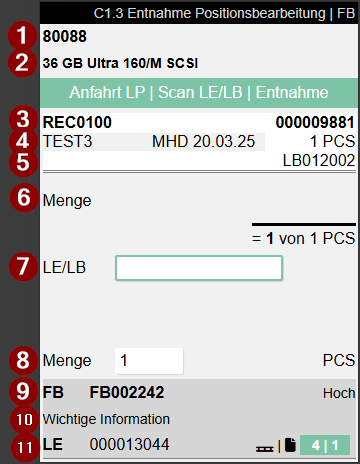
Used to process individual move job positions in production supply. This page is structured almost exactly like A4.3.
Item No.
Item Description
Left: Storage place | Right: SU no.
Left: Lot no. and sell-by date | Right: Number of pieces from the move job line
Reserved inventory number from the move job
The quantity to be picked
Scan the storage unit or inventory here. If there are several inventories on the targeted load carrier, only one inventory can be scanned here
This quantity field is pre-filled or remains empty depending on the field No confirmation of take out qty in PS in the SIEVERS WMS setup.
Left: move job number | Right: Priority if it is low or high
Comment text
Left: Load carrier number to which is being picked | Right: First number: Number of load carriers in the move job that still need to be processed. Second number: Number of move job lines that are served from the current load carrier. Colors: Green: There is something to do. Gray: There is nothing to do.
As in A4.3, the user scans the targeted load carrier or inventory and then confirms the quantity to be picked. The next position is then shown in C1.3.
If less inventory is available than planned, the user can enter 0 as the quantity removed in C1.3. The system then asks "Should the inventory be marked for clearance and an alternative be searched?"
- With Yes, the affected inventory is blocked using the Standard Blocking Code. The Difference Blocking Type setup under Stocktaking determines whether the load carrier or the storage unit is blocked. The system then searches for alternative inventory.
- If alternative inventory is found, a new move job line is added. The previous line is cancelled with quantity
0or deleted. - With No, no inventory is blocked and no alternative is searched. The current position remains available for processing.
- If no alternative is found, the current position is completed and No alternative found is displayed.
The next position is selected based on the movement strategy assigned to the team and the route optimization configured in it.
Hinweis
When a complete load carrier is picked for production, the prompt "Add to PLC %1 (Yes) or convert SU to PLC (No)" is displayed once if a PLC has been selected. With Yes, the SU is posted to the selected PLC on the forklift. With No, the SU is converted into a new PLC and the additional PLC is assigned to the forklift. No prompt is displayed for a partial pick or if no PLC is selected.
Hinweis
If additional carriers are needed spontaneously during production removal, they can be created directly with F5 or via menu item B1 without having to scan a blank barcode. The prerequisite for this is the activated setup field Allow New SU without Blank Barcode.
Hinweis
It is possible to perform an inventory swap. This means that you can take a different inventory from the load carrier. The prerequisite for this is that the inventory characteristics (number of pieces, variant, lot no., sell-by date) match.
If the process needs to be interrupted, the user can stop the load carrier to be picked at any time by pressing F8 or selecting menu A7.
Hinweis
If the field Take out pos. cum. per LC & item is activated in the SIEVERS WMS Setup, C1.3 displays the cumulated total quantity of all consolidated lines. The user enters the total quantity removed. The entered quantity must not exceed the displayed total quantity. After confirming the entry, all associated individual lines are automatically posted as removed and assigned to the selected carrier (SU).