Release Info 71 (3091.1)
Important Topics
This release includes the following topics we would like to highlight:
- SWMS notes can be maintained on master data cards and accessed on sales and purchase documents and return orders.
- The A4.1 picking list overview is now displayed on the ProGlove MAI.
- A4.2 picking positions and order information are now available on the ProGlove MAI.
- A4.3 now displays additional item and picking-order information on the ProGlove MAI.
Setup
The following topics affect your system setup:
- Process-specific SWMS notes can be maintained on item, customer, and vendor cards.
- Standard MDE menus now show only the function-key shortcut, without an additional letter hint.
- The device model's scale factor now also applies to the keyboard.
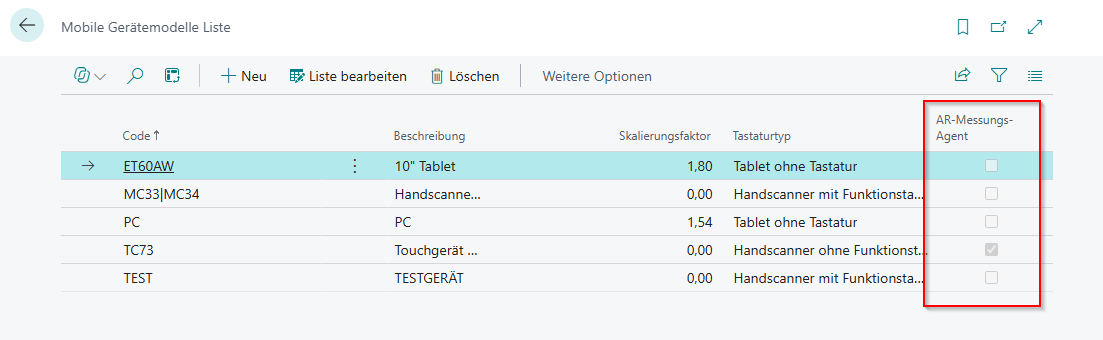
- You can now enable the AR measure button separately for each device model.
Features
Setup
Initialize GS1 Data - Item 140144
The Initialize GS1 Data function on the GS1-SSCC Setup page creates ISO country codes, GS1-SSCC identifiers, and field assignments.
Previously, standard GS1 data was prefilled, and separate XML functions were available for import and export.
With this update, the base data are shipped with the extension and can be recreated from the bundled JSON resources when needed. Descriptions use the user's language where available and fall back to English. Existing data are replaced only after confirmation.
Remove Letter Hints from Standard MDE Menus - Item 140915
Standard SWMS Mobile menus now show only the function-key shortcut; the additional letter is removed. The existing Use function key hotkeys option in Mobile Setup still selects function-key or Ctrl+letter input. Special-key shortcuts and customer-specific menu extensions remain unchanged.
Apply Scale Factor to the Keyboard - Item 152782
The Scale Factor configured in the Device Model List now also applies to the keyboard. The keyboard is displayed according to the device scaling, consistent with the other Mobile form elements.
Enable AR Measurement per Device Model - Item 148506
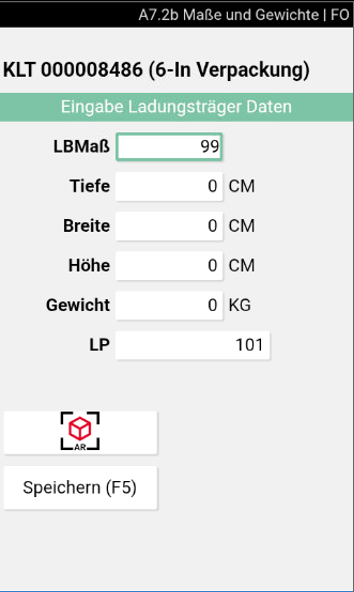
In the Device Model List, AR Measure Agent now controls whether the AR measure button appears in the Weights and Measures MDE screen for each device model. Enable it only for device models where augmented-reality measurement is to be used.
Wichtig
Action required: If you already use AR measurement, enable AR Measure Agent for the relevant device models. Otherwise, the AR measure button will not appear on those devices.
SWMS Info Management
Maintain Process Notes on Master Data Cards - Item 145258, Item 145259, Item 145260
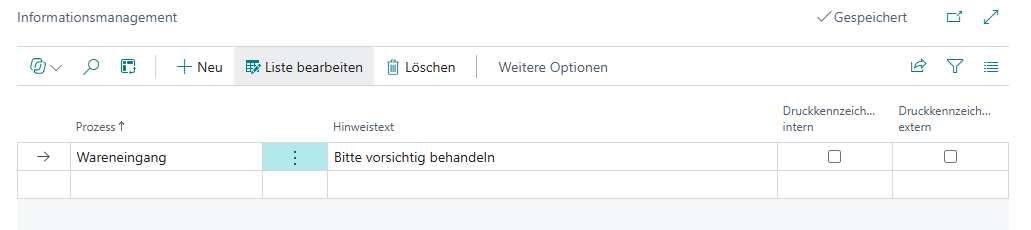
In the SIEVERS WMS section, you can now maintain a master-data-specific Note Text of up to 250 characters per Process on item, customer, and vendor cards, together with the Internal Print Flag and External Print Flag. Only one line can be maintained per master data record and process; note texts are not multilingual. They are transferred to process-relevant documents and can be displayed in the corresponding MDE process.
Available processes for customers are Warehouse Shipment, Pick & Pack, Loading, and Sales Return Order. For vendors, the available processes are Warehouse Receipt, Purchase Return Order, Purchase Return Order Pick & Pack, and Purchase Return Order Loading. The print flags determine whether the note is printed on internal or external documents.
Access Notes on Sales and Purchase Orders - Item 145286, Item 145287
Notes from customer or vendor and item master data are now also available on sales and purchase orders. SWMS Document Notes on the header and SWMS Item Notes on the lines show the number of associated note entries; both fields display 0 when there are none. Drill down to open the filtered notes for editing.
Copy Notes to Source Documents - Item 145290
When sales orders, purchase orders, sales return orders, or purchase return orders are created, non-empty notes from item, customer, and vendor master data are copied to the document as a snapshot. SWMS Document Notes on the header and SWMS Item Notes on the lines open the related notes for editing. Changes apply only to the document; later master data changes do not update existing documents.
Access and Edit SWMS Notes on Sales Return Orders - Item 151536
On sales return orders, SWMS Document Notes on the header and SWMS Item Notes on the lines show the number of related note entries. Drill down to open notes filtered to the document or document line, where you can edit existing notes or add new ones.
Access and Edit SWMS Notes on Purchase Return Orders - Item 151543
On purchase return orders, SWMS Document Notes on the header and SWMS Item Notes on the lines show the number of related note entries. Drill down to open notes filtered to the document or document line, where you can edit them.
Warehouse Receipt
Clear Feedback for Invalid GS1 Dates - Item 148423
Invalid dates in GS1 data are now checked when scanned in the warehouse receipt and when scanned or entered manually on the load carrier page.
Apply GS1 Variants Only After Item Validation - Item 148360
A variant included in the GS1 barcode is now applied only after the system confirms that the item requires a variant.
Select and Correct Variants During GS1 Receipt - Item 148357
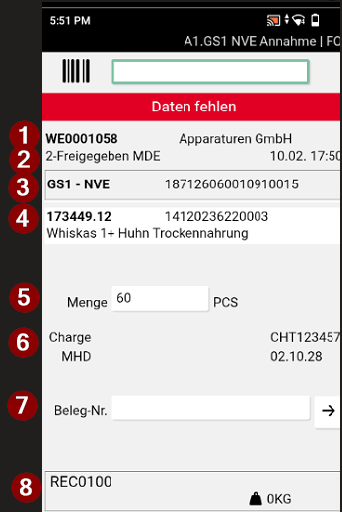
For items requiring variants, Variant Code is shown even when the GS1 barcode contains no variant. Users can select a variant from a list or correct an incorrectly captured value.
Validate Sell-by Date per Lot During GS1 Receipt - Item 148297
During GS1 receipt, entering a different sell-by date for the same item and lot number now displays a clear error message.
A1.2k: Show Lot and BBD Only When Enabled - Item 148356
In the A1.2k WR Filter, Lot No. is now shown only when Lot is enabled, and BBD only when Sell-by Date is enabled in SWMS Feature Setup. Unused filter fields remain hidden, keeping the form concise.
Select a Variant in the A1.2k WR Filter - Item 148355
When Item Variant is enabled in SWMS Feature Setup and variants exist for the item, the A1.2k WR Filter now shows a Variant selector after item entry. The selected value is included in the uniqueness check, helping identify the matching load-carrier or receipt line.
Inbound Stock Post Strategy for Sales Returns - Item 136736
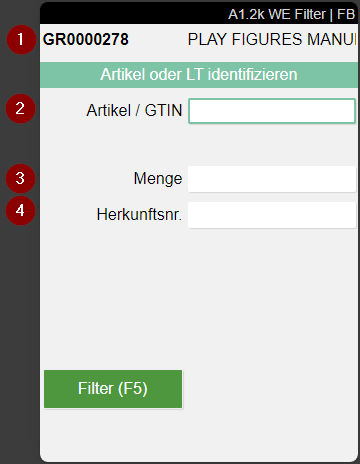
An Inbound Stock Post Strategy Code can now be assigned to each Return Reason. Warehouse receipt lines show the Return Reason and Inbound Stock Post Strategy from Return Reason. This strategy determines the destination storage places for the related load carriers and inventories and can be changed on the receipt line.
Apply Packaging Hierarchy to Non-Divisible Receipt Quantities - Item 147569
Previously, for delivery quantities that did not divide evenly, the system recalculated Quantity per Inventory and distributed the total evenly across all load carriers, overriding the packaging hierarchy. The warehouse receipt now uses the packaging hierarchy when distributing load carriers and inventories. Full units follow the Inventory Creation setup; any remainder is assigned to its own load carrier and marked as opening inventory. Without a packaging hierarchy, Quantity per Inventory is recalculated from the current delivery quantity.
Check Occupied Load Carriers When Adding Quantity - Item 145909
When you scan a load carrier in A1.6, blocked load carriers are rejected. For occupied load carriers, the system now asks whether to add the quantity anyway. After the quantity is added successfully, the load carrier is marked as checked and appears under Checked Load Carriers in A1.2.
Picking
Drop Load Carriers Using the ProGlove MAI - Item 140999
In A4.3, select /Drop on the ProGlove MAI to open the drop screen. Scan the displayed target storage place to drop the load carrier. Press ESC to return to picking.
A4.1 Picking List Overview on the ProGlove MAI - Item 141002
When ProGlove communication is enabled, the A4.1 Picking List Overview is now also displayed on the paired MAI. Up to six picking documents are shown at a time. Use PREVIOUS and NEXT to navigate, or swipe to the KPI view with the Work Indicator. Selecting a document on the MAI opens A4.2 on the mobile device, where order information is available via INFO.
A4.2 Picking Positions on the ProGlove MAI - Item 152016
When ProGlove communication is enabled, the A4.2 picking positions overview is now also displayed on the MAI. Select INFO to open the order information page, which is also available with F3 on the mobile device. Selecting a position on the mobile device opens A4.3, where picking can start immediately.
Additional Picking Information on the ProGlove MAI - Item 141004
In A4.3, the ProGlove MAI provides a second ITEM INFO view with the highlighted item number and description, order, carrier, and WI (outstanding positions and quantity). YES under picture indicates that an item picture is assigned; the MAI does not display the picture itself. Swipe left twice to return to the picking view.
Delete Existing Move Jobs During Full-Pallet Picking - Item 151984
When picking a full pallet, the system now checks for existing move jobs for the load carrier and deletes them. This allows the load carrier to be put away without an error caused by a remaining move job.
Production Supply
Mobile C2.1: Filter Move Job Lines by Team Assignment - Item 150324
The C2.1 Mobile form now shows only load carriers with move job lines assigned to the current team. Storage-place include and exclude lists configured for the team are no longer checked again when the form is opened. This lets users process exceptions without temporarily changing the team setup.
Drop Empty Load Carrier After C2.2 Processing - Item 146291
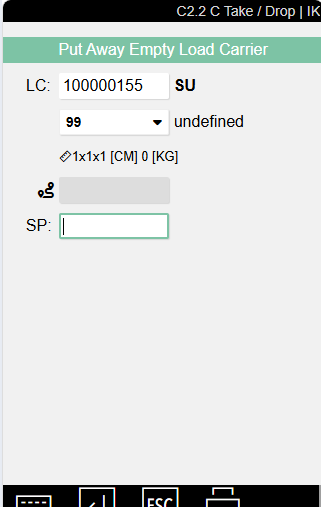
For put-away, C2.2 uses the same dialog as A2 Internal Transports and C1 Production Take Out. After all move job lines for the current load carrier are complete, the prompt Drop empty Load Carrier appears if the carrier is still on the forklift. Scan the desired storage place. Cancelling closes the form and leaves the carrier on the forklift. No dialog appears if it has already been removed from the forklift. Other empty load carriers are not offered.
Reverse Posted Consumption for WMS-Managed Locations - Item 145071
At WMS-managed locations, posted consumption can now be reversed with negative quantities in the Consumption Journal, including partial reversals. The system uses the related item ledger entries to identify the original inventory and storage place, then creates a negative outbound stock posting. If the original inventory no longer exists, it is recreated with the same number at the original storage place; if it exists elsewhere, the reversal is stopped. The quantity cannot exceed the remaining uncorrected consumption.
Information
A7.3 Load Carrier Info: Inventory Count and Total Quantity - Item 139382
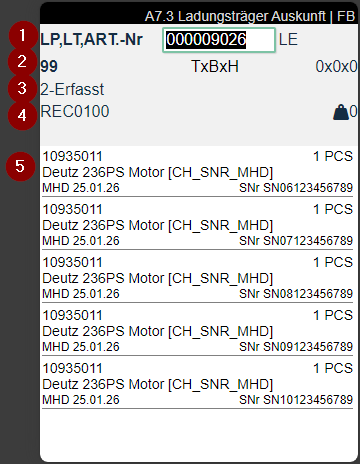
A7.3 Load Carrier Info now displays the number of inventories on the load carrier (#Inv) and the sum of their quantities (Σ) above the inventory list. This helps users quickly compare the inventory count with the physical number of cartons on the load carrier.
Change of Ownership
Enter New Sell-by Date in Change of Ownership Orders - Item 151182
Change of Ownership Order lines now include New Sell-by Date. When an order is created from an inventory, its sell-by date is copied for new items that require one and is ignored for other items. A required date must be entered before the order can be released.
Bugfixes
Change SWMS Service Handling After Deleting Documents - Item 149772
A warehouse shipment could be created manually without the validation performed by Create Stock Document Components. This validation now also applies to manually created warehouse shipments. SWMS Service Handling can be changed again once the warehouse shipment and stock document have been deleted or no longer exist.
Packing According to Shipping Address During Manual Warehouse Shipment Creation - Item 149847
When warehouse shipments were created manually, orders with Packing according to shipping address enabled were split across multiple shipments even though the deadline had not been reached. They are now consolidated into one warehouse shipment, as they are when warehouse shipments are created automatically.
Release Additional Picking Lines - Item 151567
Picking lines added after the initial release could not be released when the picking document was already 3-In Progress. Picking release now includes these lines without changing the document status. If the picking document is finished, a new picking document is created.
Retain Appl.-to Item Entry on Purchase Returns - Item 151570
Completing the stock document for a purchase return cleared Appl.-to Item Entry. The field is now retained, allowing the purchase return to be posted in accordance with vendor setup.
Item References When Copying an Item - Item 150710
When copying an item, its customer and vendor references were copied even when the corresponding copy option was not selected. This has been corrected so these references are copied only when the option is selected.
Availability Check for Purchase Return Orders - Item 147409
The availability check was not applied when creating warehouse shipments for purchase return orders. It now also runs for purchase return orders, as it does for sales orders.
A4.2: Continue from ProGlove MAI on the Handheld - Item 147153
The option to continue from A4.2 on the ProGlove MAI to A4.1 on the handheld did not appear consistently. It is now displayed reliably.
Retain the Shipping Agent After F6/F7 in B4.2 - Item 147101
Using F6 or F7 in B4.2 New Unloading cleared the shipping agent from the warehouse receipt. It is now retained.
A3.1 Counts Inventory Move Job Lines Only - Item 146816
A3.1 now counts inventory move job lines only. Load-carrier move job lines are excluded.
GS1 Warehouse Receipt: Keep Focus in the Barcode Field - Item 147799
After each entry in GS1 warehouse receipt, focus remains in the barcode input field so the next barcode can be scanned immediately.
Check Production Supply: Report Only Created Move Jobs - Item 148789
The completion message from Check Production Supply now lists only move jobs that were actually created. If none are required, the message says so without showing a move job number.
Assemble-to-Order: PTU/SSCC after Correcting Sales Order Line - Item 150372
If an assemble-to-order sales order line was entered incorrectly and then corrected, posting the assembly order created only a Storage Unit (SU), not the expected PTU with an SSCC. The PTU with an SSCC is now created for put-away; releasing an assemble-to-order assembly order also releases its sales order, and entering an assembly quantity for an item without an assembly BOM triggers an error.
Storage Unit Label Barcode Resized - Item 151323
The barcode on the Storage Unit label has been resized to match the specification, improving readability.
Partial Output Posting with Item Tracking Corrected - Item 151716
A second output posting for a different lot could fail when reporting a partial quantity with multiple item tracking lines. The subsequent output posting now completes successfully.
Posting Cancellations from Sales Return Orders - Item 152047
Posting a cancellation from a Sales Return Order failed because of a missing permission. The cancellation can now be posted.
B4.2: Photo Controls Visible Without Scrolling - Item 152049
When taking photos in B4.2, users had to scroll to see the button bar, and an error occurred. The buttons are now visible without scrolling, and the error no longer appears.