C2 Production Supply
C2 is used to transport the inventory taken from C1 to the production locations.
Menu
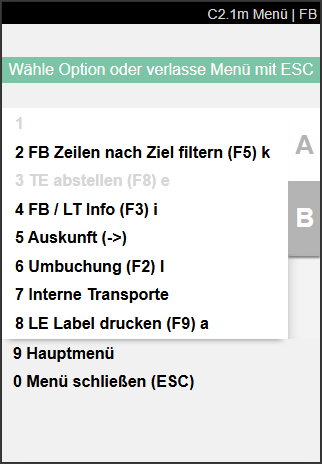
A:
- Filter MJ Lins by target (F5) k: Enables filtering of move job lines by warehouse and storage shelf
- Unload TU (F8) e: Opens a page where the user can scan a new storage place for the currently loaded load carrier.
- MJ / LC Info (F3) i: Opens C2.1i and displays information about the load carrier and move job.
- Information (->): Opens information A7.3 for the currently selected load carrier
- Transfer (F2) l: Opens A3.1 Item transfer overview
- Internal transports: Opens A2.0 Internal transports
- Print SU label (F9) a
B:
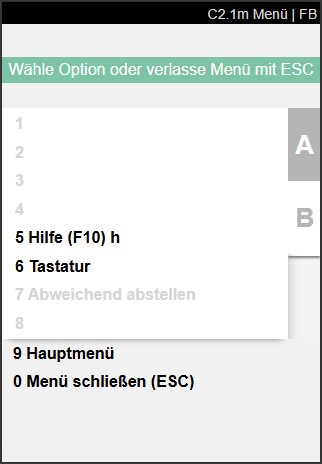
- Help (F10) h
- Keyboard
- Drop alternatively: Allows you to drop off a quantity remaining on a storage place that differs from the original destination. This requires that a partial quantity has already been dropped off at the actual destination.
C2.1 Supply Overview Prod.
After selecting the team, forklift, and printer as usual, C2.1: Supply Overview Production opens. Here, the production supplier can find out what load carriers are available for distribution to the destinations in production. All load carriers with the type SU that are listed in a move job with the type Supply Production and are to be taken to their destination are shown here. The setup of the teams and sorting by storage place and route optimization are taken into account.
Select a load carrier by scanning or manual selection and pick it up with the forklift.
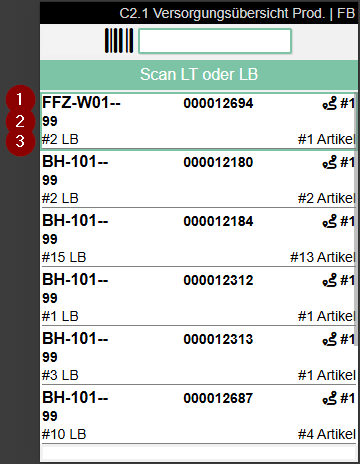
- Left: Current storage place of the load carrier | Center: Load carrier no. | Right: Destination symbol with number of different destinations
- Left: Inventory measure code
- Left: Number of inventories in stock | Right: Number of items
- Left: Pallet symbol with number of all load carriers that need to be brought to production | Right: Document symbol with number of all move job lines that need to be distributed. For numbers over 999, the value is rounded to the first decimal place and a "k" is appended (e.g. 1999 = 1.9k). Gray = work available, Green = no more open tasks. The numbers are automatically reduced when move job lines are confirmed
C2.1i C Info
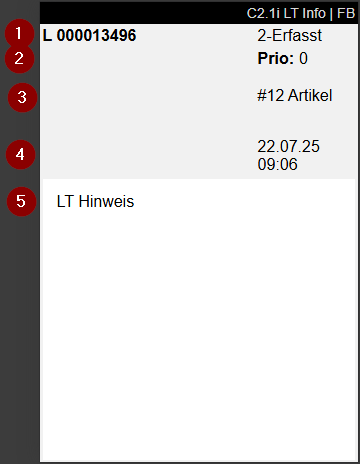
- Left: Load carrier number | Right: Load carrier status
- Priority
- Number of different items
- Time the move job was created
- Comment text load carrier
C2.2 Production Supply Proc.
After a load carrier has been recorded in C2.1 via scan or manual selection, this page is displayed. The inventory of the load carrier is now shown and where it is to be taken.
Hinweis
Picked up load carriers are still shown on C2.1 so that they can be edited if the mobile device fails.
Scan an inventory and then the destination storage place. You can also scan the destination storage place directly. If there is only one possible inventory, you can then confirm the storage place and complete the move job. If there are several matching move job lines, the desired line must be selected via item or inventory scan or manually.
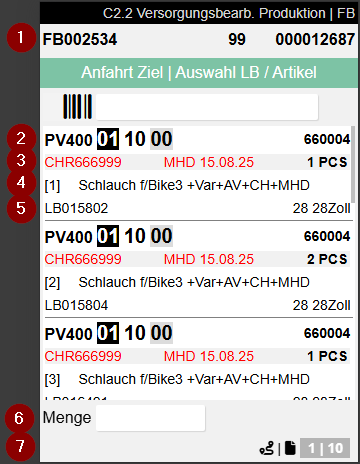
- Left: move job number | Center: Inventory measure code | Right: Load carrier number
- Left: Destination from the move job line | Right: Item number
- Left: Lot no. | Center: Sell-by date | Right: Quantity and base unit
- Item description
- Left: Inventory number | Right: Variant
- Quantity input field for confirmation
- Shows the current workload
- Left number: Number of different destinations in the move job that are being approached by the team
- Right number: Number of move job lines that are currently still to be processed.
Menü
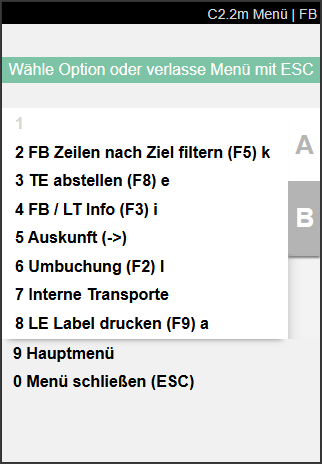
- Filter MJ Lins by target (F5) k: Currently not functional
- Unload TU (F8) e
- MJ / LC Info (F3) i: Currently not functional
- Information (->): Opens A7.3 load carrier information for the currently selected load carrier
- Transfer (F2) l: Opens A3.1 Item transfer overview
- Internal transports: Opens A2.0 Internal transports
- Print SU label (F9) a