Important Topics
Picking
Replenishment
- Order-Based Replenishment in the Check Replenishment Report
- Automatic Replenishment on Warehouse Shipment Release
Stocktaking
Setup
Wichtig
Specific action required for the following topics:
- Extended PTU label (GS1-SSCC) is now also printed during warehouse receipt – the report and format must be set up manually for the label to print.
- NestPacking: Nesting Switch in Picking
- NestPacking: Sticky Mode for the Nesting SSCC
- Order-Based Replenishment in the Check Replenishment Report
- Automatic Replenishment on Warehouse Shipment Release
- Extended PTU label (GS1-SSCC) is now also printed during warehouse receipt
- Lot Number from Number Series for New Inventory in Stocktaking
Features
Picking (NestPacking)
NestPacking is a new picking process that allows warehouse staff to pack PTUs directly onto an SSCC during picking - without a separate packing step in A5. This creates a two-level packing hierarchy:
- SSCC (optionally with GS1-SSCC)
- PTU (optionally with GS1-SSCC)
- Item + Quantity
- PTU (optionally with GS1-SSCC)
Previously, it was only possible to convert a PTU directly into an SSCC (one level). NestPacking now allows a hierarchical structure: the picker continuously creates new PTUs and assigns each one to an SSCC when dropping it. Since this process requires more scans and additional steps compared to regular picking, it should only be used when the goods recipient explicitly requires it or pays for it.
NestPacking: Nesting Switch in Picking - Item 139686
Nesting (NestPacking) is configurable per customer. The new NestPacking in Picking field on the customer card activates extended picking with creation of a packing hierarchy directly during picking.
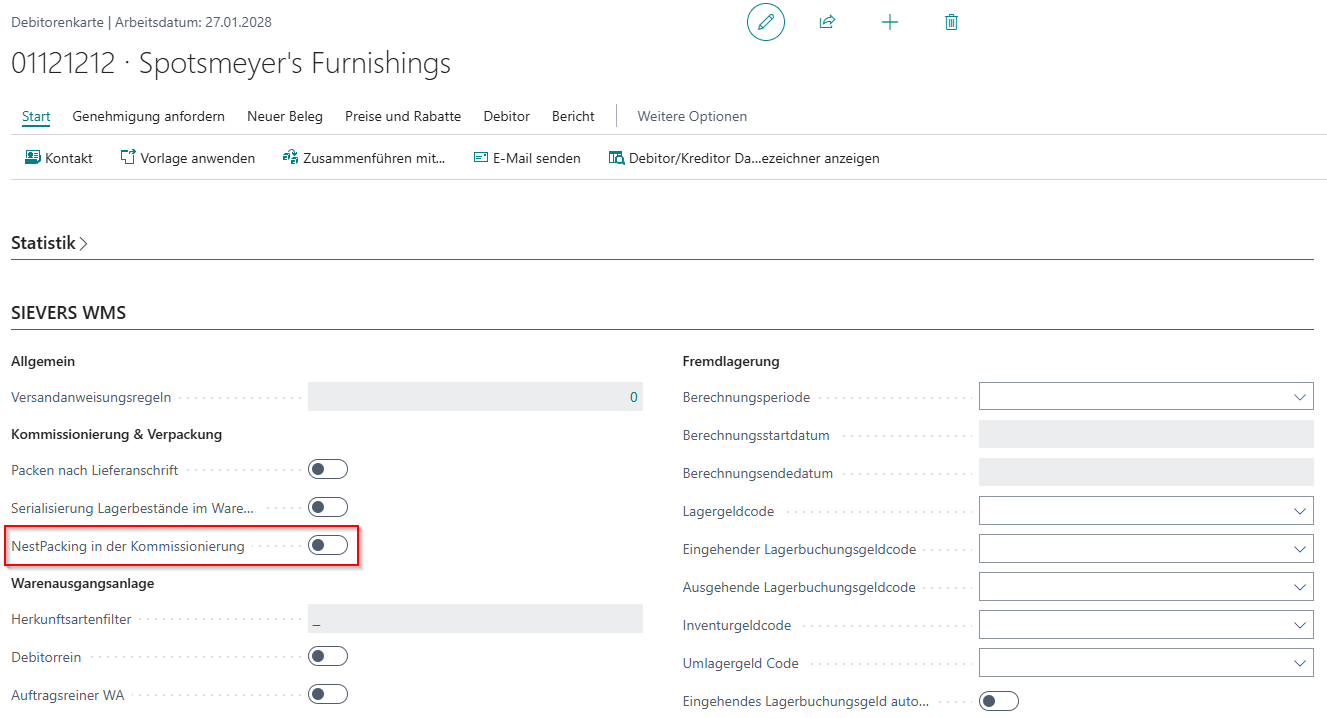
When the field is active, the extended form A4.3 NestPacking Take / Drop opens automatically when dropping a PTU. When the field is disabled, the existing picking process remains unchanged.
NestPacking: Extended Drop Form A4.3 with Active Nesting - Item 139687, Item 139852
With active NestPacking, the new form A4.3 NestPacking Take / Drop opens when dropping (F8 or menu entry). This form allows assigning a PTU directly to an SSCC.
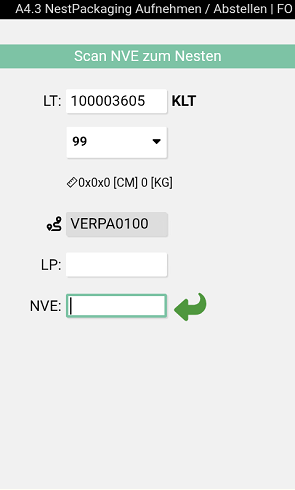
The workflow:
- The LC field shows the previously created PTU (as in regular picking)
- The hint Scan SSCC for Nesting is displayed
- Focus is on the SSCC field
- The user scans an existing SSCC or a blank barcode to create a new SSCC
- The PTU is assigned to the SSCC with all its contents (analogous to A5.2 packing)
- The form closes automatically and the picker can continue picking
A new packaging process is created if needed when scanning an SSCC. Packing rules are enforced; violations result in an error message.
Compared to the regular form A4.3 LC Take / Drop, the following changes apply:
- All input fields are shortened to 10 characters
- After scanning, the load carrier type is shown next to the LC field (e.g. PTU or SSCC)
- Below that, an inventory measure button shows the currently selected inventory measure
- Depth, Width, Height with length unit and Weight with weight unit are displayed underneath
- Clicking the inventory measure button opens the Weights and Measures form where values can be changed and confirmed with F5
NestPacking: Nesting SSCC Display in A4.2 and A4.3 - Item 139856, Item 141219
With active NestPacking, the currently assigned nesting SSCC is shown on the MDE device throughout the entire picking process:
- In A4.2 (Position Overview): In the header below the PTU line as a new row with the label SSCC: and the assigned SSCC number
- In A4.3 (Position Processing): In the footer below the PTU line
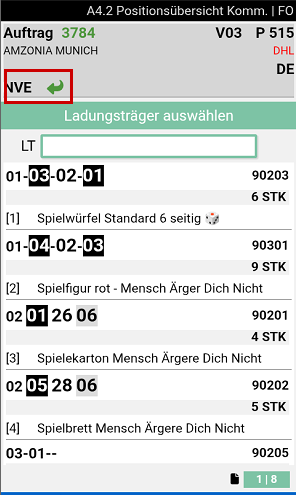
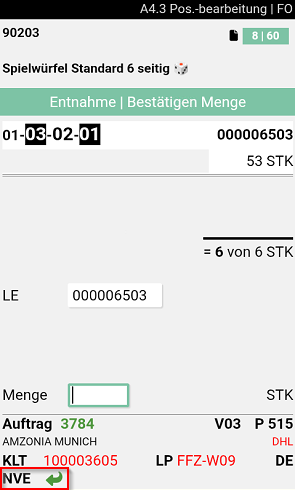
A green arrow is shown at both locations, symbolizing packing PTU onto SSCC (analogous to A5.2). If no SSCC is assigned yet, the SSCC: label remains visible with an empty value. The SSCC remains visible until it has been dropped.
The user can scan an existing SSCC in A4.2 or A4.3 to continue nesting onto it. If an SSCC is scanned and it may be filled with quantities of the order according to packing rules, the SSCC field is populated. Similarly, scanning a PTU fills the PTU field, provided the packing rules allow it.
NestPacking: Sticky Mode for the Nesting SSCC - Item 139858
The SIEVERS WMS Setup now offers the new field Keep Nesting SSCC in the Warehouse Shipment area. It determines whether the assigned nesting SSCC stays pre-filled between drop-offs (sticky mode):
- Enabled: The previously selected SSCC remains pre-filled and is automatically used at the next drop-off, so the picker does not need to scan it again. Only one SSCC can be active at a time. If the picker tries to create another SSCC with a blank barcode while one is already active, the error message Drop SSCC first appears.
- Disabled (default): The SSCC must be scanned again at every drop-off.
NestPacking: Error Feedback on Packing Rules - Item 139864
During nesting, the system verifies that packing rules are observed. If a check fails (for example, because the warehouse shipment differs, customer flags don't match, or the unloading point is different), the user receives an error message on the drop-off form A4.3 NestPacking.
Importantly, the user remains on the form to correct the failed input. The SSCC field for nesting is automatically selected, allowing the user to directly override the value by scanning, without needing to click the field again.
Replenishment
Order-Based Replenishment in the Check Replenishment Report - Item 139805
The Check Replenishment report now supports an order-based mode in addition to the previous Min/Max mode. In the Replenishment Mode field on the request page you choose between:
- Min/Max: previous mode, unchanged.
- Order-Based: determines the demand per item from open, released warehouse shipments with a shipment date from today onwards.
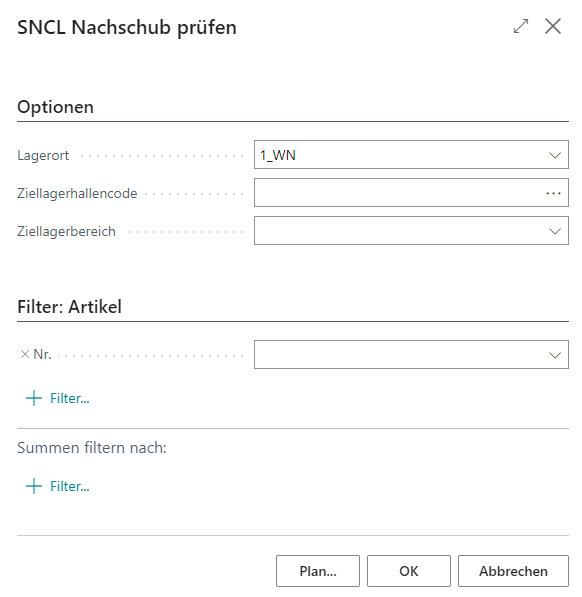
In order-based mode, the report checks for each item how much quantity is outstanding according to released warehouse shipments, and how much of it is already available in the picking area. Already open replenishment move jobs for the same item are deducted from the demand to avoid duplicate replenishment. If demand exceeds available inventory, a move job is created for the difference.
The Order-Based Date Window field lets you limit the considered time horizon with a date formula (e.g. 3D for the next 3 days). If the field is empty, the default value Order-Based Repl. Date Formula configured in the SIEVERS WMS setup is used; if that is also empty, all open warehouse shipments are considered regardless of the time period. Warehouse shipment lines with a shipment date in the past are not considered.
If there is not enough inventory in the reserve area, a partial replenishment is created and a corresponding message is shown, just like in the previous behavior. If no free target storage place is available in the picking area, the move job is still created without a target place; the assignment then happens manually later or during put-away.
Hinweis
A prerequisite for order-based mode is that a picking area is set up for the item. Otherwise, the item is skipped.
Automatic Replenishment on Warehouse Shipment Release - Item 139806
The SIEVERS WMS setup now offers a new field Automatic Replenishment on Whse. Shpt. Release in the Replenishment section. If activated, releasing a warehouse shipment automatically checks whether the items it contains require replenishment in the picking area.
The demand calculation follows the same logic as order-based check replenishment: the outstanding quantity from the warehouse shipment is compared against the inventory in the picking area and any already open replenishment move jobs for the same item. If demand exists, a move job is created automatically. If the reserve area does not hold enough inventory, a partial replenishment is created as usual, along with a corresponding message.
Hinweis
The automatic trigger only considers the items of the warehouse shipment that was just released, not all open warehouse shipments. The order-based date window from the setup does not apply here, since the demand is derived directly from the specific warehouse shipment. Items for which no picking area is set up are skipped.
Stocktaking
Lot Number from Number Series for New Inventory in Stocktaking - Item 139512
When entering new, unknown inventory in stocktaking, the Lot No. can now be suggested automatically from the number series assigned to the item. This behavior is controlled by the Lot Handling Stocktaking field in the Stocktaking section of the SIEVERS WMS Setup.
- Always Enter Lot No.: New Lot No. remains empty and is entered manually. This is the default.
- Suggest Lot No. from Series - Not Editable: The next number from the item's lot number series is entered automatically in New Lot No., and the field is locked.
- Suggest Lot No. from Series - Editable: The next number is suggested and can be changed in New Lot No..
The suggestion logic applies only to the New Inventory function. For items without an assigned lot number series, New Lot No. remains empty. If the number series is exhausted, an error message appears and the number series must be maintained.
warehouse Receipt
Extended PTU label (GS1-SSCC) is now also printed during warehouse receipt - Item 141481
The extended Amazon PTU label with GS1-SSCC identification and order reference was previously only available during picking. If the Amazon GS1 SSCC Label setup is activated on the customer, the extended PTU label is now also printed automatically alongside the load carrier label during warehouse receipt, provided the load carrier can be linked to a customer with this setup (e.g. via the carrier or a special order). The label content is controlled via the data identifier list in the same way as during picking.
Hinweis
For certain character combinations in the order reference (e.g. PO112236), the Code-128 barcode elements can become too thin to scan reliably. A fix is planned for a following sprint.
Wichtig
Action required: The new label ships as its own report (Whse. Receipt Amazon Picking Transport Unit Label (PTU), report no. 70294192 for AppSource/SaaS/OnPrem or 77192 for PTE). Add this report to the SWMS Report Selection for this usage (or re-initialize the defaults), and set the format Small Label in the SWMS Assignment Report/Format List. Without this setup, the extended label will not be printed during warehouse receipt.
Packaging
Cross-process display of SSCCs with the same consolidation number in stationary packaging - Item 142096
In the Packaging Card Information, the SNCL SSCC Assignment Subform area now shows all SSCCs with the same consolidation number and shipment number, regardless of which packaging process created them. Previously, only SSCCs from the currently open packaging process were shown here. This makes it easier to consolidate quantities, for example when SSCCs were already created for the same shipment during warehouse receipt, or when the sales department adds further lines to an already packed order afterwards and a new packaging process is created for it.
Hinweis
This extension only applies to the stationary packaging form in Business Central. Behavior on the MDE device is addressed in a follow-up item.
GS1-SSCC barcode can now be used for PTU and SSCC assignment in packaging - Item 142093
In the packaging process, the PTU and the target SSCC can now also be identified and assigned via their GS1-SSCC barcode (GS1 application identifier 00). The existing scanning of regular barcodes remains unchanged; both barcode types are supported at the same time.
The GS1 scan requires that application identifier 00 is mapped to the SSCC (Packaging) field in the GS1-SSCC Ident. Field Assignment. If this mapping is missing, the error message Data identifier field assignment missing appears when scanning. If a PTU is scanned that is not assigned to the current packaging process, or an SSCC that does not exist or belongs to a different warehouse shipment or consolidation no., an error message also appears.
Service
Supply Status and Quantity Fields in Service Orders and Service Lines - Item 139653
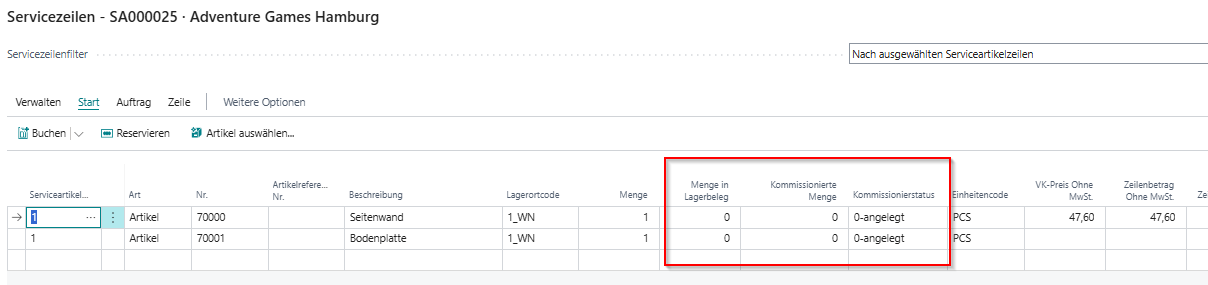
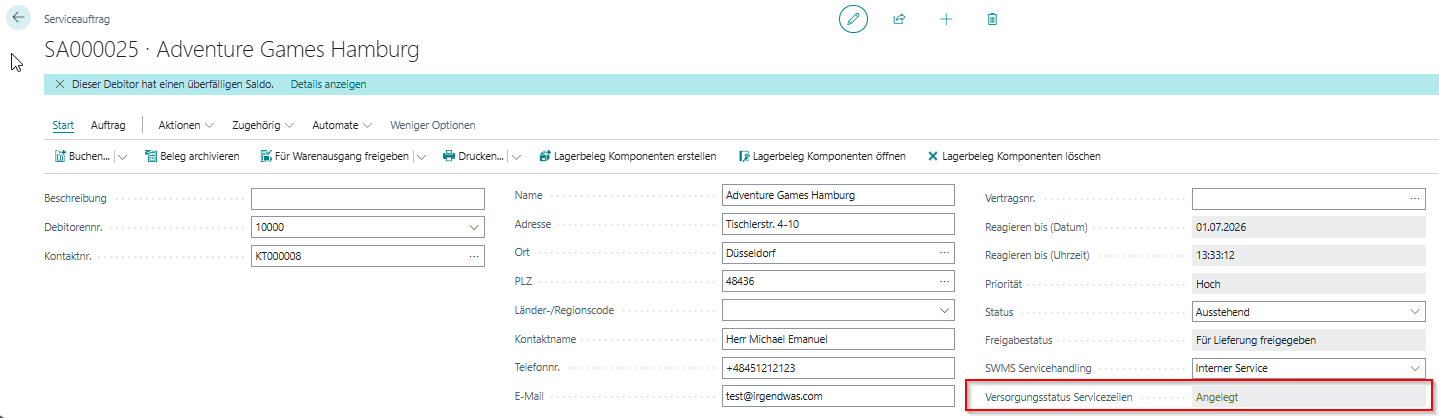
New fields have been added to service lines and a status field to the service order header to improve monitoring of parts supply.
New fields in service lines:
- Qty. in Stock Documents: Shows the quantity that is already included in an outbound stock document.
- Qty. Picked: Shows the quantity that has already been picked by the warehouse worker.
- Picking Status: Shows the lowest picking status across all related picking documents (e.g., created, printed, released).
New field in the service order header:
- Supply Status Service Lines: Summarizes the picking status of all service lines and provides an at-a-glance view of how far parts supply has progressed. The field is color-coded:
- Red: At least one position still needs to be released or printed.
- Yellow: Released for picking.
- Green: All positions are picked.
Miscellaneous
Source Code Setup: Added tooltips for SIEVERS WMS fields - Item 140696
The fields Empties Journal, Compress Stock Ledger and Compress Empties Ledger in the SIEVERS WMS section of the Source Code Setup now display explanatory tooltips describing the posting process each source code is assigned to.
Location Card: Hid unused fields and added tooltip - Item 140673
The fields Goods Shipment Warehouse Code and GS Storage place code in the SIEVERS WMS section of the Location Card no longer have an active function and have been hidden. The remaining field Stock adjusts availability now displays an explanatory tooltip.
Bugs
"Storing various inventories not allowed" flag blocked storing via container move jobs - Item 141983
If the Storing various inventories not allowed flag was set on a storage place, it prevented storing inventory via a container move job even when the item, variant, lot, serial number, and sell-by date matched the inventory already stored. The check now also takes the actual inventory characteristics inside the load carrier into account for container move jobs.
Inventory Selection Strategy Code not set on sales orders created from sales return orders - Item 142104
When a sales order was created from a sales return order via Create Complaint-Related Document, the Inventory Selection Strategy Code was not set automatically on the item lines, preventing picking from being triggered. The strategy is now determined and set automatically when the document is created.
No warning when reprinting the GS1-Amazon PTU label - Item 141483
Unlike the other load carrier labels, reprinting the Amazon PTU label did not trigger the safety warning, because the Carrier Label printed and Quantity Label printed fields on the load carrier were not populated. These fields are now set correctly when the Amazon PTU label is printed, so the warning now appears on reprint as expected.
GS1-Amazon PTU label: PO reference barcode difficult to scan - Item 141485
The PO reference barcode on the GS1-Amazon PTU label could not be read by some scanners (e.g. Scandit) due to excessive barcode density. The barcode has been widened so it can be scanned reliably.
Endless loop when creating a stock document from a production output journal with a reservation entry with quantity to handle 0 - Item 141900
Creating a stock document from a production output journal could result in an endless loop if a reservation entry had a quantity to handle of 0. The search for reservation entries now only considers entries with a quantity to handle other than 0, which prevents the endless loop.
Sell-by date not taken from item tracking on output journal - Item 142266
When creating a stock document from an output journal, the sell-by date from item tracking was not applied, unlike the lot number. The sell-by date is now correctly applied from item tracking to the stock document.
A4.3: Prompt to convert to PTU appeared even without opening inventory on the load carrier - Item 142944
In A4.3, the prompt asking whether a fully picked SU should be booked into the selected PTU or converted into its own PTU appeared even when the load carrier contained no opening inventory. The prompt now only appears when the load carrier actually contains opening inventory.
Outbound Stock Post Lines: quantities were doubled when adding a line afterwards - Item 143126
When an additional line was added to a sales order after a partial picking confirmation and the stock document was created again, the quantities of existing open Outbound Stock Post Lines were doubled. The stock document is now correctly extended only with the newly added line, without changing existing quantities.
A4.3: Tightened validation for scanned load carriers - Item 143127
In A4.3, an already posted load carrier that could not be reused was incorrectly accepted as the PTU when there was a discrepancy between expected and actual inventory. Validation has been tightened: an already posted, non-reusable load carrier is now rejected, and scanning the wrong load carrier now shows an appropriate error message.
Picking status was changed by a repeated release after adding a line afterwards - Item 143511
When an additional line was added to the same team after a partial picking confirmation and the picking document was released again, the header status of the picking document was incorrectly changed, and already completed lines were reset to released. The picking status now stays consistent even for lines added afterwards, and already completed lines are no longer affected by a repeated release.
Occupied flag on storage place not updated when posting directly from warehouse receipt - Item 137186
If a storage place was entered directly in the load carrier lines of the warehouse receipt and the warehouse receipt was posted, the occupied flag on the storage place was not updated. The occupied flag is now correctly updated for inbound stock postings as well.
NestPacking: packing a second PTU onto the same SSCC incorrectly failed with "shipment mismatch" - Item 142139
During NestPacking in picking, a first PTU could be packed onto a newly created SSCC without error. When trying to pack a second PTU onto the same SSCC, the error message Not allowed to pack together, shipment mismatch appeared, even though both PTUs and the SSCC had the same shipment number and consolidation number. If the shipment number and consolidation number of the PTU match those of the SSCC, packing together is now allowed regardless of whether it is the first, second, or nth PTU.
NestPacking: dropping an SSCC in A4.3 posted to the target place without a storage place scan - Item 142141
When dropping an SSCC in the A4.3 form (Nesting, Pickup, Drop), the system posted the SSCC directly to the target storage place without requiring a storage place scan. After scanning the SSCC in the LC field, the SP field is now activated and must be confirmed with a valid storage place before the transfer is posted; a storage place other than the target place is also accepted.
Picking: selected load carrier changed without user action - Item 142671
In picking (A4), after converting a PTU into an SSCC, the selected load carrier could switch on its own to a different, previously created load carrier. The most recently created load carrier is now always displayed, even when it is converted into an SSCC during picking.