Structure of the Warehouse
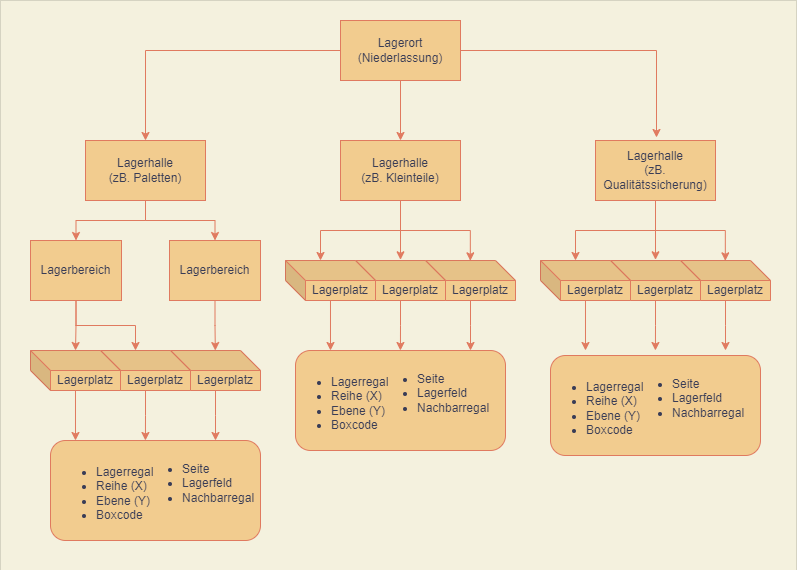
With SIEVERS WMS you can map your physical warehouse in Business Central. The warehouse structure is divided into
The storage places have the properties
- Storage Shelf
- Row
- Level
- Box code
- Side
- Neighboring Shelf
In principle, you have the option of mapping your warehouse 1:1 in Business Central. However, it can also be useful to carry out thematic separations, for example, as shown in the diagram. Here, for example, 3 warehouses have been created in the SIEVERS WMS location, but they only exist in the software. In reality, the items can actually be stored in a single warehouse, but for process and overview reasons it made more sense to separate them thematically. Talk to your SIEVERS WMS consultant about this.
A location is always at the top. This location can include one or more warehouses. A warehouse always belongs to a storage location. Storage shelves can be placed in a warehouse. A storage shelf is divided into several levels. Each level of a storage shelf consists of individual rows. All the information together then results in the storage place code for one of the storage boxes.
SIEVERS WMS enables the Inbound Stock Post of items in Load Carriers or load carriers. These Load Carriers can be provided with various additional properties, such as height, width, depth, weight, etc. You determine these properties with the inventory measures. The properties are used, among other things, to calculate which load carriers fit into which storage locations. Load carriers have the following central properties:
- State: Describes the current state of a load carrier
- Source: Contains information about the source type and the number of the original document
- Storage place: The storage place where the load carrier is located.
- Type: The load carrier type. Defines whether it is a storage unit (SU), a picked load carrier (PTU) or another load carrier.
How To Create A Warehouse Topology
- Open Business Central and navigate to the SNCL Warehouse List page.
- Create a new warehouse by clicking the New button. The SNCL Warehouse Card should then open.
- Fill in the fields on the SNCL Warehouse Map. Then click on the button Create Storage Places.
- In this dialogue, you can enter various sizes for the structure of your warehouse shelves. Based on your entries, Business Central will now virtually construct the storage shelves and boxes.
Warnung
The warehouse card contains the two options Visible for Sales and Visible for Production. These must be set if SIEVERS WMS manages your location. If you want to put items into and take them out of the warehouse, you should make sure that the two properties Warehouse Receipt Required and Warehouse Shipment Required are set in the location.