B3 Adjust Inventory
You can use the inventory adjustment function to enter stock differences identified during stocktaking.
B3.1 Inventory Adjustment
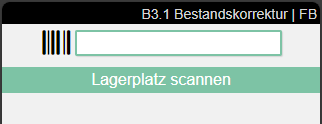
This page is used to enter the storage place to be corrected. Entering or scanning a countable storage place leads to B3.2 Perm. Stocktaking Positions.
Menu
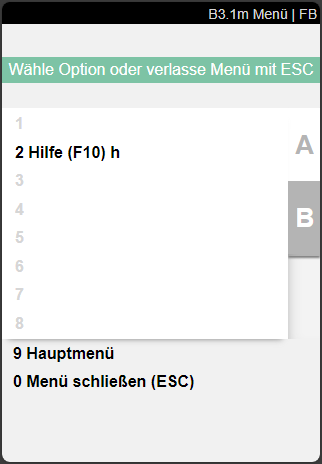
- Help (F10) h
B3.2 Perm Stocktaking Positions
On this page, users can, among other things, correct inventories, enter new inventories or confirm empty inventories.
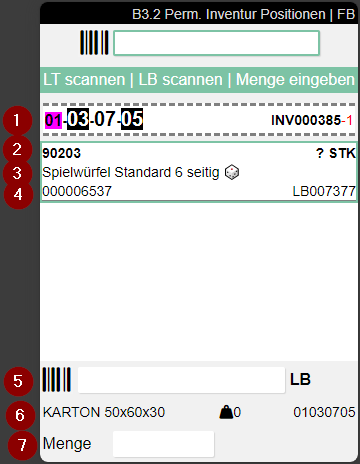
- Left: Storage place | Right: Inventory number and Cycle Counting List
- Left: Item no. | Right: Unclear Quantity. Intentionally not shown so that counting is necessary
- Item Description
- Left: GTIN | Right: Inventory no.
- Scan field for the inventory no.
- Left: Inventory Measure Code and Dimensions | Center: Weight | Right: Storage place
- Input field quantity
Menu
A:
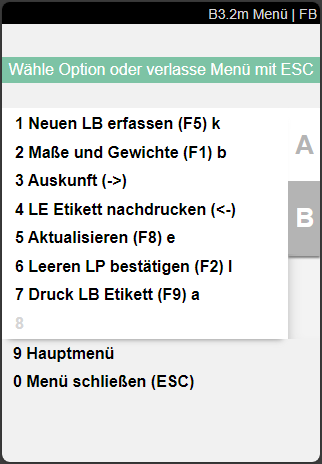
- Capture new Inv. (F5) k
- Weights and Measures (F1) b
- Information
- SU Label Reprint
- Refresh (F8) e
- Confirm empty SP (F2) l
- Print Inv label (F9) a
B:
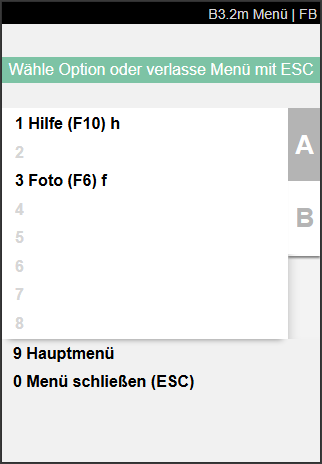
- Help (F10) h
- Foto (F6) f
B3.3 New Inventory
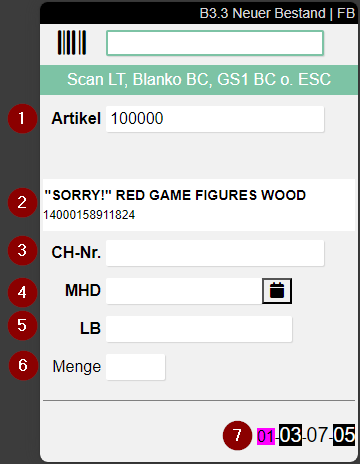
B3.3 is used to be able to record additional inventories that arise during stocktaking.
The following fields are available:
- Item: Scan the item found
- Item scanned
- Lot no.
- Sell-By Date/BBD: Input possible directly or via calendar
- Inv
- Quantity
- Selected storage place
The fields lot no., BBD and Inv are only shown if they are set as mandatory fields for this item. If the item has variants, the corresponding field will appear. You must enter a variant here.
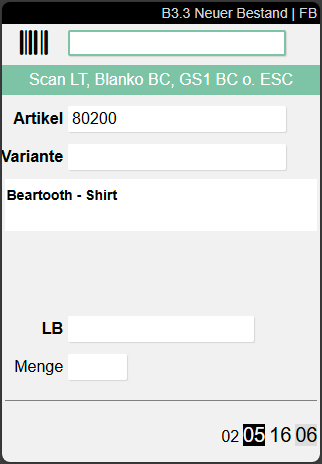
Here you can scan several types of codes:
- Item No.
- GTIN
- GS1 Barcodes
- Blanco Barcodes to create new Load Carriers
- Existing Load Carrier Barcodes
For more information on adding stock, see Add new inventory during a stocktaking.