Important Topics
Replenishment
Production
- Reduced Setup Options for Order-Related Output Postings
- Partial Assemble-to-Order Quantities on Sales Orders
Setup
Wichtig
Required action for the following topics:
- Set Qty. to Ship to Quantity Remaining after Partial Posting - New setup records use this default; existing records remain unchanged.
- Reduced Setup Options for Order-Related Output Postings: Review existing production workflows; output postings process only the quantity actually posted.
- Set Qty. to Ship to Quantity Remaining after Partial Posting
- Reduced Setup Options for Order-Related Output Postings
- Three-Level Configuration for Automatic Inventory Merge
- Empties Source Code Setup section
Delete Empty Move Orders - Item 135066
The report Delete empty Move Orders (report 71310367 for AppSource/SaaS/OnPrem or 77367 for PTE) can now be run through search or as a recurring job queue entry. It deletes only move jobs without move job lines and without Employee Marking that are not in state Finish Message. Empty move jobs can therefore intentionally remain for work instructions on the MDE and be cleaned up automatically when needed.
Inventories Without Packaging Hierarchy - Open Inventory = No - Item 147091
The Inventories Without Packaging Hierarchy - Open Inventory = No setup now ensures that inventories for items without a packaging hierarchy are not marked as opening inventory after manual quantity changes in load carrier or inventory lines. The system automatically adjusts Quantity per Inventory to the changed quantity, regardless of whether it matches the previous value. Warehouse employees therefore do not need to adjust Quantity per Inventory manually to avoid an opening inventory, keeping daily warehouse receipt processing consistent. We recommend you to activate this option.
Variable for aut. creation of stock doc. on Vendor Card - Item 140737
The field Variable for aut. creation of stock doc. is now available in the SIEVERS WMS section of the Vendor Card. When a warehouse shipment is created for this vendor, the stored value is copied to the field with the same name on the warehouse shipment unless a value is already present. This allows purchase return orders for specific vendors to be processed with Outbound Stock Post Automation. The function therefore works analogously to its existing use for customers and sales orders.
Warehouse Shipment Release Horizon in Warehouse Shipment Automation - Item 143811
The Warehouse Shipment Release Horizon field can now be configured per setup line of Whse. Ship. Automation. Once the configured working-day lead time before the first loading date is reached, matching open warehouse shipments are released automatically. If Automatic Replenishment on Whse. Shpt. Release is enabled in SIEVERS WMS Setup, Replenishment Action is triggered for the warehouse shipment lines afterwards.
With a value of 0, automatic release remains disabled for the setup line. Warehouse shipments that have already been released are skipped silently. The Warehouse Shipment Release Action and Replenishment Action are recorded in the Whse. Ship. Automation Protocol.
Features
SWMS Wizard
Item Card and Item Category Card - Item 140866, Item 140868
- The Item Category Card now provides tooltips for the Inbound Stock Post strategy, Inventory selection strategy, and Replenishment strategy. The tooltips explain how the strategies are used and inherited by items in this category.
- The SWMS Wizard now provides a guided tour for the Item Card.
Replenishment
Order-Based Replenishment for Fixed Picking Places - Item 143771
Order-based replenishment now also creates a move job for items without a picking warehouse and picking area if at least one fixed picking place is configured. Inventory on the picking places is considered for the demand calculation; their minimum and maximum inventory levels are not used. If exactly one fixed picking place exists, it is set directly as the target place. Existing scenarios with a configured picking warehouse or picking area remain unchanged.
Partial Replenishment Message in Order-Based Mode - Item 143782
The Check Replenishment report now shows a message in order-based mode if the full replenishment quantity could not be provided from the reserve area for one or more items. The affected items are listed together in one message. This also applies when no reserve inventory is available; in that case, no move job is created for the item.
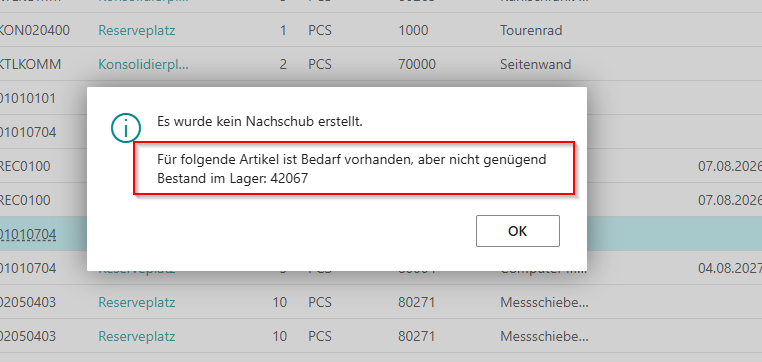
Automatic Warehouse Shipment Release and Replenishment Trigger - Item 143811
Whse. Ship. Automation now automatically releases open warehouse shipments once the Warehouse Shipment Release Horizon configured per setup line is reached before the first loading date. Working days are calculated using the base calendar at the customer or location.
If Automatic Replenishment on Whse. Shpt. Release is enabled in SIEVERS WMS Setup, Replenishment Action starts immediately after a successful release. If replenishment fails, the release remains effective and the error is recorded in the Whse. Ship. Automation Protocol. Successful release and replenishment actions are also marked there. An empty or 0 Warehouse Shipment Release Horizon disables the function for the respective setup line.

SIEVERS WMS Setup
Change Ownership Order in Setup - Item 144930
The four item journal fields for the Change of Ownership Order are now grouped in a separate Change Ownership Order section under Outside stock in SIEVERS WMS Setup. The number series are now named Change of Ownership Nos. and Posted Change of Ownership Nos..
Set Qty. to Ship to Quantity Remaining after Partial Posting - Item 147252
The Use BC functionality to set Qty. to Ship setup in the Warehouse Shipment section of SIEVERS WMS Setup controls how Qty. to Ship is set after a partial posting. When enabled, standard Business Central functionality automatically sets Qty. to Ship to the open quantity remaining. Existing automations can therefore continue scheduling the remaining quantity for picking without the user having to run Autofill Qty. to Ship first.
New setup records have this option enabled by default. Existing setup records are not changed by an update and retain their current value. When the setup is disabled, the previous SIEVERS WMS behavior remains unchanged: Qty. to Ship is set to the quantity remaining reserved in the outbound stock post.
Wichtig
Action required: Check the value of Use BC functionality to set Qty. to Ship in existing setup records. They are not changed automatically. Enable the option to use standard Business Central behavior. Leave it disabled to retain the previous calculation based on the reserved quantity.
Three-Level Configuration for Automatic Inventory Merge - Item 143875
The Merge Inventories with same Characteristics setup now provides these values on the Item Card, Item Category Card, and Stockkeeping Unit Card:
- Standard: Passes evaluation to the next level: item, item category, stockkeeping unit, and then the global SIEVERS WMS Setup.
- Activated: Merges inventories if this is the first explicit value in the hierarchy.
- Deactivated: Prevents merging if this is the first explicit value in the hierarchy.
The setting in the global setup remains a Boolean field.
Hinweis
During data migration, previous TRUE values are set to Activated and previous FALSE values to Standard.
Change of Ownership Order
Partial Quantities and Multiple Postings - Item 145176
Change of Ownership Orders can now be processed in partial quantities. The order lines now provide Qty. to Change, Remaining Qty., and Qty. Changed. Qty. to Change is initially filled with Remaining Qty. and can be adjusted for the current posting batch. Item journal lines are created based on this quantity.
After a posting batch, Qty. Changed is accumulated and Remaining Qty. is recalculated. If quantities remain open, the Change of Ownership Order remains available for further postings. A posted Change of Ownership Order is created for each posting batch; Original Document No. in the header and lines references the original order. Once all lines are fully processed, the original Change of Ownership Order is deleted.
Separate Item Journal per Change of Ownership Order - Item 145177
Each Change of Ownership Order now uses its own item journal batch. Item journal batch names are generated using the new Chg. Own. Item Jnl Batch No. Series. This allows multiple Change of Ownership Orders to be processed at the same time without sharing the same item journal batch.
The previous Chg. Ownership Item Journal Batch Outgoing and Chg. Ownership Item Journal Batch Incoming fields are no longer used.
Fields Locked for Inventory Selection - Item 145182
For Change of Ownership Orders created from an inventory or load carrier selection, the Inventory No. is already stored on the order line. In this case, the quantity fields and Inventory Selection are not editable. Inventory Selection is automatically set to Automatic.
Storage Places
Mandatory Fields Marked - Item 141943
The SWMS Create Storage Place dialog now marks the mandatory fields Category Code and Coding order accordingly.
Stocktaking
Transfer Unit Cost from Initial Stocktaking - Item 117227
The Unit Cost from Initial Stocktaking setup in the Stocktaking section of SIEVERS WMS Setup now allows the unit cost from the stocktaking line to be transferred to the phys. inventory journal when posting an initial stocktaking. The transfer is limited to Initial Stocktaking and unit cost values greater than 0.
Stocktaking Strategies Marked as Obsolete - Item 142683
The SWMS Stocktaking Strategies setup, its associated table, list, card, and copy function are now marked as obsolete. Use a logistics team of type Stocktaking with an assigned Movement strategy instead.
Warehouse Shipment
Item Tracking for Service Orders on Outbound Stock Post Completion - Item 142193
For service orders, serial and lot numbers from posted stock movements are now transferred automatically to the related service lines when Set Item Track. from Stock Document is enabled in SIEVERS WMS Setup. The related Tracking Specification and Reservation Entry records are assigned correctly to the service lines.
Service Order Status after Warehouse Shipment Posting - Item 143613
After posting a warehouse shipment, the Status Picking of fully processed service lines now remains 9-Finished. Supply Status Service Lines in the service order header is calculated from all service lines using the minimum status. If a new service line is added afterwards, it receives 0-Created and the supply status is updated automatically.
Reduced Confirmation Prompts for Partial Warehouse Shipment Postings - Item 142056
When posting a partial warehouse shipment in Warehouse Shipment Planning, confirming the partial delivery "Do you really want to make a partial delivery? Not all quantities have been packed / loaded!" is now sufficient. After Yes, the warehouse shipment is posted directly and the additional general posting confirmation is skipped. The result message remains. After No, the process is cancelled. For complete postings, the general posting confirmation remains unchanged.
Outbound Stock Post Automation: Check Available Stock Before Document Creation - Item 137697
Before creating an Outbound Stock Post, the Outbound Stock Post Automation checks whether at least one item on the warehouse shipment has available stock that covers part or all of its demand. If no item is available, no Outbound Stock Post is created and no number from the number series is consumed.
Purchasing Code Can Be Shown at Item Level - Item 137688
The Purchasing Code field can now be shown through personalization in the item level of Warehouse Shipment Planning. For items with purchasing code SPEZ.AUFTRAG, this shows that the item is ordered for the specific order and assigned to the customer order during warehouse receipt.
Amazon PTU and SSCC Labels: Regular Barcode Added - Item 143868
When the Amazon PTU label or GS1 Amazon SSCC label is printed, a reference for the load carrier's regular barcode is now created automatically if none exists yet. The regular barcode is therefore also available in these Amazon label processes.
Warehouse Shipment Automation: One Protocol Entry per Warehouse Shipment - Item 141190
The warehouse shipment automation now creates a separate entry in the Whse. Ship. Auto. Protocol for each warehouse shipment that is created or extended when source document lines are split into multiple warehouse shipments because of different planned shipment dates, shipping agents, or shipping agent service codes. Each entry contains the related Whse. Ship. Header No., Loading Date, and First Loading Date. If no split occurs and only one warehouse shipment is affected, one protocol entry is retained.
Carrier: Automatic Population of Text Fields - Item 141192
Before this release, the Pick-up Notice, Delivery Notice, and Goods Acceptance Times fields were not populated automatically from customer, vendor, or address master data when the shipping order was created. The values had to be maintained manually in the shipping order. The three fields are now populated automatically from master data. For sales orders, the texts from the ship-to address take priority over the customer values. If all three fields are empty on the ship-to address or no matching ship-to address exists, the customer values are used. For purchase return orders, the texts from the order address take priority over the vendor values. If all three fields are empty on the order address or no matching order address exists, the vendor values are used.
Before this release, Reference No. 1 and Reference No. 2 were also not populated automatically from the source document when the shipping order was created. They are now transferred from the source document:
- For sales orders, the external document number is used as Reference No. 1 and Your Reference as Reference No. 2.
- For purchase return orders, Your Reference is transferred as Reference No. 2.
- For transfer orders, the external document number is transferred as Reference No. 1.
Posting
Warehouse Receipt and Shipment Posting Protected - Item 145217
We have made warehouse receipt and shipment posting more reliable: if an error occurs, incomplete postings are not left behind. This keeps source documents linked to their corresponding warehouse documents.
The function is controlled by two options in SIEVERS WMS Setup. The additional check is available only together with the option that processes the posting as one complete operation. It stops the posting if a step tries to save intermediate results before the posting is complete.
When the option for processing the posting as one complete operation is enabled, Shipment Posting Policy in Warehouse Setup must be set to Stop and show the first posting error. The Posting errors are not processed setting cannot be used.
Hinweis
The options are hidden by default and can be shown through personalization. The additional check applies only when posting is started from the SWMS Warehouse Receipt or Warehouse Shipment Planning. It does not apply to posting through the standard Business Central warehouse shipment.
Achtung
Change these options only after consulting SIEVERS Support.
Warehouse Receipt
MDE Warehouse Receipt: Quantities in Base Unit - Item 142273
On MDE pages A1.2 Load Carrier Overview and A1.6 LC Creation, quantities are now calculated and displayed based on the Base Unit of Measure. Quantity (BUM) and Qty. Outstanding (BUM) therefore also apply to warehouse receipt lines whose source document uses a different unit of measure. This prevents misleading decimal values for open quantities of piece goods.
Deviating Sell-by Dates per Lot Highlighted - Item 146997
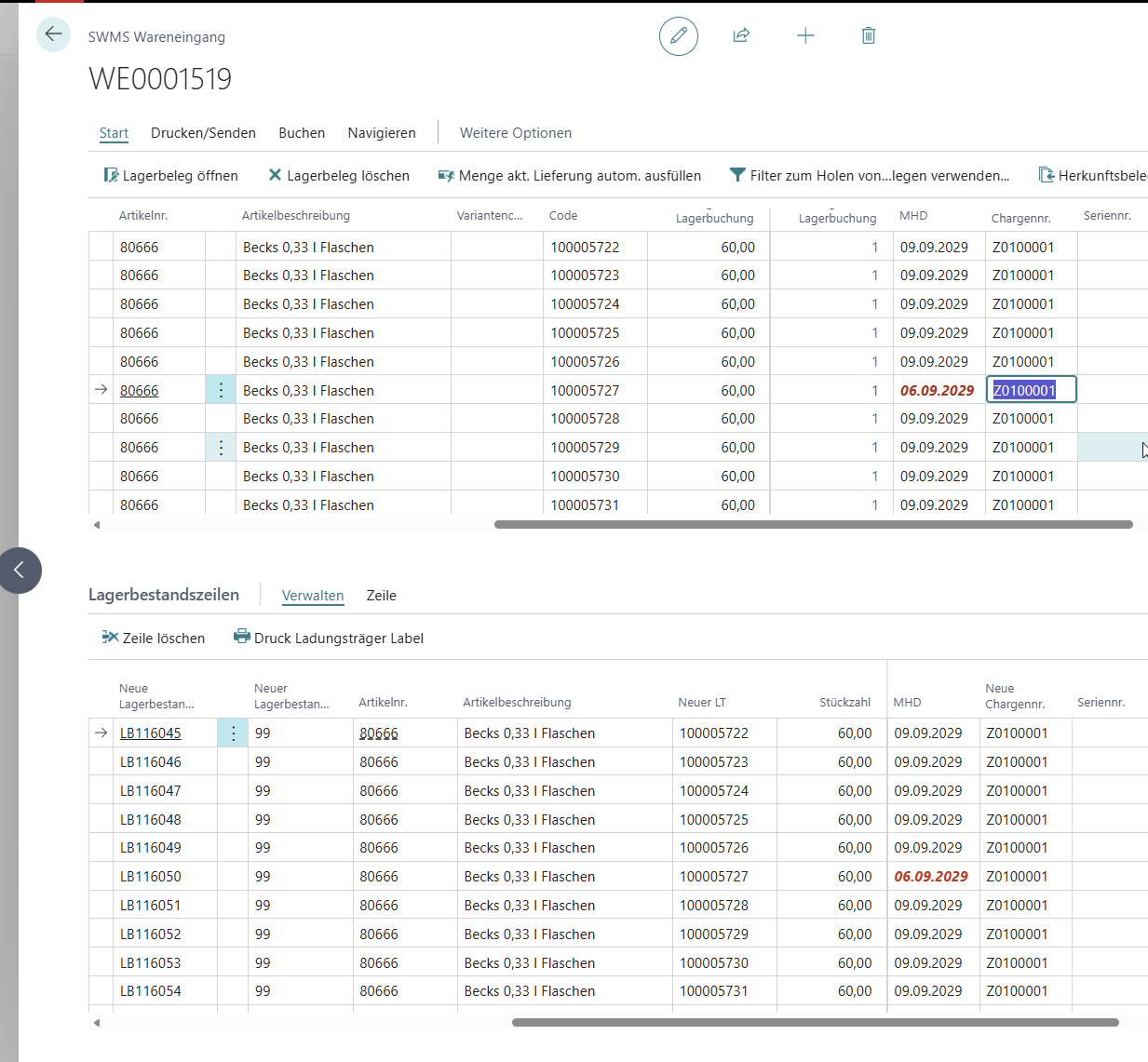
In the Allocated Load Carriers and Allocated Inventories tables of a warehouse receipt, deviating Sell-by Date values are now highlighted in red. The system compares the sell-by dates of lines for the same item and lot; the most frequent value serves as the reference. Potential input errors are therefore visible before posting and can be corrected in time.
Transfer Orders as Source Document in A1.6s - Item 147001
The mobile A1.6s LC Creation page now also supports transfer orders as a source document when creating load carriers for serial-number-tracked items in warehouse receipt. Serial numbers already entered in the transfer shipment are shown in A1.6s. A load carrier can be created if all serial numbers are on a single load carrier; splitting the serial numbers across multiple load carriers is not yet possible.
A1.2k: Lot No. and BBD in WR Filter - Item 147003
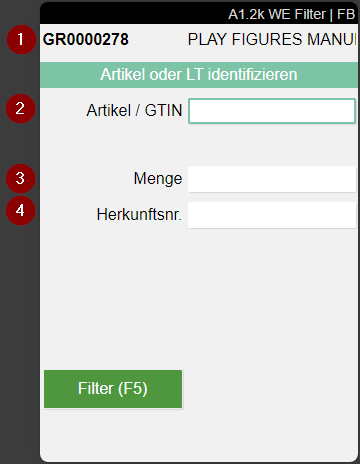
The A1.2k WR Filter now also includes input fields for Lot No. and BBD. These values can be used together with Item No., Quantity, and Source No. to identify pre-filled load carriers or receipt lines unambiguously. The Filter (F5) button turns green as soon as one load carrier line or several load carriers identical in item, quantity, source no., and lot no. have been identified with sufficient certainty. If lot numbers differ, the button remains yellow until entering the lot no. or BBD provides sufficient uniqueness.
A1.GS1: Display Variant - Item 147081
The mobile A1.GS1 SSCC Receiving page now shows the item's variant in an additional detail line. This allows the warehouse receipt employee to identify which variant is involved. If the variant cannot be determined unambiguously, "Var?" is displayed.
A1.GS1: Change Lot No. and BBD for Deviations - Item 147084
In the mobile form A1.GS1 SSCC Receiving, Lot No. and BBD can now be edited directly after scanning a GS1 barcode. The values from GS1 identifiers 10 (Lot No.) and 15 (BBD) are populated first and are available directly below Quantity for correction. The BBD can be entered directly or via the date input.
A1.GS1: Changed Doc. No. Transferred Without Additional Confirmation - Item 147042
When Doc. No. is changed after the GS1 scan, the displayed value is now transferred when the quantity is confirmed, even if the field was not confirmed separately. Existing document selection using the arrow button and F5 remains unchanged.
A1.6: Display Variant - Item 147080
The mobile A1.6 LC Creation page now shows the item's variant in the position line. The variant is displayed to the right of the GTIN, allowing employees to identify the correct variant of the receipt line. If the variant cannot be determined unambiguously, "Var?" is displayed.
GS1 Warehouse Receipt: Adjust Load Carrier Quantity - Item 147045, Item 147047
The Quantity field on the GS1 Whse. Load Carrier page can now be edited and confirmed. When the load carrier is processed, the changed quantity is applied to the load carrier and transferred to the related warehouse receipt lines. This allows quantity deviations caused by labeling errors to be corrected directly during GS1 warehouse receipt processing.
GS1 Warehouse Receipt: Relevant Information Is Transferred - Item 147039, Item 147040
When processing GS1 barcodes in the warehouse receipt, information is now transferred based on the item's requirements. For items without a lot or sell-by date requirement, the corresponding data from the barcode is not read or transferred to the warehouse receipt. This now applies regardless of whether receipt lines have already been recorded in the warehouse receipt. This eliminates the need to manually check information that is not required during daily warehouse receipt processing.
GS1 Warehouse Receipt: Variant Checked Against GTIN - Item 147082
During GS1 warehouse receipt processing, the system now checks whether the recorded Variant Code matches the scanned GTIN. If the GTIN is stored as an item reference and the variant does not match, processing is prevented with the message "Variant does not match the GTIN." Processing of a load carrier with a mismatched combination is therefore prevented.
A1.6: Sell-by Date Suggestion per Lot and Validation of Deviating Entries - Item 147000
On mobile A1.6 LC Creation, the sell-by date is now suggested when creating additional load carriers for the same item and lot combination if a matching sell-by date already exists in the warehouse receipt or inventory. When a sell-by date is entered manually, the system takes load carriers already checked or pre-recorded in the warehouse receipt and the item's inventory into account. For additional load carriers, a different lot number or sell-by date can be entered.
MDE Warehouse Receipt: Preserve Inventory Measure and Dimensions When Posting - Item 143575
The selected Inventory Measure Code of a reusable load carrier is now retained when posting the warehouse receipt. In A1.6 LC Creation, the entered dimensions and weight are no longer overwritten by values from the packaging hierarchy when posting.
Delivery Note Pictures in A1.0 and B4.2 - Item 137726
On the mobile A1.0 New Unloading/Warehouse Receipt and B4.2 New Unloading/Warehouse Receipt screens, delivery note pictures can now be taken separately from general photos:
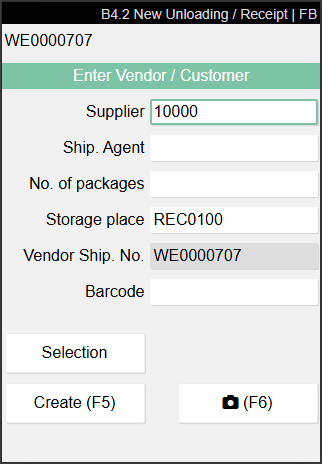
- Press F7 to take one picture for each page of the delivery note. The function can be used repeatedly for multi-page delivery notes.
- The pictures are collected and saved together with the warehouse receipt only when F5 is pressed. They are stored as Delivery Note Pictures on the warehouse receipt header.
- General photos taken with F6 remain unchanged. Both types of photos can be combined in the same unloading process.
- If B4.2 is closed with ESCAPE without pressing F5, all unsaved pictures are discarded.
Blocking Code WR in Warehouse Receipt Lines - Item 141837
The Blocking Code WR field from the Item Card can now be shown in the SWMS Warehouse Receipt lines through personalization. It shows the blocking code assigned to the item and is displayed next to Special Order Sales No. by default.
Item Transfer
A3.2/A3.3: Work Indicator in Item Transfer - Item 135659
The mobile forms A3.2 Item Transfer Take Out and A3.3 Item Transfer Put To now show the Work Indicator to the right of the move job number. The left value shows the number of inventories in the move job, or 0 for ad hoc movements; the right value shows the number of inventories on the floor conveyor vehicle.
Packaging and Internal Transports
A5/A2: Source Document for Transports to Packaging - Item 134500
Move job lines created through Move Job for all PTUs in A5.2 now receive the packaging process Source No.. In A2, the forklift operator can open the Move Job Filter with F5 and enter the packaging process Source No. in the Source Document Filter. This displays only the related transports so they can be processed selectively.
A2: Weights and Measures for Multiple Load Carriers - Item 148527
In A2, the mobile Weights and Measures form can now be opened for several picked-up load carriers at the same time. The number of selected load carriers is displayed. Shared values for Measure, Depth, Width, Height, and Weight are transferred and can be changed together. Values that differ between load carriers remain blank.
Picking
A4.1: Work Indicator on the Picking List - Item 132968
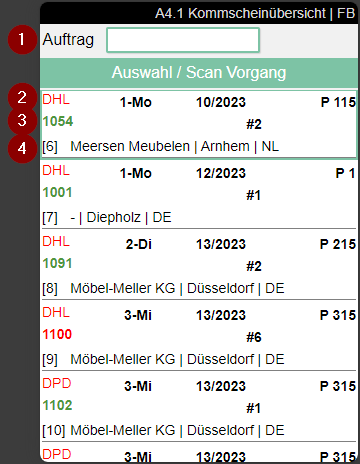
The footer of the A4.1 Picking List now displays the Work Indicator (See marker 5). It shows the number of selectable picking documents and the cumulative number of their picking positions. Both values respect the Max. # Documents limit configured for the SIEVERS WMS Team. The indicator is refreshed when the page is opened, including after a picking document is completed.
A4.3: Error Message for Invalid Storage Place Scan - Item 141253
In A4.3 position processing, an error message is now displayed when a non-existing storage place is scanned. The message Invalid Scan: %1 contains the scanned value and allows the barcode to be checked directly.
Error Message for Empty Picking Document Response - Item 132517
When a picking document is reported back without any positions reported back or assigned to a load carrier, the message "No items were reported back or assigned to the load carriers." is now displayed.
ProGlove MAI: Full Load Carrier Quantity Suggested for Negative Picking - Item 140518
For negative picking, the ProGlove MAI now suggests the full inventory unit quantity as the withdrawal quantity, even if only part of the quantity is required for the order. This makes clear that the entire storage unit must be withdrawn and the remaining quantity then returned to storage.
ProGlove MAI: Regular Picking Screen for Serialization - Item 140519
For quantity serialization, the ProGlove MAI now displays the regular unconfirmed picking screen. After the storage unit has been validated, the display switches to the confirmed picking screen. The generic InfoScreen is no longer displayed.
ProGlove MAI: Regular Picking Screen for Serial Number Picking - Item 140525
For serial number picking, the ProGlove MAI now displays the regular unconfirmed picking screen. After the storage unit has been validated, the display switches to the confirmed picking screen. The generic InfoScreen is no longer displayed.
NestPacking: Take an Additional PTU Despite an Active PTU - Item 142154
In A4.3, when NestPacking in Picking is active, another existing PTU can now be taken even though a different PTU is already active. This requires the scanned PTU to be empty or to carry the same Warehouse Shipment No. and Consolidation No. as the current picking document. Otherwise, an error message continues to appear.
A4.2/A4.3: Inventory Measure and Label in Take/Drop Form - Item 142136
The take/drop forms in A4.2 and A4.3 now show the first ten characters of the selected inventory measure description next to the inventory measure button. With F9, the picker can print the label of the selected load carrier before putting it down. During NestPacking, F9 prints the SSCC label when only an SSCC is selected; when both a PTU and an SSCC are selected, it continues to print the PTU label.
Production
Partial Quantity Posting for Order-Related Output Journal - Item 147116
During a partial quantity posting via the output journal, only the actually reported quantity is now reserved in the related warehouse shipment. The total quantity of the affected warehouse shipment line remains unchanged. Further output journals increase the reservation cumulatively by the quantity reported in each posting.
Partial quantities are now processed this way regardless of a separate setup selection. The system always processes only the quantity actually posted; see Reduced Setup Options for Order-Related Output Postings.
Reduced Setup Options for Order-Related Output Postings - Item 147662
The separate Auto. Creation of Outbound Stock Post lines during Order Assignment (obsolete) setup is no longer configurable. For order-related output postings, the system now processes and reserves only the quantity actually posted; the total quantity of the warehouse shipment line remains unchanged. Create Warehouse and Stock Document on Output still determines whether a warehouse shipment is created automatically when output is posted. If this setup is disabled and no warehouse shipment exists, create one manually before posting. New setup records have this option enabled by default.
Wichtig
Action required: Review existing production workflows that relied on the obsolete selection. It is no longer configurable; if automatic creation is disabled, a warehouse shipment must exist before order-related output can be posted.
Assembly
Partial Assemble-to-Order Quantities on Sales Orders - Item 148495
For sales order lines at WMS-managed locations, you can now enter a Qty. to Assemble to Order value below the line quantity. Business Central asks whether to split the line. Select Yes to reduce the existing line to the assembly quantity and create a new sales line for the remainder without an assembly quantity. Select No to leave the line unchanged. After confirmation, the value must be 0 or equal to the line quantity; the same rule applies when changing to a WMS-managed location.
Production Take Out
Complete Load Carriers in C1.3 - Item 132758
Here, PLC refers to the load carrier selected for production take out and already carried by the forklift. In C1.3, when a complete load carrier is picked for production, a confirmation prompt is displayed now if a PLC has been selected. The prompt "Add to PLC %1 (Yes) or convert SU to PLC (No)" is displayed once for each full pick.
- With Yes, the removed SU is posted to the existing PLC on the forklift.
- With No, the SU is converted into a new PLC. The additional PLC is assigned to the forklift.
- No prompt is displayed for a partial pick or if no PLC is selected.
Route Optimization during Production Take-Out in C1.3 Corrected - Item 122702
The next position in C1.3 is now selected based on the movement strategy assigned to the team and the route optimization configured in it. This ensures that route optimization is also considered for subsequent processing after a position has been completed.
Shortage During Take Out in C1.3 - Item 136751
In C1.3, 0 can now be entered as the quantity removed when less inventory is available than planned. The system then asks whether the inventory should be marked for clearance and an alternative searched.
- With Yes, the affected inventory is blocked using the Standard Blocking Code. The Difference Blocking Type setup under Stocktaking determines whether the load carrier or the storage unit is blocked. The system then searches for alternative inventory.
- If alternative inventory is found, a new move job line is added. The previous line is cancelled with quantity 0 or deleted.
- With No, no inventory is blocked and no alternative is searched. The current position remains available for processing.
- If no alternative is found, the current position is completed and No alternative found is displayed.
Order Types
Order Type Pages Renamed - Item 144297
The SNC Order Types and SNC Order Type Categories pages are now named SWMS Order Type and SWMS Order Type Categories.
SIEVERS WMS Teams
Change Team Code - Item 134136
The Code of a SIEVERS WMS team can now be changed as long as the team has not been used in a document or other assignment. If current or historical assignments exist, the change is prevented with the message "Please set the team to inactive and create a new team - as there are already document assignments to this team." In this case, set the team to Inactive and create a new team.
SIEVERS WMS Menu
SWMS Stock No. Series Removed - Item 140706
The SWMS Stock No. Series page previously available in the SWMS menu is now no longer displayed. Use the standard No. Series page for number series.
Additional SWMS Menu Entries - Item 140707, Item 140708, Item 140714, Item 142678 and Item 143147
The SWMS menu now includes the following pages:
- The Outbound Stock Post Automation page is now available directly below Warehouse Shipment Automation.
- The Warehouse Employees page is now available under Setup.
- The Assignment Packaging Team by Location & Shipping Agent page is now available below Shipping Agents. The Shipping Agent Services page is also available in this area.
- The Storage Shelves page is now available directly in the SWMS menu.
- The warehouse service order entry in the SWMS menu is now displayed as Dienstleistungsaufträge in the German UI.
Service Orders in the Ribbon - Item 144296
The SWMS menu now includes a Service Orders entry under Source Documents. It opens the Business Central standard Service Orders page directly and is placed between Production & Assembly Orders and Outside Storage.
GS1 Warehouse Receipt: Item Checked against Document - Item 147033
During GS1 warehouse receipt processing, the system now checks whether the entered Item No. is included in the document specified by Source Document No.. If it is not, the error feedback "Item %1 is not part of document %2" is displayed. The quantity cannot be confirmed and the load carrier lines cannot be processed in this case.
Empties Handling
In this release, empties handling has been expanded with a central item assignment and end-to-end traceability. The empties item is assigned on the inventory measure, registered in the warehouse receipt, and carried with the load carrier through stock postings into stock entries. The sections below describe the setup and process.
Source Code Setup and Feature Setup - Item 143500, Item 144228
SWMS Feature Setup includes the Empties Handling setting. It controls whether empties-related fields and pages are displayed and the related functions are available. The client must be restarted after changing the setting. The unused SIEVERS WMS-specific Empties Journal, Compress Stock Ledger, and Compress Empties Ledger fields are hidden on Source Code Setup because their related functionality is not used in SWMS. The rest of Source Code Setup remains unchanged.
Assigning and Determining Empties Items - Item 143551, Item 143552, Item 143726
An item marked as an empties item can be assigned through the Empties Item field on the Inventory Measure. During inbound stock posting, the system determines the empties item first from the load carrier's inventory measure, then from Inventory Data, and finally from the Item Card. When a load carrier is created, Empties Item No. is populated from its assigned inventory measure, regardless of which process creates it.
Registering and Loading Empties - Item 143553, Item 143607, Item 143608, Item 143609
The Automatic Empties Loading indicator in Customer, Vendor, and Shipping Agent master data specifies whether empties are registered automatically when an inbound stock post is finished. In the warehouse receipt, Register Empties opens Empties Lines for the selected receipt line. Users can enter lines manually or run Load Empties to calculate them from an active inbound stock post. The calculation adds only missing lines and leaves manual entries unchanged; Type distinguishes Item from Load Carrier.
To use Load Empties, the warehouse receipt must be linked to an inbound stock post with unprocessed lines for the source document. An empties item must be resolvable for each line: for items via the inventory measure, stockkeeping data, or item card; for load carriers via the Empties Item Load Carrier assignment. If no item is resolved, no line is created. Load Empties is started manually and does not require the Automatic Empties Loading setting. When an inbound stock post is finished, quantities are written to the source-document empties lines if Automatic Empties Loading is enabled for its customer, vendor, or shipping agent. See Automations for requirements and process details.
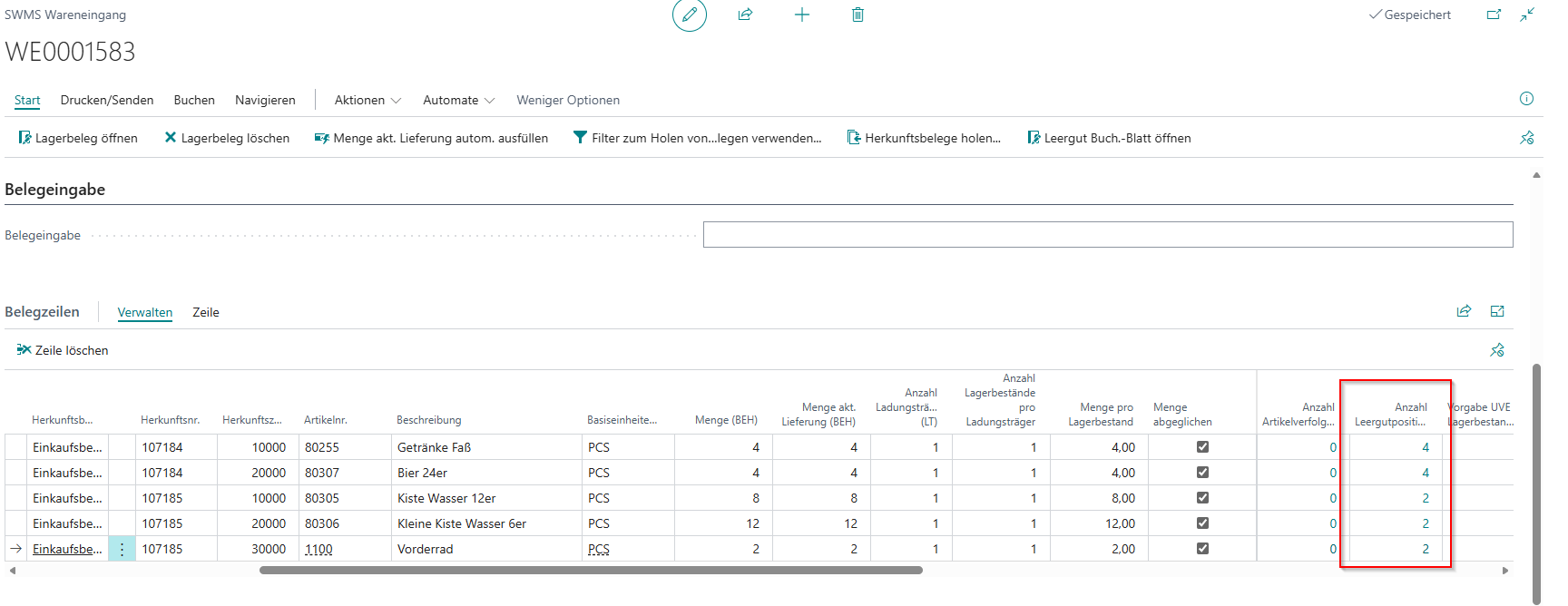
Warehouse receipt lines show the calculated, read-only Number of Empties Lines field. It counts the empties lines assigned to the source document; drilling down opens the filtered empties registration.
Registering Empties Without a Source Document - Item 143623
Open Empties Journal opens a dedicated Empties Journal from the warehouse receipt. A unique journal batch name is created for each receipt; the location, vendor or customer, shipping agent, and receipt number as the document number are prefilled. After successful posting, the automatically generated batch name is deleted. Standard and manually created journal batch names remain unchanged.
Posting and Traceability - Item 143727, Item 143728
Outbound Stock Post lines copy the load carrier's Empties Item Load Carrier when the load carrier is assigned. During WMS posting, the value is transferred from the stock journal line to the stock entry: outbound postings use Empties Item Load Carrier, while inbound postings use New Empties Item Load Carrier. The field on the stock entry is read-only.
Small Changes
- Addition of error messages during GS1 warehouse receipt processing - Item 147032, Item 147035
- Improved multiple tooltips: Item 148270
- Renamed the Load Carrier No. field to Freight Container No. and updated the related tooltips: Item 148545
- Added tooltips for Replenishment Mode and Order-Based Date Window in the Check Replenishment report: Item 143770
Bugs
Replenishment
Order-Based Replenishment: Inbound Quantity Calculation Corrected - Item 144968
In order-based replenishment, expected inbound quantities are now included correctly in the inbound quantity calculation.
Change of Ownership Order
Change of Ownership Order: Deposit Customer Fields Locked after Line Creation - Item 145264
In the Change of Ownership Order, Deposit Customer No. Old and Deposit Customer No. New can no longer be changed once an order line with the matching current or new item exists.
Storage Places
Storage Areas: Related Master Data Is Cleaned Up on Deletion - Item 142068
When a storage area is deleted, related assignments and master data are now removed automatically.
Stocktaking
Stocktaking: Zero Counts in Subsequent Counts Corrected - Item 147983
When a count of 0 was entered, the count values in the second or third count were not transferred correctly, so Difference Last Count was calculated incorrectly. Count values and the difference are now updated correctly for zero counts as well.
Warehouse Shipment
Warehouse Shipment: Indicators Set According to Customer Setup - Item 148969
In certain picking scenarios, the Order Specific WS and By Shipping Address indicators were not preassigned according to the customer setup. The defaulting was corrected and now works across all tested variants.
Warehouse Shipment: Partial Posting after Loading Corrected - Item 148553
A warehouse shipment could not previously be partially posted after loading. Partial postings after loading are now possible.
Warehouse Shipment: Manual Inventory Selection for Transfer Orders Corrected - Item 148476
During warehouse shipment processing for transfer orders, inventories for the specified Lot No. could not previously be entered through manual Inventory Selection. The selected inventories are now transferred to the Outbound Stock Post, and the correct Remaining Qty. is displayed.
Warehouse Shipments Processed Faster - Item 145700
Posting or deleting larger warehouse shipments could cause unnecessary delays. Processing is now faster.
Stock Document Creation: Qty. to Ship Is Considered - Item 140981
When an outbound stock post document is created, the Qty. to Ship from the warehouse shipment line is now taken into account even when reservations exist.
Outbound Stock Post Lines Cannot Be Deleted - Item 146223
Deleting Outbound Stock Post Lines is now prevented.
Posted Return Shipments: Undo No Longer Fails with a Permission Error - Item 149571
A permission error occurred when undoing a posted return shipment. This issue has been fixed.
Warehouse Shipment: Assemble to Order Indicator Retained after Item Tracking - Item 149882
We fixed a bug where the Assemble to Order indicator was reset when the Item Tracking Lines page was closed for a warehouse shipment line.
Warehouse Receipt
Warehouse Receipt: Quantities with Different Purchase Unit of Measure Corrected - Item 148055
For warehouse receipts with different purchase and base units of measure, Qty. to Receive and Qty. to Receive (BUM) were not always converted correctly after changes. The quantities are now synchronized correctly between the purchase and base units of measure.
A1.6: Different Lot No. or Sell-by Date for Additional Load Carriers - Item 147079
In mobile A1.6 LC Creation, you can now enter a different Lot No. or Sell-by Date when creating another load carrier, even if a load carrier for the item has already been recorded.
A1.2: No. of Load Carriers Is Updated - Item 135537
The No. of Load Carriers counter in mobile A1.2 Load Carrier Overview is now updated when you return to A1.2 after creating or processing a load carrier. It therefore always shows the current number of recorded load carriers.
Warehouse Receipt: Quantity Fields Formatted Correctly - Item 146978
Some new quantity fields in the warehouse receipt were displayed as currency values and with unnecessary decimal places. Whole-number quantities are now displayed without decimal places and without currency formatting.
GS1 Warehouse Receipt: Quantity to Receive Corrected for Finished Stock Document - Item 133711
When a related stock document is finished, the quantity to receive can no longer be increased in the GS1 warehouse receipt. An error message is displayed instead.
Warehouse Receipt: Load Carrier Inventory Measure Can Be Changed - Item 147525
The inventory measure of a load carrier could not be changed in the warehouse receipt. The inventory measure can now be adjusted as intended.
A1.6: Quantity Update Corrected for Successive Load Carrier Creation - Item 141742
When individual load carriers are created successively in A1.6, the next load carrier and the quantities in the warehouse receipt as well as in A1.2 and A1.6 are now created and updated correctly. Entries can also be repeated after an unsuccessful confirmation.
Warehouse Receipt: MDE Load Carriers Discarded When Resetting Quantity Checked - Item 141863
When Quantity Checked is deactivated, load carriers created on the MDE are now also discarded completely. Creating load carriers again in the BC client creates new load carriers without displaying the previously discarded ones again.
Packaging and Internal Transports
Move Job: Unnecessary Stock Entries Prevented - Item 148896
Posting a move job could create unnecessary stock entries. The posting logic has been corrected to prevent these unnecessary entries.
Series Distribution: Crash When Using an Existing SSCC Fixed - Item 148394
Series distribution crashed when an existing SSCC for the same order was scanned as the target load carrier. This issue has been fixed.
A5.2: Display by Consolidation No. Corrected - Item 148979
A5.2 displayed PTUs from different orders with different Consolidation No. values together. PTUs are now shown across orders only when their consolidation numbers match, and packaging processes are listed separately by warehouse shipment and consolidation number.
A5.2: Correct Order Number Shown for Each PTU - Item 148994
When several orders for the same customer were packed by shipping address, A5.2 could show the wrong order number for a PTU in the footer. The footer now shows the order number associated with the selected PTU.
Scale Status in Weights and Measures - Item 145578
The mobile Weights and Measures screen now displays a status icon for an assigned scale. If a scale is assigned to the team or FCV, the icon displays the status in red or green. If no scale is assigned, no icon is displayed.
Picking
A4.2: Label Printing in Various Order Handling Corrected - Item 148504
Printing an SSCC label for a load carrier in various order handling via F9 in A4.2 previously caused an error; to solve the problem in the short term, SSCC barcode printing was suspended for various order handling. Follow-up Item 134021 provides the final correction.
A4.1: SOP Batches Displayed Without Blank Lines or Line Breaks - Item 143165
In the mobile A4.1 Picking List Overview, SOP batches are now displayed without blank lines or line breaks and at the same height as regular picking documents with four lines. The 8-Open status is shortened in the display.
ProGlove MAI: Notification Corrected When Leaving A4.3 and A4.2 - Item 140486
When navigating from A4.3 to A4.2 or from A4.2 to A4.1, the ProGlove MAI now displays the CONTINUE ON MOBILE DEVICE notification. Previously, the previous screen remained visible on the MAI.
Production
Production: Component Location Is Considered Correctly - Item 147411
The location code of a component was previously overwritten automatically even when neither the output journal location nor the consumption location was managed by SIEVERS WMS. The location code is now overwritten only if the target location is managed by SIEVERS WMS or the component location is empty.
Production: Partial Posting of Lot-Tracked Items Corrected - Item 147117
A bug was fixed that caused partial postings for lot-tracked items through the output journal to fail even when the Item Tracking Lines contained the matching quantity. The partial posting now completes successfully.
ATO: Reservations Corrected for Partial Postings - Item 147501
During partial postings of assembly-to-order orders, reservations and their related quantities are now updated correctly.
ATO: Shipping Agent Can Be Changed During Partial Assembly Posting - Item 147502
When a warehouse shipment contained an order with assembly-to-order, the Shipping Agent Code could not be changed if the related assembly order was new, partially processed, or completed. The Shipping Agent Code can now also be changed in these cases before the warehouse shipment is posted.
ATO: Outbound Stock Post Line for Assembled Quantity Processed - Item 147354
When an assembly order was posted and a warehouse shipment already existed, an outbound stock post line was not created for the posted quantity. The issue is fixed; the line is now processed with the required picking and packaging data.
ATO: Partial Posting of Item-Tracked Assembly Item Corrected - Item 147510
During a partial posting of an assembly item with item tracking, the warehouse shipment could not be posted because item tracking could not be specified for demand. The issue is fixed, and the warehouse shipment can now be posted without an error.
Item Tracking for Partial Assemble-to-Order Quantities Corrected - Item 147887
When the inbound stock post is posted for assemble-to-order, item tracking data is now assigned to the correct warehouse shipment line created by the partial-quantity split.
Subsequent Posting after Partial Assemble-to-Order Posting with Item Tracking Corrected - Item 147948
After the first partial posting with item tracking, Qty. to Ship remains for the open quantity in the warehouse shipment instead of being reset to 0. This allows the second warehouse shipment posting to be processed while keeping reservation and quantity fields consistent.
ATO: Item Ledger Entries Applied Correctly - Item 146471
A bug was fixed that caused the item ledger entries from assembly output and the related sales shipment not to be applied correctly for assembly-to-order. These entries are no longer linked to unrelated sales orders.
ATO: Warehouse Shipment Posting Corrected - Item 149112
In certain ATO scenarios, warehouse shipments could not be posted. These warehouse shipments can now be posted.
Assembly: Stock Document No. Is Cleared After Deletion - Item 140967
After a stock document was deleted via the dialog, the Stock Document No. in the assembly order line remained filled. The field is now cleared.
Assembly: Picking Required Before Completion - Item 148478
An assembly order could previously be posted or its Outbound Stock Post finished even though the related component quantities had not been picked. Both actions are now blocked with an error until the required quantities have been picked.
Automatic Order Assignment during Output Journals: Partial Postings and Remaining Quantities Corrected - Item 145704, Item 145705
During partial postings in automatic order assignment for output journals, an outbound stock post is now created or extended correctly. Processing no longer stops because a remaining quantity is missing.
Item Transfer
A3.2 and A3.3: Quantity Suggestions Based on Team Setup - Item 140899
The team's Quantity Suggestions Mobile setting is now also considered in A3.2 and A3.3 in all three variants. Depending on the team setup, the expected quantity is never suggested, always suggested, or suggested only above the threshold.
A3.3: Inventory Merge When Putting Down All Inventories Corrected - Item 141549
When All Inv. on 1 LC/SP (F7) is used in A3.3 with Inventory Merge active, multiple picked inventories are now correctly posted to the target load carrier or storage place. The posting is completed without an error message.
A3: No Misleading Message for Storage Places Without Storage Unit - Item 141527
When transferring a partial inventory to a storage place with the Storage without storage unit flag, the message SU has been dissolved is no longer displayed if the inventory was not previously assigned to an SU. The posting is completed without a misleading message.
Inventory Management
Inventory Swap: Over-Reservation Corrected - Item 146519
An over-reservation could occur after an inventory swap. Reservations are now continued correctly after the swap.
Inventory Merge: Storage Place Change in Move Jobs Corrected - Item 141036
Changing the storage place again in a move job line failed while Inventory Merge was active. The target Inventory No. is now determined correctly, so the change can be completed.
Manual Merge with Automatic Inventory Merge Disabled Corrected - Item 143873
The manual Merge Inventories action now also works when Merge Inventories with same Characteristics is disabled. In a manually created move job, a manually entered target Inventory No. is retained and matching inventories are merged.
MOP FCV
MOP FCV: Codes with up to 20 characters and boxes - Item 140891
For an FCV marked as MOP vehicle, codes longer than 10 characters could not be used completely. Codes with up to 20 characters are now supported, and the MOP boxes can be created.
Small Changes
Neutral Item Label: Incorrect Quantity When Printing from Item Card - Item 142878
When printing a neutral item label via the Item Card, the quantity entered on the request page is now printed on the label. When printing from the warehouse receipt, one label is printed for each load carrier entered via Enter number of load carriers; the respective quantity per load carrier is printed on the label.