Stocktaking
Hinweis
Please note that stocktaking can no longer be deleted as soon as stocktaking lines have been marked as counted or an assigned open cycle counting list exists.
The goal of stocktaking is to count every active storage place in SIEVERS WMS. A warehouse should count inventory at regular intervals in order to
- meet the requirements of tax authorities and auditors
- identify and correct discrepancies in inventory
- measure the accuracy of the warehouse
Prerequisites for counting a storage place:
- not yet recorded in the stocktaking period
- without PTU and SSCC
- no inventory reserved
The latter is a temporary restriction for technical reasons, which will be removed in the medium term.
Hinweis
Stocktaking of blocked inventory: By default, blocked inventory cannot be counted. In the SWMS Setup in the Stocktaking tab, the check for blocked inventory can be deactivated via the setup field Take Blocked Inventory into Account. If this flag is set, stocktakings for blocked inventory can be created, counted and posted without restrictions.
During stocktaking, an inventory change can also be carried out directly if necessary.
SIEVERS WMS currently supports the following stocktaking types:
- Initial stocktaking
- Permanent stocktaking (Only via SIEVERS WMS Mobile)
- Annual stocktaking
- Zero stocktaking during picking
- Empty storage place stocktaking
Annual Stocktaking
Annual stocktaking can be processed document-oriented or without documents. A prerequisite for annual stocktaking is that all processes that do not belong to stocktaking are completely stopped. Only stocktaking can be carried out in the designated area. The designated area can be specific shelf rows, levels or halls. Or even the entire warehouse.
Preparation
Before the actual annual stocktaking, some preparations should be made:
- Prepare the storage place inventory. For example, ensure that all inventory is marked with labels. All PTUs and SSCCs should be separate from the storage units.
- Divide the employees into small stocktaking teams, for example two people: a counter and a recorder. Assign these teams to the areas designated for stocktaking. Ideally, the areas and teams are prepared so that the areas can be counted in a maximum of 3 hours
- Ensure that there are no open inbound stock posts, outbound stock posts or move jobs. There must be no more reservations as soon as stocktaking starts.
Create and fill in the necessary stocktaking documents for the preparations. A separate document is created for each stocktaking team and area. This facilitates overview and transparency. In the stocktaking documents, you can start assigning the areas. To do this, click on Enter inventory by storage place or Enter inventory by item.
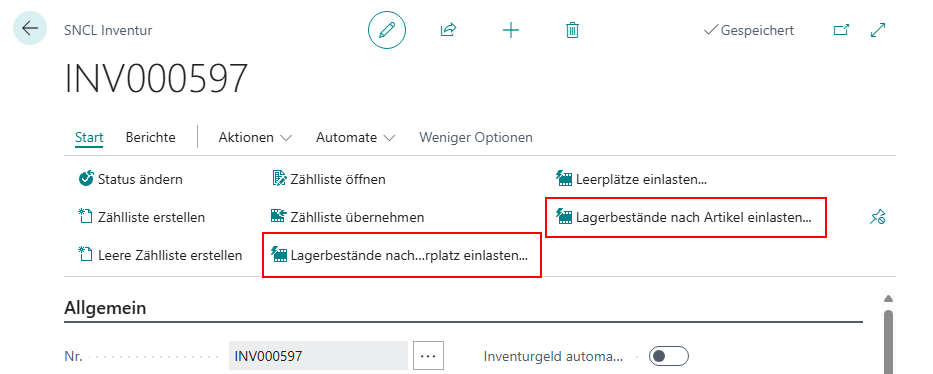
Here you can use various parameters to determine exactly which storage places should be included.
Implementation
Stocktaking MDE
Stocktaking on the MDE device is described in the section Using the MDE device/B5 Stocktaking.
Add new Inventory during a stocktaking
It can happen that during a count it is discovered that there is an unforeseen amount of Inventory in a storage place. You can also add this inventory during the count. On the MDE device, use B5.5 New Inventory for this. Continue with the following section.
Hinweis
Please note that new inventory found that exceeds the set threshold values is automatically transferred to the second cycle counting list.
Hinweis
Please note that outside storage items can only be entered during an outside storage stocktaking.
With MDE
During a stocktaking, you can add new Inventory in B5.3 by pressing F5 or via the menu B5.5.
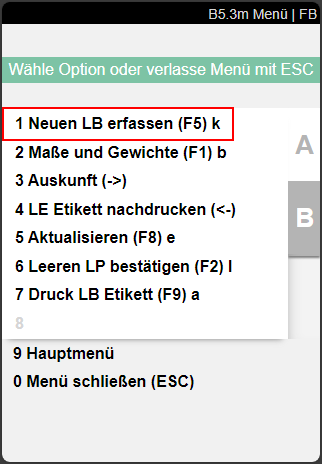
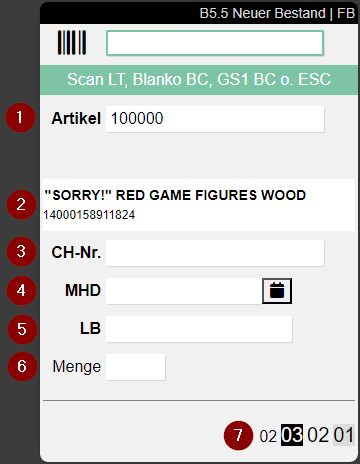
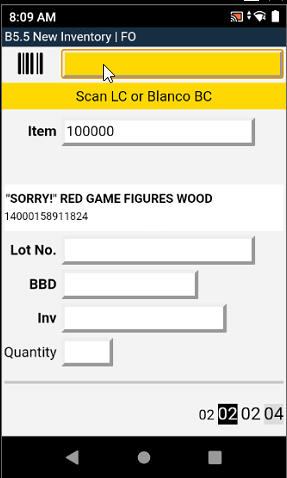
- Scan the item you have just found (1)
- Scan a Blanco Barcode for a new load carrier or scan an existing load carrier (can also be archived)
- Enter any required fields such as sell-by date or variant (4)
- Enter a quantity (6)
- Confirm the entry with Enter
- Scan another position or exit B5.5 by pressing Escape twice
(2) is the current storage place.
Depending on which fields are required according to the item properties, these are also shown.
In a document-oriented stocktaking
In a cycle counting list, you can open the New inventory window via Start.
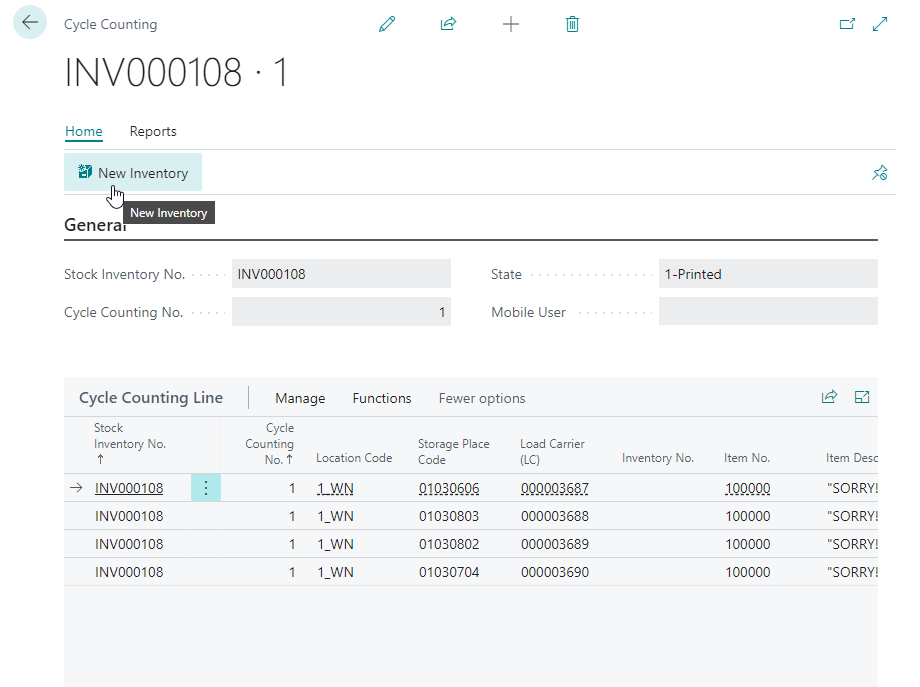
There you can add new inventory in the New Inventory Stocktaking window.
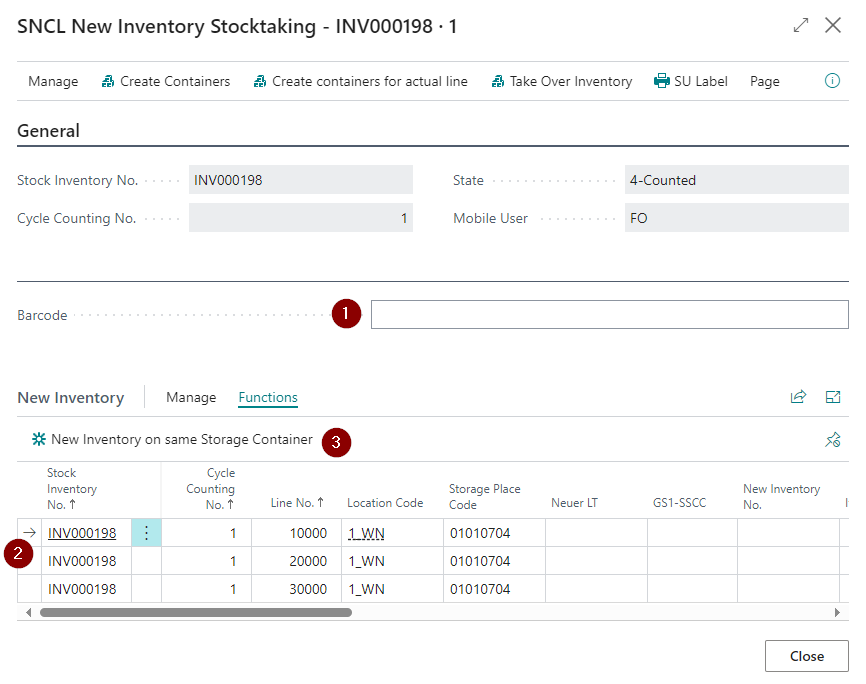
- Scan item/Load Carrier
- Enter additional information such as the quantity. If the item has variants, a variant must be entered.
- If you want to add new inventory on the same storage Load Carrier use the respective function
You can also use this method to enter incorrectly stored stock in the correct place.
In addition, you can also create new Load Carriers via the menu actions without having a blanco barcode.