SWMS Stocktaking
A stocktaking can be managed on this page. As a rule, a stocktaking can and may be created by a warehouse employee using the MDE device. The process of MDE stocktaking is described in the section Permanent stocktaking with MDE.
Deleting a stocktaking is only possible if there are no assigned cycle counting lists.
Menu
Home
- Change status: Changes the state of the stocktaking to the next higher state. Preparation -> In progress -> Finish message
- Create cycle counting list: Creates a cycle counting list and then opens it
- Create Empty cycle counting list
- Open cycle counting list
- Takeover cycle counting list: Transfers the cycle counting list to the physical inventory document
- Enter inventory items by storage place: Enters inventory according to the desired storage place filter
- Enter empty storage places: Allows you to count empty storage places
- Enter inventory items by item: Enters inventory according to the desired item filter
Reports
- Warehouse receipt: Creates a printable warehouse receipt
- Inventory receipt: Creates a printable inventory receipt
Actions
- Functions
- Open Phys. Inventory Journal
- Delete Phys. Inventory Journal: Please do not delete the phys. inventory journal unless this is not avoidable.
- Outside storage resources
- Post: When posting a stocktaking, the linked service order is also automatically posted – provided it contains lines.
- Functions
General
- No.
- Keyword: Freely definable field to describe the stocktaking
- Original-Document Type
- Original-Document No.
- Journal Batch Name
- Source type
- Source no.: If the source type is set to Customer, you can only change the source no. before entering the first inventory line.
- Description
- Description 2
- Document date
- Posting Date
- State
- Assigned to user
- Stocktaking type
- Manual stocktaking
- Annual Stocktaking
- Initial stocktaking: This stocktaking is carried out at the start of SIEVERS WMS in a warehouse in order to get the stocks into the warehouse management system. You can only check this box as long as there are no stocktaking lines or cycle counting lists in this stocktaking
- Permanent stocktaking MDE: This stocktaking type is set automatically when a stocktaking is created via MDE
- Zero stocktaking MDE
Lines
- Storage Place Code
- Load Carrier
- Inventory no.
- Item no.
- Item description
- Target quantity
- BUM (base unit)
- Item Unit Cost
- LCY Code
- 1st count
- 2nd count
- 3rd count
- Diff. last count
- Diff. last count in LCY
- Diff. last count %
- Threshold Quantity difference
- Threshold value Difference LCY
- Counted: Marks this inventory line as counted. If all stocktaking lines have been marked as counted, the stocktaking is automatically completed and the stocktaking lines are posted.
- Lot no.
- Sell-by date
- Serial no.
- Stocktaking Charges Recorded
Hinweis
Only the value in the current count column may be edited. Older counts cannot be changed. A count value of 0 is also recorded and included when calculating Diff. last count for the next count.
Statistics
- Number of Inventories
- Number of Inventories packed
- Number of pieces
- Number of pieces packed
- Gross weight
- Gross weight packed
- Net weight
- Net weight packed
Create Stocktaking by Storage Place
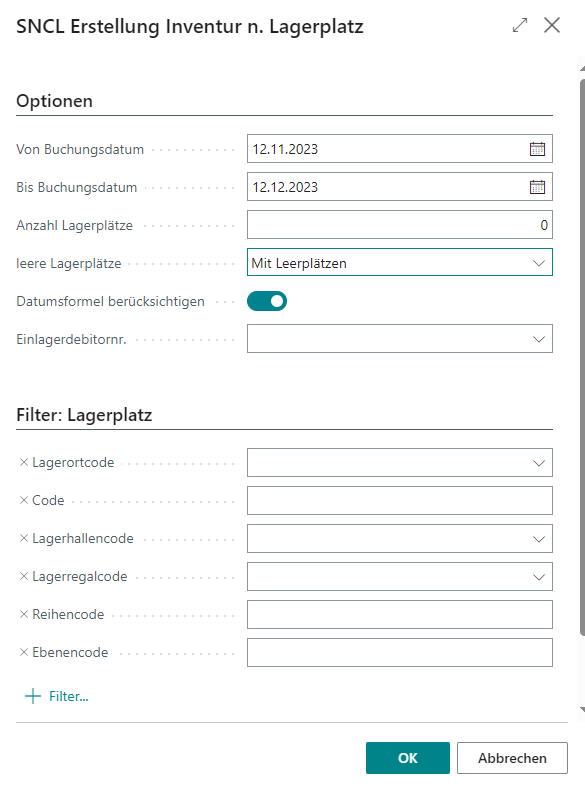
You can use this action to fill the inventory lines filtered by storage place. The following options are available here:
- From posting date
- To posting date
- Number of storage places
- Empty storage places
- With Empty Storage Places
- Without Empty Storage Places
- Empty Storage Places only
- Use Date Formula: Specifies that the date formula from the SIEVERS WMS setup should be used. Is set to true by default.
- Inbound Stock Post Customer No.: Relevant if external warehouse items from a specific customer are to be counted. If a customer is entered here, only outside storage inventory that is assigned to this customer can be entered.
- Filter
- Location code: The proposal in this field is based on the Location Code assigned to the user on the Warehouse Employees page
- Code
- Warehouse code
- Storage shelf code
- Row code
- Level code