Process Documents
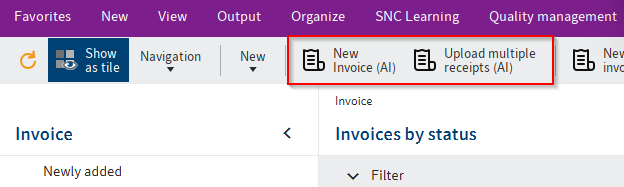
SIEVERS AI Agent for ELO provides two actions for AI-assisted processing:
- New Invoice (AI) processes one document.
- New Invoices (AI) processes multiple documents.
Process One Document
- Open the document that you want to process, or start the action without selecting a document.
- Select New Invoice (AI).
- Upload a document in the dialog. If you do not upload a document, SIEVERS AI Agent for ELO processes the currently selected document.
- Wait until processing is complete.
- Review the extracted invoice, company, and business partner data.
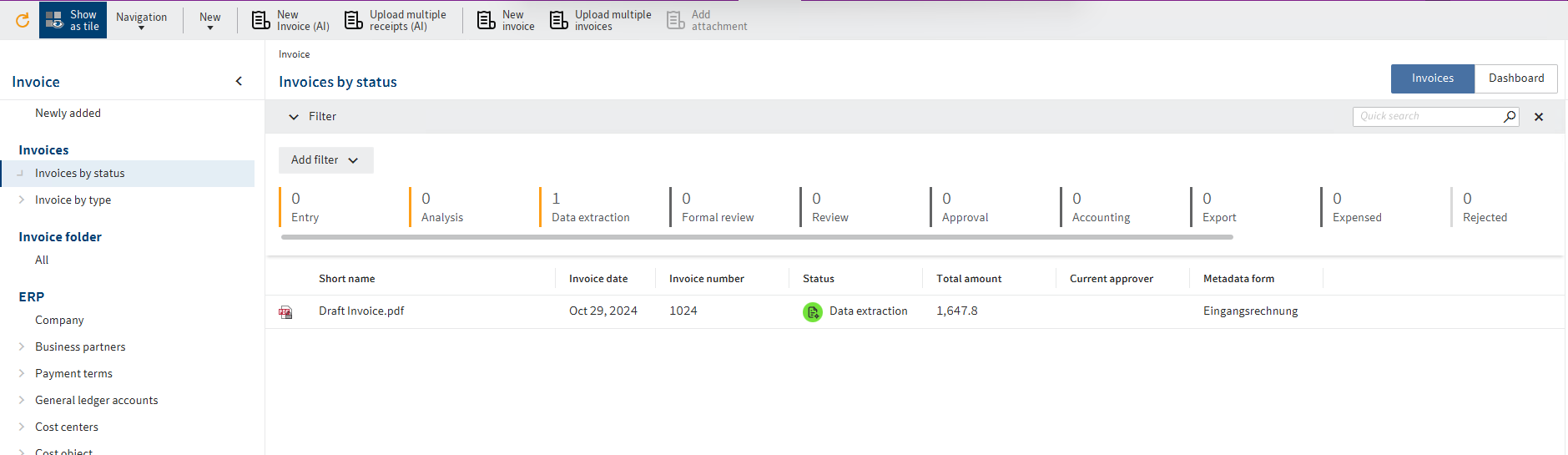
SIEVERS AI Agent for ELO passes the extracted values to invoice processing in ELO Invoice. If it cannot determine a required company or business partner assignment, it starts a clearing task. This means that a task is created and assigned to the SNC_INVOICE.Clearing group. See also Clear Missing Data.
Processing in the ELO Feed
During processing, SIEVERS AI Agent for ELO records important process steps as posts in the document's ELO feed. The posts shown depend on the document and the enabled preprocessing route.
Preprocessing and AI recognition posts are status information. They do not replace reviewing the processing result. If an assignment is missing, the feed contains the recognized name and refers to manual processing in the clearing process.
The current package version does not create a separate feed post when preprocessing finishes.
Process Multiple Documents
- Select New Invoices (AI).
- Upload all documents that you want to process.
- Start processing.
- Review the result for every created or processed document individually.
- Process any clearing tasks assigned to you. See also Clear Missing Data.
Wichtig
Use only the invoice associated with each document. Combined or incomplete documents can impair the recognition of invoice data and master data.
Review Processing Results
Before continuing the subsequent invoice process, review the following information in particular:
- Invoice number, invoice date, and currency
- Net, tax, and gross amounts
- Company and business partner
- Tax rates and tax amounts
- Invoice line items
Correct any discrepancies according to your company's work instructions.
Pre-populate Accounting Lines with AI
If the feature is enabled in your environment, you can use the existing invoice line items for accounting:
- Open a document with extracted invoice line items.
- Select Pre-populate accounting lines (AI).
- Wait until AI processing is complete.
- Review the suggested values in the accounting lines.
- Complete or correct empty or unsuitable values according to your accounting policies.
For each invoice line, AI can pre-populate the general ledger account, cost center, cost object, and tax code. It does not post the invoice. Amounts, quantities, and line descriptions are taken from the existing line data and are not suggested by AI.
If an assignment is uncertain or not unique, the affected accounting field remains empty. Review every suggested assignment before continuing with the invoice process.