Important Topics
- Inventory Creation in Warehouse Receipt Revised
- Item-Pure Batches in the Series Creation Strategy
- Cancellation of Posted Output Journals for WMS-Managed Locations
Setup
- Consolidate Inventory Only for SUs
- Shipping Agent: New Default - No Shipping Orders
- Setup Field "Dissolution of Arrears" Renamed
- Item-Pure Batches in the Series Creation Strategy
Features
Warehouse Receipt
Inventory Creation in Warehouse Receipt Revised - Item 130887
The creation of load carriers and inventory items when confirming Quantity checked in the warehouse receipt lines has been fundamentally revised.
Previously, the packaging hierarchy was always used to determine the number of pieces per inventory – even when different values were entered in the receipt line. This led to unexpected inventory quantities.
The field No. of Pieces per Inventory is now directly visible and editable in the receipt lines on the page. It is initially calculated from the packaging hierarchy (row Inventory creation). If no packaging hierarchy is configured, the field defaults to the current delivery quantity. Unlike the previous behavior, the value is no longer copied from the source document (purchase line, sales line or transfer line) but is always recalculated when the warehouse receipt line is created.
The field is directly linked to the existing field No. of Inventories per Load Carrier: when one of the two fields is changed, the system automatically recalculates the other – taking into account the current delivery quantity and the number of load carriers. Likewise, changing the Quantity Load Carrier triggers a recalculation of the number of pieces per inventory.
When confirming Quantity checked, load carriers and inventory items are now created exclusively based on the values entered in the receipt line. The packaging hierarchy is no longer used for calculating inventory quantities at this point.
Item Variant in Load Carrier Lines - Item 130511
If the Item Variant feature is enabled in the SWMS Feature Setup, the item variant is now also displayed in the load carrier lines of the warehouse receipt. The variant appears there next to the item description.
GS1: Unsupported Identifiers Are Skipped - Item 129168
Previously, scanning a GS1 barcode resulted in an error message if an identifier contained within it had no mapping in the GS1-SSCC Identifier Field Assignment table. This could occur when vendors printed valid identifiers that were not required in the system (e.g. 11, 20, 240, 3302) on their SSCC labels.
Unmapped identifiers are now silently skipped when processing the GS1 barcode. Mandatory field checks remain unaffected.
A1.6: Improved Field Navigation in Manual WHS Receipt Entry - Item 129950
The field navigation in the MDE screen A1.6 (manual warehouse receipt entry without GS1) has been revised. The Enter key can now be used to conveniently navigate through the relevant fields. The new field order is:
- LC Barcode: Scan or Enter
- Lot: Displayed when the item is lot-tracked; skipped if already pre-filled in the receipt line or item tracking lines
- Sell-by Date: Displayed when the item requires a sell-by date; skipped if already pre-filled
- Qty. / LC: Focused when no LC barcode was scanned; when an LC barcode has been scanned, step 5 is jumped to directly
- No. of LCs: Confirmed with F5
For items requiring serial number tracking, the screen A1.6s opens automatically after entry. The date can be entered via the calendar icon or directly via the keyboard.
A1.6s: New Function F7 Delete Serial Number - Item 131948
In the MDE screen A1.6s (serial number entry during warehouse receipt), the F7 function is now available to delete a previously entered serial number. The entry in the menu and function bar is Delete SNo..
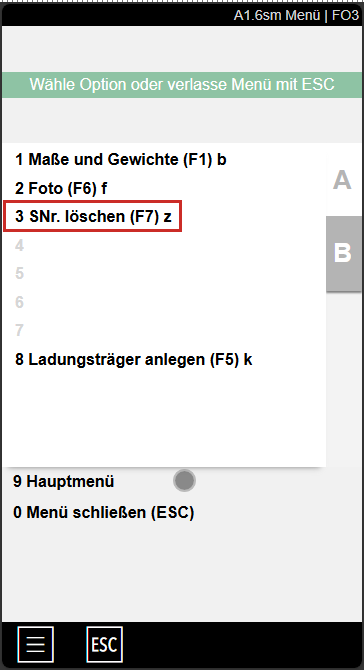
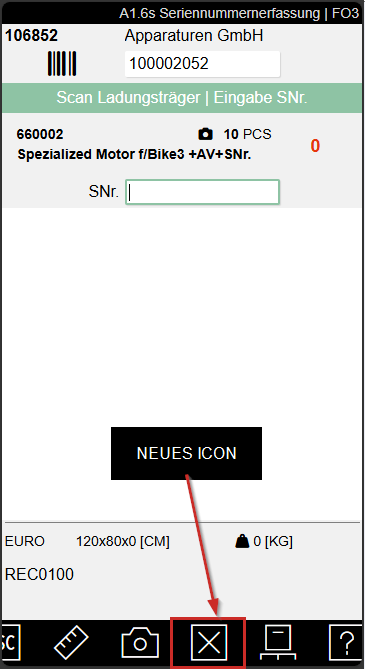
With each deletion, the verified quantity is reduced by 1 and the related item tracking entry is removed. If all entries are to be discarded, this must be done via the item tracking lines in the SWMS warehouse receipt.
Warehouse Shipment
Availability Check Only for Inventory Items - Item 122778
The availability calculation in the Warehouse Shipment Planning now only considers items with the item type Inventory. Items with the type Non-Inventory or Service no longer influence the availability display, as these items do not carry stock by definition.
Item Variant in SSCC Content of Loading Process Lines - Item 130509
If the Item Variant feature is enabled in the SWMS Feature Setup, the item variant is now also displayed in the SSCC content of the shipment process lines. This view opens by clicking on an SSCC in the shipment process lines and lists all items contained in the SSCC along with their variants.
Changing Shipping Agent Blocked When Open Loading Process Exists - Item 80684
Previously, the Shipping Agent Code on a warehouse shipment could be changed even if an open loading process already existed for that warehouse shipment. This led to inconsistent data, as the original shipping agent remained stored in the loading process – even if the new shipping agent does not require loading at all.
From this release onwards, changing the shipping agent code on a warehouse shipment is blocked as long as loading processes with a status other than 9-Finished exist. If a user attempts to make a change, the following error message appears:
The shipping agent cannot be changed as long as open loading processes still exist.
The user must first complete or delete the relevant loading processes before the shipping agent code can be changed.
Request PTUs in A5.2 - Item 131307
In the load carrier overview A5.2, the new function B5 Request all PTUs [+] is now available. This function creates movement orders of type Transport to packing for all PTUs that are not yet at the packing location. PTUs that are already in the hall, area, or at the location are not included.
LC References: Barcode References Considered When Posting and Deleting Load Carriers - Item 82627
Barcode references of load carriers are now consistently maintained. When a load carrier is posted or archived, its barcode references are retained – posted load carriers can therefore still be identified by barcode in Mobile and restored if needed. When a load carrier is permanently deleted, its associated barcode references are also removed.
During the update, existing barcode references are automatically cleaned up: orphaned references (without a corresponding active or posted load carrier) are deleted, and references belonging to posted load carriers are moved to the new table.
Consolidate Inventory Only for SUs - Item 130589
The automatic consolidation of inventory of the same type (item, variant, lot, sell-by date, serial number) has been further simplified. Inventory will now only be consolidated when:
- the setup is activated in the SIEVERS WMS Setup,
- it is an inbound stock post or a move job, and
- the target load carrier has the load carrier type SU or no target load carrier exists (posting directly to a storage place).
This restriction prevents unwanted consolidations, e.g. in the warehouse shipment, which caused problems in the past.
Production Supply
Replenishment Status Updated on Forklift Posting - Item 128117
The Replenishment Status of a production order component line is now automatically set to In Progress as soon as an associated move job line is loaded onto a forklift (FFZ). This makes the progress of the replenishment process visible already when the forklift is loaded, before the actual picking has been completed.
The status change applies to both desktop posting and mobile processes and only occurs when the posting is completed successfully.
Field “Quantity Determination Basis Manuf.” Removed from SIEVERS WMS Setup - Item 131518
The field Quantity Determination Basis Manuf. has been removed from the SIEVERS WMS Setup page (Production section). It is being replaced by new, more flexible grouping options in the next release. The database field is marked as obsolete.
Hinweis
The existing grouping logic of this parameter will be replaced in one of the next releases by new, more flexible grouping options in the Check Production Supply action (Item 128938). The new options will include grouping by Target Storage Place, Target Storage Area, Target Warehouse and WMS Teams.
Processing Time & Setup Time in Output Journal - Item 122302 | Item 132476
When creating the output journal, processing time and setup time are automatically taken from the production order routing. The processing time is calculated as the operation's processing time multiplied by the quantity to be completed. The setup time is applied per production order and operation only once, namely only if no capacity entry with a setup time already exists for the corresponding operation.
The transfer can be activated in the SIEVERS WMS Setup via the new field Apply Setup & Processing Time.
If the quantity in the journal is subsequently changed, both processing time and setup time are automatically recalculated.
Cancellation of Posted Output Journals for WMS-Managed Locations - Item 131569
A previously posted output journal can now also be cancelled for WMS-managed locations. Previously, this was only possible if the original posting was made through a non WMS-managed location.
When a negative quantity is entered in the Output Journal, the system now automatically creates a negative inbound stock post, which uniquely references the original item ledger entry via the Applies-to Entry field. The process is functionally modeled on the existing cancellation flow for purchase receipts.
Before processing, the system checks whether a sufficient quantity is still available at the WMS location for the cancellation. If the quantity to be cancelled is no longer fully available, the process is aborted with an error message.
Mobile
Mobile History: Disabled by Default - Item 131164
For new users, the Save History option in SIEVERS WMS Mobile is now set to No by default. Logging should only be activated in error situations in order to analyse the cause of errors.
Shipping Agent
New Default: No Shipping Orders - Item 132864
When creating a new shipping agent, the No Shipping Orders field is now activated by default. Shipping orders in SIEVERS WMS are intended exclusively for communication with shipping portals. Without a corresponding integration, active shipping orders unnecessarily generate documents and processes.
Hinweis
Existing shipping agents are not affected by this change. Only newly created shipping agents have the field activated by default. If a shipping order integration is required, the field must be deactivated manually.
SIEVERS WMS Setup
Setup Field "Dissolution of Arrears" Renamed - Item 128008
The setup field Dissolution of Arrears in the Warehouse Shipment tab of the SIEVERS WMS Setup has been renamed to No missing quantity info per line. The field controls whether per-line shortage messages are displayed when manually creating an outbound stock document:
- Activated (default): Per-line shortage messages are suppressed. The status and partial delivery flags on the warehouse shipment header and the order provide sufficient information about shortages. This is the recommended option.
- Deactivated: The user receives an individual message for each line of the source document that could not be fully reserved in the stock document.
Additionally, the behavior for empty stock documents has been unified: when creating a stock document from an Item Journal, Assembly Order, or Consumption Journal results in a document with no lines (e.g. because no stock is available), the following prompt now always appears:
Stock document is empty, delete? YES/NO
This behavior is now consistent with document creation from a warehouse shipment.
Picking
Single Item Batches in the Series Creation Strategy - Item 129486
The Series Creation Strategy now features the new flag Single Item Batches. When activated, only single item batches are created: the first item added to a batch determines all subsequent outbound stock lines in that batch. If a warehouse shipment contains multiple items, multiple batches are automatically created.
To allow orders to be split, activating this flag also automatically enables the Split Orders flag. All other parameters of the series creation strategy (e.g. maximum quantities, shipment date filters) continue to apply.
Hinweis
This feature is especially relevant for e-commerce warehouses with high order volumes, as it ensures single item STUs and significantly accelerates the downstream sorting process.
Negative Picking: Full Inventory Quantity Suggested in A4.3 - Item 131044
For positions with negative picking, the MDE screen A4.3 Position Processing now always suggests the full inventory unit quantity as the withdrawal quantity – regardless of the quantity suggestion settings in the WMS team.
Previously, only the actual order demand was suggested as the withdrawal quantity. This could lead to operator errors: if only the order quantity was withdrawn and confirmed without emptying the entire storage unit, the negative picking process and the return-storage support were not triggered correctly.
Additionally, when opening a negative picking position, the hint Pick entire LC is shown in the upper area of the screen.
Small Changes
- Added tooltip for the field Use Item Pack Hierachy for Lot No. in the SWMS setup - Item 84843
- The obsolete field Collection No. Series and the associated page Collections have been removed from the SWMS Setup. These originated from an old SNCL process for consolidating picking operations and are no longer in use - Item 129917
- The border around the inventory display has been removed in MDE screens A3.2 and A3.3 - Item 132073
- The Return Storage Support Stock field is now displayed by default in the load carrier card - Item 132748
Bugs
Dimensions and Weight Not Accessible via F1 in A1.4 and A1.5 - Item 131115
In the MDE screens A1.4 Pos. Processing and A1.5 LC Confirmation, the Dimensions and Weight screen could not be opened via F1 or the function bar. This error has been fixed. The screen is now accessible in both windows via F1 and the function bar.
Sales Returns in Menu Opened Wrong Page - Item 133141
When opening Sales Returns from the SIEVERS WMS Role Center menu, the incorrect page Sales Return Orders was opened. The correct page Sales Return Order List is now opened.
WA Factbox: Incorrect Picking Document Counts - Item 130026 | Item 130028
Several key figures in the warehouse shipment factbox were not correctly calculated:
- Open Picks and Completed Picks were not correctly calculated per warehouse shipment. Shipments with no picking documents yet still showed incorrect values.
- Partial pallets and full pallets were also calculated incorrectly for MOP and SOP batches.
All key figures in the warehouse shipment factbox are now correctly determined per warehouse shipment for MOP, SOP, and normal picking documents.
WA Status Incorrect After Picking Document Cancellation and Re-Creation - Item 129968
If a picking document was deleted using the Delete button and then recreated using the corresponding button in the outbound stock post, the status in the Warehouse Shipment Planning and on the order displayed incorrect values. After re-creation, the picking document had the status Partially Released, when it should have had the status Created.
The cause was that certain status fields were not correctly reset when the picking document was recreated. This error has been fixed. The picking status in the documents is now set correctly, which means the status in the Warehouse Shipment Planning is also calculated correctly again.
A1.GS1a: Source Documents Not Displayed for Shipping Agent-Based Receipt - Item 130068
When a warehouse receipt was created on the MDE using only a shipping agent (without a vendor), no source documents were displayed in the document selection A1.GS1a. This error has been fixed.
When source documents have overlapping number ranges, Mobile may still select the wrong document type. This remaining issue will be resolved in Release 61.
Error when copying item with barcode reference - Item 126227
When copying an item that had an item reference of type Barcode using Copy Item, an error occurred because the barcode was already in use for the original item. Since a new item generally requires a new GTIN, item references with reference type Barcode are no longer copied when using the Copy Item function.
Expiry date not transferred from stocktaking - Item 123548
During initial stocktaking or when creating new inventory, the expiry date was not correctly transferred to item tracking when only the Use Expiration Dates flag was active on the item tracking code. In these cases, the stocktaking document could not be posted. This error has been fixed.
Role Center: Incorrect location filtering for storage place tiles - Item 123816
In the WMS Role Center, the tiles for storage places were filtered using the location filter from the company setup instead of the location filter from the Warehouse Employee table, as used by other tiles. The filtering now behaves consistently with the other Role Center tiles.
Application crash when creating new warehouse receipts - Item 123973
When a new warehouse receipt was created before a document number had been assigned, all load carrier lines in the system were incorrectly displayed in the sub-page. These lines were editable, and deleting a line caused the entire application to crash. The sub-page now remains empty until a document number has been assigned to the warehouse receipt.
Standard warehouse shipment page not openable for service orders - Item 127960
When SIEVERS WMS was installed, the Business Central standard warehouse shipment page could not be opened for warehouse shipments belonging to service orders on non-WMS managed locations. The system produced an error because source type 5902 (service orders) was not supported in the availability calculation. This error has been fixed.
Best before date change on inventory without item tracking code - Item 130115
For items without an item tracking code, the Change Best Before Date function caused incorrect behavior:
- If no best before date was previously set, the inventory was written off entirely after the change
- If a best before date was already set, the load carrier code was removed from the inventory record
- Two-digit year inputs (e.g. "06.06.66") were incorrectly interpreted as 1966 instead of 2066
These errors have been fixed.
A1.6s: Error when displaying item photo with F6 - Item 130309
In the MDE form A1.6s (serial number entry during goods receipt), pressing F6 to display or take an item photo caused an error message: "Incoming warehouse entry line contains no items". Since A1.6s by design never has an incoming warehouse entry line for the item, this error has been fixed – F6 now works correctly in A1.6s, just as it does in A1.6.
Inventory Split Incorrect - Item 131018
When splitting an inventory record (LC) in Warehouse Receipt, the system was in certain cases splitting the wrong inventory record instead of the selected one. As a result, the total quantity across the created inventory records could exceed the quantity on the warehouse receipt or purchase order, causing data inconsistencies.
This has been corrected: the inventory split now always operates on the actually selected record and ensures no inconsistent quantities are created.
Load Carrier from Posted Warehouse Receipt Not Openable - Item 131116
When opening a load carrier unit (LC) from a posted warehouse receipt, an error occurred because the system only searched in the posted load carriers. Since a load carrier is not necessarily closed after the warehouse receipt is posted, it could not be found there.
This has been corrected: the system now checks whether the load carrier is already closed and opens either the posted load carrier card or the active SWMS load carrier card accordingly.
Reservation Entry Assignment Not Correctly Applied - Item 131705
In manufacturing scenarios where a component appears multiple times in the bill of materials – once with a regular component quantity and once with the Fixed Quantity formula – the inventory finding strategy was not applied correctly when the option Consider Reservation Entries is enabled.
Two specific problems could occur:
- The inventory for the fixed-quantity component was not created on the first output posting of the sub-production order, but only on the second.
- When creating warehouse documents for consumption journal lines, the fixed-quantity inventory was assigned to the wrong consumption line – either the fixed-quantity stock was reserved for a non-fixed-quantity line, or vice versa.
Both problems have been resolved: inventory finding now correctly considers reservation entries, ensuring that the fixed-quantity inventory is exclusively assigned to its corresponding consumption journal line.
Error Due to Thousands Separator in C1.3 - Item 132482
In the MDE form C1.3, confirming a proposed quantity greater than 1,000 caused an error message related to the thousands separator. The root cause was an incorrect interpretation of the locally formatted numeric value. The issue has been fixed – proposed quantities above 1,000 are now accepted correctly.
Changing a Work Center/Work Center Group Deleted Component Lines - Item 132489
When a work center or work center group was changed in a production order routing, the existing component lines with the same routing link code were deleted and recreated. This caused two problems:
- A component line could be lost during recreation.
- Existing reservations remained attached to the old (deleted) lines and were not transferred to the new ones.
The logic has been reworked: WMS fields on component lines are now updated without deleting and recreating the lines, so existing reservations are correctly preserved.
Picking Document Could No Longer Be Printed - Item 132561
When printing the picking document from a warehouse shipment, a completely empty form was produced – the document contained no data. The issue has been fixed: the picking document is now generated correctly again. In addition, the load carrier code is now displayed on the picking document.
Create Stock Document: Missing Feedback for Items Not Found - Item 129854
When creating a warehouse document via the Create Stock Document function in the warehouse shipment, no feedback message was displayed in specific systems since the last release if no available quantity was found in inventory for an item. This could lead to items without inventory going unnoticed and the number of partial deliveries increasing unintentionally.
The message is now correctly displayed again and reports the unavailable remaining quantity.
GS1 Warehouse Receipt: Wrong Document Type When Multiple Documents Have Same Number - Item 133948
When multiple source documents with the same document number existed in the GS1 warehouse receipt (e.g., a transfer order and a sales return order), the system selected the wrong document type when processing the SSCC. The document type selection in the BC lookup has been corrected, so manual selection via the lookup now assigns the correct document type.
Hinweis
The problem persists in SIEVERS WMS Mobile. A fix for Mobile is planned for Sprint 61.
Item Card: Picking Location Not Displayed After Refresh - Item 132071
An error has been fixed where on the item card, the picking location was not displayed after entering a location and refreshing the page.
Sales Order Cannot Be Added to Warehouse Shipment - Item 132913
If a warehouse shipment already contained a packed sales order, it was not possible to add further sales orders via Get Source Documents. The system produced an error message in this case. This error has been fixed.
Packing List Export Data: Empty First Page - Item 132759
In certain constellations (depending on the number of load carriers), the first page of the Packing List Export Data report was empty, no content appeared besides the page header. The cause was a missing page break between the detailed load carrier list and the summary section. This error has been fixed: the first page is now always filled with content regardless of the number of load carriers.
A4.3: Full-Pallet Outbound Symbol Not Displayed - Item 132980
In A4.3, the symbols for full-pallet outbound and negative picking were not displayed. The symbols are now correctly shown in both A4.2 and A4.3.
A3.3 Article Transfer: Quantity Field Not in Focus - Item 133212
In A3.3 Article Transfer, the quantity field in the "Confirm/Change Quantity" step was not automatically focused, neither at the pick-up nor at the drop-off position. The user had to manually activate the field; accidentally pressing Enter also caused an error. Both issues have been fixed.
A1.6 Goods Receipt: Too Many LT and LB Labels Printed - Item 133864
When creating a load carrier with a blank barcode and triggering automatic label printing (F5) in A1.6, too many LT and LB labels were printed, instead of e.g. 1 LT and 10 LB labels, 10 LT and 100 LB labels were output. This has been fixed.
SSCC Package Contents List Not Printed - Item 133972
When printing an SSCC for a converted GS1-SSCC (via F9 on MDE or from the SWMS load carrier), only the SSCC label was output; the package contents list was missing, even though the setting "Min. Item Qty. SSCC Pack. Cont." was filled. This has been fixed.
A4.MOP: Zero-Count Screen Not Displayed - Item 132555
We fixed an issue that caused the zero-count screen (B5.3) not to appear during MOP picking when a storage place was completely emptied by removing all inventory. The root cause was that the MOP process jumped directly to the next position after box confirmation without checking whether the source storage place had been emptied. The zero-count screen is now displayed correctly before the process continues with the next position.
Small Bugfixes
- Spelling Error in "Unloading Point" Corrected - Item 131727
Cancelled Picking Positions Not Deleted on Posting - Item 131653
When a picking position was cancelled, it remained untouched when the warehouse shipment was posted. This caused both the warehouse shipment and the picking document to persist without the possibility to continue working with them. To manually remove the line, the mobile user first had to be detached from the picking document.
Cancelled lines are now automatically deleted when posting the warehouse shipment, analogous to 0-lines (shortage picks).
Also fixed: If a warehouse shipment consisted exclusively of cancelled positions and still required a loading step, neither the shipment nor the loading process could be completed, since no positions remained to be loaded. This case is now handled correctly as well.
Hinweis
Currently, cancelled picking positions are deleted on posting. In a future release, this behavior will be changed so that they are archived instead, consistent with the handling of all other picking positions.