Important Topics
- Negative Picking and Return Storage Support
- Mobile History - Technical Rollback
- Production Item Flag for Outside Storage Items
- New Form A7.4 - Inventory Information
- Licensing
- Assembly-to-Order (ATO)
- Quantity Checked - No. of LCs
- Location-Dependent Packaging Team Assignment per Shipping Agent
Setup
Wichtig
Action required for the following topics:
- Location-Dependent Packaging Team Assignment per Shipping Agent - Review automatically migrated assignments in the new setup table and add any missing entries.
- Negative Picking and Return Storage Support
- Mobile History - Technical Rollback
- Weight Calculation in Series Distribution
- Location-Dependent Packaging Team Assignment per Shipping Agent
Features
SWMS Menu - Improvements - Item 128091, Item 128129
The SWMS Menu has been improved in two areas:
- A new heading SWMS Mobile Setup groups the following pages:
- SWMS Mobile Setup
- Device Model List
- SWMS Mobile Users
- SWMS Mobile Forms
- SWMS Help for Mobile Forms
- SWMS Mobile Setup Wizard
- SWMS Mobile Login
- In addition, Provisioning Strategies (Production) have been added to the SWMS Menu under Strategies.
Cleanup - Obsolete Pages Removed
Several obsolete or no longer required pages and reports have been removed from SWMS:
- SNCL Picking Pallets (Item 128132) - This entity is no longer in use and has been replaced by new SWMS logic
- SNCL Picking Strategies (Item 128133) - Replaced by SIEVERS TEAMS
- SNCL Stocktaking Bill (Item 128135) - Use SWMS Stocktaking Reporting instead
- SNCL Day Appraisal (Item 128136) - Function and purpose were unclear and no longer up to date
- SNCL Move Job Bill (Item 128137)
- SNCL Posted Stocktaking Bill (Item 128138)
- SNCL Load Carrier Bill (Item 128139)
- SNCL Item ABC Analysis (Item 128140) - The report is still available under "Item - ABC Analysis" in the Business Central standard
- Various Reports (Item 128142):
- SNCL Posted Move Job Bill
- SNCL Posted Move Job Forklift
- SNCL Storage Place Stocktaking Bill
- SNCL Inventory Stock Bill
- SNCL Stock Document Zero Stocktaking Bill
- SNCL Outbound Stock Posting Bill
- SNCL Inbound Stock Posting Bill
- SNCL Posted Move Job Picker
- SNCL Posted Outbound Stock Posting Bill
- SNCL Posted Inbound Stock Posting Bill
- SNCL Move Job List (Outbound Stock Posting)
- SNCL Move Job List (Inbound Stock Posting)
- SNCL Item Inventory List (Item 128144)
Comprehensive Cleanup of Labels - Item 128145
A comprehensive revision of labels in SIEVERS WMS has been carried out. The abbreviation "SNCL" has been largely removed from the user interface and replaced with "SWMS" where necessary. The goal was to make the labeling more consistent and understandable. The abbreviation SNCL was a legacy from the previous logistics software SNC Logistics, on which SIEVERS WMS was built.
Licensing
License management in SIEVERS WMS has been fundamentally revised to provide better control and transparency over license usage.
User Count Check - Item 128603
When creating or modifying warehouse employees and mobile users, the system now automatically checks whether the licensed user count is exceeded:
- Warehouse Employees: Only warehouse employees with a SIEVERS WMS location are counted as requiring a license
- Mobile Users: Mobile users always require a license, unless they are assigned to a warehouse employee
- Links: If the link between a warehouse employee and a mobile user is removed, the system automatically checks whether a separate license is required
- It is no longer possible to create or modify users without a successful license check
Display of License Count - Item 128608
In the list of Warehouse Employees and in the list of Mobile Users, the following is now shown at the top:
- How many licenses are currently in use
- How many licenses are available in total
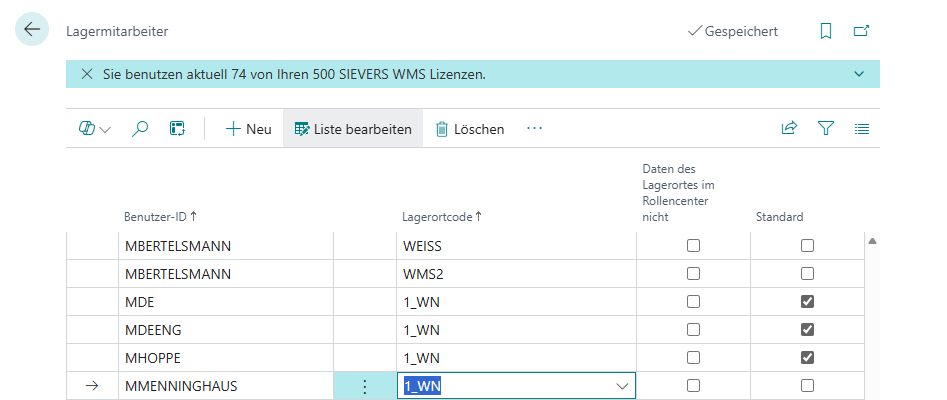
The display is automatically updated when the license count changes (e.g. by deleting or adding users).
Access Restriction to WMS Pages - Item 128609
SIEVERS WMS pages can now only be opened by users with a valid license. A user requires a warehouse employee entry with a SIEVERS WMS location to access the pages.
If an unauthorized user tries to open a WMS page, an error message is displayed and access is blocked. This check has been implemented in all critical SWMS pages (e.g. WMS Setup, Warehouse Receipt, Warehouse Shipment Planning, Picking Documents).
License Check Also in Sandbox Environments - Item 128611
The license count is now also correctly determined in sandbox environments. The system queries the actual license of the real tenant, even if the query originates from a sandbox.
Warehouse Receipt
Quantity Checked - No. of Load Carriers - Item 123114
In the SWMS Warehouse Receipt Card, the fields Number of Load Carriers and Number of Inventories per Load Carrier (formerly: Number of Inventories per Container) have been improved:
Automatic Calculation from the Packaging Hierarchy
When a document line is recorded and on every change to the Qty. to Receive field, both fields are automatically populated based on the item's packaging hierarchy:
- Number of Load Carriers: Determined from the line with utilization Carrier - Creation. If no corresponding entry exists, the value remains 0.
- Number of Inventories per Load Carrier: Determined from the line with utilization Inventory Creation. If no corresponding entry exists, the value is set to 1.
Both fields remain editable, allowing warehouse employees to adjust the values manually if required.
When setting Quantity Checked, load carriers and inventories are created based on the entered field values, independent of the current packaging hierarchy. If the value in Number of Load Carriers is 0, the error message "The "Quantity Load Carrier (LC)" must be at least 1." is displayed and the action is aborted.
A1.6s Improved Sorting of Serial Numbers - Item 130305
In the MDE form A1.6s (serial number entry during warehouse receipt), newly scanned serial numbers are now added at the top of the list instead of at the bottom. This allows the user to immediately see the most recently scanned serial numbers without having to scroll manually. This is especially helpful when more than 9 serial numbers have been recorded.
A1.GS1 Document Selection Easier to Use - Item 129948
In the warehouse receipt process with GS1 labels, the purchase order can now be selected more easily:
- F5 now opens the document selection directly (A1.GS1a)
- The document selection has additionally been added as menu item A5
Previously, only the arrow at the edge of the form could be used.
Warehouse Shipment
Ship and Invoice When Posting a Warehouse Shipment - Item 130348
New field Activate Ship & Invoice in the SIEVERS WMS Setup (default: deactivated).
When activated, a query appears when executing Post Warehouse Shipment or Post and Print Warehouse Shipment in both the warehouse shipment card and the warehouse shipment planning, asking whether to ship only or to ship and invoice at the same time.
Hinweis
The printing of invoices is not yet included in this version. The function is also not available when multiple warehouse shipments are selected at the same time. This will be addressed in a follow-up ticket.
Location-Dependent Packaging Team Assignment per Shipping Agent - Item 118077
The automatic assignment of packaging teams is now location-dependent via a new setup table. Previously, the packaging team was stored directly on the shipping agent, which could lead to ambiguities when teams with the same name existed in different locations.
New Setup Table:
The new page Assignment Packaging Team by Location & Shipping Agent allows the location-specific assignment of packaging teams per shipping agent. For each combination of Location Code and Shipping Agent Code, the desired packaging team (SIEVERS WMS team of the type Packaging) is stored.
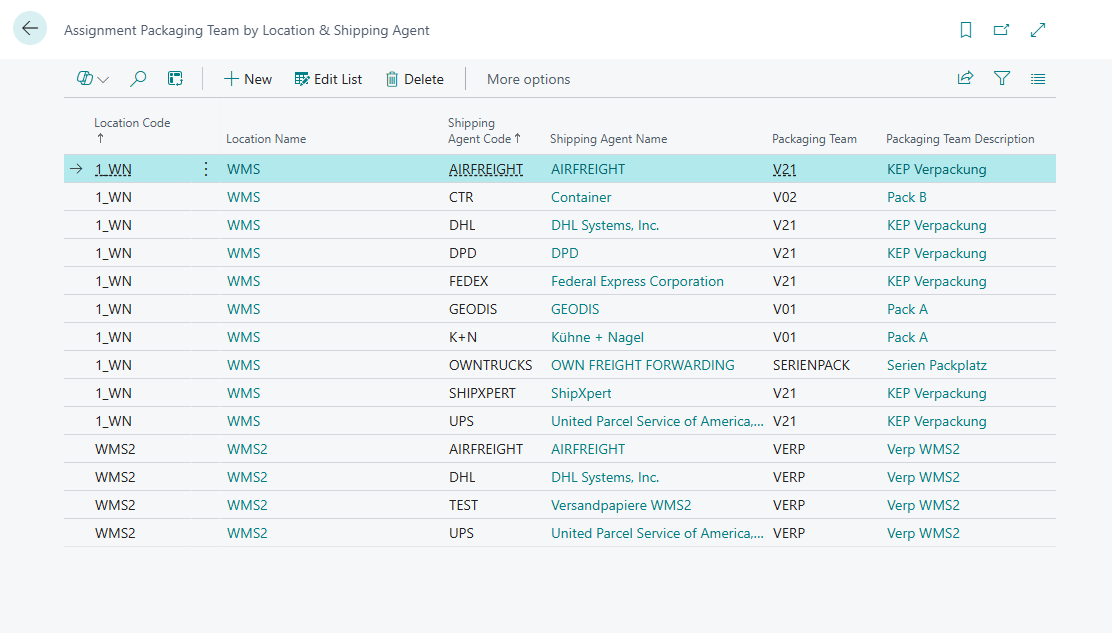
When releasing a warehouse shipment, the packaging team is automatically determined from this table based on the location and shipping agent. If no matching entry is found, no automatic assignment is made.
Navigation from the Shipping Agent:
The field Number of Packaging Teams has been added to the shipping agent. Clicking on this value opens the Assignment Packaging Team by Location & Shipping Agent page, filtered to the respective shipping agent.
Migration:
For shipping agents that historically had a packaging team stored, the upgrade routine has automatically created entries in the new table, based on the location stored at the team.
Hinweis
The previous Packaging Team field on the shipping agent is no longer functionally active and has been removed.
Wichtig
Action required: Review the automatically migrated entries in the Assignment Packaging Team by Location & Shipping Agent page and add any missing combinations of location and shipping agent for which automatic packaging team assignment is required.
Information
A7.4 Inventory Information - Item 120620
With the new MDE form A7.4 Inventory Information, warehouse employees can now scan inventory directly and retrieve detailed information about it. This form complements the existing information forms.
Accessing the form:
- Via A7.1 Item Information: Scan an inventory number
- Via A7.4 directly: Scan an item, GTIN, inventory, load carrier, GS1 or storage place
Navigation:
- From A7.4 to other forms:
- Scanning a storage place → switches to A7.2 Information by Storage Place
- Scanning an item → switches to A7.1 Item Information
- Scanning a load carrier → switches to A7.3 Load Carrier Information
- Arrow right → opens A7.1 Item Information for the selected item
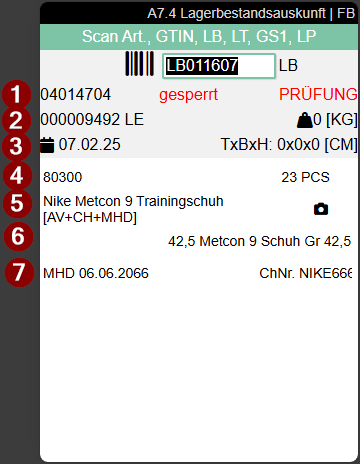
- Shows the storage place. For blocked inventories, the red notice "blocked" appears together with the block code
- Left: Load carrier code and load carrier type (SU, PTU, SSCC) | Right: Weight
- Left: Incoming WHS Receipt posting date | Right: DxWxH (Depth/Width/Height)
- Left: Item number | Right: Quantity
- Left: Item description | Photo symbol indicates that an image exists for this item
- Variant
- Left: Sell-by date | Right: Lot number or serial number (serial number is shown preferably)
Additional Functions:
- F6 - Photo Function: Opens an existing item photo or the photo capture function if no photo exists yet
- Arrow right: Opens A7.1 Item Information with all further inventories for this item
The new form enables efficient inventory checks directly via the MDE device and provides a central point of contact for information requests with flexible navigation to all relevant information levels.
A7 Notes and Feedback Field - Item 129195
The forms A7.1, A7.2 and A7.3 have been extended with a notes and feedback field (analogous to form A7.4). Error messages and scan hints are now displayed directly in the field in red instead of appearing as a pop-up message.
A7 Improved Layout - Item 129186
In the information forms A7.1, A7.2 and A7.3, the abbreviations "Item No.", "LC", "SP" before the input fields have been removed. Instead, a uniform barcode symbol is now displayed before each input field. This corresponds to the modern design of other forms and improves usability.
Production
C1.2 Full Pallet Symbol - Item 129210
The MDE form C1.2 now uses the new full pallet symbol that has already been introduced in other forms.
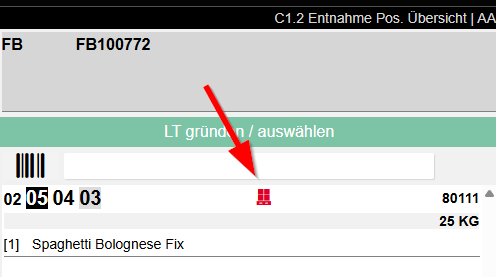
C1.2 Place Load Carrier via Storage Place Scan - Item 128568
When all positions in the MDE form C1.2 "Pick Position Overview" have been processed (info field shows "Hand over load carrier"), the storage place can now be scanned directly to place the load carrier. Previously, the "Pick Up/Place Down Load Carrier" form had to be opened via F8.
C1 No Successor Teams in Successor Move Jobs - Item 129753
The field "Internal Transport Follow Team" now remains empty for successor move jobs of type "Transport to Production". The "Internal Transport Team" is correctly transferred from the original move job. This ensures that the grouping of move jobs with respect to target storage places functions correctly.
C2.2 Employee Marking on Move Job - Item 123239
Employee markings are now also recorded when an employee processes a move job in the MDE form C2.2 (Production Supply - Place Down).
Previously, employee markings were only set on the move job header during production pick-out (C1.2). This change now makes it visible in all production processes which employee is currently processing which move job.
PS Move Jobs Without Team Assignment - Item 128446
Move jobs of type "Transport to Production" that arise during processing in C1 and cannot be assigned to a team are now displayed in the Role Center as a separate tile "Move Jobs Without Team". The tile opens an overview of the corresponding move jobs so that they cannot be overlooked.
Stocktaking
Stocktaking of Blocked Inventories - Item 130725
During stocktaking, blocked inventories often also need to be counted. Previously, a stocktaking for blocked inventories could be created via the inventory overview, but an error message appeared when posting.
Via a new setup field in the SWMS Setup on the Stocktaking tab, the check for blocked inventories can now be deactivated. If this flag is set, stocktakings for blocked inventories can be created, counted and posted without any problems.
Stock Documents
Display Source No. in Stock Document - Item 130558
The "Source No." field is now displayed by default in the lines of outbound stock post. This simplifies tracking and enables faster identification of source documents directly in the stock document.
Picking
A4.MOP Box Confirmations - Mark Order Line - Item 126440
For box confirmations in A4.MOP, the current order line is now highlighted in turquoise. This allows the user to see at a glance which order they are currently carrying out the box confirmation for. This improves orientation, especially when error messages have appeared previously.
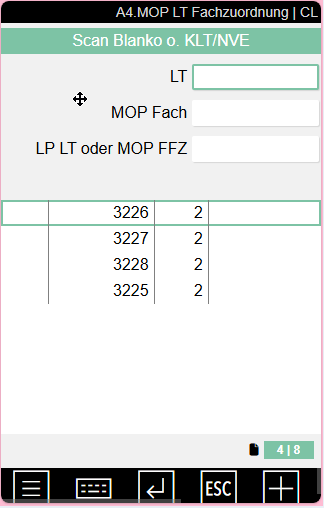
A4.MOP Instruction Improved - Item 130015
The work instruction in the MDE form A4.MOP has been made more precise. If the picker has already created a PTU in A4.2 and then selects the first position, a clearer instruction is now displayed:
"Scan SP to drop or Enter to select LC"
This makes it clear that the user can select the PTU for the current position/current order by scanning the previously created PTU and empty-confirming the field "SP LC or MOP FFV".
Move Jobs
MJ PS Filter on Location for Component Remaining Quantities - Item 128313
The fields "Overall Remaining Quantity" and "Overall Remaining Quantity (SP)" are now filtered on the location of the component line. Move job components from other locations are no longer taken into account in the totalling. This prevents misleading quantity information.
Loading
A6.1 Loading Process Selection via SSCC Scan - Item 128543
In the MDE form A6.1 "Loading Overview", the loading process can now also be selected by scanning an SSCC. Previously, only a manual selection from the list or scanning the loading process number was possible. This significantly speeds up the selection.
Series Distribution - Consideration of Weight Calculation Method - Item 129910
The weight calculation for load carriers in series distribution now takes the setup field Determination Load Carrier Weight from the SWMS Setup in the Load Carrier area into account.
Previously, this setting was already taken into account in warehouse receipt, picking and packaging. With this release, the weight calculation method is also applied in series distribution.
Assembly-to-Order (ATO)
Automatic PTU Creation at Order Assignment - Item 128688
In assembly-to-order, the automatic order assignment now ensures that at least one PTU (Picking Transport Unit) is created and fully supplied:
- PTU creation: At least one PTU is automatically created. The load carrier type is PTU and the status is at least 6 - in Packaging.
- Supply of picking lines: All picking lines are fully supplied. The packed quantity equals the posted quantity, the packed indicator is set, and the picking status is set to 9 - Completed.
- Packaging process: The packaging process is created.
- Warehouse shipment planning: The warehouse shipment planning is updated.
The By Series indicator is ignored during order assignment or automatically set to No if it would prevent processing.
Hinweis
If data is missing or inconsistent (e.g. item, variant, lot number, or serial number do not match the original line), an error message is displayed and the order assignment is not completed. For details on the individual checks, see Error Checking for Automatic Order Assignment.
Error Checking for Automatic Order Assignment - Item 128991
Before the final posting of an automatic order assignment in assembly-to-order, a comprehensive validation is now performed. If SWMS detects incorrect or inconsistent data, the process is aborted completely so that no partial postings remain in the system. The user receives a clear error message stating the reason for the abort:
- Quantity check: The reported quantity must not exceed the open remaining quantity of the original line.
- Remaining quantity check for outsourcing: If the original line has already been partially outsourced, a sufficient remaining quantity must still be available for the additional assignment.
- Master data check: The item number, variant, lot number, and serial number of the assembly or output posting must match those of the original line.
Hinweis
If the process is aborted, the entire posting is rolled back, ensuring data integrity at all times.
Automatic Label Printing for PTU and SSCC - Item 128694
The new tab Assembly is now available in the SIEVERS WMS Setup (analogous to the existing Production tab). This tab contains the new field Automatic Print LC for Assembly-to-Order.
If the field is activated, a label for the affected PTU and/or SSCC is automatically printed after successful order assignment and creation in assembly-to-order. Printing occurs fully automatically without a request page and uses the existing print logic for PTU and SSCC.
Hinweis
If an error occurs during printing, the entire transaction is rolled back. No partial postings are created.
Automatic SSCC Creation and Supply of Packaging Lines - Item 128690
In assembly-to-order, an SSCC (Serial Shipping Container Code) is now automatically created as soon as all required attributes on the load carrier are fully maintained:
- Dimensions (depth, width, height) and weight are set
- The status of the load carrier is 7 - Packed
In addition, the associated packaging lines are automatically created and the packaging process is fully supplied. The warehouse shipment planning is also updated accordingly.
Hinweis
If attributes are missing (e.g. dimensions or weight), no automatic SSCC creation takes place and an error message is displayed. If errors occur during processing, the entire transaction is rolled back.
Display of Linked Assembly Orders in Warehouse Shipment Planning - Item 128714
In the Warehouse Shipment Planning, the FactBox "Warehouse Shipment" has been extended with a new entry Number of Assembly Orders. This shows the number of assembly orders linked to the selected warehouse shipment.
Clicking on the value opens a list of all associated assembly orders with at least the following information:
- Assembly order number
- Status of the assembly order
This increases transparency for dispatchers and warehouse planners and enables direct access to assembly orders directly from the warehouse shipment planning.
Control of Automatic Creation of Outbound Stock Post Lines - Item 128712
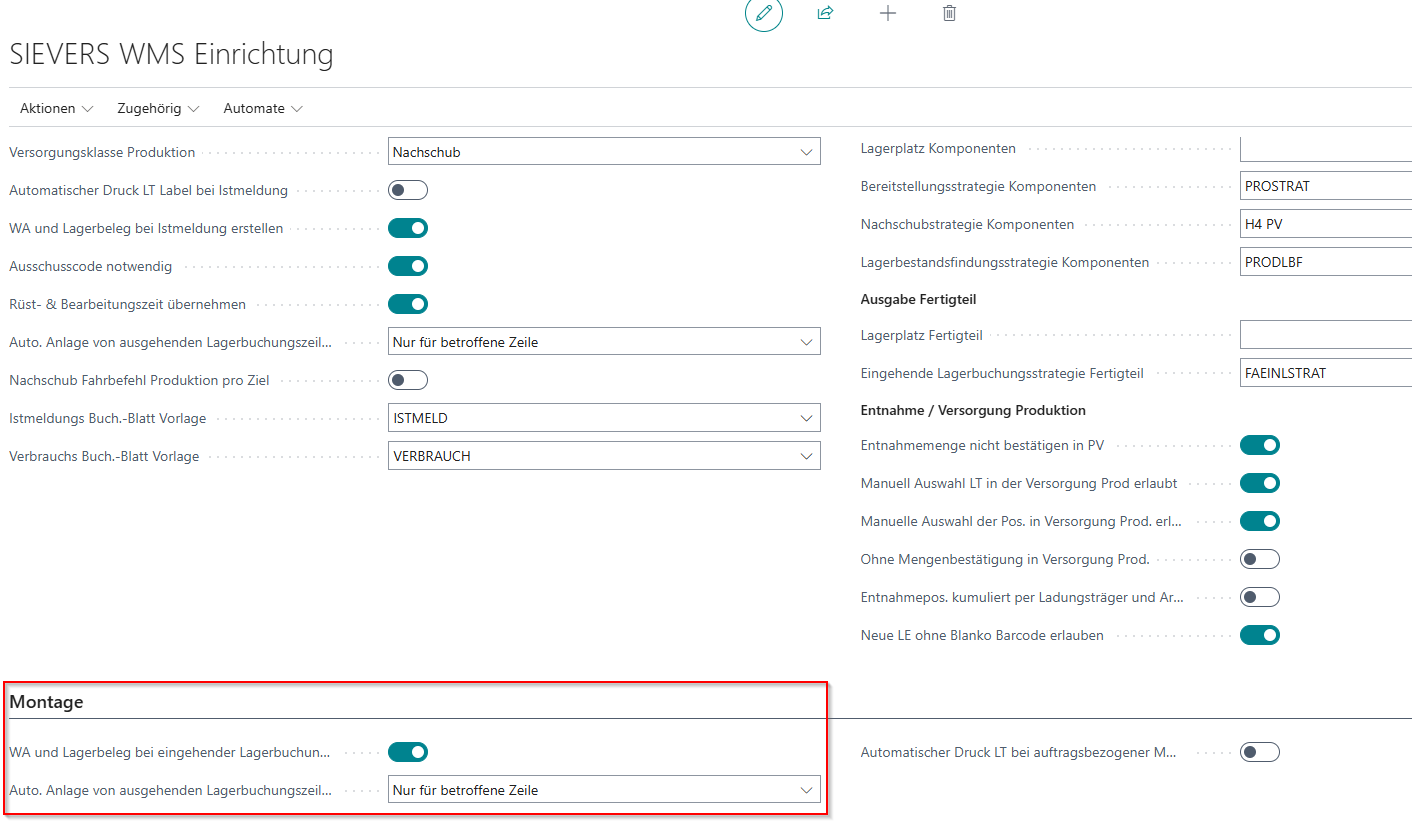
Two new fields are available in the Assembly tab of the SIEVERS WMS Setup:
- Create WS and Stock Document on Inbound Stock Post from Assembly-to-Order: Determines whether a warehouse shipment and the associated stock document should be automatically created during an inbound stock post in the context of assembly-to-order.
- Auto. Create Outbound Stock Post Lines for Assembly-to-Order: This field is only active when the field above is activated. If that field is deactivated, this field automatically resets to No Creation. Options:
- For all lines: During inbound stock posting, outbound stock post lines are created or updated for all positions of the warehouse shipment
- For affected line only (default value): Only the line belonging to the inbound stock post is processed in the warehouse shipment; all other warehouse shipment lines remain unaffected
- No Creation: Only the warehouse shipment is created. The outbound stock posting takes place manually or at a later time
Link of Inventory to Reservation Entries - Item 127874
In the Business Central standard, the reservation entry is set to the item ledger entry of the receipt posting after an assembly posting. The previous WMS logic did not take this link into account, which could result in the reserved inventory not being correctly assigned to the sales order in the subsequent warehouse shipment process.
The WMS logic for inbound stock postings has therefore been extended: the newly created inventory is automatically linked to the associated reservation entry. This ensures that after the assembly posting, the reserved inventory remains unambiguously assigned to the sales order, and subsequent WMS processes (e.g. warehouse shipment, stock posting) can be executed correctly and without manual intervention.
Compatibility with BC Standard Posting at WMS Locations - Item 127862
In the Business Central standard, assembly items are permanently linked to the sales line (table ATO Link). This link prevented inbound stock posting via the WMS logic at WMS-managed locations. To resolve this, the ATO link record is temporarily removed internally before the BC posting and then automatically restored for remaining quantities after posting. This process is completely transparent to the user and requires no manual steps.
For warehouse and shipping employees, this change means: WMS processes for assembly-to-order items now run completely and without errors. Previously, at WMS-managed locations, the inbound stock post for an assembled item could fail and require manual intervention. This source of error is eliminated.
Negative Picking and Return Storage Support
Hinweis
The functions for negative picking and return storage support introduced in this release are technically delivered but not yet released for production use. They should not be used in production in Release 58. The release will follow with Release 60, after further improvements and bug fixes have been completed.
With Release 58, the foundations for negative picking and return storage support have been introduced. These functions support pickers in efficiently handling situations where the inventory quantity on a load carrier exceeds the required quantity.
New Form A4.4 Return Storage Support - Item 127896
The form A4.4 Return Storage Support assists pickers in returning residual quantities after a negative picking. When a full pallet removal contains more goods than needed for the order, a residual quantity remains that must be transferred to another storage unit. The return storage support ensures that these residual quantities are returned to available stock in a controlled and efficient manner.
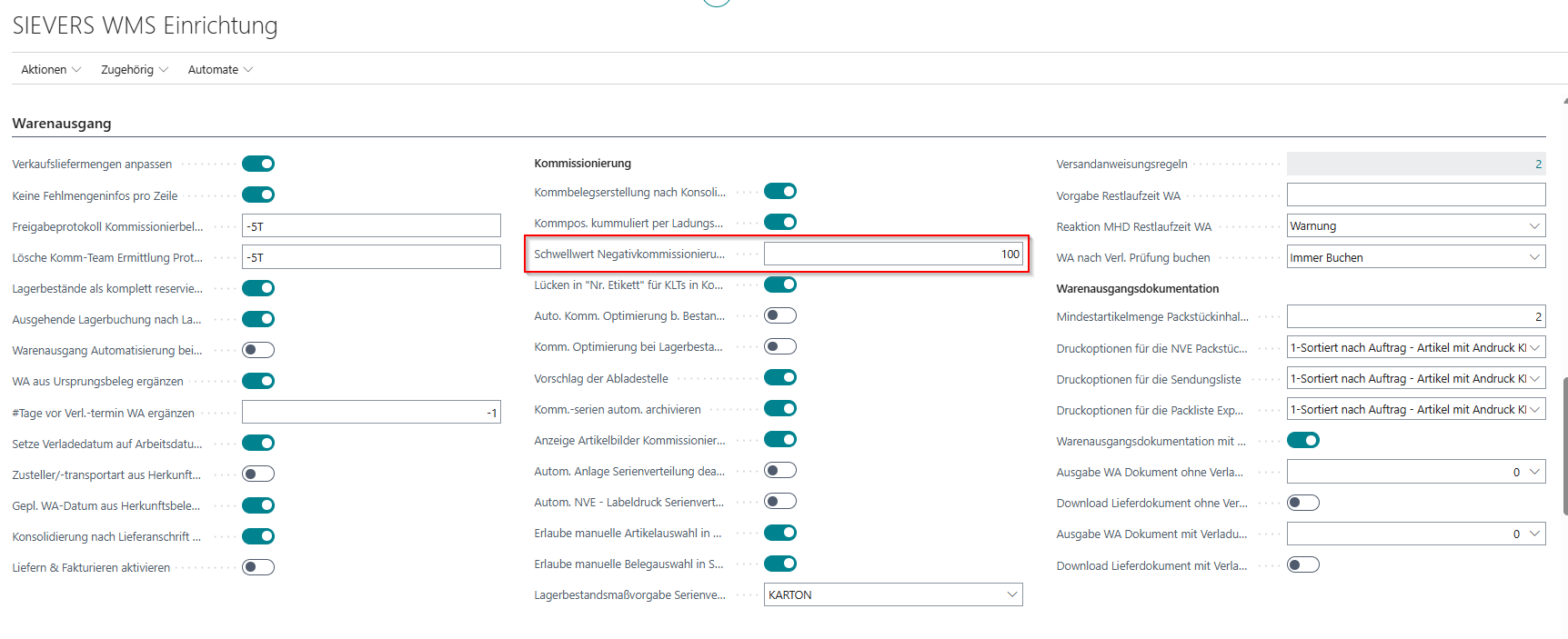
Activation is via the Negative Picking Threshold (%) in the SIEVERS WMS Setup. The default value is 100 (= deactivated). If a lower value is set, positions where the required quantity reaches or exceeds the threshold of the inventory quantity are proposed as negative picking.
The form is automatically opened after confirming the withdrawal quantity in A4.3 Item Processing, provided a negative picking is present.
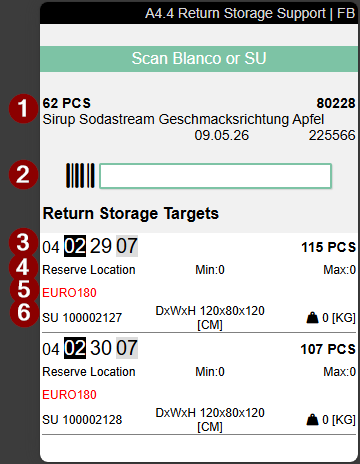
The header area shows the task instruction Scan Blank or SU along with the following information:
- Quantity and base unit, item no. and item description, as well as variant, lot (if available), sell-by date (if available)
- A scan field with barcode symbol for entering the target storage unit
Below the scan field is the scrollable list Return Storage Targets. This shows suitable partial pallets near the removal storage place that contain the same item and variant. The suggestions are sorted in ascending order by storage place.
- Left: Storage place | Right: Number of items present
- Left: Storage place type | Middle: Minimum stock that should be available at this picking place for the item (replenishment lower limit) | Right: Maximum stock at this picking place (replenishment fill target). In this case, 0 means no replenishment limits have been defined
- Inventory unit of measure code
- Left: Load carrier type and load carrier code | Middle: Depth x Width x Height | Right: Weight
Process:
- The negative picking is confirmed in A4.3 (withdraw entire storage unit).
- The form A4.4 Return Storage Support opens automatically.
- The picker sees the quantity to be returned and the list of return storage targets.
- The picker scans the storage unit to which they want to place the residual quantity. SU barcodes, GS1 SSCC barcodes and GS1 barcodes are accepted.
- The transfer is carried out and the flag Ret. Storage Support open on the load carrier is reset.
Hinweis
Alternatively, the picker can scan a blank barcode to create a new storage unit. In this case, the form Dimensions and Weights is opened first to create the new load carrier.
Display of Suitable Partial Pallets - Item 127897
In the A4.4 form, a scrollable list Return Storage Targets is displayed. This shows partial pallets near the removal storage place that contain the same item and variant, sorted in ascending order by storage place.
New Field "Ret. Storage Support open" on Load Carrier - Item 131047
The new flag Ret. Storage Support open has been introduced on the load carrier. If form A4.4 is exited without completing the return storage, this flag is set to Yes. Additionally, the field Ret. Storage Support Inv. stores the affected inventory number.
Process When Return Storage Is Aborted - Item 131051
If the return storage is aborted, the picker is first guided to the next position. After all load carriers of the document have been placed, all open return storage operations are processed one by one. The document cannot be exited until all return storage operations have been completed.
Outside Storage - Production Item Flag - Item 128610, Item 128353, Item 128351
Outside storage items can now be used for production orders. A new flag Production Item has been introduced for this purpose.
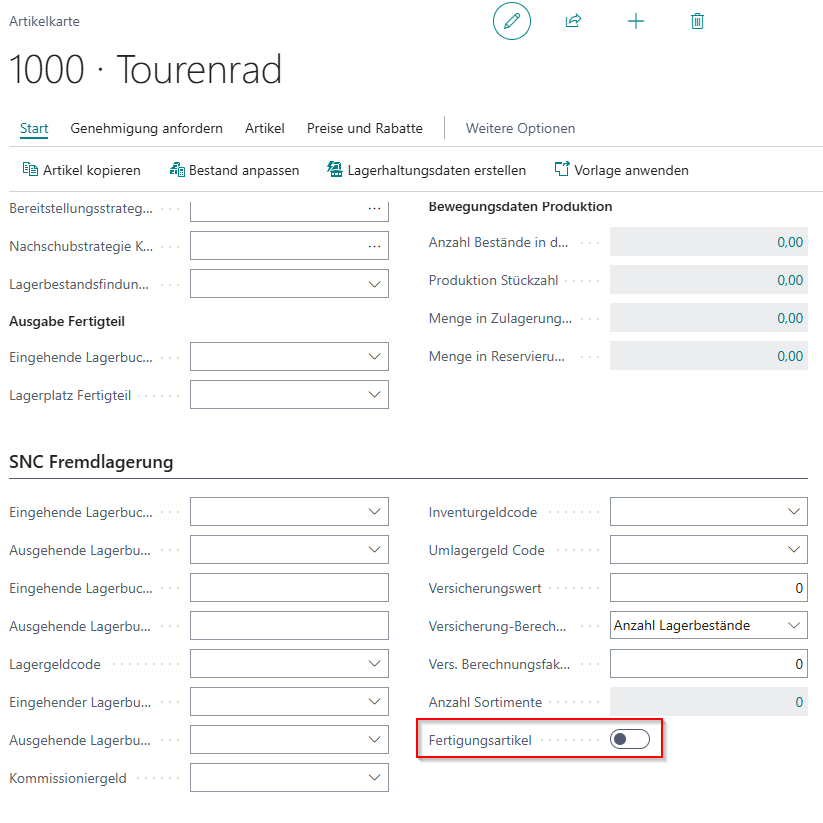
On the Item Card in the Outside Storage area, the flag Production Item is now available. This flag allows outside storage items to be used in production processes.
Prerequisites:
- The item must be flagged as an outside storage item (i.e. an in/out transfer customer must be assigned)
- The flag can only be set if the item is marked as an outside storage item
Once the Production Item flag is activated, the following changes are automatically made:
- Costing Method is set to "Standard"
- Fixed Unit Cost is set to 0
- No Inventory Valuation is deactivated
- The Costing Method and Fixed Unit Cost fields can no longer be changed afterwards
Hinweis
Deactivating the flag is only possible if no item entries or value entries yet exist for the item. Otherwise an error message is displayed.
Previously, outside storage items could not be used in production orders when the "No Inventory Valuation" flag was set. This new solution enables the use of outside storage items in production processes while also ensuring that inventory valuation is carried out correctly.
Mobile History - Technical Rollback - Item 122109
The Mobile History will in future only be used as an optional feature for troubleshooting and is deactivated by default.
This is necessary because the current implementation leads to relevant performance bottlenecks. An alternative has been implemented to ensure that navigation in Mobile, particularly jumping back, works cleanly.
Setup:
The Mobile History can be activated in the SWMS Setup if required. It is deactivated by default to optimise performance.
Minor Changes
- Field arrangement when creating load carrier brought into SWMS standard order - Item 128344
- Improved hint text when unpacking in packaging - Item 128530
- Tooltip correction carried out - Item 128248
- Picking Pallet No. removed - Item 129915
- Icons for full pallets and negative picking in A4.2 and A4.3 revised - Item 129074
- The Warehouse Shipment Planning now opens from the load carrier list instead of the standard warehouse shipment - Item 130153
- A direct link to order type categories is now available in order types - Item 130903
- The load carrier code is now printed on the picking document - Item 130431
Bugs
Items Assigned to Wrong PTU During Unpacking - Item 130888
When unpacking multiple items from one PTU into different new PTUs, all items were assigned to the same PTU. This error has been fixed.
Incorrect Batch Formation for MOP and Series Picking - Item 130295, Item 130334
During batch formation for MOP picking and series picking, orders were incorrectly assigned:
- During MOP batch formation, orders with order type "SERIES" were also added, even though only orders with MOP order type should have been considered
- Orders could be simultaneously assigned to both a MOP batch and a series batch
Fix:
- MOP batch formation now exclusively considers orders whose order type has "MOP" stored as the picking type
- An order can now only be assigned to a maximum of one batch - according to its order type
Error When Resetting Warehouse Receipt Load Carriers - Item 128541
An error when resetting and posting warehouse receipt load carriers to the default storage place has been fixed. Previously, the hall and rack code on the load carrier were not correctly updated.
Error When Opening Warehouse Shipment from Sales Order - Item 129042
An error that occurred when opening the warehouse shipment from a sales order via the "Open Positions" function has been fixed. The error message about a modal dialog no longer appears.
Correction of Tile Status in Role Center - Item 130867
The "Load Carriers in Packaging Process" tile in the Role Center now only shows load carriers with status "6 - In Packaging". Previously, load carriers with other statuses were also displayed.
C2.2 Placing Down the Entire PS Loading Unit - Item 130781
An error that occurred when placing down the entire production supply loading unit at the target storage place has been fixed.
Stocktaking Error for Found Inventories - Item 127614
An error that occurred during stocktaking of found inventories at a different storage place has been fixed.
A3.1 Information in Transfer - Item 130871
An error has been fixed through which the information function in the transfer form A3.1 did not work correctly.
Error When Merging Inventories - Item 125998
An error when merging inventories has been fixed. The error caused merging to not work consistently.
Incorrect Quantities When Using Purchase Unit in Warehouse Receipt - Item 131656
When posting the warehouse receipt with purchase units, error messages about "over-delivery" occurred when a second load carrier was recorded for the same position.
A4.2 Display Did Not Update - Item 131967
In the MDE form A4.2 (Picking - Position Overview), already completed positions continued to be displayed. Users were able to select these positions again, even though they had already been fully picked. The display in A4.2 is now correctly updated. Completed positions are immediately removed from the list and can no longer be selected.
Minor Bug Fixes
- Spelling errors corrected - Item 127909, Item 128331, Item 130765