Change of Ownership Order
A Change of Ownership Order posts inventory out and back in with changed data, without a physical warehouse movement. It can change the item number, the deposit customer, and, where required, the lot or serial number of an inventory quantity. The order creates the required outbound and inbound postings, including the stock postings.
Creating an Order from Inventory or Load Carriers
In the Inventory List, select the required inventory records, or in the Load Carrier List, select the required load carriers. Then select Create Chg. Ownership Order.
Before creating the order, the system checks that:
- The deposit customer number is the same for all affected inventory records; it may be blank.
- None of the inventory records has a reserved quantity.
After the check, the system creates a Change of Ownership Order. Each selected inventory record becomes an order line. The order takes over the current deposit customer and location code; the lines take over the item, quantity, selected inventory record, and any existing lot and serial numbers. You can then open the order directly.
Entering the Order
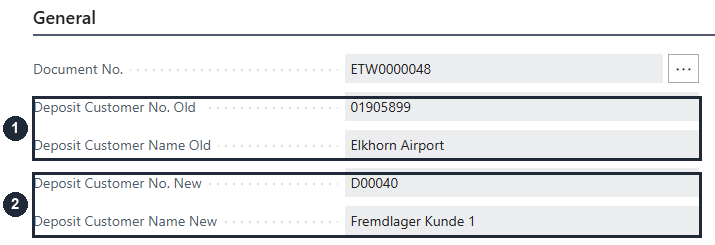
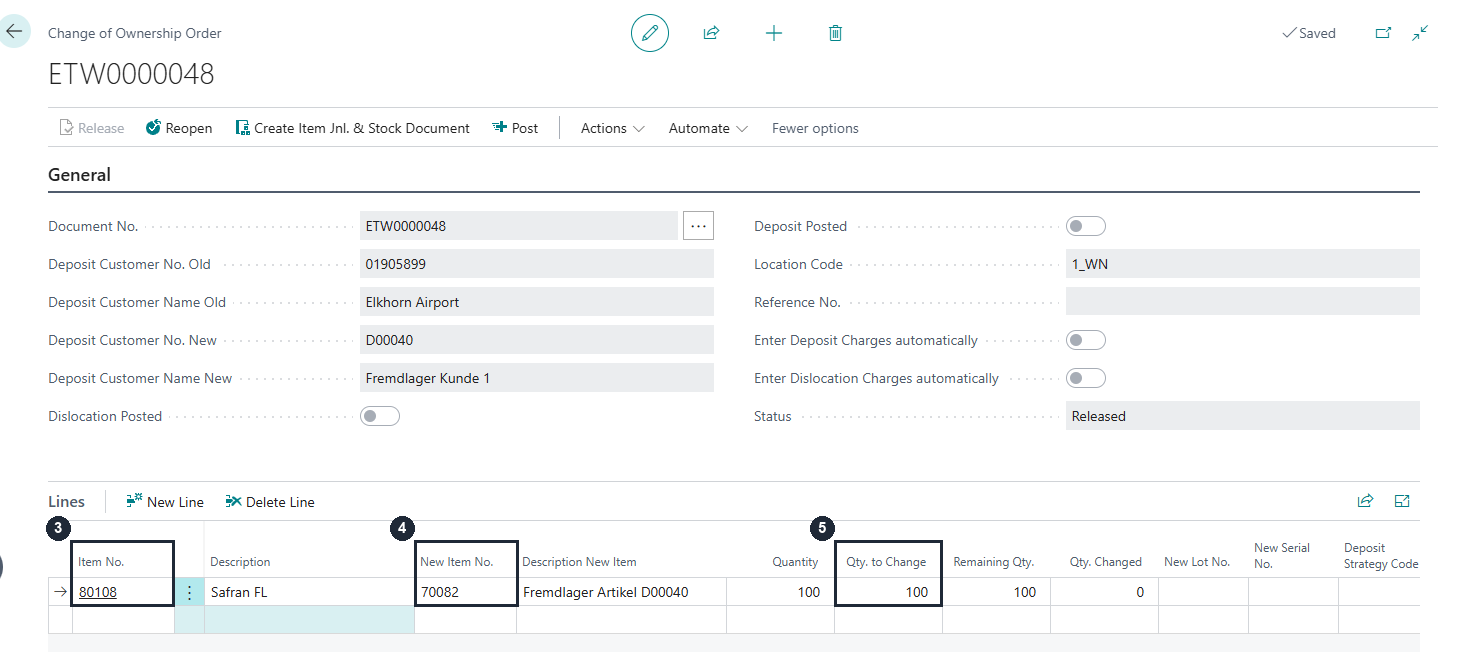
The numbered markers identify these fields: 1 old deposit customer, 2 new deposit customer, 3 current item number, 4 new item number, and 5 Qty. to Change.
Check the current and new deposit customer in the order header.
For each line, enter the New Item No.. Adjust Quantity for an order entered manually. Qty. to Change is initially filled with Remaining Qty. and can be adjusted for the current posting batch.
For new lot-tracked items, enter a New Lot No.. For new serial-number-tracked items, enter a New Serial No..
The current items must belong to the old deposit customer in the order header. The new items must belong to the new deposit customer. If the respective deposit customer in the header is empty, only items without a deposit customer are permitted.
Once an order line with a matching current or new item exists, the corresponding deposit customer in the order header can no longer be changed.
For orders created from an inventory or load carrier selection, Inventory No. is already stored on the order line. In this case, the quantity fields and Inventory Selection cannot be changed. Inventory Selection is automatically set to Automatic.
Hinweis
After entering a serial number, the quantity is automatically set to 1 and cannot be changed. Lot and serial numbers can only be entered for new items that require them.
Processing the Order
Select Release. The order is then protected from changes.
Select Create Item Jnl. & Stock Document. The system validates the order, creates the outgoing item journal lines based on Qty. to Change, and generates the associated stock document. A separate item journal batch is used for each Change of Ownership Order. When Stock Transaction is disabled, no New Storage Place Code may be specified on any order line. In this case, the stock document is automatically finished.
If required, use Actions > Open Item Journal to review the generated outbound lines.

Then return to the order.
Select Post on the order. The system posts the outgoing item journal lines and processes the inbound posting automatically:
- Inbound lines: One line per posted outbound line. The load carrier, inventory, measure codes, and quantity are carried over 1:1.
- Target data: The target storage place, new lot number, and new serial number use the values from the posted outbound line. No additional load carriers are created.
- Completion: The inbound stock document is finished and posted. Already posted inbound postings are not processed again. If an error occurs, the entire process is rolled back.
- Inventory and load carrier labels are not printed automatically.
Hinweis
The outbound stock document takes these values from the Change of Ownership Order:
- Header: new deposit customer and Stock Transaction setting.
- Lines: new item, target storage place, and new lot and serial numbers.
- If no new lot or serial number is specified, the existing value from the selected inventory record is retained.
For each posted outbound line marked for a change of ownership, the system creates exactly one inbound item journal line. It uses Chg. Ownership Item Journal Template Incoming and a separate batch name per order generated with Chg. Own. Item Jnl Batch No. Series. Each line contains:
- Entry Type: Positive Adjmt.
- Item, Location, and Quantity: from the posted outbound line.
- New Storage Place Code: target storage place from the posted outbound line.
- Posting Date: current work date.
- Document No.: from the number series assigned to the item journal template. If no number series is configured, the Change of Ownership Order number is used.
You can still create the item journal separately with Create Item Journal or delete it with Delete Item Journal.
Use Reopen to make a released order editable again, provided that no item journal lines exist yet.
After each posting batch, Qty. Changed and Remaining Qty. are updated. If quantities remain open, the Change of Ownership Order remains available for further postings. A posted Change of Ownership Order with Original Document No. in the header and lines is created for each posting batch. Once all lines are fully processed, the original Change of Ownership Order is deleted.
Wichtig
With manual inventory selection, the inventory quantity must match the order line quantity, and the inventory must not be reserved. Review the generated item journal lines before posting.