Assembly
Assembly is a process from the Business Central standard that has been slightly expanded with functions from SIEVERS WMS. For example, it is also possible to perform assembly for an outside storage customer.
Hinweis
Please note that assembly is intended for “simple” compositions with fewer components. Advanced complexity is not possible here. In such cases, use Production. If you are unsure, please contact your contact person at the SIEVERS-GROUP.
To create an Assembly Header, you must first fill in the assembly parts list for an item. To do this, open the item card and scroll to the Procurement section. If you click on No or Yes under Assembly parts list, a list will open.
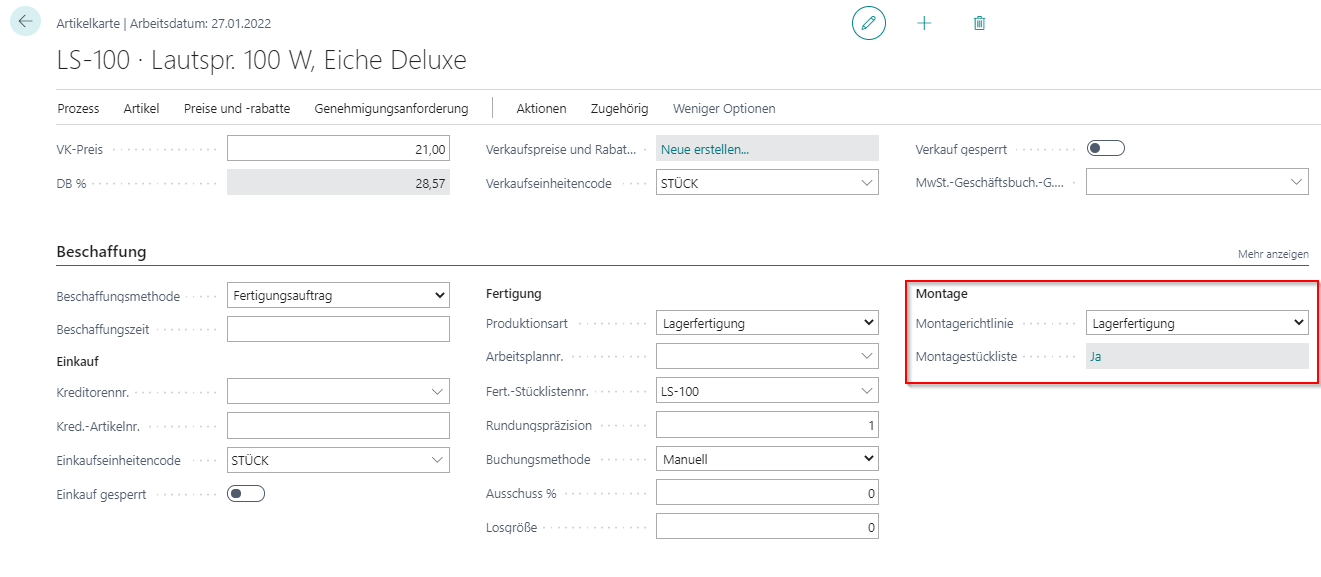
Enter the components required to assemble the item here.
Hinweis
Please note that only items with the same Inbound Stock Post Customer No. can be entered in the parts list in outside storage (Inbound Stock Post Customer No. stored in the item).
You can then create the first Assembly Order for the assembly of this item.
- Open the Assembly Order page and select an item with an assembly parts list. Make sure beforehand that the components required for assembly are available in the SIEVERS WMS-managed location.
- When the item is entered, the assembly order lines should be automatically filled with the items from the assembly parts list.
- When the Assembly Order has been completed, release it.
- Under Home you can now create a component stock document (stock document comp.) and a stock document. The stock document is the Inbound Stock Post document for the fully assembled item. The stock document comp. is the Outbound Stock Post document for the components.
- Assign a storage place to the items in the stock documents automatically or manually. Pick the matching component quantities in the Outbound Stock Post before reporting the stock documents ready via Change state.
- After picking the components, post the assembly order. This posts the Outbound Stock Post document for the components and removes them from the warehouse. The Inbound Stock Post document adds the finished item to the warehouse. Without picking, neither the Outbound Stock Post nor the assembly order can be posted; an error is displayed in both cases.
You can always view the current state of the stock documents in the lower area of the assembly order.
Assemble-to-Order from a Sales Order
In assemble-to-order, an item is assembled for a specific sales order line. Qty. to Assemble to Order on the sales line specifies which part of the line quantity is assembled. For more information about the sales order fields, see Sales Order.
At a WMS-managed location, after confirmation, Qty. to Assemble to Order must be 0 or equal to the line quantity. To assemble only a partial quantity, enter that quantity. Business Central asks whether to split the line:
- Yes: The original sales line is reduced to the entered partial quantity. A new sales line is created for the remaining quantity without assemble-to-order.
- No: The partial-quantity change is rejected.
If you change a sales order line to a WMS-managed location, Qty. to Assemble to Order must also be 0 or equal to the line quantity.
After the first partial posting with item tracking, Qty. to Ship remains for the open quantity in the warehouse shipment instead of being reset to 0. This allows the second warehouse shipment posting to be processed while keeping reservation and quantity fields consistent.