Assembly
Assembly is a process from the Business Central standard that has been slightly expanded with functions from SIEVERS WMS. For example, it is also possible to perform assembly for an outside storage customer.
Hinweis
Please note that assembly is intended for “simple” compositions with fewer components. Advanced complexity is not possible here. In such cases, use Production. If you are unsure, please contact your contact person at the SIEVERS-GROUP.
To create an Assembly Header, you must first fill in the assembly parts list for an item. To do this, open the item card and scroll to the Procurement section. If you click on No or Yes under Assembly parts list, a list will open.
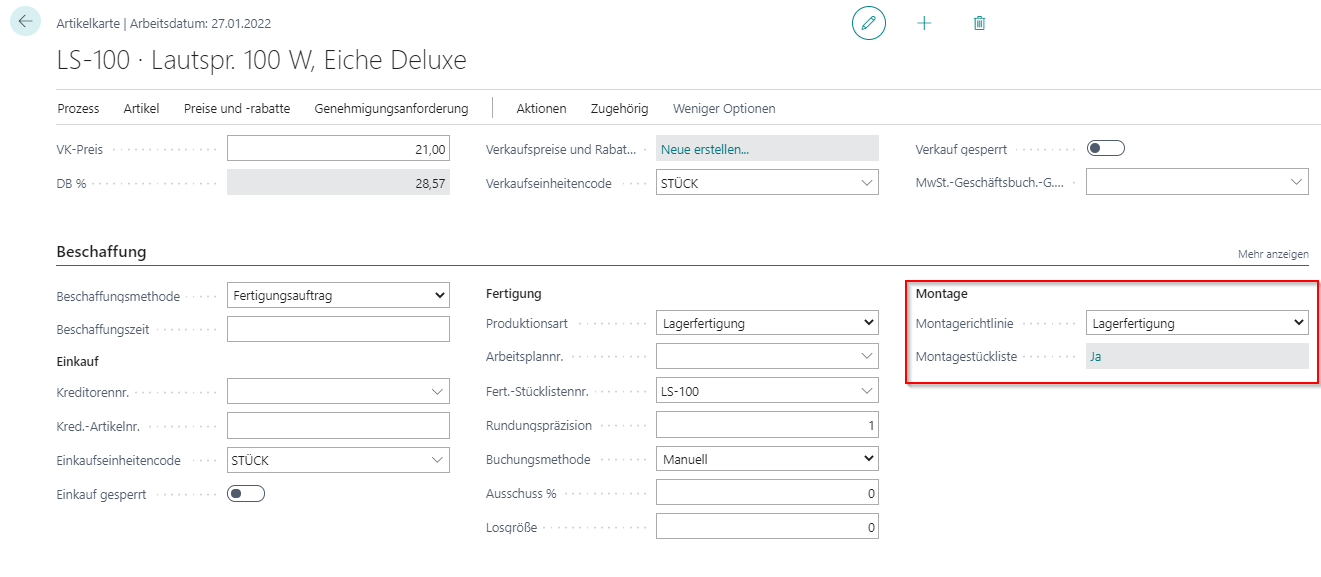
Enter the components required to assemble the item here.
Hinweis
Please note that only items with the same Inbound Stock Post Customer No. can be entered in the parts list in outside storage (Inbound Stock Post Customer No. stored in the item).
You can then create the first Assembly Order for the assembly of this item.
- Open the Assembly Order page and select an item with an assembly parts list. Make sure beforehand that the components required for assembly are available in the SIEVERS WMS-managed location.
- When the item is entered, the assembly order lines should be automatically filled with the items from the assembly parts list.
- When the Assembly Order has been completed, release it.
- Under Home you can now create a component stock document (stock document comp.) and a stock document. The stock document is the Inbound Stock Post document for the fully assembled item. The stock document comp. is the Outbound Stock Post document for the components.
- Assign a storage place to the items in the stock documents automatically or manually and report the documents ready via Change state.
- You can now simply post the assembly order. This posts the Outbound Stock Post document for the components and removes them from the warehouse. The Inbound Stock Post document adds the finished item to the warehouse. The two stock documents are also finalized after the assembly order has been completed.
You can always view the current state of the stock documents in the lower area of the assembly order.