E-Mail Import
Warnung
This feature is only available in Business Central 28 (and higher). It is not available in older BC versions.
The E-Mail Import enables the automatic retrieval of e-invoice files (XML, ZUGFeRD PDF) from a configured BC e-mail account. It uses the built-in BC e-mail connector – no separate Azure app registration is required. The retrieved attachments are automatically transferred to the Import Job Buffer and processed from there by the existing import job queue.
Prerequisites
To use the E-Mail Import, at least one e-mail account that supports inbox retrieval (e.g. Microsoft 365 with Exchange Online) must be configured in Business Central under E-Mail Accounts.
Setup
Opening the E-Mail Import Setup
Open the E-Rechnung Setup and click the E-Mail Import Setup action in the Import section.
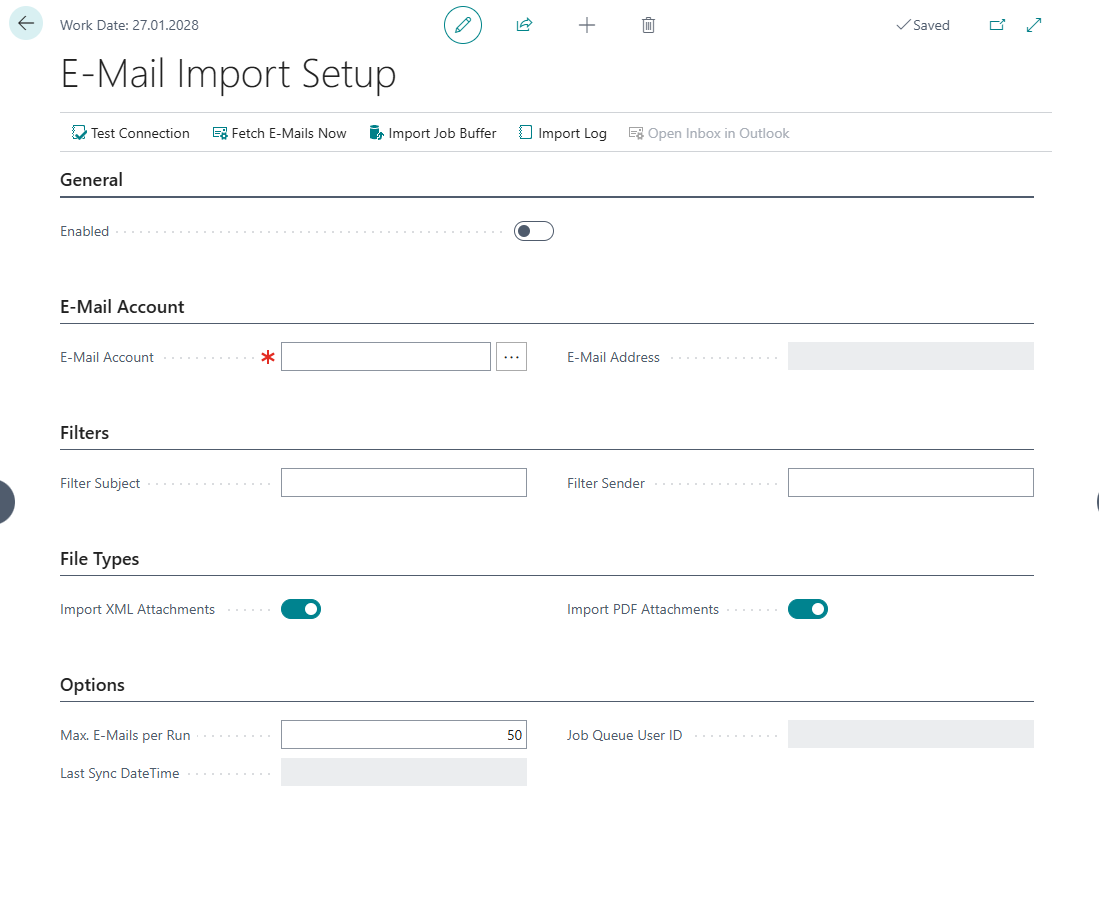
Fields
General
- Enabled: Turns on the automatic e-mail import. Can only be enabled after an e-mail account has been selected.
E-Mail Account
- E-Mail Account: The BC e-mail account whose inbox will be monitored for e-invoice attachments. Select via the lookup button next to the field.
- E-Mail Address: The address of the selected account (read-only, filled automatically).
Filters
- Filter Subject: Optional. Only processes e-mails whose subject contains this text (case-insensitive). Empty = no filter.
- Filter Sender: Optional. Only processes e-mails from this sender address (exact match, case-insensitive). Must be a valid e-mail address. Empty = no filter.
Hinweis
Filtered e-mails are not marked as read and remain in the inbox. They can be processed again if filter settings are changed later.
File Types
- Import XML Attachments: Import XML attachments (XRechnung UBL, Peppol). Default: Yes.
- Import PDF Attachments: Import PDF attachments (ZUGFeRD). Default: Yes.
Options
- Max. E-Mails per Run: Maximum number of e-mails per retrieval run (default: 50, min: 1, max: 999). If the limit is reached, Last Sync DateTime is not updated, so the remaining batch is retrieved in the next run.
- Last Sync DateTime: Date/time of the last successful synchronization (read-only). Only e-mails received after this point are processed.
Activation
- Select an E-Mail Account using the lookup field.
- Click Test Connection to verify the account is reachable.
- Set Enabled to
Yes.
Operation
Automatic Retrieval (Job Queue)
The e-mail retrieval is integrated into the existing import job queue. Each time the job queue runs, the e-mail retrieval is performed automatically before processing the buffer.
Retrieval process:
- Unread e-mails received after Last Sync DateTime are read from the configured account.
- Optional: Subject and sender filters are applied. Filtered e-mails are skipped and remain unread.
- For each e-mail passing the filter: attachments are checked.
- XML and/or PDF attachments (depending on settings) are transferred to the Import Job Buffer.
- The processed e-mail is marked as read.
- After the run: Last Sync DateTime is updated (only if the batch limit was not reached).
- A log entry is written (success/error, number of e-mails, skipped, attachments, duration).
Manual Retrieval
The following actions are available on the E-Mail Import Setup page:
- Test Connection: Verifies that the selected e-mail account still exists in BC and displays the e-mail address.
- Fetch E-Mails Now: Performs an immediate manual e-mail retrieval and displays the result as a message.
- Import Job Buffer: Opens the buffer table for review and manual processing.
- Import Log: Opens the e-mail import log.
Import Log
The E-Mail Import Log records every retrieval run. Use the Details action on a log entry to open the detail log, which lists each attachment individually.
Log Fields
- Entry No.: Sequential entry number.
- Run DateTime: Date and time of the retrieval.
- Status:
SuccessorError. - Message: Result message (number of processed e-mails, skipped, attachments imported) or error message.
- E-Mails Processed: Number of e-mails that passed the filter.
- E-Mails Skipped: Number of e-mails excluded by the filter.
- Attachments Imported: Number of attachments successfully transferred to the buffer.
- Duration (ms): Runtime of the retrieval in milliseconds.
- User ID: User who triggered the retrieval.
- Triggered By:
ManualorJob Queue. - E-Mail Account: E-mail address of the account used.
The log can be completely cleared using the Clear Log action on the log page.
Detail Log
A detail entry is written for each processed e-mail and attachment:
- Imported: Attachment was successfully transferred to the buffer.
- Skipped (Filter): E-mail was excluded by the subject or sender filter.
- Skipped (File Type): Attachment has no importable file type (neither XML nor PDF, or the respective type is not enabled).
- Error: Attachment could not be imported (e.g. empty content).
Troubleshooting
| Problem | Solution |
|---|---|
| Cannot enable | An e-mail account must be selected first. |
| Connection test fails | The selected BC e-mail account no longer exists. Re-select the account or check the BC e-mail setup. |
| No e-mails imported | Check: Are there unread e-mails received after Last Sync DateTime? Do subject/sender filters match? Are the required file types (XML/PDF) enabled? |
| E-mails are imported repeatedly | Only unread e-mails are retrieved. If e-mails still appear multiple times, check whether the account supports marking as read. |
| Attachment has empty content | The detail log shows status Error with the message "Attachment content is empty." – check the attachment in the original e-mail. |
| Batch limit reached | If Max. E-Mails per Run is reached, Last Sync DateTime remains unchanged. The retrieval resumes in the next run. Consider increasing the limit or shortening the job queue interval. |